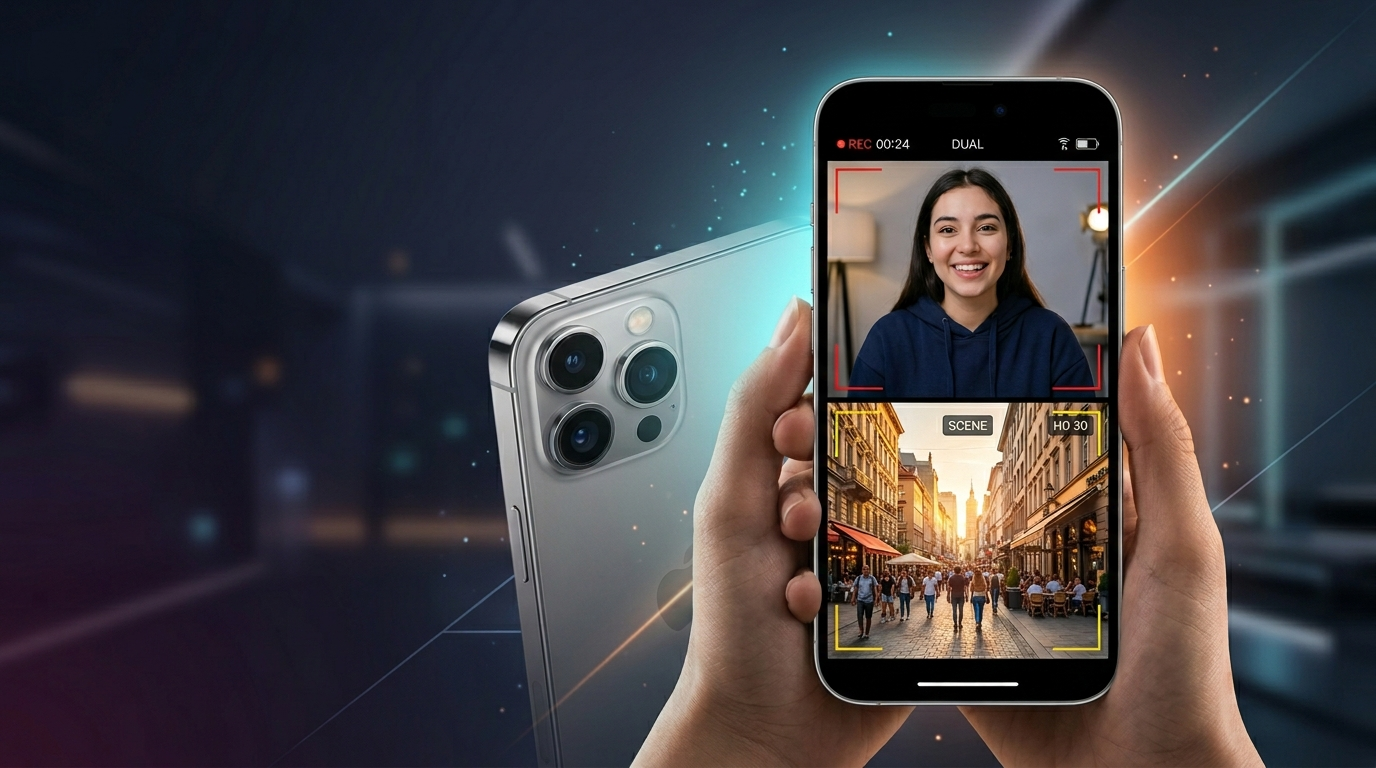
Recording video on an iPhone has become more advanced over the years, offering features that go far beyond basic shooting. One interesting capability many users look for is the ability to film using both the front and back cameras at the same time. This can be especially useful for vloggers, interview-style content, reaction videos, or simply capturing both your surroundings and your expressions in one frame.
Why Use Both Cameras at Once?
Using both cameras simultaneously allows you to tell a more complete story. While the rear camera captures what’s in front of you, the front camera records your reactions in real time. This dual perspective can make your content more engaging and personal, especially for social media or content creation.
Does iPhone Support Dual Camera Recording?
By default, iPhones do not include a built-in feature in the standard Camera app that lets you record with both cameras at the same time. However, this functionality is still possible with the help of third-party applications available on the App Store.
Advertisements
Also Read: How to Create and Use an Apple Recovery Key: A Clear, Step-by-Step Guide
How to Record Using Both Cameras
Here’s a simple way to get started:
1. Download a Dual Camera App
Search for apps designed for dual recording. Popular options include DoubleTake, Filmic Pro, or similar apps that support multi-camera use.
2. Grant Necessary Permissions
Once installed, open the app and allow access to your camera and microphone. This is required for proper recording.
3. Choose Camera Layout
Most apps let you decide how the two camera feeds appear. You can select split-screen, picture-in-picture, or side-by-side formats depending on your preference.
4. Start Recording
After setting up your layout, tap the record button. Both cameras will begin capturing footage simultaneously.
5. Save and Edit Your Video
Once finished, the video is saved to your device. Some apps also offer basic editing tools so you can trim or enhance your clip before sharing.
Tips for Better Results
- Lighting Matters: Ensure both your face and surroundings are well-lit for clear footage.
- Stabilize Your Phone: Use a tripod or steady surface to avoid shaky videos.
- Check Audio Quality: Make sure your voice is clear, especially if you’re speaking during recording.
- Experiment with Layouts: Different formats can change how your content feels to viewers.
Also Read: Blocked on WhatsApp? What You Really Need to Know
Final Thoughts
Recording with both front and rear cameras on an iPhone opens up creative possibilities that standard video recording cannot provide. While it requires a third-party app, the process is straightforward and accessible for most users. With the right setup and a bit of practice, you can create dynamic and engaging videos effortlessly.

Sourav Gorai, founder of sabhigyan.com, is passionate about technology, smartphones, apps, and digital tools. With 8+ years of experience in the digital and tech space, he focuses on creating easy-to-understand, practical, and helpful content that makes everyday technology simpler for readers.
Advertisements