Music sounds more enjoyable when you can hear every detail the artist intended. Spotify’s Lossless Audio feature is designed to preserve more of the original recording, offering improved clarity and depth compared to standard compressed streaming.
If your Spotify Premium account supports this feature, you can enable it directly from the app’s audio quality settings. This guide explains what Spotify Lossless Audio is, how to activate it on different devices, and what you should know before using it.
Also Read: WT Hub – Web Scanner App: Complete Overview, Features, Setup, and Safety Tips
What Is Spotify Lossless Audio?
Traditional music streaming compresses audio to reduce file sizes and speed up streaming. Lossless Audio minimizes this compression, allowing more of the original recording to be preserved during playback.
With compatible hardware, you may notice:
- More natural vocals
- Better separation between instruments
- Cleaner background details
- Improved overall audio clarity
The improvement is generally more noticeable when listening through quality wired headphones, external speakers, or premium audio equipment. Built-in phone speakers or basic earbuds may not fully reproduce the differences.
Who Can Use Spotify Lossless Audio?
Spotify is making the Lossless Audio feature available gradually. Even if you have a Premium subscription, the option may not appear immediately.
Before trying to enable it:
- Update Spotify to the latest available version.
- Open the app and visit Settings.
- Navigate to Media Quality or Audio Quality (depending on your device).
- Check whether a Lossless streaming option is available.
If you don’t see the setting, it may become available after a future app update or wider rollout.
Enable Spotify Lossless Audio on Android
Activating the feature on Android only takes a few moments.
- Launch the Spotify app.
- Tap your profile picture.
- Open Settings.
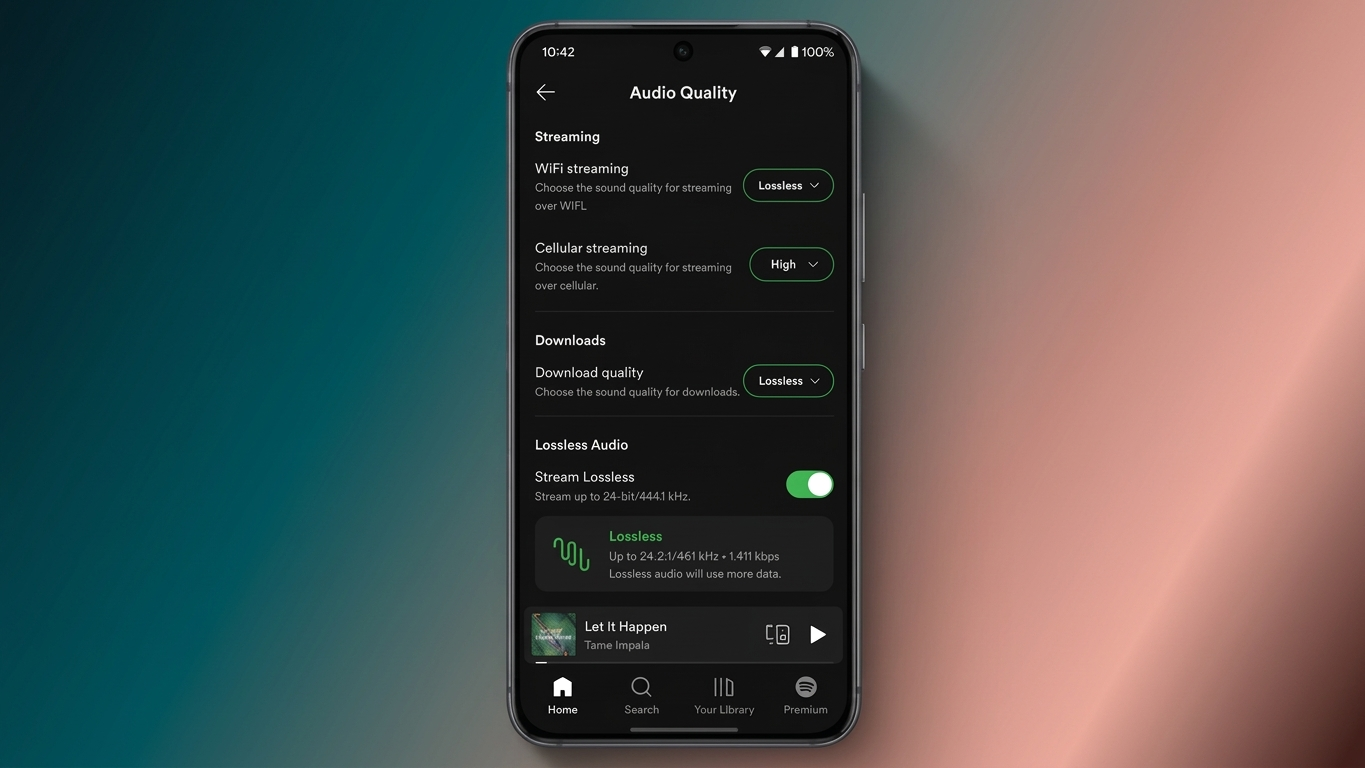
- Go to Media Quality.
- Under Wi-Fi Streaming Quality, choose Lossless.
- If available, repeat the same step for Cellular Streaming.
- Confirm the change if prompted.
Once enabled, supported tracks will stream in lossless quality whenever your network connection can handle it.
Enable Spotify Lossless Audio on iPhone
The process on iPhone is very similar.
- Open Spotify.
- Tap your profile icon.
- Enter Settings.
- Select Media Quality.
- Change Wi-Fi Streaming Quality to Lossless.
- Optionally enable Lossless for cellular streaming if you are comfortable with increased data usage.
After saving the settings, Spotify will automatically use the higher-quality format for supported music.
Enable Spotify Lossless Audio on PC
Desktop users can also switch to higher-quality playback through the application’s settings.
Follow these steps:
- Open the Spotify desktop app.
- Click your profile icon.
- Select Settings.
- Find the Audio Quality section.
- Set both Streaming Quality and Download Quality to Lossless, if available.
- Continue listening as usual.
A reliable internet connection helps maintain uninterrupted playback, especially while streaming.
Things to Consider Before Using Lossless Audio
Although Lossless Audio offers better sound quality, it also requires more system resources than standard streaming.
Keep these points in mind:
- Higher-quality streams consume more mobile data.
- A fast and stable internet connection reduces buffering.
- Downloading music over Wi-Fi is recommended for offline listening.
- Wired headphones often deliver the best audio quality, as some Bluetooth connections may apply additional compression.
- High-quality speakers, DACs, or headphones can enhance the overall listening experience.
Tips for Better Sound Quality
To make the most of Spotify Lossless Audio, consider these practical suggestions:
- Listen using quality wired headphones or speakers.
- Stream over a stable Wi-Fi connection whenever possible.
- Download playlists before traveling or when internet access may be limited.
- Close unnecessary background apps to improve playback performance.
- Use devices and accessories capable of high-quality audio playback.
- Compare well-produced tracks to better appreciate the additional detail.
Is Spotify Lossless Audio Worth Using?
If you enjoy high-quality music playback, Lossless Audio can provide a more refined listening experience. The difference may not be dramatic on every device, but with suitable headphones or speakers, many listeners can hear improved clarity and richer detail.
Since the feature can be enabled in just a few steps, eligible Spotify Premium users may find it worthwhile to try and decide whether it suits their listening preferences.
Also Read: How to Use the Force LTE Only (4G/5G) App on Android Phones
Final Thoughts
Spotify Lossless Audio is a valuable feature for users who want to enjoy music with improved clarity and greater detail. While the difference in sound quality may vary depending on your headphones, speakers, and device, compatible audio equipment can provide a noticeably richer listening experience.
If the Lossless option is available on your Spotify Premium account, enabling it only takes a few moments through the app settings. Just keep in mind that higher-quality audio requires more data and a stable internet connection for smooth playback.
Whether you’re a casual listener or an audio enthusiast, trying Spotify Lossless Audio is a simple way to experience your favorite songs with enhanced sound quality. As Spotify continues expanding the feature to more users, it’s worth checking your app regularly for availability.

Ankita Kumar, founder of sabhigyan.com, is passionate about technology, smartphones, apps, and digital tools. With 8+ years of experience in the digital and tech space, he focuses on creating easy-to-understand, practical, and helpful content that makes everyday technology simpler for readers.
Advertisements