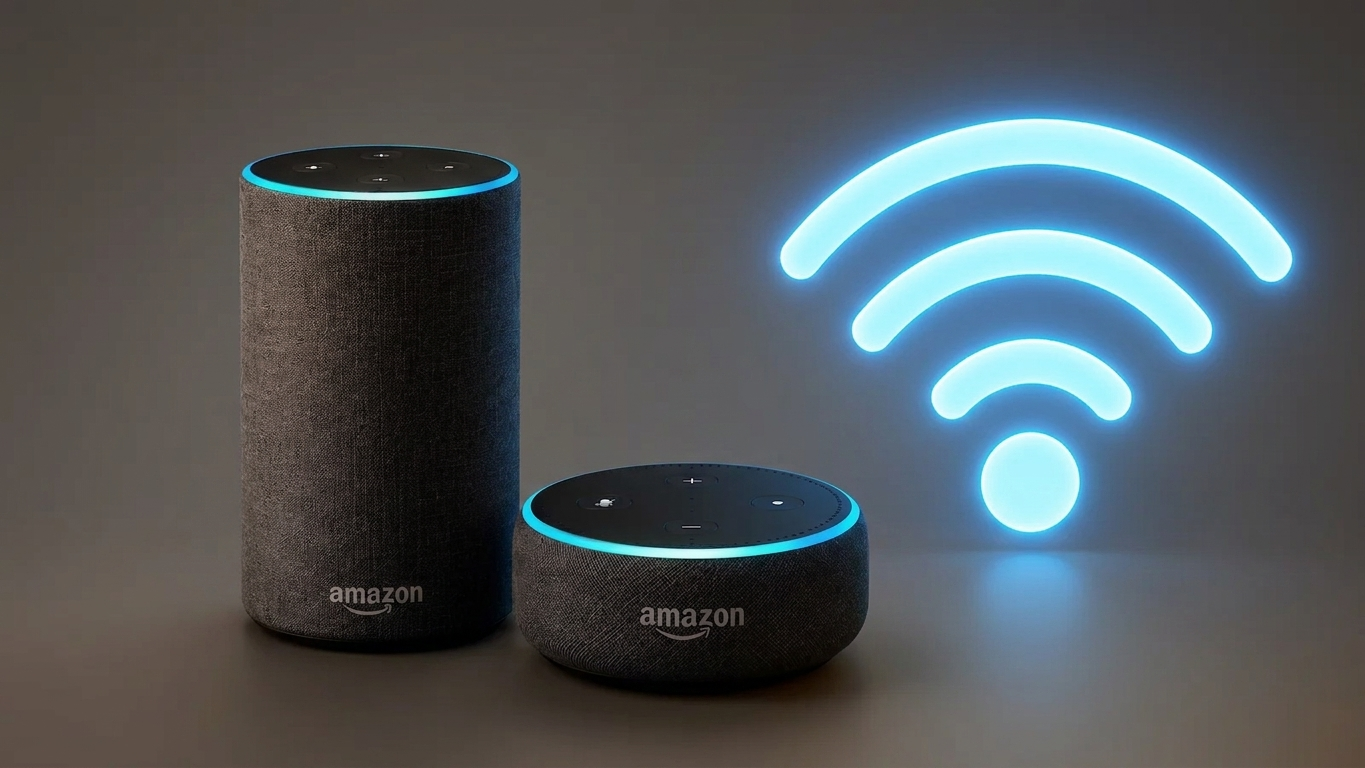
Getting an Amazon Echo online is usually a simple process, but the steps can feel confusing if you are setting up the device for the first time. Whether you have purchased a new Echo or simply changed your home Wi-Fi network, you can connect it using the Alexa app.
This guide explains the setup process, how to switch an existing Echo to another Wi-Fi network, and what to do if the connection does not work.
Also Read: How to Forward Calls Using a Call Forwarding App (Complete Guide)
Things You’ll Need
Before starting the setup, keep these things ready:
- An Amazon Echo or another Alexa-enabled device
- A smartphone or tablet
- Your Amazon account
- The name of your Wi-Fi network
- Your Wi-Fi password
- The latest version of the Amazon Alexa app
- A power outlet for your Echo
Install the Amazon Alexa app on your Android phone or iPhone if you haven’t already. Keeping the app updated can also help prevent compatibility or setup problems.
Step 1: Open the Alexa App and Sign In
Launch the Alexa app on your smartphone and log in using the Amazon account you want to use with your Echo.
If you’re using Alexa for the first time, the application may guide you through a few basic setup screens. You may also see requests for permissions such as notifications or contacts. Review these permissions and choose the options you’re comfortable with.
Step 2: Add Your Echo to Alexa
After signing in, look for the device section in the app.
- Open Devices.
- Tap the + button.
- Choose Add Device.
- Select Amazon Echo.
- Pick the Echo model you’re setting up.
Choose the model that most closely matches your device so the app can provide the appropriate setup instructions.
Step 3: Turn On Setup Mode
Connect your Echo to a power source and wait for it to start.
During a new setup, the Echo will generally indicate setup mode with an orange light. If it doesn’t enter setup mode automatically, the exact button combination can vary by Echo model, so follow the instructions displayed in the Alexa app for your particular device.
Once the Echo is ready, continue the setup from your phone.
Step 4: Follow the Temporary Connection Instructions
Depending on the Echo model, Alexa may ask your phone to temporarily connect to the device during setup.
Simply follow the instructions shown in the app. Your phone may briefly switch from your normal Wi-Fi connection to the Echo’s temporary setup connection.
Once this part is complete, Alexa will continue with the Wi-Fi configuration.
Step 5: Select Your Home Wi-Fi
The Alexa app should now display nearby wireless networks.
Select your home Wi-Fi network and enter its password carefully. Remember that Wi-Fi passwords are case-sensitive, so check the spelling and capitalization before continuing.
Tap Connect and give the Echo a little time to establish the connection.
When the setup finishes successfully, your Echo should be connected to the internet and ready for use.
How to Connect an Existing Echo to a New Wi-Fi Network
Changed your router or Wi-Fi password? You don’t necessarily need to start from scratch.
You can update the wireless connection from the Alexa app:
- Open the Alexa app.
- Go to Devices.
- Select the Echo you want to update.
- Open its Settings.
- Look for the Wi-Fi network option.
- Select Change or the corresponding Wi-Fi option.
- Follow the instructions to put the Echo into setup mode if required.
- Choose your new Wi-Fi network.
- Enter the new password.
After the connection is completed, Alexa should begin using the new network.
Note: Menu names and setup steps can differ slightly between Echo models and app versions.
Is the Alexa App Required?
For most modern Echo devices, using the Alexa mobile app is the most convenient way to complete setup and manage network settings.
Amazon has also provided web-based Alexa features in some circumstances, but availability and functionality can vary. If you’re setting up a newer Echo, using the current Alexa app is generally the simplest approach.
Alexa Won’t Connect to Wi-Fi? Try These Fixes
Sometimes the Echo may fail to connect even when the setup steps are correct. Try the following solutions one at a time.
1. Restart the Echo and Router
Disconnect your Echo from power and restart your router. Wait briefly, then turn both devices back on.
Allow the router to finish connecting to the internet before trying Alexa again.
2. Check Your Wi-Fi Password
An incorrect password is one of the simplest reasons a device may fail to join a wireless network.
Enter the password again and pay attention to:
- Capital and lowercase letters
- Numbers
- Special characters
- Accidental spaces
3. Bring the Echo Closer to the Router
If your Echo is far away from the router, the wireless signal may be weaker.
For testing purposes, move the Echo closer to the router and try connecting again. If it works nearby but not in its original location, signal strength may be contributing to the problem.
4. Avoid Possible Wireless Interference
Other electronic equipment or physical obstructions can sometimes affect wireless performance.
Try placing the Echo and router in open locations with fewer obstacles between them.
5. Update the Alexa App
Check whether an updated version of the Alexa app is available. An outdated application can sometimes cause setup or compatibility issues.
6. Check Your Router
If other devices are also having trouble accessing the internet, the issue may be with the router or internet connection rather than the Echo.
Restart the router and check whether your phone or another device can access the internet normally.
7. Reset the Echo as a Last Resort
If you’ve tried the other solutions and the Echo still won’t connect, a factory reset may be an option.
The reset procedure depends on the specific Echo model. Because resetting removes existing device settings, check the instructions for your model before proceeding. Once the reset is complete, you’ll need to set up the Echo again.
Does Alexa Work Without Wi-Fi?
Most Alexa features require an internet connection. Voice-based services, online music, smart-home commands, and other cloud-dependent functions generally won’t work normally when the Echo has no internet connection.
However, an Echo can also be used as a Bluetooth speaker with a compatible phone.
How to Use Echo as a Bluetooth Speaker
If you want to play audio from your phone through an Echo:
- Turn on Bluetooth on your smartphone.
- Say “Alexa, pair” or use the Bluetooth options available on your device.
- Open your phone’s Bluetooth settings.
- Find your Echo in the available devices.
- Select it to establish the connection.
- Play audio from your phone.
The exact experience can vary depending on the Echo model and phone you’re using.
Tips to Keep Your Echo Connection Stable
A few simple habits can make everyday Alexa use more reliable:
- Keep the Alexa app updated.
- Make sure your router is running current software when updates are available.
- Place the Echo where it receives a good Wi-Fi signal.
- Keep your Wi-Fi password saved somewhere secure.
- Restart your router if your internet connection becomes unstable.
- If multiple devices suddenly lose internet access, troubleshoot the router or internet connection first.
Frequently Asked Questions
Why is my Echo not showing the orange light?
The Echo may not have entered setup mode. Follow the setup instructions in the Alexa app for your specific Echo model, including the required button operation if prompted.
Can I connect Alexa to a different Wi-Fi network?
Yes. An existing Echo can generally be connected to another wireless network through its device settings in the Alexa app.
Do I need Wi-Fi to use an Echo?
Wi-Fi is needed for most Alexa and online features. However, you can use an Echo as a Bluetooth speaker with a compatible phone.
Why does Alexa keep disconnecting?
Possible causes include weak Wi-Fi coverage, router problems, temporary internet issues, outdated software, or wireless interference. Testing the Echo closer to the router can help identify whether signal strength is involved.
Also Read: How to Turn On Spotify Lossless Audio on Android, iPhone, and PC
Final Thoughts
Connecting an Amazon Echo to Wi-Fi is generally straightforward when you have the correct network information and the Alexa app ready. For a new device, simply follow the setup instructions provided by the app and select your home network when prompted.
If you’re reconnecting an existing Echo after changing your router or password, update its Wi-Fi settings through the Alexa app. And if the connection fails, checking the password, restarting your equipment, improving signal strength, and updating the app are good places to start.

Ankita Kumar, founder of sabhigyan.com, is passionate about technology, smartphones, apps, and digital tools. With 8+ years of experience in the digital and tech space, he focuses on creating easy-to-understand, practical, and helpful content that makes everyday technology simpler for readers.
Advertisements