Windows 11 includes a useful display feature called Dynamic Refresh Rate (DRR) that can automatically change your screen’s refresh rate depending on what you are doing. Instead of keeping the display at a high refresh rate all the time, Windows can switch between supported refresh rates when appropriate.
For example, your laptop may use a lower refresh rate during less demanding tasks and increase it when smoother scrolling or compatible pen input is needed. On supported devices, this can help balance a smoother display experience with power efficiency.
However, DRR is not available on every Windows 11 computer. Your display, graphics driver, hardware, and display configuration all need to support it.
Advertisements
Also Read: How to Remove Desktop Icons in Windows 10 & 11 (Delete, Hide, or Restore)
What Is Dynamic Refresh Rate in Windows 11?
The refresh rate tells you how many times a screen can update its image per second.
A 60Hz display can refresh up to 60 times per second, while a 120Hz display can refresh up to 120 times per second. Generally, higher refresh rates can make scrolling, animations, and other movements appear smoother.
The drawback is that running a display at a higher refresh rate can consume more power.
Dynamic Refresh Rate is designed to automatically balance these two things. When supported, Windows can move between available refresh rates according to the activity being performed.
This can be especially useful on laptops and tablets where battery life matters.
Before Enabling DRR, Check These Requirements
Having a 120Hz or 144Hz screen does not automatically mean that Windows will offer Dynamic Refresh Rate.
DRR availability depends on the combination of hardware and software. Your computer generally needs:
- Windows 11
- A compatible display
- Supported refresh-rate modes
- A compatible graphics driver
- A supported display configuration
- Appropriate drivers supplied by the device manufacturer, where required
Your display connection and selected resolution can also affect which refresh-rate options Windows makes available.
So, if you have a high-refresh-rate screen but don’t see a Dynamic option, it doesn’t necessarily mean something is wrong with Windows.
Steps to Turn On Dynamic Refresh Rate
You can enable the feature directly from Windows 11 Settings. No third-party application is required.
1. Open Windows Settings
Press Windows + I on your keyboard.
Alternatively, open the Start menu and select Settings.
2. Enter Display Settings
In Settings, click System from the left side.
Now select Display.
If you have more than one monitor connected, make sure the display you want to configure is selected.
3. Open Advanced Display
Scroll down the Display page and click Advanced display.
This page provides additional information about your screen and its available refresh-rate options.
4. Look for the Refresh Rate Menu
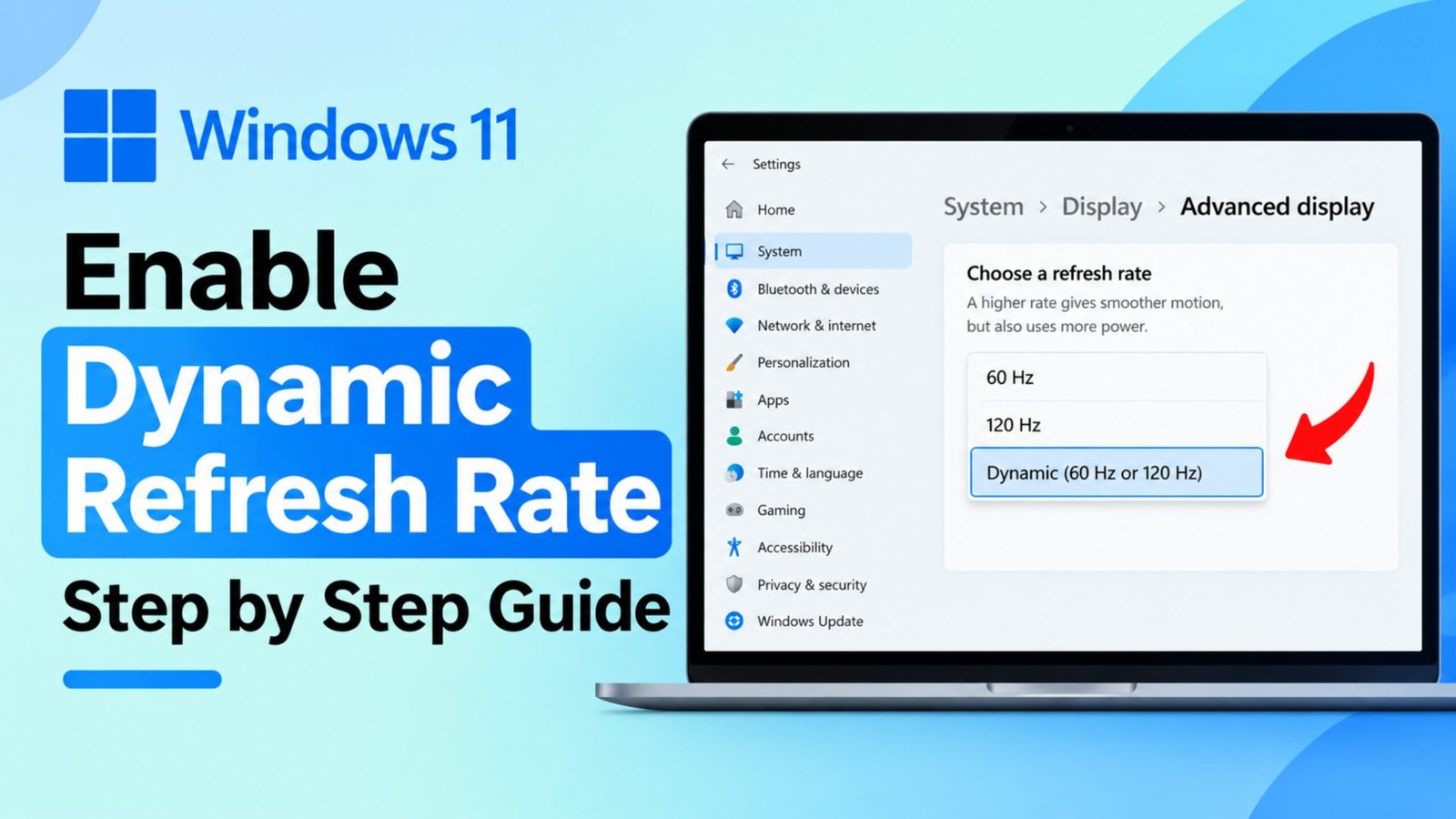
Find the Choose a refresh rate section.
If your system supports Dynamic Refresh Rate, you may see an option labeled Dynamic along with the refresh-rate range supported by your display.
For example, it could show something similar to:
Dynamic (60 Hz or 120 Hz)
The available values can be different depending on your computer and display.
Select the Dynamic option.
Windows should apply the setting automatically.
How to Confirm That DRR Is Active
You can check the setting at any time by returning to:
Settings → System → Display → Advanced display
Under Choose a refresh rate, look for the selected Dynamic option.
If Dynamic is selected, Windows is configured to manage the supported refresh rates automatically.
Keep in mind that the Advanced display page isn’t intended to act as a real-time refresh-rate meter. You may not see an obvious indication every time Windows changes between the available refresh rates.
Can’t Find the Dynamic Option? Try These Fixes
If Windows 11 only shows fixed refresh rates such as 60Hz and 120Hz, go through the following checks.
Check the Selected Display
This is important when you are using an external monitor.
Go to:
Settings → System → Display → Advanced display
Check which display is currently selected.
Some laptops may support Dynamic Refresh Rate on their built-in screen but not on an external monitor.
Install Available Windows Updates
An outdated Windows installation can sometimes affect available system features.
Open:
Settings → Windows Update
Check for updates and install any that are available.
After the update is complete, restart your computer and check the Advanced display settings again.
Update Your Graphics Driver
Your graphics driver can affect which display capabilities Windows can access.
For the most appropriate driver, check your laptop or PC manufacturer’s official support page or its support application.
After installing a new graphics driver, restart the computer and check the refresh-rate menu again.
Check Your Display Resolution
Refresh-rate options can sometimes depend on the selected resolution.
Go to:
Settings → System → Display
Check your current resolution. If available, try the resolution marked Recommended.
Then return to:
Advanced display → Choose a refresh rate
Check whether the Dynamic option appears.
Check Your Laptop’s Manufacturer Software
Some laptops include their own control software for managing performance, battery, and display behavior.
Depending on the manufacturer, you may find settings related to:
- Adaptive display behavior
- Automatic refresh rate
- Battery-saving modes
- Panel power saving
- Performance profiles
If you find an unfamiliar option, check the manufacturer’s documentation before changing it.
60Hz and 120Hz Are Available, but Dynamic Isn’t Showing
Suppose your computer displays these choices:
- 60Hz
- 120Hz
but there is no Dynamic option.
You can still manually switch between the available refresh rates, but this does not confirm that your computer supports DRR.
Dynamic Refresh Rate requires specific hardware and software support. Simply having multiple refresh-rate options isn’t enough.
Dynamic Refresh Rate vs. Fixed Refresh Rate
With a fixed refresh rate, Windows keeps your display at the rate you select.
For example, choosing 60Hz keeps it at 60Hz, while selecting 120Hz keeps it at the higher supported rate.
A fixed rate can make sense if you specifically want consistent display behavior or are troubleshooting a problem.
DRR works differently. Instead of asking you to change the setting manually, Windows can switch between supported refresh rates automatically.
DRR vs. VRR: What’s the Difference?
Dynamic Refresh Rate (DRR) and Variable Refresh Rate (VRR) are different technologies, even though their names sound similar.
DRR is a Windows feature intended to dynamically manage the display’s refresh rate according to supported activities, with a focus on balancing smoothness and power usage.
VRR, on the other hand, is primarily designed to synchronize the display’s refresh timing with the frame output from a compatible graphics device. This is particularly relevant to gaming and can help reduce visual issues such as screen tearing.
Technologies such as AMD FreeSync and NVIDIA G-Sync are associated with VRR.
Depending on the hardware, a computer may support DRR, VRR, both features, or neither.
Enabling DRR therefore doesn’t mean that VRR has also been enabled.
When Should You Temporarily Disable DRR?
DRR is designed to operate automatically, but switching to a fixed refresh rate can be useful when troubleshooting display problems.
For example, if you experience:
- Screen flickering
- Unexpected display behavior
- Motion-related problems
- Issues when the screen wakes up
- Problems with a particular application
you can temporarily select a fixed refresh rate.
Go to:
Settings → System → Display → Advanced display
Then select a fixed refresh rate instead of Dynamic.
If the problem disappears, check for Windows and graphics-driver updates before trying DRR again.
If the issue remains even with a fixed refresh rate, the cause may be somewhere else, such as the graphics driver, cable, monitor connection, docking station, or application.
Tips for Using DRR on Windows 11
A few simple practices can help you get the most out of your display settings:
- Use the Recommended display resolution unless you have a specific reason to change it.
- Keep Windows updated.
- Install appropriate graphics-driver updates.
- If you use a laptop, compare battery performance during normal everyday use rather than relying on a very short test.
- Remember that screen brightness can also have a noticeable effect on battery consumption.
- If an application behaves unusually, test it temporarily with a fixed refresh rate.
- Recheck display settings after major Windows or graphics-driver updates.
- Remember that DRR support varies between devices.
Quick Way to Enable Dynamic Refresh Rate
If your Windows 11 device supports DRR, the entire process takes only a few steps:
- Press Windows + I.
- Open System.
- Select Display.
- Click Advanced display.
- Select the display you want to configure.
- Open Choose a refresh rate.
- Select Dynamic.
Windows can then manage the supported refresh rates automatically.
Also Read: How to Make Your Android Phone Look Like a Windows 11 PC
Final Thoughts
Dynamic Refresh Rate is a convenient Windows 11 feature for compatible displays because it can automatically manage refresh-rate changes instead of requiring you to switch between settings manually.
If you don’t see the Dynamic option, first make sure you’re configuring the correct display. After that, check Windows updates, graphics drivers, resolution settings, and your device’s compatibility.
And if your computer doesn’t support DRR, you can still use a fixed refresh rate such as 60Hz or 120Hz, provided that option is supported by your display.
Advertisements