Samsung Galaxy smartphones often come with several pre-installed applications. While some of these apps are useful, others may take up storage space without serving much purpose in your daily routine. Removing unnecessary apps can help you manage your phone’s storage, keep your app collection organized, and reduce unwanted background activity.
However, not every application on a Samsung phone can be completely removed. Some built-in apps are required for specific system functions, while others can only be disabled or archived.
If you want to clean up your Samsung Galaxy phone, there are several ways to manage unwanted applications. This guide explains six practical methods, including uninstalling apps from the Home screen, using Settings, removing multiple apps through the Play Store, and managing pre-installed applications.
Also Read: WhatsApp Introduces a Dedicated Contacts Tab for Android Beta Users
1. Remove Apps Directly From the Home Screen
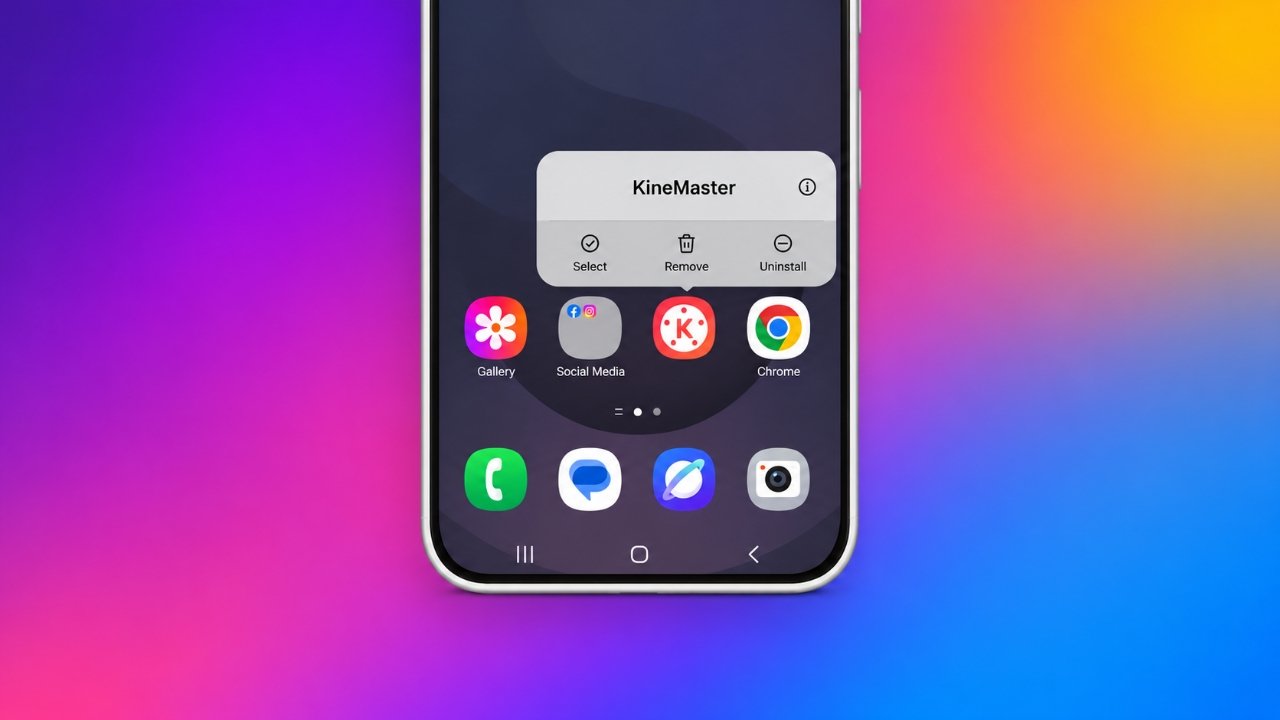
The quickest way to uninstall an application on a Samsung Galaxy phone is through its app icon. This option is particularly convenient when you already know which app you want to remove.
Follow these instructions:
- Find the application you want to uninstall on your Home screen.
- If the app isn’t visible, swipe up to open the Apps screen.
- Press and hold the app icon until a small menu appears.
- Select Uninstall from the available options.
- Tap OK or confirm the action when prompted.
Important: Samsung also provides a Remove option in the same menu. Be careful not to confuse the two. Choosing Remove only takes the app shortcut off your Home screen. It does not uninstall the application from your device.
2. Uninstall Applications Through Samsung Settings
If you want to explore all the applications installed on your phone, using the Settings menu is a better approach.
This method also lets you check how much storage an individual application occupies before deciding whether to remove it.
Here’s how to do it:
- Open the Settings app on your Samsung phone.
- Scroll down and select Apps.
- Browse the installed applications and find the one you no longer need.
- Tap its name to access the App Info screen.
- Select Uninstall at the bottom of the screen.
- Confirm your choice to remove the application.
This approach is useful when an app isn’t displayed on your Home screen or Apps screen but is still installed on your device.
Depending on your Samsung model and software version, the menu layout and available options may look slightly different.
3. Remove Several Apps Using Google Play Store
Uninstalling applications individually can become inconvenient when you want to clean up multiple apps. Fortunately, Google Play Store offers a convenient way to manage several installed applications from one place.
You can use it to select multiple apps and remove them together.
Follow these steps:
- Launch the Google Play Store on your Samsung phone.
- Tap your profile picture in the upper-right corner.
- Choose Manage apps and device.
- Open the Manage section.
- Browse the list and select the applications you want to uninstall using the checkboxes.
- Tap the trash bin icon.
- Confirm the removal when prompted.
All selected applications that support uninstallation will be removed from your device.
This method is especially helpful when you have downloaded several apps over time and no longer use them.
4. Uninstall Apps Downloaded From Samsung Galaxy Store
Samsung Galaxy Store is another source of applications for Galaxy smartphones. If you installed an app through this marketplace, you can also look for its uninstall option directly inside the store.
Here’s the process:
- Open the Galaxy Store application.
- Search for the app you want to remove.
- Open its store listing.
- Look for the Uninstall option.
- Tap it and confirm your decision.
Once the process is complete, the selected application will be removed from your phone.
If the uninstall option isn’t available, you can try removing the application through your phone’s Settings menu instead.
5. Disable Pre-installed Apps You Cannot Uninstall
Not every application that comes with a Samsung Galaxy phone can be deleted. Certain built-in apps are connected to One UI or other essential phone functions, so Samsung may not provide a standard uninstall option.
However, some pre-installed applications can be disabled.
Disabling an app prevents it from running normally and may reduce its background activity. It also removes the app from the usual app list on many devices. However, this doesn’t completely remove its installation files.
To disable a supported application:
- Open Settings on your Samsung phone.
- Select Apps to view the installed applications.
- Find and open the application you want to disable.
- If the app isn’t listed, check the available filtering options for displaying system applications.
- Select the app and tap Disable.
- Confirm your choice if another message appears.
A word of caution: Avoid disabling applications simply because you don’t recognize their names. Some system apps support important features, and turning them off could affect other functions of your phone.
Only disable applications you understand and are confident you don’t need. If you’re unsure about an app, it’s safer to leave it enabled.
6. Archive Apps Instead of Uninstalling Them
Sometimes, you may want to free up storage without losing an application’s personal data. In that situation, app archiving can be a useful alternative, provided your device and the application support it.
Archiving removes the app’s main installation files while retaining its icon and supported user data. This allows you to restore the application later without starting from scratch in many cases.
On supported Samsung devices, you may find an Archive option in the app’s information screen.
Try the following steps:
- Open Settings on your Samsung Galaxy phone.
- Navigate to Apps.
- Select the application you want to archive.
- Check whether an Archive option is available.
- Tap it and follow the on-screen instructions.
After archiving, the app may remain visible on your device with an indication that it needs to be downloaded again.
When you want to use it, tap its icon and follow the instructions to reinstall it.
Keep in mind: App archiving isn’t available for every application or on every Samsung device. Its availability depends on your Android version, app support, and software configuration. Also, retaining app data does not necessarily guarantee that every login session or piece of information will be preserved.
Which Method Should You Use?
Choosing the right method depends on what you want to achieve. Here’s a quick comparison to help you decide.
| Method | Best suited for |
|---|---|
| Home screen uninstall | Quickly removing individual apps |
| Settings menu | Finding and uninstalling installed apps |
| Google Play Store | Removing multiple downloaded apps |
| Galaxy Store | Managing apps installed through Samsung’s store |
| Disable apps | Managing supported pre-installed applications |
| Archive apps | Freeing storage while retaining supported app data |
Also Read: Airtel Buy 1 Get 1 Free Recharge Offer: Check ₹349 and ₹399 Plans, Benefits and Validity
Final Thoughts
Keeping your Samsung Galaxy phone free from unnecessary applications is a simple way to make app management easier and maintain better control over available storage.
If you want to remove an application permanently, the Home screen and Settings methods are the easiest options. For removing several downloaded apps, Google Play Store can save time. Meanwhile, disabling and archiving provide alternatives when you don’t want to completely uninstall an application.
Before removing or disabling anything, make sure it isn’t required by another feature or service on your phone. With the right approach, you can keep your Samsung device organized without accidentally affecting important functions.

Ankita Kumar, founder of sabhigyan.com, is passionate about technology, smartphones, apps, and digital tools. With 8+ years of experience in the digital and tech space, he focuses on creating easy-to-understand, practical, and helpful content that makes everyday technology simpler for readers.
Advertisements