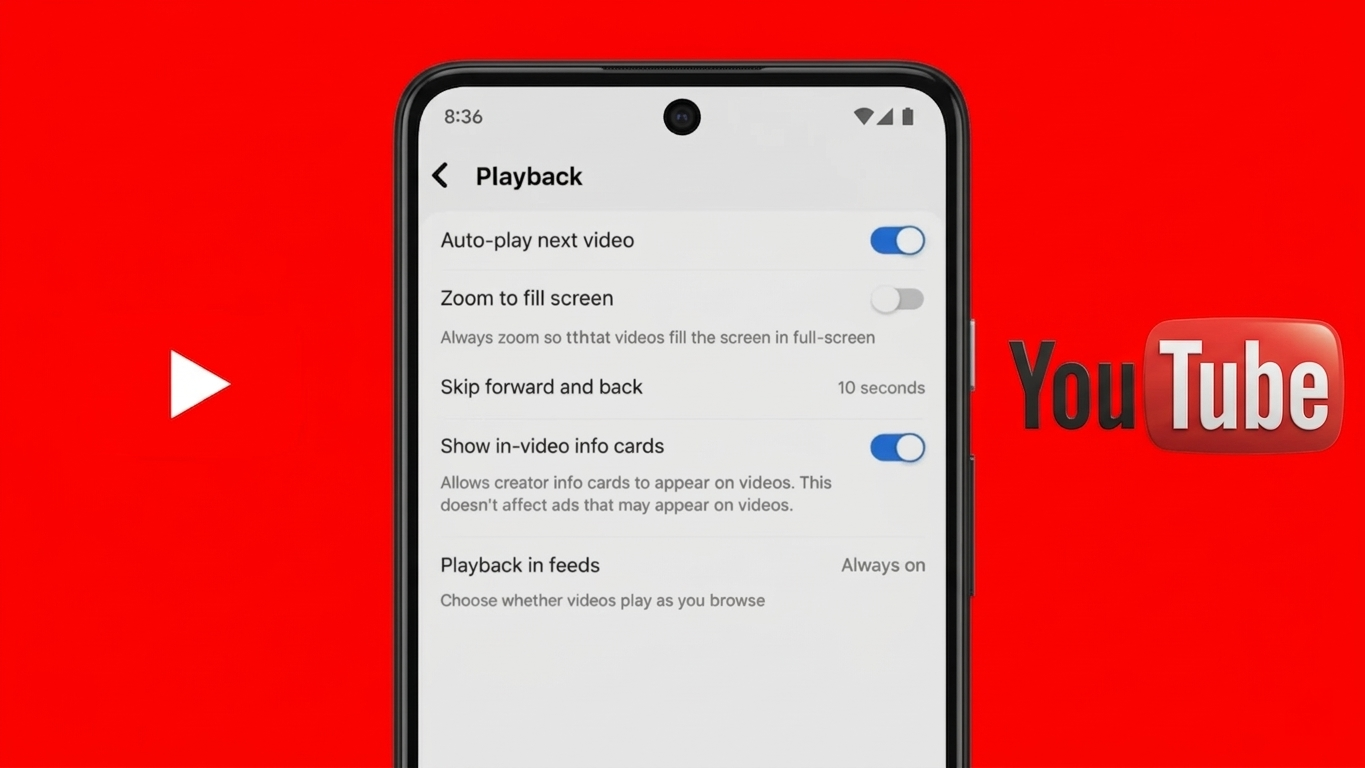
Watching videos on YouTube can easily turn into hours of scrolling—thanks to the autoplay feature. While it’s designed to keep content flowing, many users prefer to switch it off to save data, stay focused, or simply decide what to watch next.
Here’s a fresh, easy-to-follow guide to help you turn off autoplay across different devices.
Also Read: A Practical Guide to Backing Up Phone Data with E2PDF
Understanding Autoplay on YouTube
Autoplay is a built-in feature that automatically starts the next suggested video once your current one ends. These suggestions are based on your viewing habits, which means the platform keeps feeding you similar content.
Although convenient, it can lead to:
- Higher internet data consumption
- Longer screen time than intended
- Less control over your viewing choices
Turning Off Autoplay on Smartphones (Android & iPhone)
If you mainly use YouTube on your phone, you can disable autoplay in two simple ways.
Option 1: Directly from a Video
- Launch the YouTube app
- Play any video
- Look for the autoplay switch on the screen (usually near the video player)
- Tap it to turn it off
Option 2: Through App Settings
- Open the app
- Tap your profile icon
- Head to Settings
- Select Autoplay
- Disable the “Next video autoplay” option
Once done, videos will no longer continue automatically.
Disabling Autoplay on Desktop (Laptop or PC)
If you’re watching YouTube through a web browser, follow these steps:
- Open YouTube in your browser
- Start playing a video
- Locate the autoplay toggle on the right side, above the recommended videos
- Switch it off
That’s it—YouTube will stop queuing the next video automatically.
How to Turn Off Autoplay on Smart TVs
Using YouTube on a smart TV or Android TV? The process is slightly different but still simple:
- Open the YouTube app on your TV
- Play any video
- Navigate to the autoplay option visible on the screen
- Turn it off
On some TVs, you can also:
- Go to Settings within the app
- Find the autoplay option
- Disable it from there
Stop Autoplay Previews on Home Feed (Mobile Only)
Even when you’re not watching a video, YouTube may play previews while you scroll. You can turn this off too:
- Open the YouTube app
- Go to Settings
- Tap General
- Select Playback in feeds
- Choose Off
This prevents videos from playing automatically while browsing.
Benefits of Turning Off Autoplay
Disabling autoplay gives you better control over your viewing experience. It can help you:
- Reduce unnecessary data usage
- Avoid content you didn’t intend to watch
- Cut down on screen time
- Stay more focused and intentional
Final Thoughts
Managing autoplay settings is a small change that can make a big difference in how you use YouTube. Whether you’re on mobile, desktop, or TV, the process is quick and straightforward.
Also Read: A Fresh Guide to Setting Up Your New iPad the Easy Way