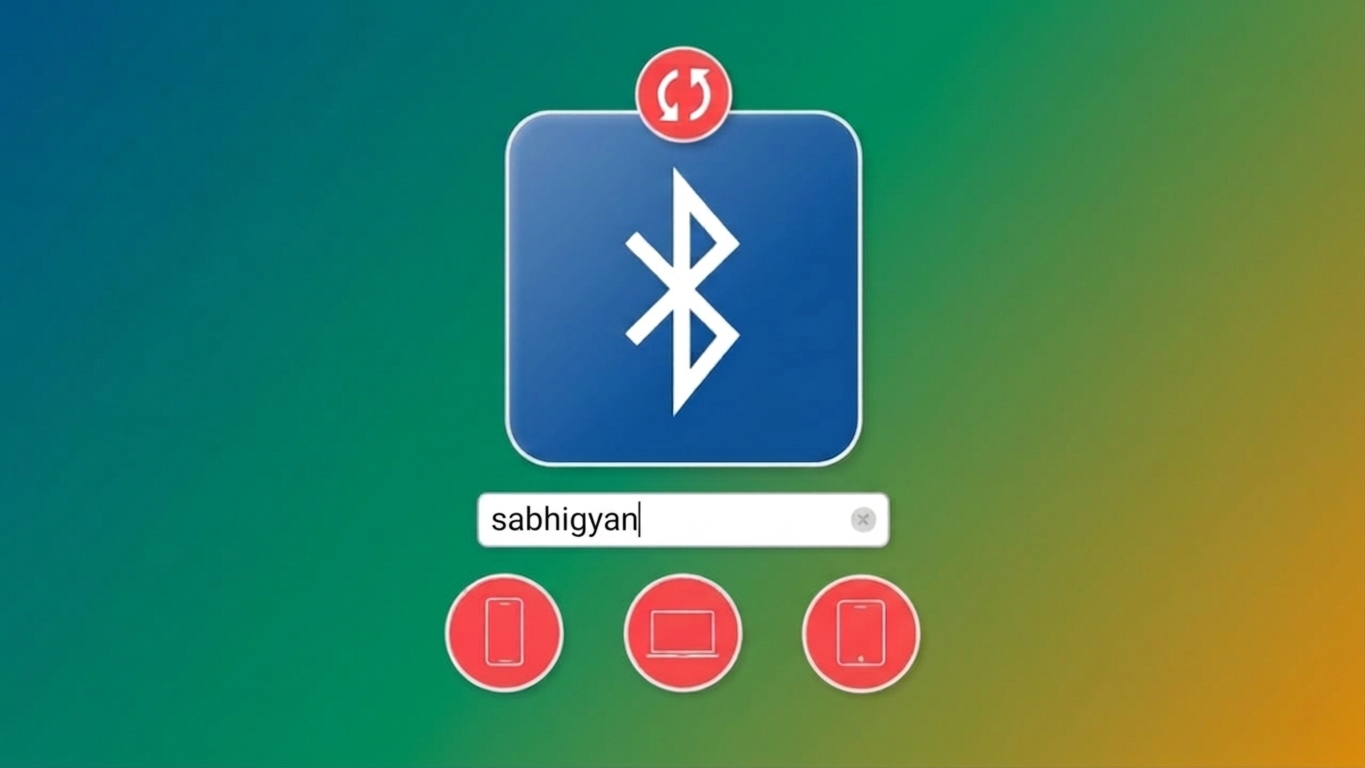
If your device shows up with a basic name like “iPhone” or “MacBook,” it can be hard to tell which one is yours—especially when several devices are nearby. Thankfully, you can easily rename your device to make Bluetooth connections smoother and more organized.
Why You Should Rename Your Bluetooth Device
Giving your device a custom name isn’t just about personalization—it also improves usability in everyday situations.
Here’s why it’s helpful:
- Makes your device easy to spot in Bluetooth lists
- Prevents accidental connections to the wrong device
- Helps manage multiple accessories efficiently
- Adds a personal touch to your device
- Useful if you own more than one Apple device
Steps to Change Bluetooth Name on iPhone or iPad
On iPhones and iPads, the Bluetooth name is linked to your device name. Once updated, the change applies automatically across all features.
Also Read: A Fresh Guide to Setting Up Your New iPad the Easy Way
Follow these steps:
- Open Settings
- Tap General
- Select About
- Tap Name
- Enter a new name and confirm
Your updated name will now appear when connecting via Bluetooth or sharing your device.
How to Rename Bluetooth Accessories on iPhone or iPad
If you use multiple wireless devices like earphones or speakers, renaming them can make identification much easier.
Steps:
- Ensure the accessory is connected
- Open Settings → Bluetooth
- Tap the info (ⓘ) icon next to the device
- Select Name
- Enter a new name and save
Changing Bluetooth Name on Mac
Mac devices also use their system name for Bluetooth connections and sharing features.
Here’s how to update it:
- Open System Settings
- Go to General
- Click About
- Select the current name
- Type a new name
After saving, your Mac will display this updated name for Bluetooth and other connections.
Rename Bluetooth Accessories on Mac
You can also rename connected devices directly from your Mac for better organization.
Steps:
- Connect the Bluetooth device
- Open System Settings → Bluetooth
- Click the info (ⓘ) icon next to the device
- Click Name
- Enter a new name and save
What Changes After Renaming Your Device?
Updating your device name affects more than just Bluetooth. You’ll notice the new name in:
- Bluetooth device lists
- File sharing services like AirDrop
- Personal hotspot name
- Device tracking tools
- Network visibility and sharing options
- Connected devices like cars, TVs, and speakers
Also Read: How to Create and Use an Apple Recovery Key: A Clear, Step-by-Step Guide
Final Thoughts
Renaming your Bluetooth device is a small step that makes a big difference. It keeps your device list clear, reduces confusion, and improves your overall experience—especially if you frequently connect to multiple devices.
Disclaimer
This content is provided for general informational purposes only. Steps may vary depending on your device model and software version. Always refer to official device settings for the most accurate instructions.