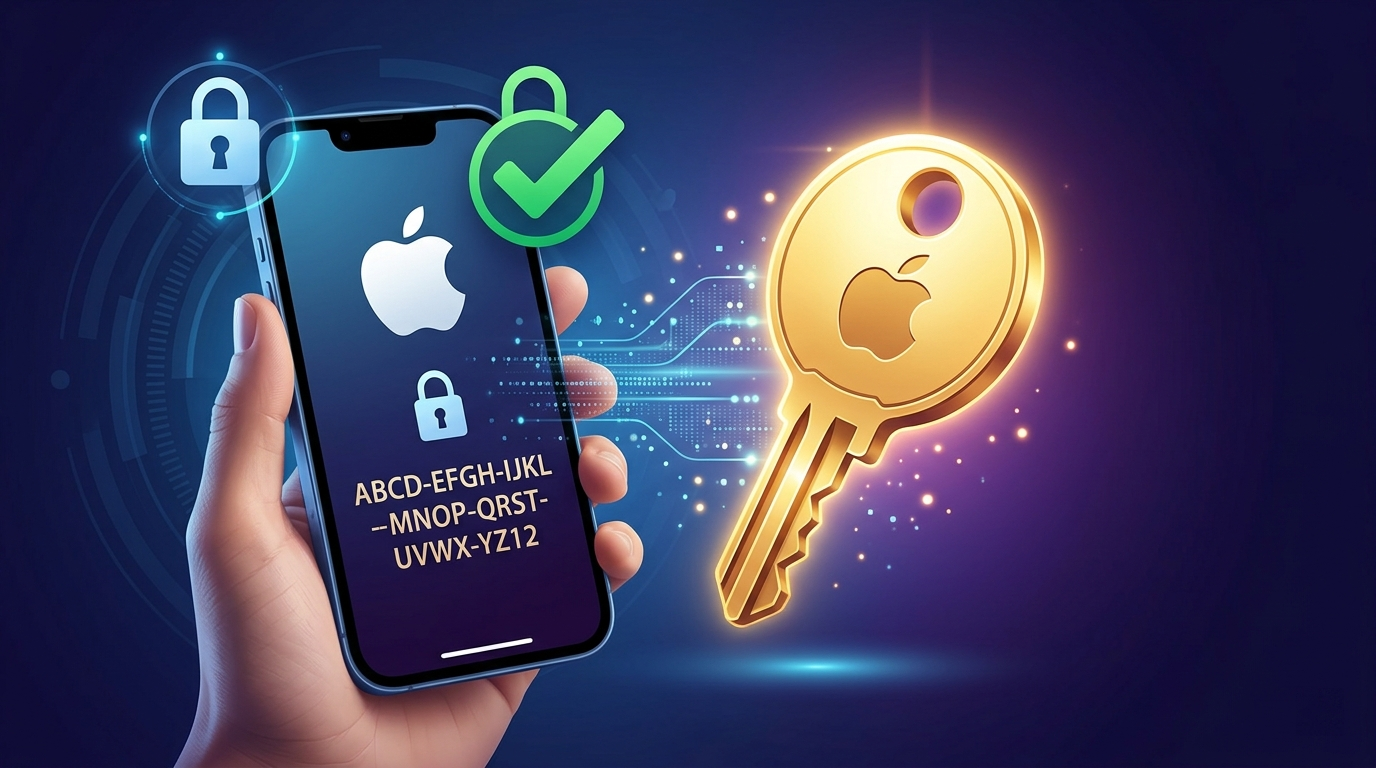
Keeping your personal data secure is more important than ever, especially when it comes to your Apple ID. One powerful yet often overlooked feature is the Recovery Key—a security tool designed to help you regain access to your account if you ever forget your password or lose access to trusted devices.
This guide explains what an Apple Recovery Key is, why it matters, and how you can set it up safely and correctly.
Also Read: Blocked on WhatsApp? What You Really Need to Know
What Is an Apple Recovery Key?
An Apple Recovery Key is a unique 28-character code that acts as a backup method for accessing your account. It works alongside features like two-factor authentication to give you an extra layer of control.
Instead of relying solely on account recovery methods, you can use this key to reset your password and regain access quickly. However, there’s an important catch: if you lose both your Recovery Key and access to your trusted devices, you may not be able to recover your account at all.
Why You Should Consider Using One
Adding a Recovery Key strengthens your account security in several ways:
- It reduces dependence on traditional account recovery processes
- It gives you more control over how you regain access
- It helps protect your account from unauthorized access attempts
That said, it also puts more responsibility on you to store the key safely.
Before You Begin
Make sure the following are in place before setting up your Recovery Key:
- Two-factor authentication is enabled on your Apple ID
- You have access to a trusted device
- You’re ready to securely store your Recovery Key (offline is best)
How to Set Up a Recovery Key
Follow these steps to enable your Recovery Key on your Apple device:
On iPhone or iPad:
- Open Settings
- Tap your name at the top
- Go to Password & Security
- Select Account Recovery
- Tap Recovery Key
- Turn it on and follow the prompts
- Write down or securely save the generated key
On Mac:
- Open System Settings
- Click your Apple ID
- Go to Password & Security
- Select Account Recovery
- Enable Recovery Key
- Follow the on-screen instructions
Tips for Keeping Your Recovery Key Safe
Since this key is critical for account access, treat it like a highly sensitive document:
- Store it in a secure physical location (like a locked drawer or safe)
- Avoid saving it in easily accessible digital notes
- Consider keeping a backup copy in a different secure place
- Never share it with anyone
How to Use the Recovery Key
If you ever get locked out of your account, your Recovery Key can help you reset your password. During the recovery process, Apple will ask for:
- Your Apple ID
- Access to a trusted device (if available)
- Your Recovery Key
Once verified, you’ll be able to create a new password and regain access.
Important Things to Remember
- Losing your Recovery Key can permanently lock you out of your account
- Always double-check that your key is stored correctly
- Review your security settings regularly to ensure everything is up to date
Also Read: Send WhatsApp Messages Without Saving Phone Numbers: A Simple Guide
Final Thoughts
Setting up an Apple Recovery Key is a smart move if you want greater control over your account security. While it adds responsibility, it also provides peace of mind knowing you have a reliable backup method in place.