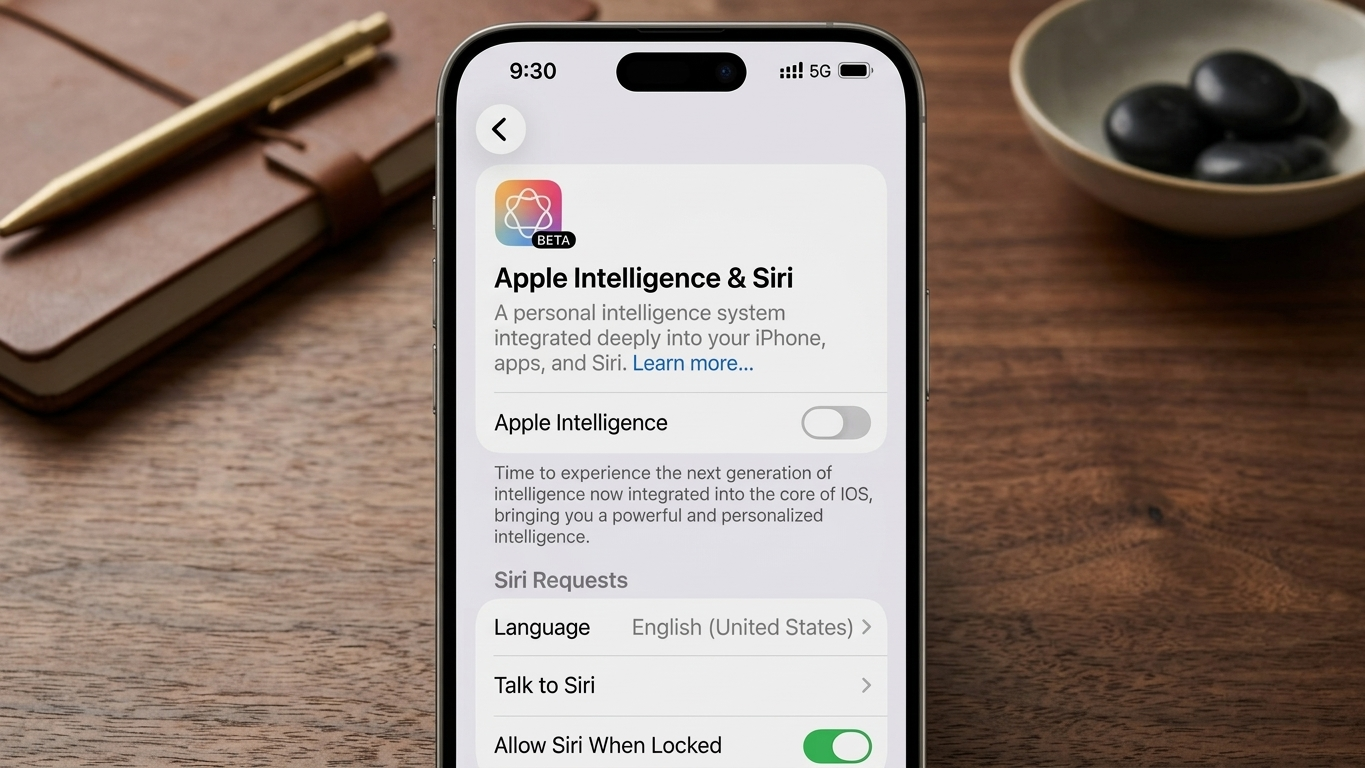
Apple has introduced a range of AI-powered features across its devices under the name Apple Intelligence. These tools are designed to assist with writing, summarizing content, and offering smart suggestions. While many users find them helpful, others may prefer a cleaner, less automated experience.
If you fall into the second group, the good news is that you can turn off these features completely—or just limit specific ones—without affecting your device’s core functionality.
Also Read: How to Recover Deleted Call History on iPhone (Complete Guide)
What Happens When You Turn Off Apple Intelligence?
Before making any changes, it’s useful to understand the impact. Disabling Apple Intelligence does not harm your device or remove any essential features.
Here’s what changes:
- Smart suggestions will no longer appear while typing or browsing
- Automatic summaries and AI-generated replies will stop
- Apps will continue to work normally without interruptions
- Your personal data remains untouched and secure
In simple terms, only the AI layer is removed—everything else stays the same.
Steps to Turn Off Apple Intelligence on iPhone and iPad
If you’re using an iPhone or iPad, follow these steps to disable the feature:
1. Open Settings
Unlock your device and tap on the Settings app.
2. Locate AI Controls
Scroll down until you find Apple Intelligence & Siri (the exact label may vary depending on your software version).
3. Disable the Feature
Tap on it and switch off the main toggle to turn off all AI-related features.
How to Turn Off Only Selected AI Features
If you don’t want to completely disable everything, you can customize your settings:
- Writing Assistance – Turn off AI help for composing text
- Notification Summaries – Stop grouped summaries of alerts
- Smart Replies – Disable suggested responses in apps like Messages or Mail
This option is useful if you want control without losing all functionality.
Also Read: How to Change Bluetooth Name on iPhone, iPad, and Mac
Steps to Disable Apple Intelligence on Mac
For Mac users, the process is just as simple:
1. Open System Settings
Click the Apple menu and select System Settings
2. Access AI or Siri Options
Look for a section labeled Apple Intelligence or Siri & AI features
3. Turn Off Features
You can either disable the main toggle or switch off individual tools like suggestions and summaries
Why Some Users Prefer Turning It Off
Not everyone enjoys constant AI assistance. Here are some common reasons people choose to disable it:
- Reduced distractions while working or browsing
- Improved focus without automated suggestions
- Lower background processing activity
- Greater control over how the device behaves
- A cleaner and more minimal interface
AI can be helpful, but it’s not essential for everyone’s workflow.
Can You Re-enable It Later?
Yes, absolutely. If you change your mind, you can go back into the same settings and turn Apple Intelligence back on at any time. The process is fully reversible and takes only a few seconds.
Also Read: A Fresh Guide to Setting Up Your New iPad the Easy Way
Final Thoughts
Apple Intelligence is built to enhance productivity, but it’s entirely optional. If you prefer a more straightforward and distraction-free experience, turning it off is a simple and safe choice.
You can always fine-tune the settings later to match your preferences, making your device work exactly the way you want.
Also Read: How to Remove All YouTube Subscriptions (What You Can and Cannot Do)