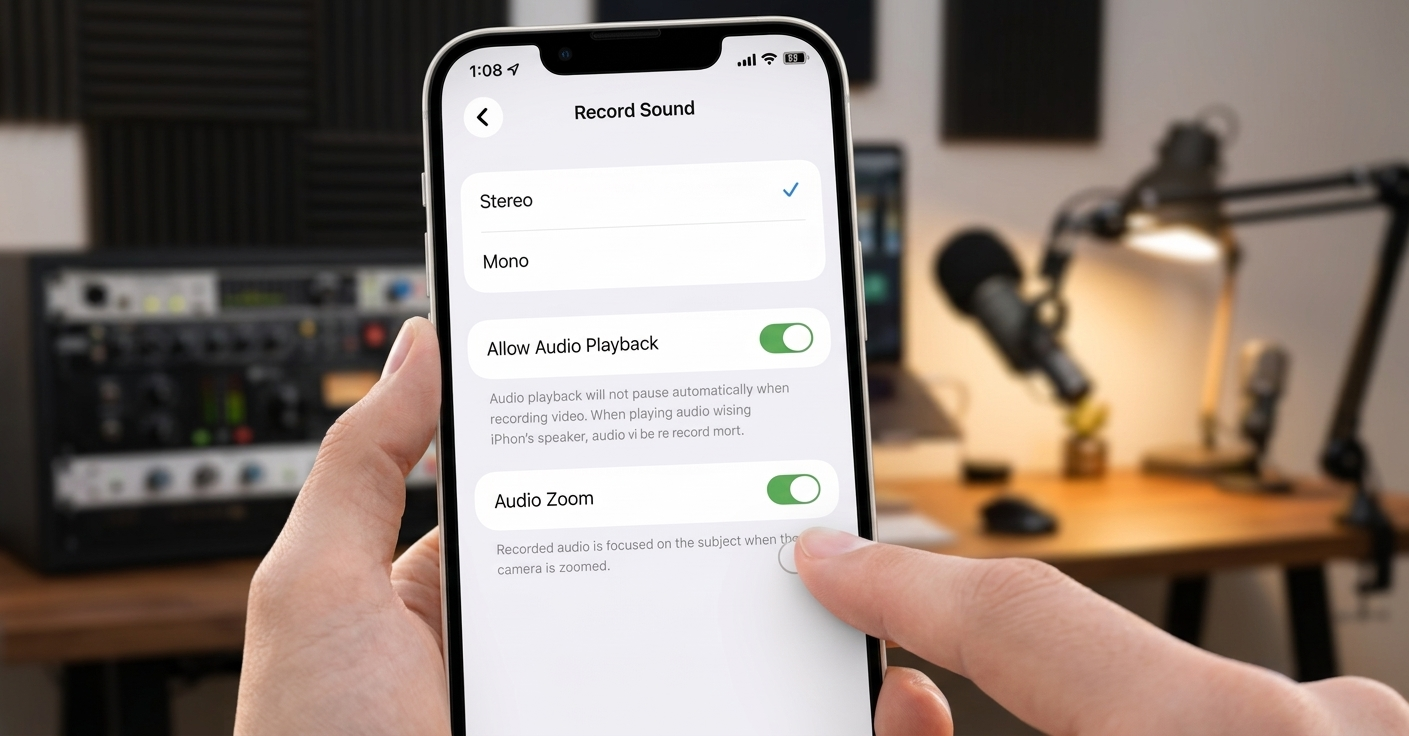
If you’ve ever recorded a video on your iPhone and noticed that the sound suddenly feels strange when you zoom in, you’re not imagining things. While zoom improves the visual focus, it can quietly interfere with how your audio is captured—often without any warning.
Let’s break down why this happens and how you can easily fix it for better, more natural sound.
Also Read: How to Disable Apple Intelligence on iPhone, iPad, and Mac Easily
What Causes Audio Problems When Zooming on iPhone?
Many users assume audio issues come from background noise or poor surroundings. However, the real reason is a built-in feature called Audio Zoom.
This feature automatically activates when you zoom in during video recording. Instead of just adjusting the image, your iPhone also changes how the microphones pick up sound. It narrows the audio focus to match your zoomed-in subject.
While this might sound helpful, it doesn’t always deliver the best results.
Common Issues You Might Notice
After testing and observing multiple recordings, here are some typical problems caused by Audio Zoom:
- Voices may sound farther away than they actually are
- Background sounds get reduced too aggressively
- Audio can feel slightly artificial or over-processed
- Sound levels may shift when you move the camera
- The overall recording may lack consistency
What makes it tricky is that you usually won’t notice these problems until you play the video back.
Also Read: How to Recover Deleted Call History on iPhone (Complete Guide)
How to Turn Off Audio Zoom on iPhone
The good news is that fixing this issue is quick and simple. Apple introduced an option in newer iOS versions that allows you to disable Audio Zoom.
Follow these steps:
- Open the Settings app
- Scroll down and tap Camera
- Select Record Sound
- Find Audio Zoom and switch it OFF
If you don’t see the option or it’s disabled, check your audio settings. Audio Zoom only works with Stereo or Spatial Audio, so make sure your device isn’t set to Mono.
What Changes After Disabling Audio Zoom?
Once you turn off this feature, the difference is often noticeable right away:
- Voices sound more natural and balanced
- Background audio remains steady
- No sudden shifts when adjusting the frame
- Overall sound feels closer to real-life recording
For anyone who values authentic audio—especially during events, outdoor recordings, or casual videos—this small tweak can make a big impact.
When Is Audio Zoom Actually Useful?
Although it can cause issues, Audio Zoom isn’t entirely useless. In certain situations, it can be helpful:
- Recording interviews or conversations
- Shooting talking-head videos
- Filming in crowded or noisy environments
- Creating vlogs where the subject stays centered
In these cases, narrowing the audio focus can help isolate voices more clearly.
Should You Keep Audio Zoom On or Off?
For most everyday recordings, turning Audio Zoom off is the better choice. It provides more consistent and natural sound without unexpected changes.
However, if your goal is to isolate a subject in a noisy setting, you might want to experiment with keeping it on.
Also Read: How to Find a Switched-Off Mobile Phone Using Practical Methods
Final Thoughts
iPhone cameras are packed with smart features, but not all of them work perfectly in every situation. Audio Zoom is a good example—it aims to improve your recording but can sometimes make it sound unnatural.
If your videos don’t sound quite right when you zoom in, try disabling this setting. It’s a quick adjustment that can significantly improve your audio quality.
Also Read: How to Delete Your Threads Account Without Removing Instagram (Complete Guide)