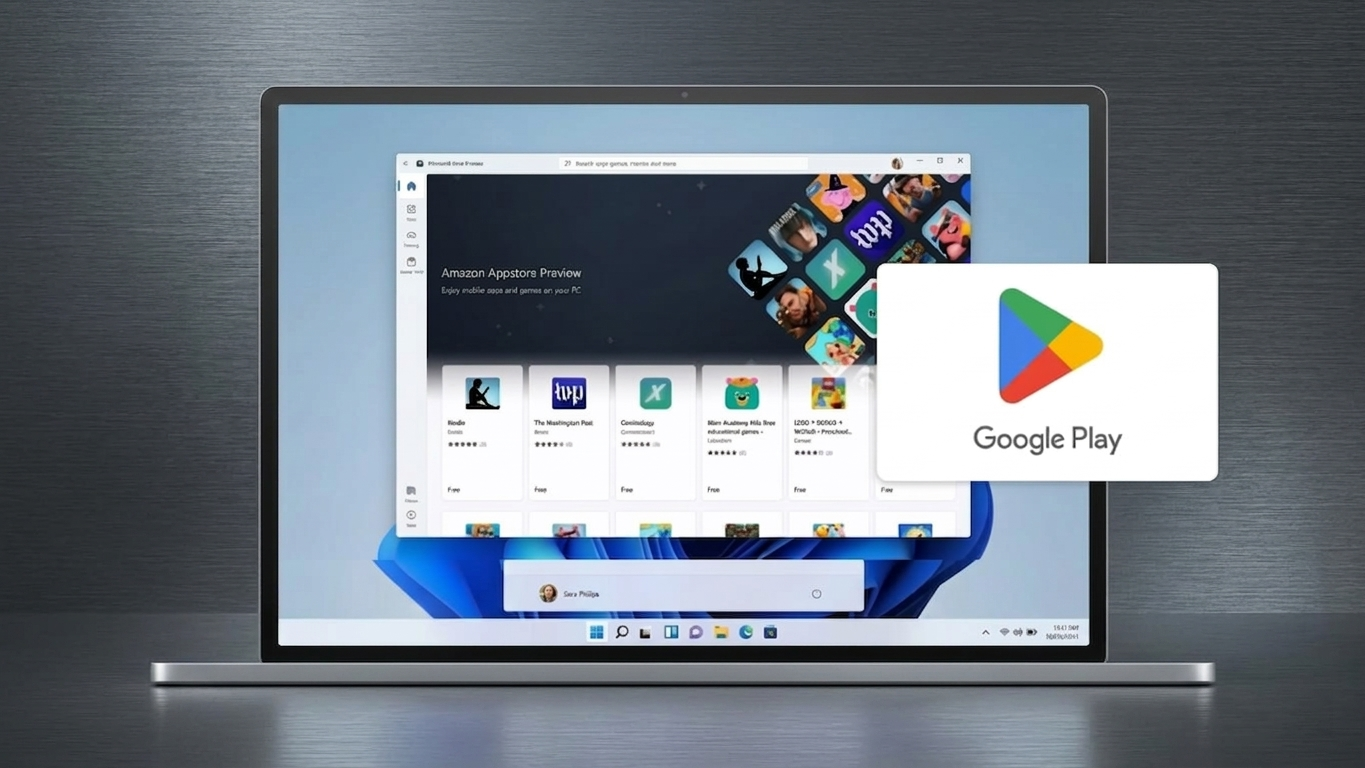
Using Android apps directly on a Windows computer has become increasingly popular. Earlier, most people relied on emulators, which often felt slow and disconnected from the actual system.
With Windows 11, things have improved significantly. It now includes built-in support for Android apps, offering a smoother and more integrated experience. However, installing the Google Play Store is still not officially supported, which means you’ll need to follow a few advanced steps carefully.
Also Read: How to Customize the Windows 11 Taskbar for a Cleaner and More Efficient Desktop (2026 Guide)
How to Check If Your PC Is Ready
Before starting, it’s important to make sure your computer meets the basic requirements for a smooth experience.
- Storage Type: An SSD is strongly recommended for better performance
- Memory (RAM): At least 8GB (16GB is ideal for stability)
- System Architecture: Only 64-bit or ARM-based systems are supported
- Important Note: 32-bit systems are not compatible
If your system is older or has limited resources, you may experience lag or instability.
How to Understand the Possible Risks
Since this method is unofficial, you should be aware of a few important considerations:
- Future Windows updates may break the setup
- Some system-level changes are involved
- Mistakes during installation can cause errors
- In rare situations, your system may fail to boot properly
Tip: Always create a backup of your important data before proceeding.
How to Prepare Windows 11 for Installation
Enable Developer Mode
- Open Settings from the Start menu
- Navigate to System → For Developers
- Turn on Developer Mode and confirm the prompt
Activate Required Features
- Press Win + R, type
optionalfeatures, and press Enter - Enable the following:
- Virtual Machine Platform
- Windows Hypervisor Platform
- Click OK and restart your computer
Turn On Virtualization
- Restart your PC and enter BIOS (usually via F2, Del, or Esc)
- Locate Virtualization Technology
- Enable it, then save and exit
How to Install Windows Subsystem for Android (WSA)
The Windows Subsystem for Android is the foundation that allows Android apps to run natively.
Remove Existing Installations
To avoid conflicts:
- Go to Settings → Apps
- Uninstall:
- Windows Subsystem for Android
- Amazon Appstore (if present)
Download a Modified WSA Package
- Search online repositories (such as GitHub) for a custom WSA build
- Choose a version that includes Google Apps support
Extract the Files
- Right-click the downloaded file
- Select Extract All
- Choose a convenient folder
Install Using Terminal
- Open the extracted folder
- Right-click and select Open in Terminal
- Run the provided installation command
- Grant administrator permissions when prompted
Also Read: How to Clean and Improve Photos on Android Using Magic Eraser
How to Use the Advanced Installation Method (Optional)
For users comfortable with technical tools, there’s an alternative method:
- Install Windows Subsystem for Linux (WSL)
- Set up a Linux distribution like Ubuntu
- Use command-line tools to download and configure WSA
- Select:
- Your processor type (x64 or ARM64)
- Google Apps package
- Avoid enabling root options unless you fully understand them
This approach offers more control but requires technical knowledge.
How to Complete the Final Setup
- Locate the generated WSA files
- Move them to a dedicated folder (e.g.,
C:\WSA) - Open Command Prompt as Administrator
- Navigate to that folder
- Run the installation command and wait for completion
How to Start Using Google Play Store
Launch WSA
- Search for Windows Subsystem for Android
- Open the application
Enable Developer Settings
- Inside WSA, turn on Developer Mode
Sign In to Your Account
- Open the Google Play Store
- Log in with your Google account
- Wait for it to load properly
Install and Use Apps
- Search for your desired apps
- Click Install
- Installed apps will appear in the Start menu and run like regular programs
How to Choose Simpler Alternatives
If the process feels too complex, you can consider easier options:
- Amazon Appstore: Official but with a limited selection
- APK Sideloading: Install apps manually
- Android Emulators: Easier setup but less integrated experience
Also Read: How to Remove All YouTube Subscriptions (What You Can and Cannot Do)
Final Thoughts
Installing the Google Play Store on Windows 11 can significantly expand what your PC can do, allowing you to run mobile apps seamlessly alongside desktop software. While the setup requires some effort and technical understanding, the result can be highly rewarding.
If you prefer a safer and simpler approach, alternative methods are available. But if done correctly, this setup can turn your system into a powerful all-in-one platform.