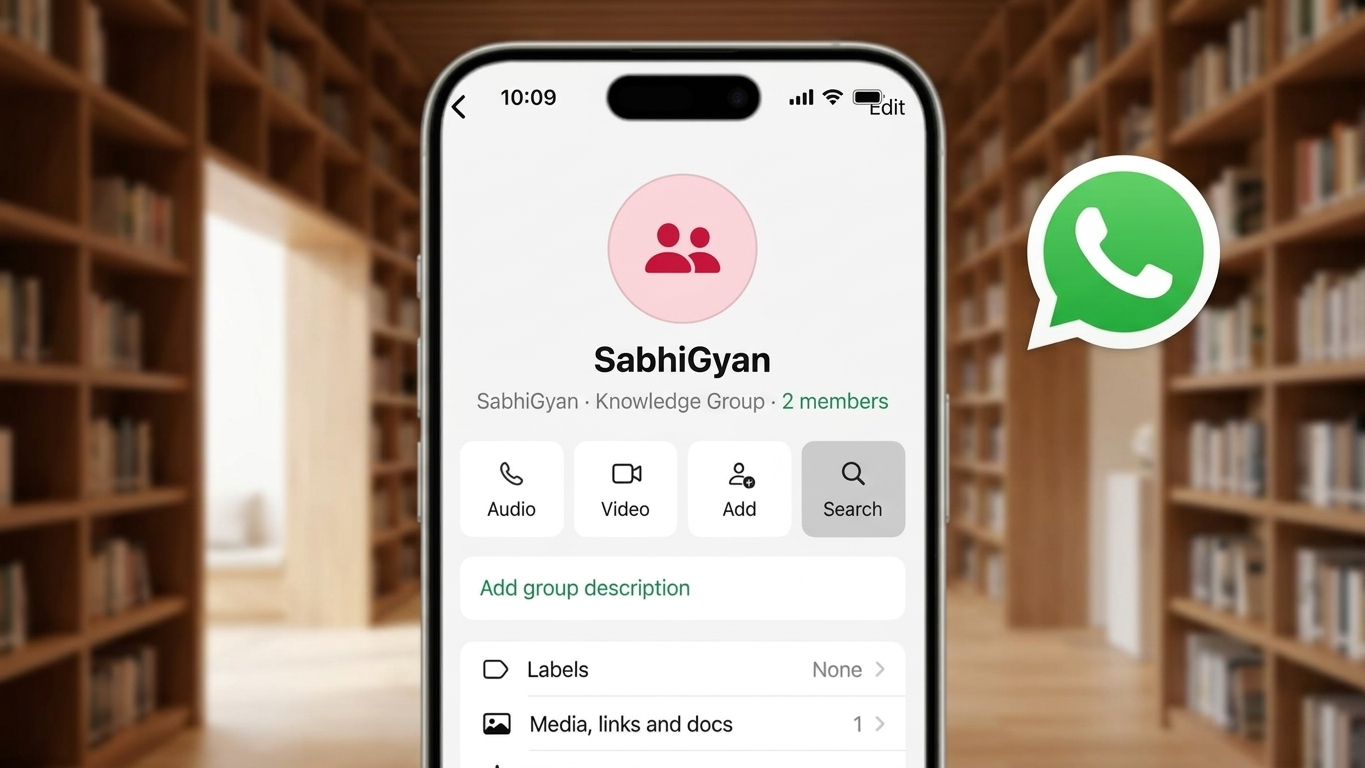
Using WhatsApp daily often leads to a flood of messages, making it difficult to find something important later. Instead of endlessly scrolling through chats, you can use WhatsApp’s built-in search feature to quickly locate messages, links, or files.
This guide explains simple and effective ways to search messages on both Android and iPhone devices.
Also Read: How to Hide Your Online Status on WhatsApp (2026 Guide)
Why Use the WhatsApp Search Feature
The search tool is designed to save time and improve convenience. It allows you to:
- Instantly find older messages
- Locate shared media, links, or documents
- Retrieve useful details like dates, names, or addresses
- Keep your conversations organized and easy to navigate
How to Search Messages on Android
Search Across All Chats
If you don’t remember which chat contains the message:
- Open WhatsApp
- Tap the search icon at the top of the screen
- Enter a word or phrase
- Browse results from all chats
- Tap any result to jump directly to that message
Search Within a Specific Chat
If you know where to look:
- Open the chat
- Tap the three-dot menu in the top-right corner
- Select “Search”
- Enter your keyword
- Matching messages will be highlighted within the chat
Search for Media, Links, or Documents
If you’re looking for a specific type of content:
- Tap the search icon on the main screen
- Type a keyword
- Use filters like Photos, Videos, Links, GIFs, or Documents
- Select the relevant category to narrow down results
How to Search Messages on iPhone
Search Across All Chats
To search everything at once:
- Open WhatsApp
- Swipe down on the chat list to reveal the search bar
- Enter your keyword
- Results will appear grouped by conversation
- Tap a result to open it
Search Inside a Single Chat
To find something in one conversation:
- Open the chat
- Tap the contact or group name at the top
- Select “Search”
- Enter the keyword
- Browse highlighted results
Find Shared Media and Files
To locate files without remembering text:
- Open a chat
- Tap the contact or group name
- Go to “Media, Links, and Docs”
- Browse through shared content
Useful Tips for Better Search Results
- Use short and clear keywords
- Try searching names, numbers, or phrases
- Narrow your search to a specific chat if possible
- Use filters when looking for media or documents
Can Deleted Messages Be Searched?
No, WhatsApp does not allow you to search for messages that have been deleted and not backed up. Once removed, they are no longer accessible within the app.
Is Searching Messages Safe?
Yes, searching messages in WhatsApp is completely secure. All searches happen within the app, and your chats remain protected by end-to-end encryption.
Also Read: Blocked on WhatsApp? What You Really Need to Know
Final Thoughts
Knowing how to search messages efficiently can make your WhatsApp experience much smoother. Whether you need to find an old conversation, a shared link, or an important detail, the search feature helps you do it quickly without unnecessary effort.