Unboxing a new iPad is always exciting—but when you turn it on, the setup screens can feel a little overwhelming. There are multiple choices, prompts, and settings that might leave you unsure about what to do next.
The good news? You don’t need to stress. Once you understand the process, setting up your iPad becomes quick and straightforward. This guide walks you through everything in a simple, practical way so you can get started without confusion.
Also Read: How to Capture Video Using Both Front and Rear Cameras on an iPhone
Before You Begin: A Little Preparation Helps
Taking a few minutes to gather essential details before starting will save you time later. Make sure you have:
- A stable Wi-Fi connection and its password
- Your Apple ID login details (or be ready to create one)
- A payment method if you plan to use digital payments
- Access to your old device or backup (if transferring data)
If you’re switching from another Apple device and worried about storage limits, temporary cloud space is often provided to help complete your transfer smoothly.
Powering On Your Device
To begin, press and hold the power button until the Apple logo appears. If nothing shows up, connect your iPad to a charger and try again after a few minutes.
Once the screen lights up, you’ll see a welcome message. From here:
- Press the Home button if your device has one
- Or swipe up if it doesn’t
Accessibility options like screen zoom or voice assistance can also be enabled at this stage if needed.
Choosing Basic Preferences
Next, your iPad will ask you to select:
- Your preferred language
- Your country or region
You may also be prompted to adjust display settings such as text size or appearance. If you’re unsure, you can stick with the default options—they can always be changed later.
Picking How to Set Up
You’ll now decide how you want to configure your device:
Automatic Setup (Quick Start):
If you already use another Apple device, place it near your new iPad. It can automatically transfer many settings and preferences.
Manual Setup:
If you’re starting fresh or switching from a different platform, manual setup works just fine. It simply requires a few extra steps.
Connecting to the Internet
Select your Wi-Fi network and enter the password. If your iPad supports mobile data, you can use that instead.
After connecting, your device may check for software updates. This step is important for performance and security, so allow it to complete.
Securing Your iPad
Protecting your device is essential. You’ll be asked to set up:
- Face recognition or fingerprint unlocking (depending on your model)
- A passcode
For better security, choose a strong passcode that’s not easy to guess but still easy for you to remember.
Moving Your Data (Optional)
If you want your apps, photos, and settings from another device, you’ll have several options:
- Restore from a cloud backup
- Transfer directly from another Apple device
- Use a computer backup
- Move basic data from an Android device
- Or start fresh with a clean setup
There’s no single “best” choice—it depends on your needs. If transferring data, keep your iPad connected to power until the process finishes.
Signing In to Your Apple Account
Your Apple ID is the key to accessing services like the App Store, iCloud, and more. Sign in with your existing account or create a new one.
During this step, you’ll also see optional settings such as:
- Automatic updates
- Location services
- Digital payments
- Usage tracking (Screen Time)
- Data sharing preferences
If you’re unsure, the recommended settings are usually safe and practical.
Final Adjustments
Before reaching the home screen, you’ll choose a few finishing touches:
- Light or dark appearance mode
- Screen usage settings
- Privacy preferences
Don’t worry about making perfect choices—everything can be modified later in the Settings app.
You’re Ready to Explore
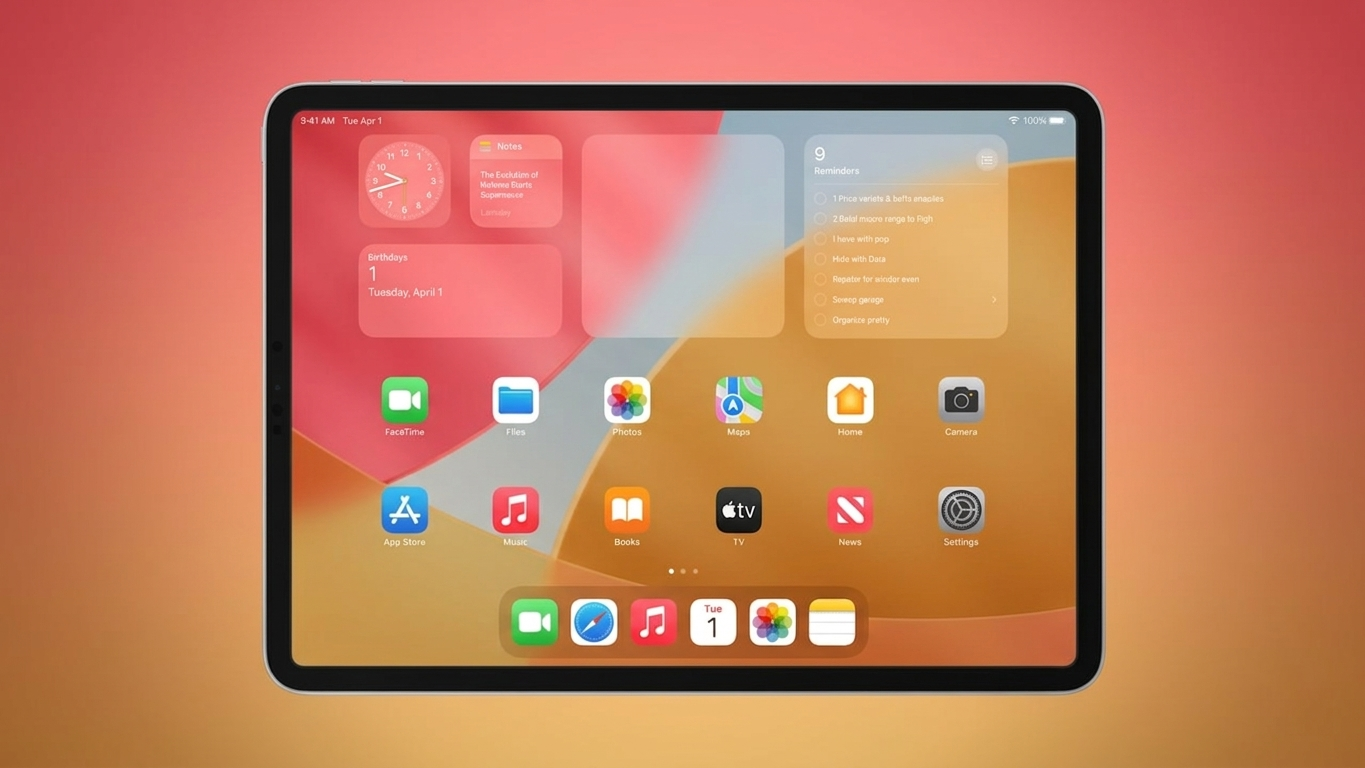
Once setup is complete, you’ll land on your iPad’s home screen. From here, you can:
- Personalize your wallpaper
- Install apps from the App Store
- Adjust brightness and display settings
- Add your email and social accounts
- Set up voice assistant features
Take some time to explore and make the device your own.
Also Read: How to Create and Use an Apple Recovery Key: A Clear, Step-by-Step Guide
Final Note
Setting up an iPad isn’t about getting every option right on the first try. It’s about understanding what each step does and choosing what suits your needs.
Disclaimer: This guide is for general informational purposes only. Features and setup steps may vary slightly depending on your iPad model and software version. Always follow on-screen instructions for the most accurate guidance.
Your iPad is now ready to use—enjoy discovering everything it can do and customize it to match your style 👍
Source: How to Set Up Your New iPad (Simple Step-by-Step Guide)