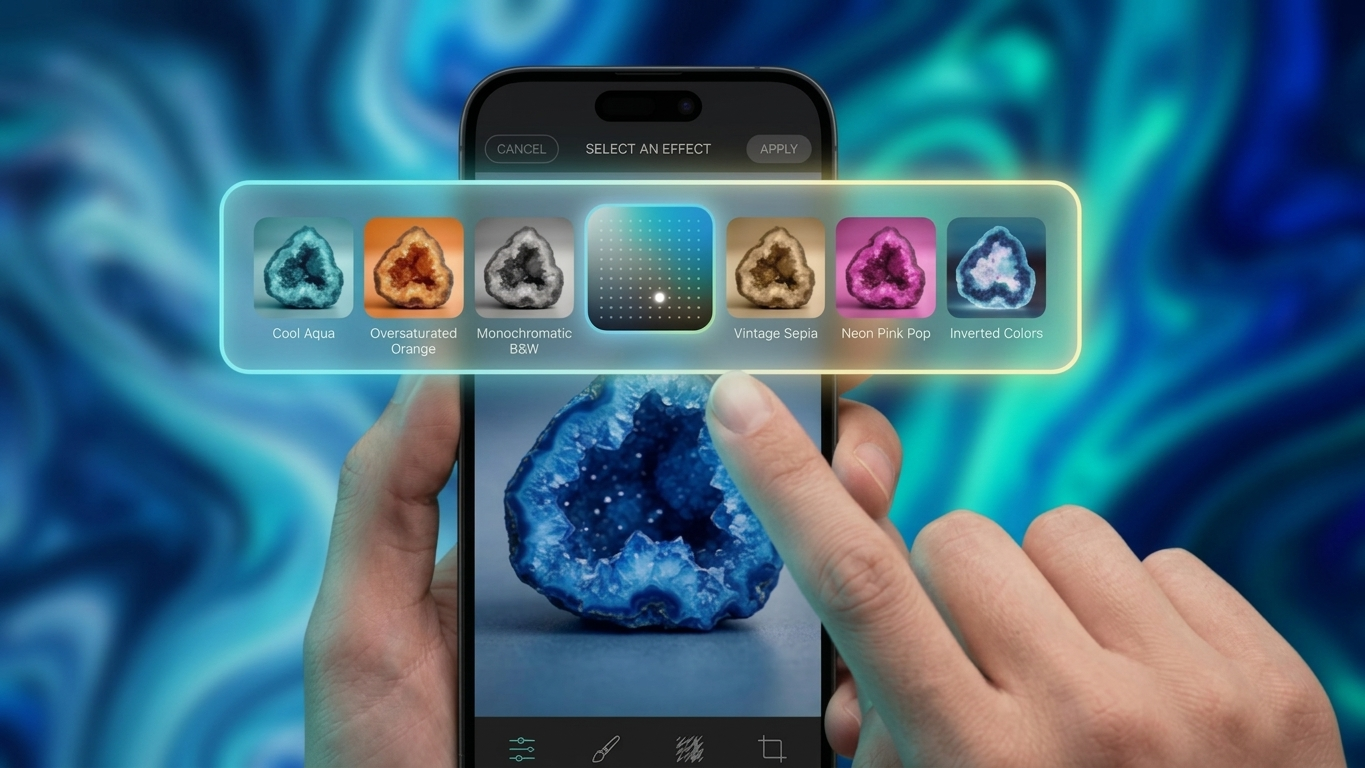
Taking great photos on your iPhone doesn’t always require editing apps or advanced skills. With the built-in Photographic Styles feature, you can shape the look of your images while capturing them. This means your photos already look polished the moment you click—saving time and effort later.
In this article, you’ll learn how this feature works, how to use it properly, and how to choose the right style for different situations.
Also Read: Instagram AI Voice Effects: A Fresh Way to Make Your Messages Stand Out
A Smarter Way to Capture Photos
Photographic Styles allow your iPhone camera to adjust colors and lighting in real time. Unlike traditional editing tools, these adjustments happen instantly while the photo is being taken.
The benefit? Your images keep their natural details—especially skin tones—while still reflecting the mood or style you prefer. It’s a simple way to maintain consistency in your photos without making them look overly edited.
Why It’s Better Than Regular Filters
Many users think styles are the same as filters, but there’s a clear difference.
Filters are applied after the photo is taken and usually add a fixed effect. In contrast, Photographic Styles work during capture and intelligently adjust elements like contrast and color temperature.
You also get control over:
- Tone – which influences brightness and contrast
- Warmth – which adjusts how cool or warm your image appears
This makes your photos look more natural and personalized.
Supported iPhone Models
This feature is available on newer iPhones with advanced image processing. These include:
- iPhone SE (3rd generation)
- iPhone 13 series and newer
- iPhone 14, 15, and 16 lineup
If your device falls into this category, you can access Photographic Styles directly from the Camera app.
Understanding the Different Style Options
Each style creates a different mood, so choosing the right one depends on what you’re capturing.
- Bright – makes photos feel lighter and more energetic
- Neutral – keeps everything balanced and close to real life
- Vibrant – boosts colors for a bold look
- Warm styles (Gold, Amber) – add a cozy, sunlit tone
- Cool tones – give a calm and soft appearance
- Dramatic – increases contrast for a more intense effect
- Black & White – available in soft or high-contrast versions
Trying different styles will help you understand what suits your photography best.
Steps to Use Photographic Styles
Using this feature is quick and beginner-friendly:
- Open the Camera app on your iPhone
- Swipe up on the screen or tap the arrow icon
- Select the Photographic Styles option
- Scroll through the available styles
- Choose one and take your photo
Once selected, the style will remain active until you change it.
Customize Your Own Look
You can also fine-tune each style to better match your preference.
- Adjust Tone to control contrast and brightness
- Adjust Warmth to change color temperature
This allows you to create a unique style instead of relying only on presets.
Also Read: Google Experiments With AI-Edited Headlines in Discover and Search
Set Your Favorite Style as Default
If you prefer a consistent look in all your photos, you can set a default style:
- Go to Settings
- Tap Camera
- Select Photographic Styles
- Choose and customize your preferred option
Your iPhone will automatically use this style every time you open the camera.
How to Reset to Normal
If you want to remove all styling and go back to the original camera output:
- Open Settings > Camera > Photographic Styles
- Select the Standard option
This restores your camera to its default appearance.
Edit Styles After Taking Photos
Even after capturing an image, you still have the option to adjust it:
- Open the Photos app
- Select the image
- Tap Edit
- Modify tone, warmth, or change the style
This flexibility helps you improve photos without retaking them.
Best Styles for Different Situations
Choosing the right style can make a big difference. Here are some simple suggestions:
Portrait Photography
- Use warm tones for natural skin
- Try Dramatic for sharper, bold portraits
Landscape Shots
- Vibrant enhances skies, greenery, and colors
- Cool tones work well for peaceful scenes
Daily or Street Photos
- Neutral or Standard keeps things realistic
- Dramatic adds depth
Food Photography
- Warm and Amber tones make food look more appealing
Events and Celebrations
- Vibrant helps capture energy and colorful moments
Key Benefits You Should Know
Photographic Styles are useful because they simplify your workflow while improving results.
- Photos look good instantly
- Less need for editing apps
- Natural skin tones are preserved
- Consistent visual style across images
Also Read: A Fresh Guide to Setting Up Your New iPad the Easy Way
Final Thoughts
Photographic Styles are a powerful yet easy-to-use feature that can improve your iPhone photography instantly. Whether you prefer natural tones or bold visuals, this tool gives you the flexibility to capture photos exactly the way you want.
Spend some time experimenting with different styles and settings—you’ll quickly find what matches your personal taste.