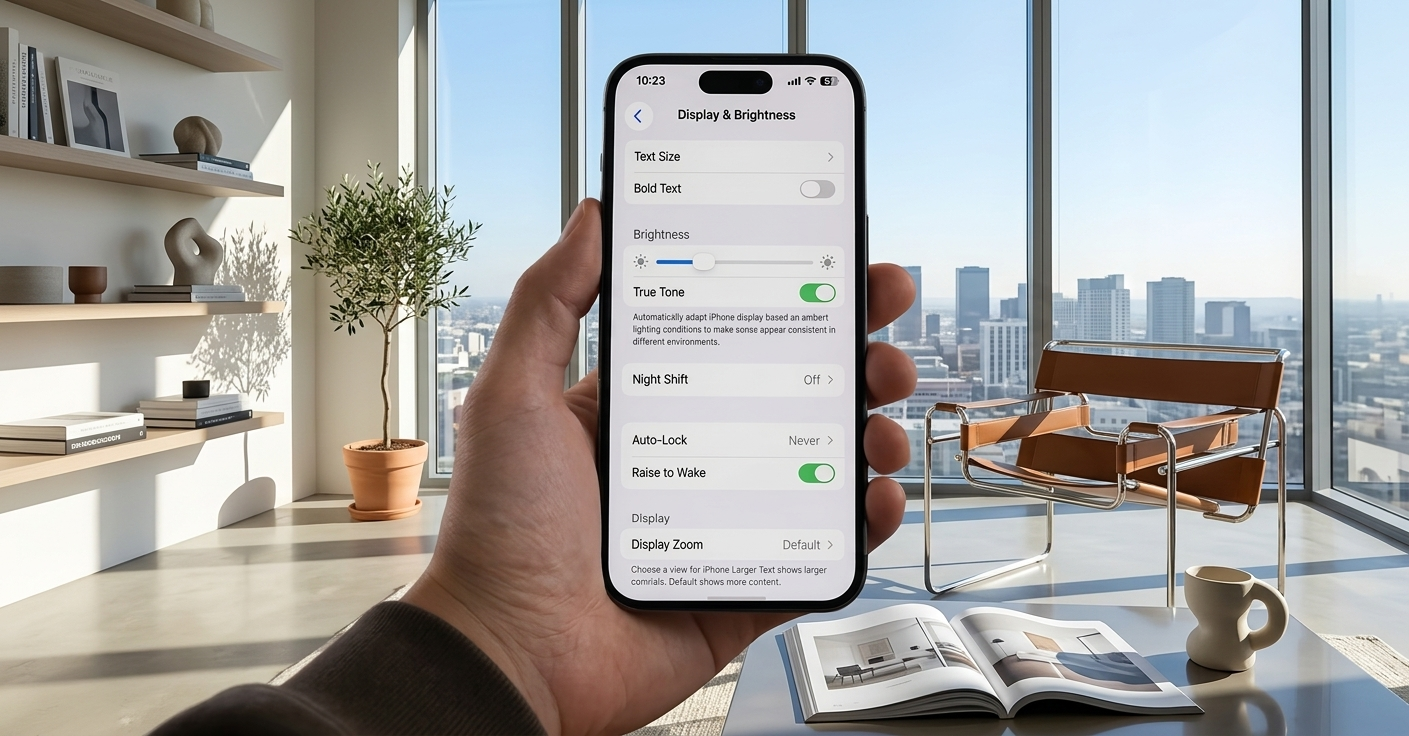
For a long time, I kept hearing the same advice: “Just reduce your screen time.” I tried that, but honestly, it didn’t make much difference. Even with limited use, my iPhone screen still felt uncomfortable. My eyes would get dry, slightly strained, and by nighttime, there was always that mild burning sensation.
It wasn’t severe, but it was consistent enough to be annoying.
Eventually, I realized the issue wasn’t my eyes—it was how my phone was set up. After tweaking a few hidden settings and adjusting my daily habits, the improvement was immediate and noticeable.
Also Read: WhatsApp Tests Smart Group Member Suggestions to Simplify Group Chats
Why Your iPhone Screen May Be Causing Eye Discomfort
Most people don’t realize how everyday phone usage can quietly strain the eyes. Here are a few common reasons behind it:
- Auto-brightness isn’t always accurate: Indoors, it often makes the screen brighter than necessary, forcing your eyes to constantly adapt.
- Night usage feels harsher: Even if the brightness seems okay, the screen can feel sharper and more intense in low-light conditions.
- Holding the phone too close: This increases the effort your eyes need to focus.
- Reduced blinking while scrolling: Less blinking leads to dryness, which causes irritation.
- High contrast visuals: Bright whites and sharp text can feel visually aggressive over time.
Best iPhone Settings to Make Your Screen Easier on the Eyes
You don’t need apps or accessories—everything you need is already built into your iPhone.
1. Turn On Screen Distance
This feature alerts you when you’re holding your phone too close.
Steps:
- Open Settings
- Tap Screen Time
- Select Screen Distance
- Turn it ON
It may feel annoying at first, but it quickly helps you build a healthier viewing distance.
2. Disable Auto-Brightness
Auto-brightness can be inconsistent, especially indoors.
Steps:
- Go to Settings
- Tap Accessibility
- Select Display & Text Size
- Turn OFF Auto-Brightness
Then manually adjust brightness from the Control Center. Keeping it around 30–40% indoors usually feels comfortable.
3. Use Reduce White Point (Highly Effective)
This setting softens bright whites, which are often the main cause of discomfort.
Steps:
- Open Settings
- Go to Accessibility
- Tap Display & Text Size
- Enable Reduce White Point
- Adjust it between 60–80%
This makes the screen look softer without reducing clarity.
4. Schedule Dark Mode Instead of Using It All the Time
Dark Mode isn’t always better—especially during the day.
Best approach:
- Use Light Mode during the day
- Switch to Dark Mode at night
Steps:
- Go to Settings > Display & Brightness
- Enable Automatic under Appearance
- Choose Sunset to Sunrise
5. Enable Night Shift and True Tone
Also Read: Anthropic Updates Claude Policy, Introduces Charges for High-Volume AI Usage
These features reduce harsh tones and adjust colors based on your environment.
Steps:
- Open Settings > Display & Brightness
- Turn ON True Tone
- Tap Night Shift
- Enable Scheduled and set timing (Sunset to Sunrise works well)
- Adjust to a warmer tone
6. Reduce Motion and Visual Effects
Animations may look good, but they add unnecessary visual strain.
Steps:
- Go to Settings > Accessibility > Motion
- Turn ON Reduce Motion
- Disable Auto-Play Message Effects
Then:
- Go to Display & Text Size
- Enable Reduce Bright Effects and Dim Flashing Lights
This creates a calmer and more comfortable interface.
7. Try Vehicle Motion Cues
Originally designed for motion sickness, this feature can also reduce visual discomfort while moving.
Steps:
- Open Settings > Accessibility > Motion
- Tap Vehicle Motion Cues
- Set it to Automatic
My Ideal iPhone Display Setup for Eye Comfort
After testing different combinations, this setup worked best for me:
- Brightness: 30–40% (manual)
- Reduce White Point: 60–80%
- Night Shift: ON in the evening
- Dark Mode: Scheduled
- Screen Distance: Enabled
- Text Size: Slightly increased
These changes completely removed that constant eye fatigue and nighttime irritation.
Also Read: OpenAI Introduces New Child Safety Blueprint to Address AI Misuse Risks
Simple Habits That Made a Big Difference
Settings help, but daily habits make the results consistent.
1. Follow the 20-20-20 Rule
Every 20 minutes, look at something 20 feet away for 20 seconds.
It helps relax your eye muscles and prevents strain from building up.
2. Avoid Continuous Scrolling
Non-stop scrolling puts constant pressure on your eyes.
Taking short breaks—even for a minute—can reduce fatigue significantly.
3. Increase Text Size
If you’re squinting, your screen setup needs adjustment.
Steps:
- Go to Settings > Display & Brightness > Text Size
- Increase it slightly for better readability
4. Don’t Use Your Phone in Complete Darkness
Using a bright screen in a dark room creates strong contrast, which strains your eyes.
Try keeping a soft ambient light on. This reduces discomfort and makes nighttime usage easier.
Who Should Try These Adjustments?
These tips can help if you:
- Experience frequent eye fatigue
- Get headaches after screen use
- Feel discomfort while scrolling at night
- Spend a lot of time reading on your phone
- Didn’t benefit from reducing screen time
Also Read: Picsart Launches AI-Powered Creator Earnings Program: A New Opportunity for Digital Creators
Final Thoughts: Make Your Screen Work for You
I used to think my iPhone was the problem, but it turned out the real issue was poor settings and habits. Once I made a few simple adjustments, everything changed—no more burning eyes, no more constant strain.
Your phone already has the tools you need. You just have to set them up the right way.