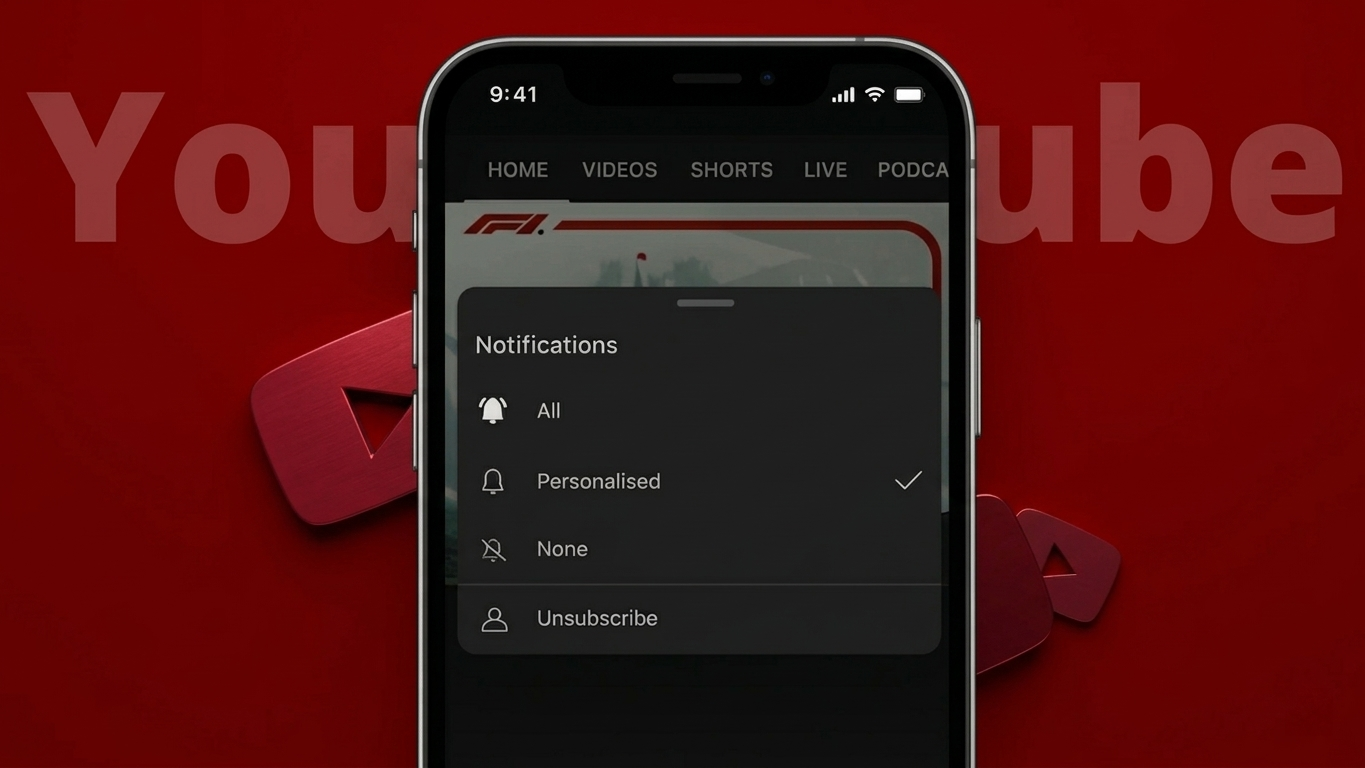
If you’ve been using YouTube for a long time, chances are you’ve subscribed to dozens—or even hundreds—of channels. Over time, this can make your feed feel overwhelming and less useful. Many users then wonder if there’s a quick way to unsubscribe from everything at once.
This article breaks down what’s actually possible, what YouTube يسمح, and how you can safely tidy up your subscriptions without risking your account.
Also Read: Truecaller Crosses 500 Million Monthly Users, Strengthens Position in Digital Safety
Is It Possible to Unsubscribe From All Channels Instantly?
Let’s be clear: there is no official “unsubscribe all” button on YouTube.
The platform intentionally avoids offering a bulk unsubscribe feature. This helps prevent accidental actions and protects accounts from misuse or automated abuse.
That said, you still have practical ways to clean up your subscriptions efficiently—just not in a single click.
Best Way to Clean Your Subscriptions (Desktop Method)
The most reliable approach is using YouTube’s built-in subscription management page.
Steps:
- Open YouTube in your browser
- Sign in to your account
- Click on Subscriptions from the left sidebar
- Select Manage (usually at the top-right)
- Scroll through your subscribed channels
- Click Subscribed next to any channel
- Confirm by selecting Unsubscribe
This method is fully safe, works on both Windows and Mac, and updates immediately.
Also Read: How to Customize the Windows 11 Taskbar for a Cleaner and More Efficient Desktop (2026 Guide)
Speed Up the Process (Smart Desktop Trick)
If you have a long list, you can make the process faster with a simple trick:
- Open several channel pages in separate tabs
- Click Subscribed → Unsubscribe on each tab
- Close each tab as you go
It’s still manual, but it reduces scrolling and saves time.
How to Unsubscribe Using Mobile (Android & iPhone)
If you prefer using your phone, the YouTube app also lets you remove subscriptions one by one.
Steps:
- Open the YouTube app
- Tap Subscriptions
- Tap All to view your full list
- Select a channel
- Tap Subscribed
- Confirm Unsubscribe
There’s no bulk option on mobile either, but this is the safest official method.
Why You Should Avoid Automation Tools
You might come across apps or browser extensions that promise to remove all subscriptions instantly. While tempting, these tools often require:
- Access to your account
- Permission to run scripts
- Google login authorization
Using such services can put your account at risk and may violate YouTube’s policies. In some cases, it could even lead to temporary restrictions or permanent issues.
For long-term safety, it’s best to stick with official methods.
Also Read: How to Find a Switched-Off Mobile Phone Using Practical Methods
What Changes After You Unsubscribe?
Once you start removing subscriptions, here’s what you can expect:
- Channels disappear from your subscription list immediately
- Your homepage recommendations gradually adjust
- Your past watch history still influences suggestions
- You can subscribe again anytime
- Your previous likes and comments remain untouched
A Fresh Start Without Cleanup
If you don’t want to spend time unsubscribing one by one, there’s another option:
- Create a separate Google account just for YouTube
- Use one account for specific interests (like education)
- Keep another for entertainment
This approach gives you a clean experience without modifying your existing account.
Also Read: How to Delete Your Threads Account Without Removing Instagram (Complete Guide)
Final Thoughts
While it would be convenient, YouTube doesn’t offer a way to unsubscribe from all channels at once—and that’s by design. The platform prioritizes user control and account safety over quick bulk actions.
The safest way forward is to gradually remove unwanted subscriptions using YouTube’s built-in tools. It may take a little time, but the result is a cleaner, more relevant feed tailored to your current interests.
Also Read: How to Search Messages on WhatsApp Easily (Android & iPhone)