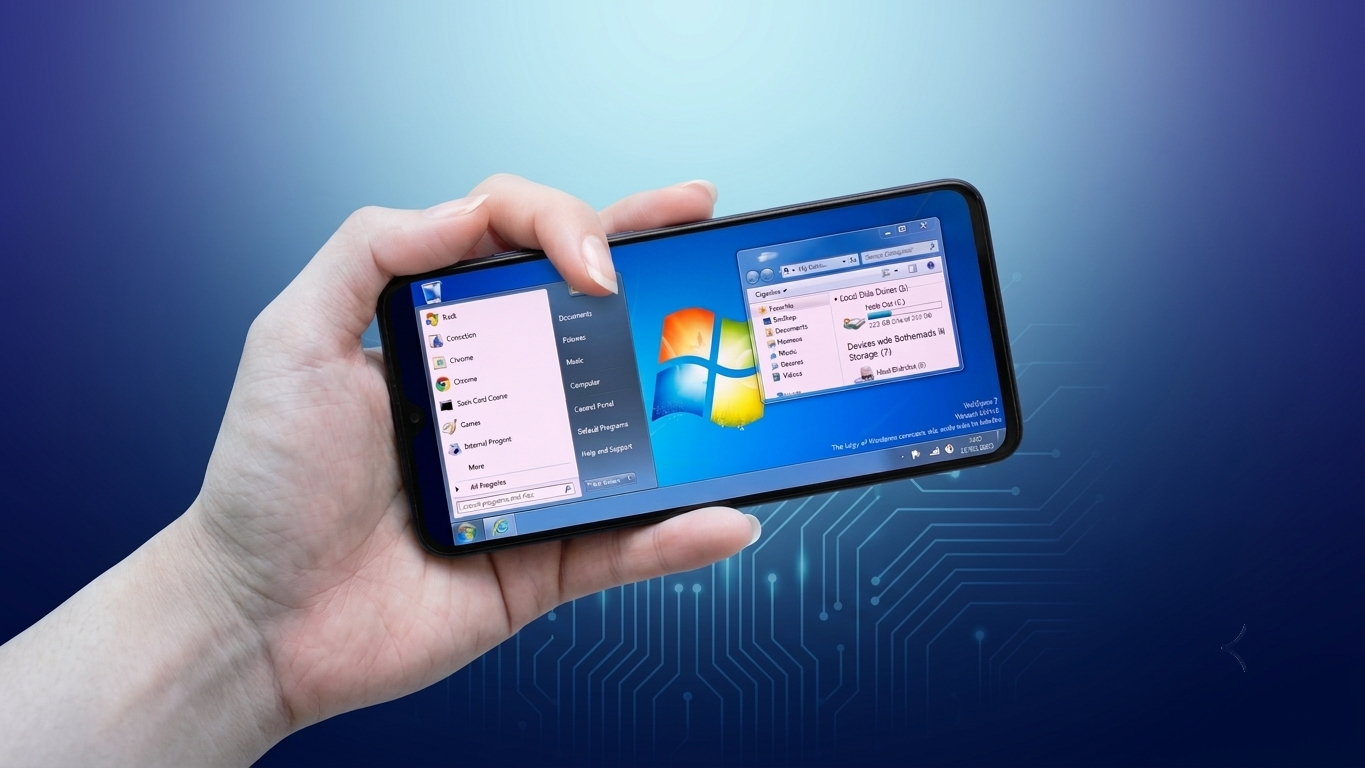
Android is well known for its flexibility, allowing users to personalize almost every part of their device. One popular way to refresh the interface is by installing a Computer Launcher, which gives your smartphone a layout inspired by a traditional desktop computer.
Instead of the usual Android home screen, these launchers introduce familiar desktop-style elements such as a Start menu, desktop icons, taskbar-like navigation, and a file explorer-inspired interface. It’s an excellent option for users who prefer the appearance of a PC while continuing to use Android.
Also Read: Gesture Lock Screen Makes Android Phone Security More Personal and Unique
What Is Computer Launcher?
Computer Launcher is an Android launcher app that changes the visual interface of your phone to resemble a desktop operating system. It does not install Windows or replace Android. Instead, it redesigns the home screen with a computer-inspired layout while keeping all Android features intact.
This type of launcher is intended for users who enjoy a desktop-style workspace and want a different way to interact with their device.
Why Many Users Install Computer Launcher
One of the biggest attractions of a Computer Launcher is the familiar desktop environment. It offers a fresh look without changing the underlying Android operating system.
Some of the reasons users choose this type of launcher include:
- Desktop-inspired home screen
- Organized app management
- Personalized workspace
- Easy access to frequently used apps
- A different visual experience from standard Android launchers
Main Features of Computer Launcher
Desktop-Style Interface
The launcher recreates a PC-like environment by displaying desktop icons, a Start menu, and navigation elements similar to those found on desktop operating systems.
Organized Home Screen
Apps, folders, and shortcuts can be arranged neatly, helping create a cleaner and more organized workspace.
Built-In File Management
Many Computer Launcher apps include a file manager with a layout inspired by desktop file explorers. This can make browsing folders and managing files feel more familiar to users accustomed to computers.
Extensive Customization
Most launchers allow users to personalize various interface elements, including:
- Desktop wallpapers
- Icon packs
- Folder appearance
- Start menu layout
- App shortcuts
- Theme settings
These customization options make it easy to create a desktop environment that matches your preferences.
Faster Access to Apps
Important applications, folders, and widgets can be placed directly on the desktop, reducing the need to search through multiple screens.
How to Install Computer Launcher
Setting up a Computer Launcher is usually simple:
- Open the Google Play Store.
- Search for a trusted Computer Launcher app.
- Install the application.
- Launch the app after installation.
- Follow the setup instructions.
- Set it as your default launcher if prompted.
After setup, your Android home screen will switch to the selected desktop-style interface.
Using Computer Launcher
Once installed, navigating the launcher is straightforward.
You can:
- Open apps through the Start menu
- Customize wallpapers and icons
- Create folders and shortcuts
- Add widgets to the desktop
- Manage files using the built-in file manager (if available)
Most settings are easy to access, allowing users to personalize the experience within a few minutes.
Things to Know Before Installing
Although Computer Launcher offers an attractive interface, there are a few points to keep in mind:
- Performance may vary depending on your device.
- Older smartphones may experience slower animations.
- Features differ between launcher apps.
- The launcher changes only the appearance of Android and does not convert your phone into a Windows computer.
Checking reviews and system requirements before installing can help you choose a launcher that works well with your device.
Who Might Like Computer Launcher?
This type of launcher is suitable for a variety of Android users, including:
- Students
- Office professionals
- Android customization enthusiasts
- Technology fans
- Users familiar with desktop computers
Anyone looking for a fresh interface without changing their operating system may enjoy using a Computer Launcher.
Why Choose a Desktop-Style Launcher?
Compared to a standard Android home screen, a Computer Launcher provides a unique working environment with improved organization and a computer-inspired layout. For users who spend a lot of time managing files or prefer desktop navigation, it can make everyday tasks feel more familiar.
At the same time, all regular Android apps continue to function as usual since only the interface changes.
Also Read: Battery Charging Animation 4K Brings Stunning Visual Effects to Your Android Charging Screen
Final Thoughts
Computer Launcher is a simple way to give your Android phone a desktop-inspired appearance without replacing its operating system. With customizable themes, organized navigation, desktop-style icons, and PC-like visual elements, it offers a refreshing alternative to the traditional Android interface.
If you enjoy experimenting with new launcher designs or prefer the look of a computer desktop, a Computer Launcher app is worth exploring. Just be sure to download a trusted app from the Google Play Store and review its features before making it your default launcher.

Ankita Kumar, founder of sabhigyan.com, is passionate about technology, smartphones, apps, and digital tools. With 8+ years of experience in the digital and tech space, he focuses on creating easy-to-understand, practical, and helpful content that makes everyday technology simpler for readers.
Advertisements