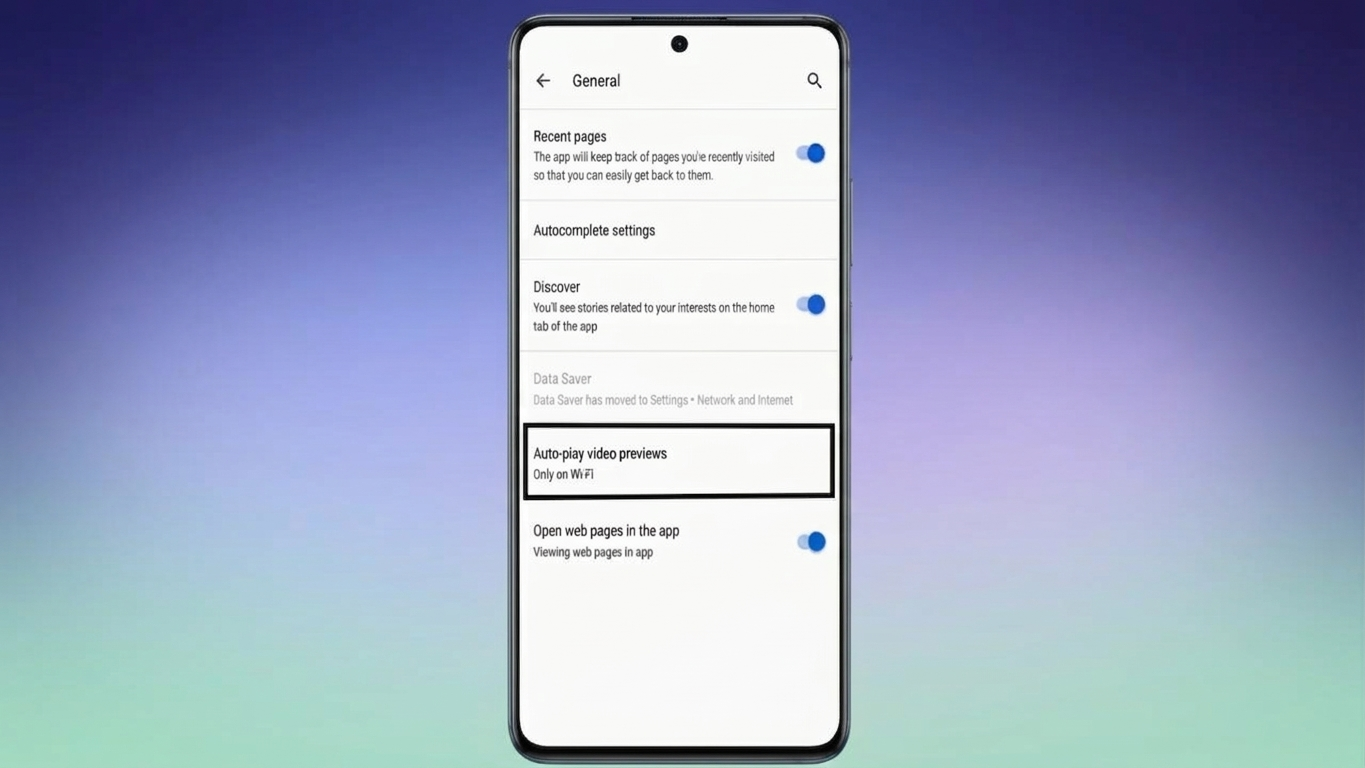
If you use Google Discover to explore the latest news, trending stories, and personalized content, you’ve probably noticed that some video previews begin playing automatically while you scroll. Although these previews are usually muted and don’t play the complete video, they can still consume mobile data, drain battery life, and make the feed feel more distracting.
Fortunately, Google gives you the option to control this behavior. With a quick change in the app settings, you can disable autoplay completely or allow it only when you’re connected to Wi-Fi.
Also Read: How to Get Gemini Advanced: Complete Subscription Guide (2026)
Why You May Want to Turn Off Video Autoplay
Disabling automatic video previews can make your browsing experience more comfortable and efficient. Some of the main benefits include:
- Helps reduce mobile data consumption.
- Minimizes distractions caused by moving video previews.
- Makes the Discover feed easier to browse.
- May improve battery life during extended use.
- Gives you complete control over when videos start playing.
How to Disable Video Autoplay in Google Discover
Follow these steps on your Android device:
- Launch the Google app.
- Tap your profile picture in the upper-right corner.
- Open Settings.
- Select General.
- Scroll until you find Autoplay video previews.
- Tap the option and choose the setting that best fits your needs.
Once you save your preference, the new setting will take effect immediately.
Understanding the Available Autoplay Settings
Google offers three different autoplay options. Here’s what each one does:
1. Never
Selecting Never completely stops video previews from playing automatically. Instead, you’ll only see a thumbnail image, and videos will play only when you tap them.
This option is ideal if you want to:
- Save mobile data.
- Reduce unnecessary animations.
- Enjoy a quieter and cleaner browsing experience.
2. Only on Wi-Fi
Choose Only on Wi-Fi if you like autoplay previews but don’t want them using your mobile data.
With this setting:
- Video previews play only when connected to a Wi-Fi network.
- Mobile data is preserved while you’re away from Wi-Fi.
3. On Wi-Fi and Mobile Data
If you don’t mind autoplay previews, you can leave the feature fully enabled by selecting On Wi-Fi and Mobile Data.
In this mode:
- Video previews play automatically regardless of your internet connection.
- The experience remains the same whether you’re using Wi-Fi or cellular data.
Benefits of Turning Off Autoplay
Changing this setting can improve your overall Google Discover experience in several ways:
- Reduces unnecessary mobile data usage.
- Creates a cleaner and less distracting feed.
- Makes reading articles more enjoyable.
- Gives you greater control over media playback.
- Allows you to switch back to another setting whenever you prefer.
Can You Enable Autoplay Again Later?
Yes. If you decide you want video previews back, simply return to the same Autoplay video previews setting inside the Google app and choose either Only on Wi-Fi or On Wi-Fi and Mobile Data.
There is no limit to how often you can change this preference.
Frequently Asked Questions
Does turning off autoplay disable videos completely?
No. Videos remain available in Google Discover. They simply won’t begin playing automatically while you scroll. You can still tap any video to watch it.
Will this help save mobile data?
Yes. Preventing automatic video previews can reduce unnecessary data usage, especially when browsing over a mobile network.
Is this setting available on all Android phones?
Most Android devices with the latest version of the Google app include this option. However, the exact menu layout may vary slightly depending on your device and app version.
Also Read: How to Tag Someone on Instagram Posts (Complete Beginner-Friendly Guide)
Final Thoughts
Disabling video autoplay in Google Discover is a simple way to make browsing more comfortable. Whether your priority is saving mobile data, reducing distractions, or extending battery life, adjusting this setting takes only a few seconds. If your preferences change in the future, you can revisit the same settings menu and update the autoplay option anytime.

Ankita Kumar, founder of sabhigyan.com, is passionate about technology, smartphones, apps, and digital tools. With 8+ years of experience in the digital and tech space, he focuses on creating easy-to-understand, practical, and helpful content that makes everyday technology simpler for readers.
Advertisements