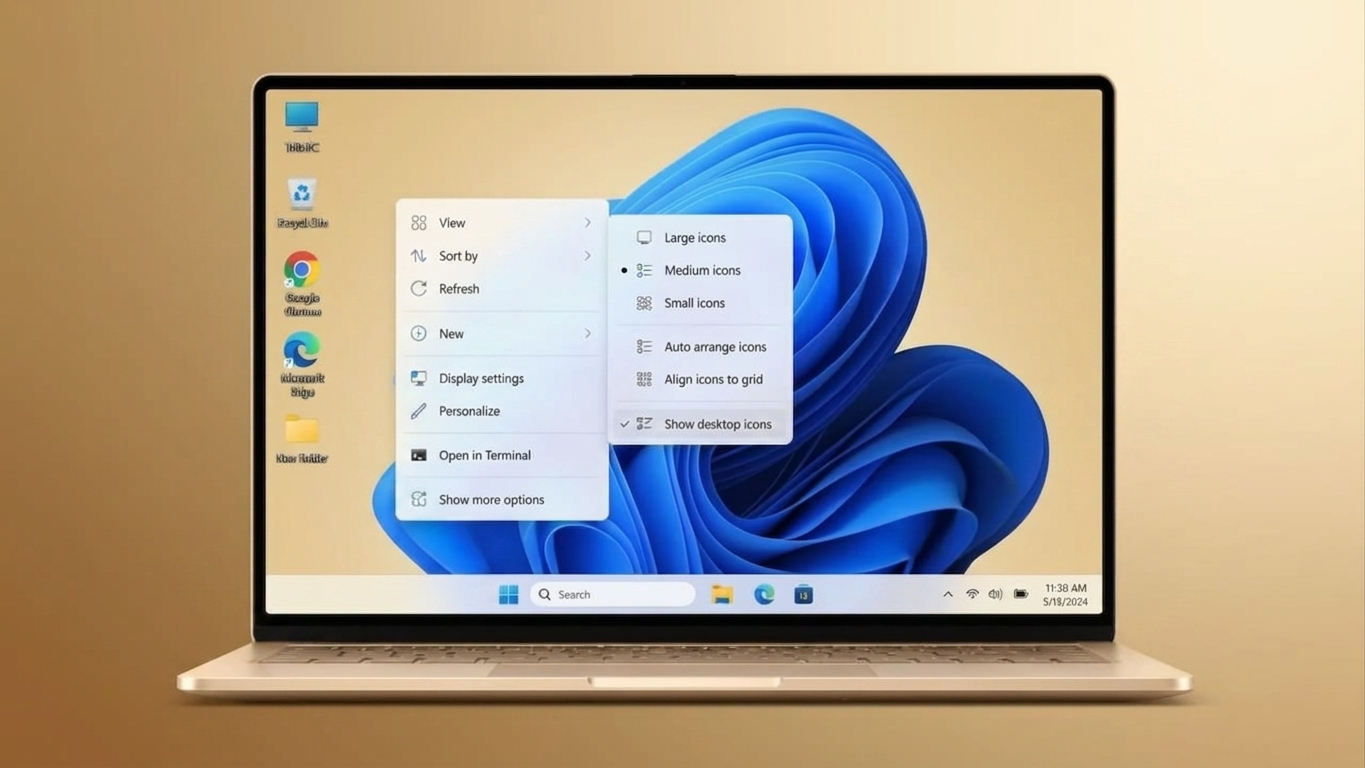
A crowded desktop can make it harder to locate important files and shortcuts. If your Windows desktop is packed with icons, you can easily remove unwanted shortcuts, temporarily hide everything for a cleaner look, or restore items that were deleted accidentally. The best part is that Windows includes built-in tools for all of these tasks, so you don’t need any third-party software.
The methods below work on both Windows 10 and Windows 11.
Quick Overview
- Delete unwanted desktop shortcuts without uninstalling the associated apps.
- Hide all desktop icons whenever you need a distraction-free screen.
- Restore accidentally deleted desktop items from the Recycle Bin.
- Keep your desktop organized for a faster and more productive workflow.
Also Read: How to Lock a Folder in Windows 11: Best Methods to Secure Your Private Files
How to Delete Desktop Icons in Windows
If you no longer need certain desktop shortcuts, files, or folders, you can remove them in just a few clicks. Keep in mind that deleting a shortcut only removes the shortcut itself—it does not uninstall the application.
Step 1: Open Your Desktop
Press Windows + D to minimize all open windows and display the desktop instantly.
Step 2: Select the Items
Click the icon you want to remove.
To select multiple items at once:
- Hold the Ctrl key.
- Click each icon you want to select.
Step 3: Delete the Selected Icons
Right-click any of the selected items and choose Delete.
If Windows displays a confirmation message, click Yes to continue.
The selected files, folders, or shortcuts will be moved to the Recycle Bin unless they are permanently deleted.
Alternative Method
You can also drag and drop the selected items directly into the Recycle Bin. This produces the same result and allows easy recovery later if needed.
Hide Desktop Icons Without Deleting Them
Sometimes you simply want a clean desktop—for example, during a presentation, online meeting, or screen recording. Instead of deleting everything, Windows lets you hide all desktop icons with a single option.
Steps to Hide Desktop Icons
- Press Windows + D to open the desktop.
- Right-click any empty area of the desktop.
- Select View.
- Click Show desktop icons to remove the checkmark.
All icons disappear immediately, but they remain safely stored on your computer.
How to Show Desktop Icons Again
Whenever you want the icons back:
- Right-click an empty area of the desktop.
- Go to View.
- Click Show desktop icons again.
Your desktop shortcuts, files, and folders will instantly reappear.
When Hiding Desktop Icons Is Useful
Temporarily hiding desktop icons can be helpful in several situations:
- Giving presentations without visual distractions.
- Sharing your screen while keeping personal files out of view.
- Creating a clean desktop for screenshots or recordings.
- Enjoying a minimalist workspace without deleting anything.
Since this feature only hides the icons, nothing is removed from your computer.
How to Restore Deleted Desktop Icons
If you accidentally remove a desktop shortcut or file, you can usually recover it through the Recycle Bin, provided it hasn’t been emptied.
Restore Items from the Recycle Bin
- Open Recycle Bin from the desktop or search for it using the Start menu.
- Locate the deleted item.
- Right-click it.
- Select Restore.
Windows automatically returns the item to its original desktop location.
Important Things to Remember
- Files and shortcuts can only be restored while they remain in the Recycle Bin.
- After the Recycle Bin is emptied, recovery may require specialized recovery software and may not always be successful.
- Built-in Windows system icons such as This PC, Network, or Recycle Bin are managed separately. If these icons disappear, you can enable them through Desktop Icon Settings in Windows.
Tips to Keep Your Desktop Organized
A well-organized desktop makes everyday computer use easier. Here are a few simple habits:
- Remove shortcuts you no longer use.
- Store important documents inside dedicated folders instead of leaving them on the desktop.
- Group similar files into folders for easier access.
- Review and clean up your desktop regularly to prevent clutter.
Also Read: How to Set Up Google Play Store on Windows 11 (Beginner-Friendly Guide – 2026)
Final Thoughts
Managing desktop icons in Windows is quick and straightforward. Whether you want to delete unnecessary shortcuts, hide all icons for a cleaner workspace, or recover something you removed by mistake, Windows provides simple built-in options to get the job done. Spending a few minutes organizing your desktop can improve productivity and make your computer easier to use every day.

Ankita Kumar, founder of sabhigyan.com, is passionate about technology, smartphones, apps, and digital tools. With 8+ years of experience in the digital and tech space, he focuses on creating easy-to-understand, practical, and helpful content that makes everyday technology simpler for readers.
Advertisements