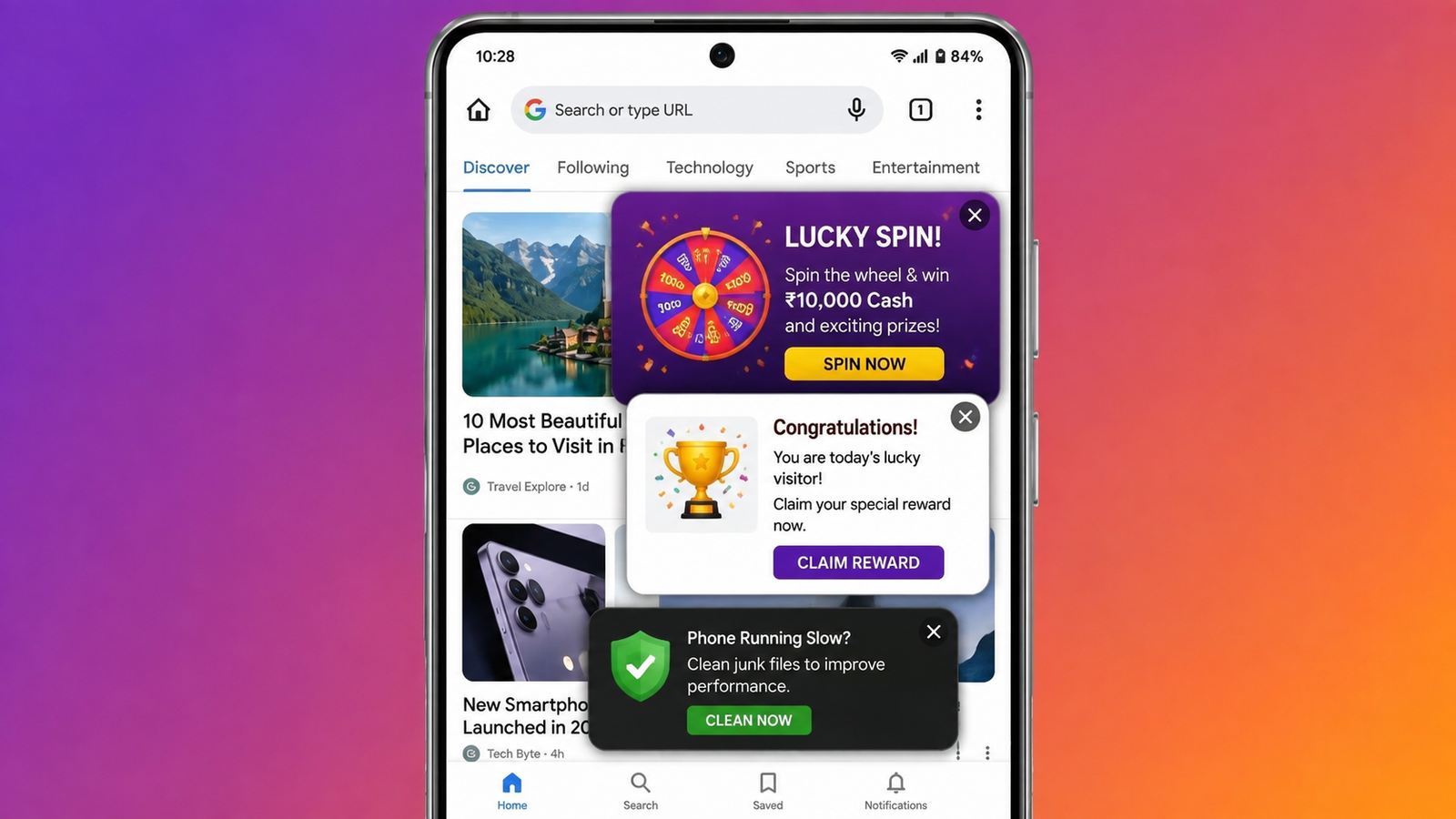
Seeing pop-up advertisements repeatedly on your Android phone can be frustrating, especially when they appear while browsing the web or using another app. In some cases, these ads may also redirect you to unfamiliar pages or encourage you to click on misleading offers.
Fortunately, you can often reduce these interruptions without installing complicated software. Android and popular mobile browsers provide several built-in controls for managing pop-ups, notifications, permissions, and unwanted apps.
Below are some practical methods you can try to stop or reduce pop-up ads on your Android device.
Also Read: How to Change an Instagram Business Account to a Personal Account
1. Turn Off Pop-Ups in Google Chrome
If most of the unwanted advertisements appear while browsing with Chrome, start by checking its pop-up settings.
To block pop-ups:
- Open Google Chrome on your phone.
- Tap the three-dot menu.
- Select Settings.
- Go to Site settings.
- Tap Pop-ups and redirects.
- Make sure pop-ups and redirects are blocked.
You can also check the Ads or Intrusive ads section, depending on your Chrome version, and enable the available protection.
Some legitimate websites use pop-up windows for functions such as payment pages or sign-ins. If a trusted website requires one, you can allow it temporarily rather than disabling protection completely.
2. Try Private Browsing
Private or Incognito browsing can be useful when visiting websites you don’t regularly use. It doesn’t save your normal browsing history on the device after the private session ends.
In Chrome, open the three-dot menu and choose New Incognito tab.
Keep in mind that Incognito Mode does not block all advertisements. It mainly changes how browsing information is stored locally and doesn’t make you completely anonymous online.
3. Check Pop-Up Protection in Firefox
Mozilla Firefox includes built-in protection against many unwanted web behaviors.
For a more private browsing session:
- Open Firefox.
- Tap the three-dot menu.
- Choose New private tab.
Firefox also provides Enhanced Tracking Protection, which can help limit certain tracking technologies used by websites. You can review its privacy settings and choose a stronger protection level if it works properly with the websites you use.
If you install Firefox extensions, stick to reputable add-ons from its official add-on marketplace.
4. Block Pop-Ups in Samsung Internet
Samsung Internet also provides controls for unwanted pop-up windows.
Depending on your phone and app version, you can generally find the option by following this path:
Samsung Internet → Menu → Settings → Privacy Dashboard or Sites and Downloads → Block pop-ups
The names and locations of some options can differ between Samsung devices and software versions, so don’t worry if your menu looks slightly different.
5. Use a Browser With Built-In Ad Blocking
Another simple option is to use a browser that provides its own advertising protection.
For example, browsers such as Opera include built-in ad-blocking features. Other browsers may offer similar controls through their privacy or security settings.
Using a browser with integrated protection can be more convenient than installing an unknown ad-blocking application.
6. Disable Advertising Notifications
Not every unwanted advertisement comes from a website’s pop-up window. Some apps send promotional notifications that can look like regular alerts.
If a particular app keeps sending unwanted notifications:
- Open Settings.
- Go to Apps.
- Select the app responsible for the alerts.
- Tap Notifications.
- Disable the notification categories you don’t want.
On many Android phones, you can also press and hold an unwanted notification and open its notification settings directly.
Avoid turning off important notifications from apps you actually need, such as messaging, banking, or security applications.
7. Check Which Apps Can Appear on Top of Other Apps
Some Android applications have permission to display content over other apps. If a suspicious application has this access, it may potentially show unwanted floating content.
To review the permission, the exact menu can vary by manufacturer:
Settings → Apps → Special app access → Display over other apps
On some Samsung phones, the setting may be called Appear on top.
Look through the apps with this permission and remove access from applications you don’t recognize or don’t trust.
If an unfamiliar app is responsible for the advertisements, uninstalling it is usually a better solution than simply changing its permissions.
8. Clear Your Browser’s Cache
Repeated redirects or unusual browser behavior can sometimes be related to temporary browser data.
You can clear the cache without normally removing your saved personal information:
- Open Settings.
- Select Apps.
- Choose your browser.
- Tap Storage.
- Select Clear cache.
The exact menu may differ depending on your Android version and phone manufacturer.
Be careful not to choose Clear storage/data unless you understand what it does, as that can reset app data and may sign you out of accounts.
9. Look for Unfamiliar or Recently Installed Apps
If advertisements appear even when you’re not browsing, the cause may be an application installed on the phone.
Pay particular attention to apps that:
- You installed shortly before the problem started
- Have an unfamiliar name or icon
- Request permissions that don’t seem necessary
- Were downloaded from outside the official app store
- Imitate another well-known application
Review your installed applications and remove anything you don’t recognize or no longer need.
How to Review Apps Through Google Play Store
You can check your applications from the Play Store:
Google Play Store → Profile picture → Manage apps & device → Manage
From there, review the list and uninstall apps that you no longer want.
10. Run a Google Play Protect Scan
Google Play Protect is built into Android’s Google Play ecosystem and checks applications for potentially harmful behavior.
To manually start a scan:
- Open the Google Play Store.
- Tap your profile picture.
- Select Play Protect.
- Tap Scan.
If Play Protect identifies a potentially harmful application, follow the instructions provided by Google.
Avoid downloading random security applications simply because a website or pop-up tells you that your phone is infected. Such messages can themselves be misleading.
11. Remove Apps That Cause the Problem
Once you’ve identified a suspicious application, uninstall it.
You can usually do this by pressing and holding its icon and selecting Uninstall.
Alternatively:
Settings → Apps → Select the app → Uninstall
If the app refuses to uninstall or behaves unusually, check its permissions and device administrator access. These settings can differ between Android manufacturers.
12. Use Safe Mode to Find the Problematic App
Android’s Safe Mode can help determine whether a third-party application is causing unusual behavior.
The method for entering Safe Mode varies between manufacturers, but on many devices you can:
- Open the power menu.
- Touch and hold Power off.
- Choose Safe Mode when the option appears.
If the unwanted advertisements stop while the phone is in Safe Mode, a third-party app may be responsible.
Restart the phone normally afterward and consider removing recently installed or updated applications one at a time. This makes it easier to identify the app causing the issue.
13. Consider Using Private DNS
Android’s Private DNS feature can be configured with a trusted DNS provider. Some DNS services offer filtering that can block certain advertising and tracking domains.
The option is generally available under:
Settings → Network & Internet / Connections → Private DNS
Choose Private DNS provider hostname and enter the hostname provided by a reputable DNS service.
Services such as AdGuard DNS and NextDNS offer filtering options, but DNS-based blocking isn’t perfect. Some advertisements may still appear, and incorrectly configured filtering can sometimes affect legitimate websites.
14. Choose Trusted Ad-Blocking Solutions
If you frequently encounter intrusive advertising while browsing, consider using a reputable browser with built-in ad-blocking or a well-established ad-blocking solution.
Depending on the service, the benefits can include:
- Fewer intrusive advertisements
- Less distracting browsing
- Reduced tracking
- Potentially lower data usage
- Cleaner-looking web pages
Always install applications from trusted sources such as the Google Play Store. Be particularly cautious with apps that claim they can completely remove every advertisement or instantly fix a supposedly infected phone.
What If Pop-Up Ads Still Appear?
If you’ve tried browser settings but advertisements continue appearing across different apps and screens, don’t assume the browser is responsible.
Instead, check these areas:
Installed apps → App permissions → Notification access → Display over other apps → Play Protect
Recently installed applications should receive particular attention. Removing a problematic app can often resolve persistent advertising behavior.
Also Read: How to Activate Airtel eSIM in 2026: Easy Step-by-Step Process
Final Thoughts
You don’t need advanced technical knowledge to reduce pop-up ads on an Android phone. Start with your browser’s built-in pop-up protection, then check notification permissions and applications installed on the device.
If the problem continues, review Display over other apps, run a Play Protect scan, test the phone in Safe Mode, and consider a trusted Private DNS service.
No single setting can guarantee that every advertisement will disappear, but these steps can significantly reduce unwanted pop-ups while helping you identify applications or websites responsible for them.

Sourav Gorai, founder of sabhigyan.com, is passionate about technology, smartphones, apps, and digital tools. With 8+ years of experience in the digital and tech space, he focuses on creating easy-to-understand, practical, and helpful content that makes everyday technology simpler for readers.