Protecting your personal information has become increasingly important as smartphone apps collect more data about how people use their devices. From browsing habits and location details to fitness records and online preferences, different applications may request access to information that isn’t always necessary for their main features.
Fortunately, Apple provides several built-in privacy tools that allow iPhone users to control what information apps can access. You don’t need to install additional security software to manage most of these permissions.
Whether you want to prevent apps from following your activity across different platforms or simply limit access to your personal information, adjusting a few settings can make a meaningful difference.
In this guide, you’ll learn how to stop app tracking on your iPhone in 2026, manage individual privacy permissions, and make your everyday browsing more secure.
Also Read: How to Disable Private Browsing on an iPhone and Restrict Access in iOS 26
What Information Can iPhone Apps Collect?
The information an application can access depends on its features, the permissions you grant, and its privacy practices. Some apps require only basic information, while others may request access to several categories of personal data.
Here are some examples of information that applications may collect:
- Personal details: Your name, age, email address, and phone number.
- Device information: Your iPhone model, operating system version, IP address, and network details.
- Browsing activity: Websites you visit, searches you perform, and links you interact with.
- Location information: Your current location, frequently visited places, and location details attached to photographs.
- Contact information: Names, phone numbers, and email addresses stored in your contact list, if permission is granted.
- Health information: Certain health measurements and wellness records shared through Apple Health.
- Fitness activity: Steps, movement information, workout records, and other activity-related data.
- Advertising preferences: Information that may be used to personalize advertisements.
Not every application collects all these details. The information available to an app depends largely on its permissions and the data it independently collects through its services.
Apple’s privacy settings make it possible to review and restrict many of these permissions.
1. Disable App Tracking Across Other Apps and Websites
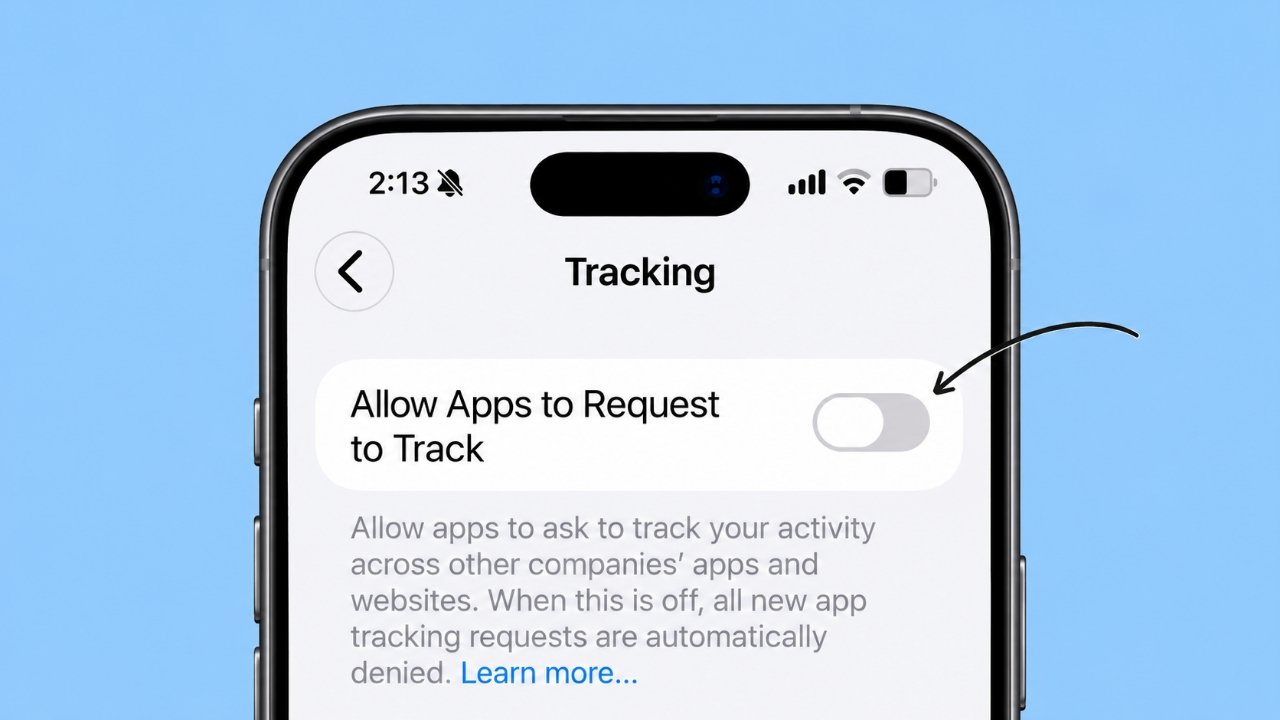
One of the most useful privacy features available on an iPhone is App Tracking Transparency. It allows you to decide whether applications can track your activity across other companies’ apps and websites for advertising or measurement purposes.
If you don’t want applications to request this type of permission, you can disable the feature entirely.
Follow these steps:
- Open the Settings app on your iPhone.
- Select Privacy & Security.
- Tap Tracking.
- Find the Allow Apps to Request to Track option.
- Switch it off.
After disabling this option, apps are generally required to treat your tracking permission as denied. Existing permissions are also affected.
This is one of the simplest ways to limit cross-app tracking without manually reviewing every application.
2. Manage Tracking Permissions for Individual Apps
You might not want to restrict every application on your iPhone. Some users prefer allowing certain services while preventing others from accessing their activity.
iOS also provides an option to manage tracking permissions individually.
Here’s what you need to do:
- Open Settings.
- Navigate to Privacy & Security > Tracking.
- Look through the applications listed on the screen.
- Find the app whose tracking permission you want to change.
- Turn off the switch next to its name.
This gives you greater control over which applications can request tracking access.
Keep in mind that this setting controls cross-app and cross-website tracking. It doesn’t automatically prevent an application from collecting information directly within its own service.
3. Control Tracking Requests from Newly Installed Apps
When you install a new application, it may ask for permission to track your activity.
You don’t have to approve the request simply because it appears on your screen.
If you prefer to maintain your privacy, select Ask App Not to Track whenever the permission request appears.
You can also keep the main tracking permission disabled in your iPhone settings to prevent future tracking requests.
Before granting any privacy permission, consider whether the application genuinely needs that information to provide its services.
4. Stop Unnecessary Apps from Accessing Your Location
Location access is another important privacy setting to review. Certain applications may need your location to provide useful features, but others might request access without requiring it for their primary purpose.
You can decide which apps are allowed to access your location.
To change these permissions:
- Open Settings.
- Go to Privacy & Security.
- Select Location Services.
- Choose the application you want to manage.
- Select Never to prevent it from accessing your location.
You may also see other permission options, depending on the application.
For example, selecting While Using the App allows an application to access your location when you’re actively using it, rather than providing unrestricted background access.
This option can be useful for navigation, food delivery, and ride-booking services.
If you want to restrict location access for all applications temporarily, you can turn off the main Location Services switch.
However, remember that some essential services and location-based features may stop working correctly.
5. Disable Significant Locations
Your iPhone includes a feature called Significant Locations. When enabled, it can maintain records of places you frequently visit to support certain personalized services.
If you don’t want your device to maintain this location history, you can turn the feature off.
Follow these instructions:
- Open Settings.
- Select Privacy & Security.
- Tap Location Services.
- Scroll down and open System Services.
- Select Significant Locations.
- Turn off the feature.
Depending on your iOS version, you may need to authenticate using Face ID, Touch ID, or your passcode.
If the option to clear previously stored location history is available, you can use it to remove the saved records.
Disabling Significant Locations is useful if you prefer to limit the location information retained by your iPhone.
6. Remove Location Information from Your Photos
Photos taken with an iPhone can contain additional information known as metadata. This may include the date, time, camera details, and geographical location where a picture was captured.
Location metadata can reveal more about a photograph than you might expect, especially when sharing pictures publicly.
There are two ways to manage this information.
Option A: Disable camera location access
- Open Settings.
- Navigate to Privacy & Security > Location Services.
- Find and select Camera.
- Choose Never.
Your Camera app will no longer receive location information through Location Services.
Option B: Remove location information before sharing
If you want to keep location tagging enabled while taking photographs, you can remove location details when sharing individual pictures.
Here’s how:
- Open the Photos app.
- Select the picture you want to share.
- Tap the Share button.
- Select Options at the top of the sharing screen.
- Turn off the Location option, if available.
- Share the photograph.
This allows you to keep your photo-taking preferences while reducing the amount of location information included when sharing images.
7. Restrict Third-Party Access to Apple Health Data
Apple Health stores information related to your health and wellness activities. Depending on your settings, other applications may request permission to read or write certain health records.
If you previously granted access to an application and no longer want it to use that information, you can review its permissions.
To manage access:
- Open Settings.
- Go to Privacy & Security.
- Select Health.
- Choose the application you want to review.
- Examine the available data categories and disable permissions you no longer want to grant.
You can also manage these permissions directly through the Health app under its data-sharing settings.
It’s worth reviewing these options occasionally, particularly if you have installed several fitness or wellness applications.
8. Limit Access to Your Fitness and Motion Information
Fitness applications sometimes request access to movement-related information, including step counts, physical activity, and workout data.
Although this information can help fitness services provide useful features, not every application needs access to it.
To review these permissions:
- Open your iPhone’s Settings.
- Select Privacy & Security.
- Tap Motion & Fitness.
- Review the applications displayed.
- Turn off access for applications that don’t need this information.
The available controls may differ depending on your iPhone model and installed iOS version.
Restricting unnecessary fitness permissions is another practical way to reduce the amount of personal information shared with third-party services.
9. Turn Off Personalized Apple Advertising
Apple provides advertising settings that allow users to control whether advertisements are personalized using information associated with their Apple advertising activity.
If you prefer not to receive personalized advertisements through Apple’s advertising platform, you can disable this option.
Here’s how:
- Open Settings.
- Navigate to Privacy & Security.
- Select Apple Advertising.
- Find the Personalized Ads setting.
- Turn it off.
It’s important to understand that disabling personalized advertising doesn’t remove advertisements from your iPhone.
You may still see ads, but they won’t be personalized using the information covered by this particular setting.
Also, Apple’s advertising settings and third-party app tracking permissions are separate controls.
10. Improve Safari Privacy Settings
Websites can use different technologies to recognize visitors, measure browsing activity, and personalize advertisements.
Safari includes privacy features designed to limit certain forms of online tracking.
If Safari is your primary browser, consider reviewing the following settings.
Prevent cross-site tracking
- Open Settings.
- Go to Apps > Safari.
- Find the Privacy & Security section.
- Enable Prevent Cross-Site Tracking.
This setting helps limit tracking cookies and similar technologies used by websites to follow your activity across different sites.
Hide your IP address from trackers
- Open Safari settings.
- Select Hide IP Address.
- Choose From Trackers, if available.
This feature helps prevent certain trackers from seeing your actual IP address.
Enable advanced tracking and fingerprinting protection
On supported iOS versions:
- Open Settings > Apps > Safari.
- Navigate to Advanced.
- Find Advanced Tracking and Fingerprinting Protection.
- Select All Browsing, if available.
This provides additional protection against certain techniques websites may use to identify your device.
Consider a privacy-focused search engine
Safari also lets you change its default search engine.
If you prefer an alternative to traditional search providers, you can explore options such as DuckDuckGo or Ecosia.
To change the setting:
- Open Settings.
- Select Apps > Safari.
- Tap Search Engine.
- Choose your preferred search provider.
Changing your search engine alone doesn’t prevent all online tracking, but it gives you another way to manage your browsing preferences.
Additional Tips to Improve iPhone Privacy
Changing tracking permissions is a good starting point, but a few additional habits can help you maintain better control over your personal information.
Here are some practical recommendations:
- Review app permissions regularly: Check which applications have access to your camera, microphone, contacts, photos, and location.
- Remove applications you no longer use: Unused apps may still retain information or permissions associated with your account.
- Install iOS updates: Software updates can include important security improvements and privacy enhancements.
- Use strong account passwords: Protect your Apple Account and other important online accounts with unique passwords.
- Enable two-factor authentication: This adds another layer of protection to supported accounts.
- Be careful with permission requests: Avoid granting access unless the requested information is relevant to the app’s functionality.
- Check app privacy information: Review an application’s privacy details before installing it.
These simple practices can help you build a more privacy-conscious smartphone experience.
Frequently Asked Questions (FAQs)
Can I completely stop apps from tracking me on my iPhone?
No single iPhone setting can guarantee that all forms of data collection will stop.
Apple allows you to restrict cross-app tracking, location access, health information, fitness data, and several other permissions. However, applications may still collect information you provide directly or details necessary to operate their services.
Websites and online services may also receive certain technical information, such as your IP address.
Therefore, it’s more realistic to think of iPhone privacy settings as tools for reducing unnecessary data collection rather than eliminating it entirely.
Will disabling app tracking remove advertisements from my iPhone?
No. Turning off app tracking doesn’t make advertisements disappear.
You may continue seeing advertisements in applications, websites, and other services. The main difference is that restricting tracking can limit certain methods used to personalize ads based on your activity across different apps and websites.
Can an application still identify my location after I disable Location Services?
Disabling Location Services prevents apps from accessing your location through Apple’s location permission system.
However, this doesn’t guarantee complete location anonymity. Certain services may estimate your general location using information such as your IP address or network details.
Your internet service provider and mobile carrier may also have access to location-related information through their networks.
Does turning off Allow Apps to Request to Track block every type of tracking?
No. This setting primarily controls tracking across other companies’ apps and websites under Apple’s App Tracking Transparency framework.
It doesn’t prevent applications from collecting all information within their own services or automatically disable other permissions, such as access to your camera, microphone, or location.
For better privacy, review these settings separately.
Is it safe to allow applications to access my location?
It depends on the application and why it needs that information.
For example, navigation and ride-sharing applications may require location access to function properly. A simple calculator or note-taking application generally has no obvious need for continuous location access.
Whenever possible, choose the minimum permission required for the service to work.
Does turning off personalized ads mean Apple stops collecting all advertising-related information?
No. Disabling Personalized Ads changes whether certain information is used to provide personalized advertisements through Apple’s advertising platform.
It doesn’t mean that every form of information collection, advertising measurement, or data processing across Apple services automatically stops.
Also Read: How to Set Up and Manage iCloud Keychain on iPhone, iPad, and Mac
Final Thoughts
Taking control of app tracking on your iPhone doesn’t require advanced technical knowledge. Apple’s built-in privacy tools provide several ways to decide which applications can access your personal information and how that information is used.
Start by disabling unnecessary tracking requests, reviewing location permissions, and checking which apps can access your health and fitness records. You can also strengthen your browsing privacy by adjusting Safari’s tracking protection settings.
Remember that no combination of settings can guarantee complete anonymity online. However, regularly reviewing your permissions and sharing only the information an application genuinely needs can significantly improve your overall privacy.
A few minutes spent checking your iPhone’s privacy settings today can help you make more informed decisions about your personal information in the future.

Ankita Kumar, founder of sabhigyan.com, is passionate about technology, smartphones, apps, and digital tools. With 8+ years of experience in the digital and tech space, he focuses on creating easy-to-understand, practical, and helpful content that makes everyday technology simpler for readers.
Advertisements