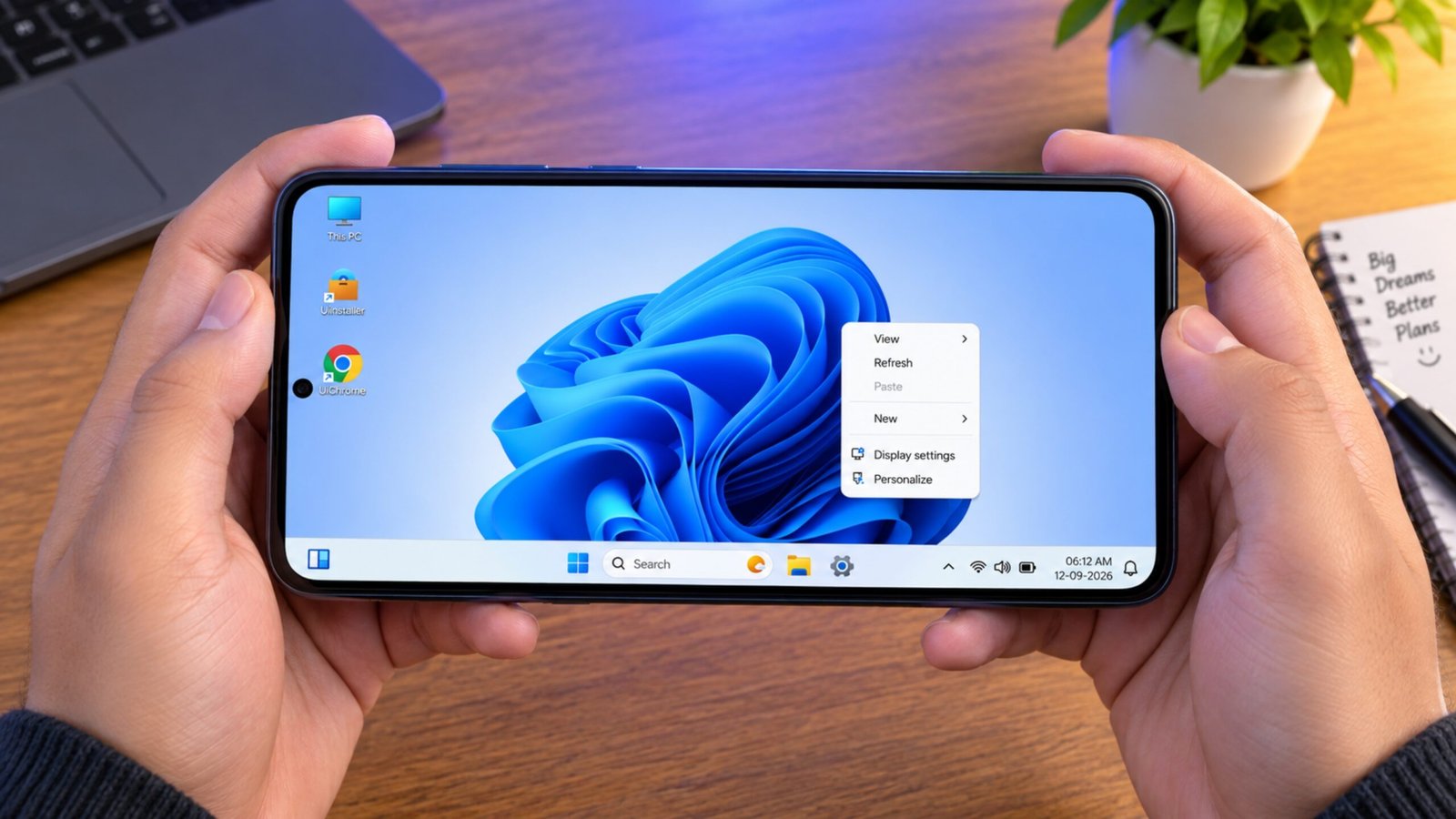
If you like the look of a Windows desktop but mainly use an Android phone or tablet, you can give your device a completely different interface. With HyperDroid PC Launcher, Android can be redesigned to look more like a desktop computer, complete with a taskbar, Start menu, desktop shortcuts, file manager and app windows.
The setup is quite simple and does not require root access or a complicated installation process. You are still using Android underneath; the launcher simply changes the way the interface looks and works.
Important: HyperDroid PC Launcher does not install Windows 11 on your Android device. It creates a Windows-inspired desktop environment on top of Android. You should not expect it to run Windows
.exeprograms.
Also Read: Computer Launcher for Android Gives Your Phone a Desktop-Like Look and Feel
What Is HyperDroid PC Launcher?
HyperDroid PC Launcher is an Android launcher designed to provide a desktop-style experience. Instead of the usual Android home screen, you get an interface that resembles a traditional PC.
Depending on the features available in the version you install, you can use things such as:
- A desktop-style taskbar
- Start menu
- Desktop app shortcuts
- File explorer
- Window-based multitasking
- Desktop-style web browsing
- Website shortcuts that behave like apps
- Personalization options
This can be particularly useful on Android tablets or large-screen phones where there is enough space for a desktop layout.
How to Set Up HyperDroid on Android
1. Install the Launcher
Start by opening the Google Play Store on your Android phone or tablet.
Search for HyperDroid PC Launcher and check that you have selected the intended app. Tap Install and wait for the installation to finish.
Once it has been installed, open the launcher.
The first screen should introduce you to its desktop-style interface.
2. Make It Your Default Home App
If you want the desktop interface to appear whenever you return to the home screen, you can set HyperDroid as your default launcher.
Open the launcher settings and look for the System section. From there, find the Default Launcher option.
Select the option to enable HyperDroid as a launcher and then choose it as the default home app when Android asks you which launcher you want to use.
The exact names of these options can vary depending on your Android version and device.
Once selected, pressing the Home button should take you to the HyperDroid desktop instead of your previous Android home screen.
Explore the Desktop
After setting it up, you should notice that the normal Android home screen has been replaced with a more PC-like layout.
A taskbar appears along the bottom, while a Start-style menu provides access to your applications.
Open the Start menu to browse your installed apps. If the launcher provides an All or similar category option, selecting it can display the complete list of applications available on your device.
You can then launch apps from this menu just as you would open programs from a computer.
Put Your Favorite Apps on the Desktop
You don’t have to open the Start menu every time you want to use an app.
Find an application in the Start menu, then press and hold its icon. If the launcher displays an Add to Desktop option, select it.
The shortcut should then appear on your desktop.
You can arrange your frequently used apps so that the desktop contains only the shortcuts you actually need.
Pin Apps to the Taskbar
For applications that you use throughout the day, pinning them to the taskbar can be more convenient.
Press and hold an app from the Start menu and look for Pin to Taskbar. If the option is available, select it.
The application will then be placed on the taskbar for quicker access.
This small feature can make the Android interface feel much closer to a conventional desktop environment.
Manage Files With a PC-Style Explorer
Another useful part of a desktop launcher is its file management interface.
HyperDroid provides a file-explorer-style layout where you can browse folders and storage locations. Depending on your device and Android permissions, you may be able to access areas such as downloads, pictures and other files.
The familiar desktop-style arrangement can make file browsing easier for people who are accustomed to using a Windows computer.
Keep in mind that Android’s storage permissions still apply, so the launcher does not automatically gain unrestricted access to every file on your device.
Use Multiple Apps at Once
Multitasking is one of the features that can make a desktop launcher more useful.
Rather than treating every application like a full-screen phone app, HyperDroid can provide a window-style interface for supported apps. You can move between open applications from the desktop or taskbar.
This can be especially convenient when using a tablet. For example, you could have a browser open while also working with files or another Android application.
The exact multitasking behavior depends on the launcher, Android version and device.
Get a Desktop-Like Browsing Experience
If you regularly use websites that feel cramped in their mobile versions, a desktop-style setup can be more comfortable.
Websites such as Gmail, YouTube, Canva and online productivity tools can be opened through the browser. When the browser uses a desktop user-agent or desktop mode, supported websites may display a layout closer to their PC versions.
This can be handy when using a tablet for browsing, online work or content creation.
However, desktop mode does not turn a website into a native Windows application. The website is still running through the browser.
Add Websites as Desktop Apps
Some websites can also be added to the desktop as app-like shortcuts.
For example, you could use a frequently visited service such as Canva or YouTube Studio.
Open the website in a compatible browser and check the browser’s menu for an option such as Install as App or Add to Home Screen. The wording depends on the browser and website.
After creating the shortcut, it can be accessed more quickly without manually typing the website address each time.
This can be useful for web-based services that you use regularly.
Adjust the Desktop Size
The default interface may not look perfect on every screen. If text, icons or other elements appear too large or too small, check HyperDroid’s display or scaling settings.
Reducing the scale can allow more items to fit on the screen, while increasing it may make buttons and text easier to read.
You can also check whether the launcher offers options for hiding Android’s navigation or status elements. Availability will depend on your device and Android version.
It’s worth trying a few settings until you find a comfortable layout.
Change the Wallpaper and Appearance
You can take the customization a step further by changing the desktop wallpaper and other appearance settings.
Look inside the launcher’s Personalization or similar section for available options. Depending on the version, you may be able to change the wallpaper, theme, colors or Start menu appearance.
You don’t need to copy the Windows 11 design exactly. A clean wallpaper with appropriately sized icons can make the desktop much easier to use.
Tips for a Better Desktop Setup
For a more comfortable experience, try these simple changes:
Use landscape orientation:
A horizontal screen provides considerably more room for windows, shortcuts and the taskbar.
Connect a mouse:
A Bluetooth mouse can make selecting icons, dragging windows and navigating menus much easier.
Add a keyboard:
A Bluetooth keyboard is useful for writing emails, editing documents and performing other tasks that involve a lot of typing.
Prefer a larger display:
Tablets and large-screen phones generally provide a better desktop experience than small phones.
With a keyboard, mouse and tablet, an Android device can become a surprisingly practical mini desktop setup.
What Can You Use This Setup For?
A Windows-style Android interface can be useful for several everyday tasks, including:
- Browsing websites
- Using web-based productivity tools
- Managing files
- Accessing Android applications
- Multitasking between supported apps
- Working with a keyboard and mouse
- Using an Android tablet in a laptop-like setup
- Customizing the Android home screen
It can be a fun way to give an older tablet or spare Android device a different purpose as well.
Does HyperDroid Actually Install Windows 11?
No.
This is probably the most important thing to understand before trying the launcher.
Your phone or tablet continues to run Android. HyperDroid changes the interface to make it resemble a desktop operating system.
It does not replace Android with Windows 11, and it does not provide native support for Windows programs.
For example, you cannot simply download a Windows .exe file and expect HyperDroid to run it.
What you can use are your existing Android apps and compatible websites through Android browsers.
Does It Require Root Access?
A launcher normally does not require root access, and HyperDroid can be used as an Android launcher without rooting the device.
That means you don’t need to unlock the bootloader or modify the Android system simply to get a desktop-style interface.
However, individual features may still depend on Android permissions, device capabilities and the launcher version you are using.
Can You Return to Your Normal Android Launcher?
Yes. If you decide that the desktop interface isn’t for you, you can switch back to your previous launcher through your phone’s Android settings.
Look for the Default Apps or Home App/Launcher section and select your preferred launcher.
The exact location can differ between Samsung, OnePlus, Xiaomi, Motorola and other Android devices.
Frequently Asked Questions
Can I make my Android phone look like Windows 11?
Yes. A launcher such as HyperDroid can give an Android phone or tablet a Windows-inspired desktop interface with features such as a taskbar, Start menu and desktop shortcuts. It does not install Windows 11 itself.
Can HyperDroid run Windows programs?
No. HyperDroid is an Android launcher and does not provide native support for Windows .exe applications.
Is root required?
No root access is normally required to use an Android launcher. You can install it like other Android applications and select it as your default launcher.
Is it better on a tablet?
Generally, yes. The larger screen of a tablet gives you more room for desktop shortcuts, windows, menus and other interface elements.
Can I connect a keyboard and mouse?
If your Android device supports Bluetooth or compatible USB accessories, you can connect a keyboard and mouse. This can make a desktop-style launcher much more comfortable to use.
Can I switch back to my old launcher?
Yes. You can change the default home app from Android’s settings whenever you want.
Also Read: Nocebo Launcher: A Fresh and Customizable Way to Use Your Android Home Screen
Official Play Store Link
Final Thoughts
HyperDroid PC Launcher is an interesting option if you want to experiment with a Windows 11-style desktop on Android without replacing Android or rooting your device.
It won’t turn your smartphone into a genuine Windows PC, but it can change the overall experience considerably. A taskbar, desktop shortcuts, file management, app windows and a mouse-and-keyboard setup can make an Android tablet feel much more like a small computer.
For the best results, try it on a larger Android display and spend a little time adjusting the scale, wallpaper and desktop layout to suit your needs.

Ankita Kumar, founder of sabhigyan.com, is passionate about technology, smartphones, apps, and digital tools. With 8+ years of experience in the digital and tech space, he focuses on creating easy-to-understand, practical, and helpful content that makes everyday technology simpler for readers.
Advertisements