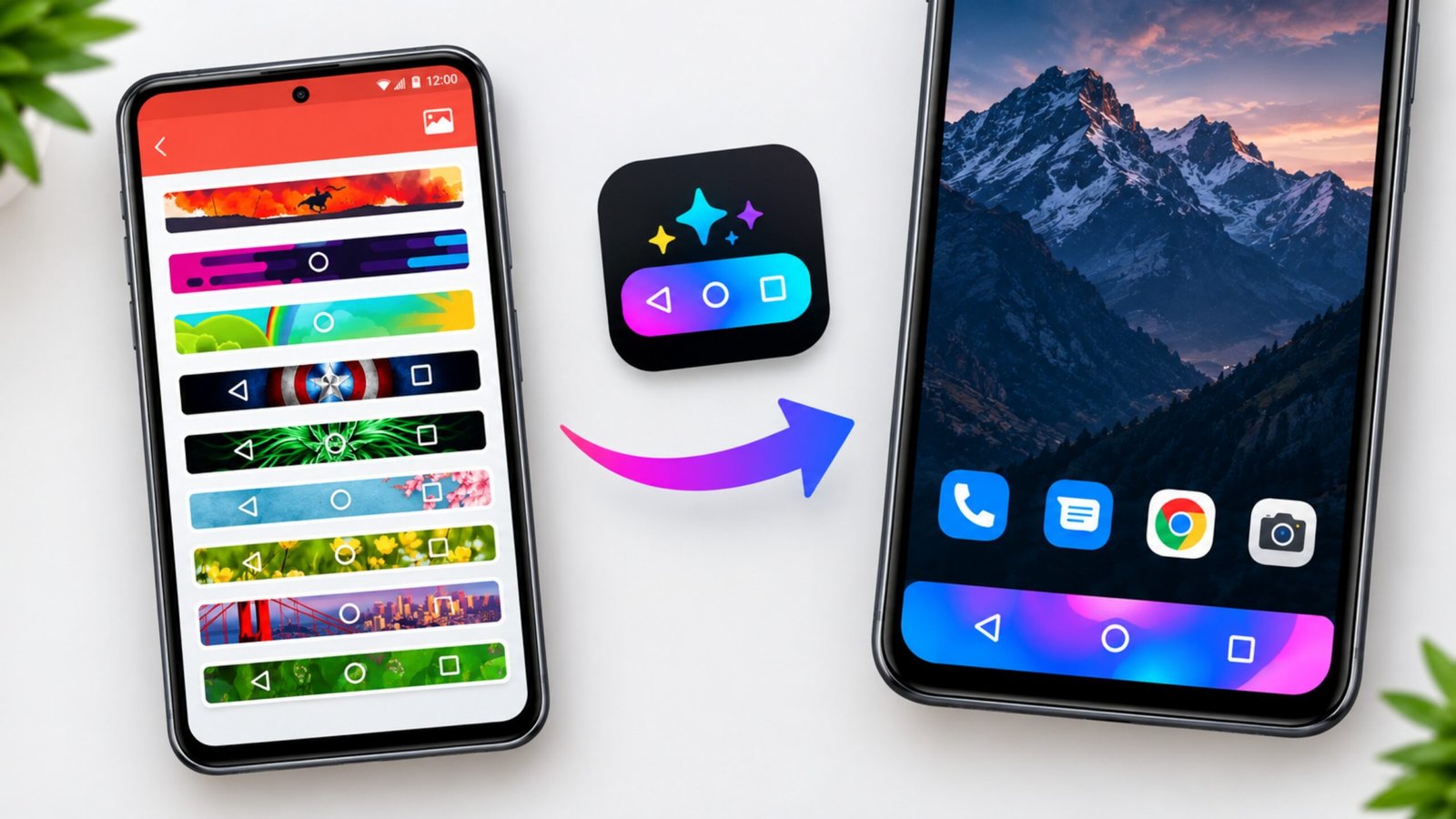
The navigation bar is one of the most frequently used parts of an Android phone, but it usually doesn’t get much attention. Whether you use traditional navigation buttons or another navigation method, the bottom area of your screen often looks the same every day.
If you enjoy customizing your smartphone, changing this small part of the interface can make your device feel a little more personal. Colourful Custom Navigation Bar is an Android customization app that gives you several options for changing the appearance of the navigation area.
You can experiment with different colors, backgrounds, images, gradients, animations, and other visual styles. Instead of changing your complete Android theme, you can focus only on the navigation bar.
Also Read: 3D Photo Live Wallpaper: Create a Rotating Cube Wallpaper With Your Own Photos
What Is Colourful Custom Navigation Bar?
Colourful Custom Navigation Bar is made for Android users who want more control over the visual appearance of their navigation area.
The app offers different customization choices that can help you move away from the standard navigation bar style provided by your phone. Depending on your device and Android version, you may be able to use colors, images, gradients, animations, and emoji-based designs.
This can be useful if you already have a particular wallpaper or home-screen setup and want the navigation area to match it.
For example, you could choose a simple color that blends with your wallpaper or create a more noticeable design using an image or gradient.
The main idea is simple: change one small part of your Android interface without having to redesign the entire phone.
Why Customize the Android Navigation Bar?
Most Android customization tools focus on bigger changes, such as launchers, icon packs, widgets, or wallpapers. However, sometimes a small adjustment is enough to make your phone look different.
A customized navigation bar can complement your existing setup without affecting the rest of your interface.
If you enjoy regularly changing wallpapers or creating different home-screen themes, you can also adjust the navigation bar to match each setup.
Of course, this type of app is primarily useful for visual customization. It isn’t meant to completely change how Android works.
How to Use Colourful Custom Navigation Bar
The setup process is generally simple, although the exact steps can vary depending on your Android phone, manufacturer, and software version.
Step 1: Open the App
Install Colourful Custom Navigation Bar on your Android phone and open it.
Once the app launches, take a moment to look through the available customization options. This will give you an idea of what your particular device supports.
Step 2: Allow Required Access
The app may ask for certain permissions to provide some of its customization features. On some devices, this can include Accessibility Service access.
If Android displays a permission request, carefully read what access is being requested before enabling it. Accessibility permissions can provide an app with access to certain device interactions, so you should only grant them when you understand and are comfortable with the permission.
Step 3: Choose a Design
After completing the required setup, explore the available navigation bar styles.
You can begin with a simple color if you want a clean appearance. Alternatively, try a background image, gradient, animation, or another available style.
Step 4: Apply the Changes
Once you’ve selected a design, apply it and check how it looks while using your phone.
If you don’t like the result, simply return to the customization options and try another style. You can experiment with different combinations until you find something that works well with your wallpaper and overall interface.
Colourful Custom Navigation Bar Features
Custom Navigation Bar Colors
One of the main purposes of the app is to let you change the color of the navigation area. Instead of sticking with the standard system appearance, you can select a different color that suits your preferences.
Background Options
A solid color may be enough for some users, but the app also provides background customization options. These can make the navigation area more noticeable and give it a different visual character.
Image Support
You can also use images as part of the navigation bar design. This can be a good option if you want the bottom section of your screen to coordinate with your wallpaper or another design.
Gradient Effects
Gradients allow you to combine colors rather than relying on a single shade. You can experiment with different combinations to create a smoother and more distinctive appearance.
Animation Effects
For users who like animated interfaces, the app includes animation-related customization options. These effects can make the navigation area appear more dynamic instead of remaining completely static.
Emoji Customization
Emoji-based designs offer a more playful way to customize the navigation area. This isn’t something every user will need, but it can be fun if you like experimenting with unusual Android layouts.
Battery Display Options
The app also includes options associated with battery information around the navigation area. This can make the customized section more useful rather than serving only as a visual element.
Simple Personalization
Perhaps the biggest advantage is that you don’t need to change everything on your phone. Your launcher, apps, icons, and wallpaper can remain unchanged while you give the navigation area a fresh appearance.
Things to Keep in Mind
Before using the app, remember that Android customization features can behave differently across devices.
Your Android version, phone manufacturer, navigation mode, and system settings may affect which options are available or how they appear.
If your phone uses gesture navigation instead of traditional navigation buttons, the result may also be different from what you see on another Android device.
You should also review any permissions requested by the app before granting them. In particular, take extra care with Accessibility Service access because it can provide apps with broader control over certain device functions.
Is Colourful Custom Navigation Bar Worth Trying?
If you enjoy personalizing your Android phone, Colourful Custom Navigation Bar can be an interesting option to explore. It focuses on a relatively small part of the interface but provides several ways to change its appearance.
You can keep the design simple with a color or go for something more noticeable with images, gradients, animations, or emojis. This makes the app more suitable for people who enjoy experimenting with different smartphone styles.
However, if you prefer the standard Android interface and don’t usually customize your phone, you may not find this type of app particularly necessary.
Official Play Store App Link
Also Read: Nocebo Launcher: A Fresh and Customizable Way to Use Your Android Home Screen
Final Thoughts
Colourful Custom Navigation Bar is a simple customization tool for Android users who want to add a little more personality to their phone. Instead of changing the entire interface, it lets you focus on the navigation area and experiment with different visual designs.
The combination of colors, backgrounds, images, gradients, animations, and other options gives users plenty of room to try different looks. The best approach is to start with a simple design and then experiment until you find something that matches your phone.
Just keep in mind that available features and compatibility can vary between Android devices, and you should always review requested permissions before enabling them.
If small visual changes are enough to make your smartphone feel fresh again, this app is worth checking out.

Ankita Kumar, founder of sabhigyan.com, is passionate about technology, smartphones, apps, and digital tools. With 8+ years of experience in the digital and tech space, he focuses on creating easy-to-understand, practical, and helpful content that makes everyday technology simpler for readers.
Advertisements