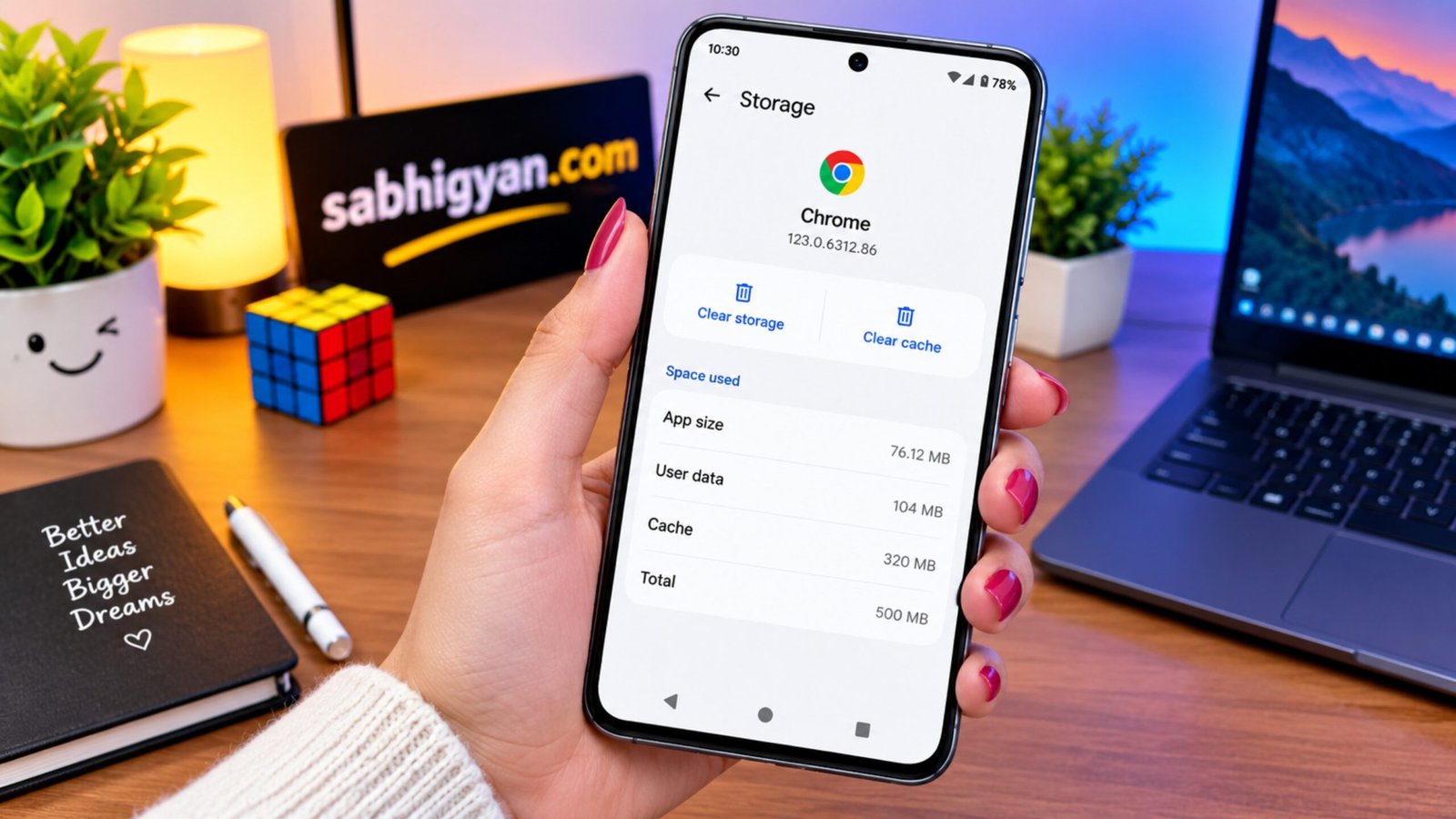
If your Android phone has started feeling slower than usual, apps are taking longer to open, or your storage is getting full, cached files could be one of the reasons. Android and individual apps regularly create temporary files to make loading faster, but these files can build up over time.
Clearing the cache is a simple maintenance step that can remove unnecessary temporary files without normally affecting your personal photos, contacts, installed apps, or documents.
Also Read: How to Create and Organize Saved Place Lists in Google Maps on iPhone
What Is Cache on an Android Phone?
Cache consists of temporary files created by apps, websites, and parts of the Android system. For example, an app may temporarily save images or other frequently used resources so that they do not have to be downloaded again every time you open it.
This can make everyday use smoother, but cached data is not always useful forever. Some files can become outdated, corrupted, or simply take up more storage than expected.
Android cache generally falls into a few common categories:
- App cache: Temporary files created by individual applications.
- Browser cache: Website images, scripts, and other temporary browsing files.
- System cache: Temporary system-related files used by Android or certain device processes.
The exact cache options can vary depending on your Android version and phone manufacturer.
Does Clearing Cache Delete Your Photos or Apps?
Normally, clearing cache does not delete your personal files. Your photos, videos, contacts, documents, and installed applications should remain available.
The important thing is to distinguish between Clear Cache and Clear Data.
Clear Cache removes temporary files.
Clear Data or Clear Storage can reset an app and may remove locally stored information, settings, and login sessions.
So, if you only want to remove temporary files, make sure you select the cache option rather than the data-reset option.
How to Clear an App’s Cache
If one particular app is behaving strangely or using a lot of storage, clearing its cache can be worth trying.
The menu names can differ slightly between Android phones, but the general process is:
- Open Settings.
- Go to Apps, Apps & Notifications, or a similar option.
- Find and select the app you want to clean.
- Tap Storage, Storage & Cache, or a similar option.
- Select Clear Cache.
After this, the app can create new temporary files as you continue using it. So, don’t be surprised if the cache size increases again later.
Clear Cache in Google Chrome
Your web browser also stores temporary website data. If you want to remove cached files from Chrome on Android, follow these steps:
- Open Google Chrome.
- Tap the three-dot menu.
- Select History.
- Tap Clear browsing data.
- Choose a suitable Time range.
- Select Cached images and files.
- Tap Clear data.
Be careful when selecting additional options. Clearing cookies or other browsing data can affect website sessions and may sign you out of some websites.
If you only want to remove temporary cached files, check that you are not selecting other types of browsing information unnecessarily.
What About Android System Cache?
Some Android devices provide additional maintenance or recovery options for system-related temporary files. However, the exact process depends on the phone manufacturer and Android version.
Older or specific devices may provide a Wipe Cache Partition option through Recovery Mode. This is different from clearing an individual app’s cache.
If your phone provides this option, follow the manufacturer’s instructions carefully. Do not select options that erase or factory-reset the device unless you intentionally want to reset it.
On many modern Android phones, users do not need to manually wipe a system cache partition because the device manages temporary system files automatically.
Use Your Phone’s Built-In Storage Tools
Before installing a third-party cleaner, check whether your phone already has a storage-management feature.
Depending on the manufacturer, you may find options such as:
- Storage cleanup
- Device Care
- Storage optimization
- Unused app management
- Temporary file removal
These built-in tools can help you identify applications and files that are consuming significant storage.
When checking storage, pay particular attention to apps that have accumulated a large amount of temporary data. You can decide whether clearing their cache is actually necessary instead of deleting data blindly.
When Should You Clear Android Cache?
There is no need to clear every app’s cache every day. Cached files are designed to help applications work efficiently, and Android can manage them automatically.
Consider clearing an app’s cache when:
- An app is crashing repeatedly.
- An app is not loading content correctly.
- Temporary files are consuming a noticeable amount of storage.
- An app is behaving differently after an update.
- You are troubleshooting a particular application.
If your phone is working normally and you have plenty of free storage, frequent cache cleaning is generally unnecessary.
Cache Cleaning Tips for Better Storage Management
A few simple habits can make storage management easier:
- Check your storage when your phone starts running low on space.
- Look for apps that consume unusually large amounts of storage.
- Clear an app’s cache when troubleshooting specific problems.
- Use Android’s built-in storage tools where available.
- Review large downloads and unused applications separately.
- Be careful with third-party cleaning applications.
- Read the options carefully before deleting browsing or app data.
- Keep important photos and documents backed up before performing major device resets.
You should also avoid installing unknown “cleaner” applications simply because they promise dramatic performance improvements. A phone’s built-in storage and maintenance features are often enough for routine cleanup.
Does Clearing Cache Make Android Faster?
Clearing cache can sometimes help when temporary files are corrupted or an app has accumulated a large amount of unnecessary cached data. It may also temporarily free some storage space.
However, clearing cache is not a guaranteed way to make every Android phone faster. Cached files are normally recreated as you use apps again, and overall performance can depend on many other factors, including available storage, background processes, software updates, and the phone’s hardware.
Therefore, cache cleaning is better viewed as a troubleshooting and storage-maintenance step rather than a permanent performance boost.
Also Read: How to Restart an iPhone or iPad: Easy Steps for Every Model
Final Thoughts
Clearing cache on Android is a straightforward way to remove temporary files from individual apps and browsers. It can be particularly useful when an app is experiencing problems or when cached files are taking up unnecessary storage.
Just remember the difference between Clear Cache and Clear Data. If you want to keep an app’s settings and locally stored information, avoid using the data-reset option unless you understand exactly what it will remove.
For most users, occasional cache cleanup combined with Android’s built-in storage management is enough to keep unnecessary temporary files under control.
Advertisements