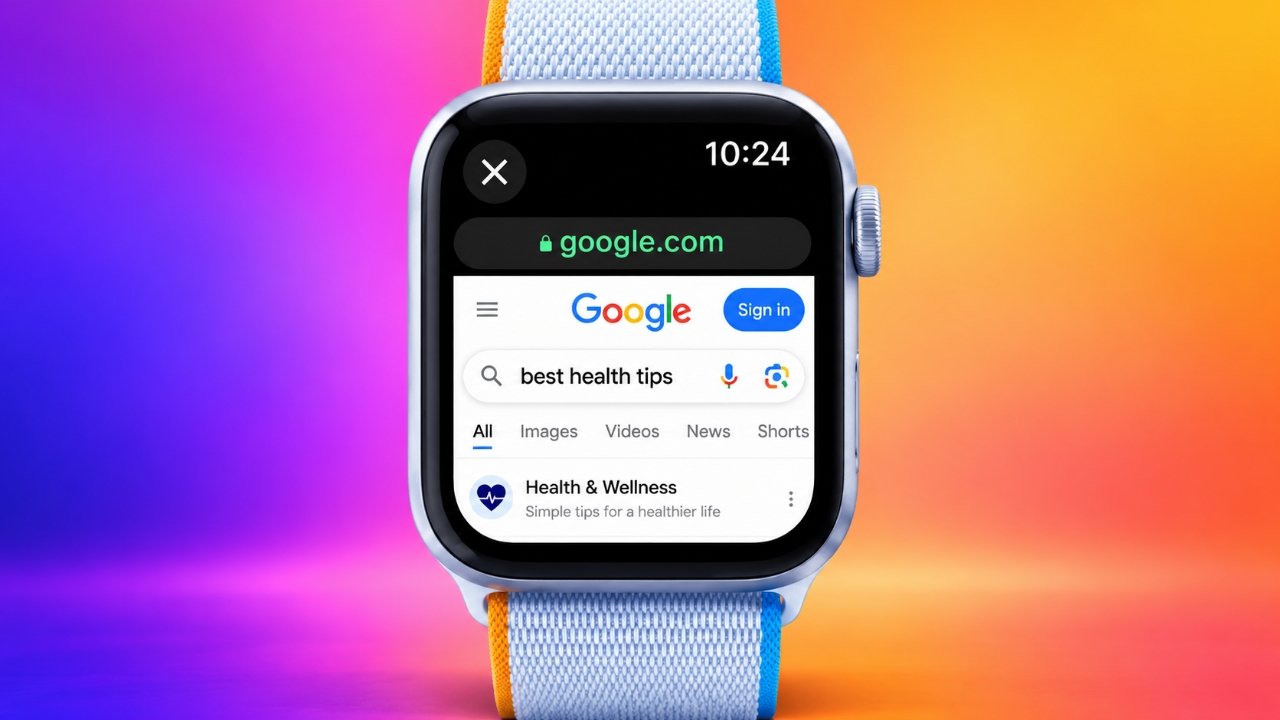
The Apple Watch is best known for its fitness tracking, notifications, calls, and other everyday features. However, there is more to this compact device than many people realize. Although Apple does not offer a dedicated Safari browser for watchOS, you can still access certain websites and look up information directly from your wrist.
Whether you want to check a webpage, search for something on Google, or open a link without reaching for your iPhone, there are a few ways to get online using an Apple Watch.
You can access web pages through links shared in Messages or Mail, use Siri to find online information, or install a compatible third-party browser. Each option has its own advantages, depending on your device, internet connection, and watchOS version.
Let’s explore how Apple Watch web browsing works and what you should know before using it.
Also Read: How to Disable Double Tap on Apple Watch
Can You Access Websites on an Apple Watch?
Yes! Apple Watch users can open certain webpages even though Safari is not available as a standalone watchOS application.
The watch has limited web-viewing capabilities that allow it to display supported online content. This makes it possible to read short articles, follow website links, and view search results without always using an iPhone.
However, the browsing experience is not comparable to using Safari on an iPhone or Mac. The smaller display and limited navigation options make the feature more suitable for quick searches and occasional website visits.
Three Easy Ways to Browse the Web on Your Apple Watch
You don’t necessarily need to install a browser to access websites. Here are three methods you can use to explore online content from your Apple Watch.
1. Visit Websites Through Messages or Mail
One of the simplest ways to open a webpage is by tapping a website link received through Messages or Mail.
This approach is especially helpful when someone shares an interesting article or website with you. You can also send a link to yourself from your iPhone to make it accessible on your watch.
Follow these instructions:
- Ask a friend to share a website link through Messages or email. Alternatively, send a link to yourself.
- Open the Messages or Mail app on your Apple Watch.
- Locate the conversation or email containing the website address.
- Tap the link you want to visit.
- Wait for the webpage to load.
If the website supports the watch’s web-viewing capabilities, its content should appear on the display.
This method is convenient when you already know which website you want to visit. However, it doesn’t provide the full browsing experience you’d get from a conventional browser. You may need to return to your messages or emails whenever you want to open another webpage.
2. Find Online Information Using Siri
If you don’t have a website link ready, Siri can help you find information online. Instead of typing on the watch’s small display, you can simply speak your request.
Here’s how to use Siri for web searches:
- Activate Siri by raising your wrist and speaking, if the relevant setting is enabled.
- Alternatively, press and hold the Digital Crown.
- Ask a question or give Siri a search instruction.
- Wait for the available information or search results.
- Select a relevant result to open its associated webpage, if that option is available.
For example, you could say:
- “Search the web for the best Apple Watch features.”
- “Find information about the latest iPhone.”
- “Open Apple’s official website.”
- “Search for tips to improve Apple Watch battery life.”
Siri makes searching more convenient because you don’t have to enter everything manually. However, the results and available website links can differ depending on your request, Siri settings, and watchOS version.
3. Install a Compatible Third-Party Browser
Another option is to explore third-party browser applications designed for Apple Watch users.
One example is Parrity, an application that offers web-browsing functionality on compatible Apple Watch models.
These applications can provide an alternative way to access websites without relying entirely on links received through Messages or Mail.
Before installing one, consider the following:
- Check whether the application supports your Apple Watch model.
- Confirm compatibility with your installed watchOS version.
- Read recent App Store reviews.
- Review the available features and any in-app purchase requirements.
- Check the developer’s privacy information.
Remember that third-party applications may not support every website or browsing feature. Their availability and functionality can also change following app updates.
How to Search Google Directly From an Apple Watch
Searching Google from your wrist can be useful when you need a quick answer and don’t have your iPhone immediately available.
Siri is generally the easiest starting point because it allows you to search using voice commands.
Here’s what to do:
- Wake up your Apple Watch.
- Activate Siri using your preferred method.
- Speak the question or topic you want to research.
- Review the information and available search results.
- If a Google search option or relevant website link appears, tap it to explore further.
For example, you might ask Siri, “What is Apple Private Cloud Compute?”
Depending on the response, Siri may provide information directly or display links to additional online resources.
Another possibility is to open Google using a link shared through Messages or Mail. If you have access to Google’s search page, you can use the available web interface to look for information.
Keep in mind that Siri does not necessarily display a dedicated Google search button for every question. The available options depend on the software version and search experience.
What Are the Main Limitations of Apple Watch Web Browsing?
Although accessing websites from an Apple Watch is possible, it comes with several restrictions. Understanding these limitations can help you decide when browsing from your wrist makes sense.
Small screen size: The display is considerably smaller than an iPhone or iPad screen. Reading lengthy articles, navigating menus, and viewing detailed information can therefore become uncomfortable.
Limited browser controls: You shouldn’t expect the same browsing tools available in Safari on other Apple devices. Features such as conventional tab management, extensions, and advanced address-bar controls are not provided as part of a full watchOS Safari experience.
Website compatibility: Some websites may not display correctly. Pages with complex designs, interactive elements, or demanding features can be difficult to use.
Internet connectivity: Access to online content depends on your available network connection. Your Apple Watch may connect through a paired iPhone, Wi-Fi, or cellular service, depending on the model and setup.
Battery consumption: Using the internet involves the display, wireless connection, and processor. Extended browsing may affect battery life, although the actual impact depends on usage.
Because of these restrictions, an Apple Watch is generally better for checking a short webpage or finding quick information than spending a long time browsing the internet.
Why Doesn’t Apple Offer Safari for Apple Watch?
One question that often comes up is why Apple hasn’t introduced a dedicated Safari application for its smartwatch.
Apple has not publicly established a specific explanation for this decision. However, several aspects of the Apple Watch’s design help explain why a conventional browser may not be particularly practical.
The Display Is Designed for Compact Interactions
The Apple Watch has a much smaller screen than an iPhone. Websites often contain multiple menus, images, advertisements, and other elements that are difficult to navigate on such a limited display.
A full browser experience could make everyday interactions unnecessarily complicated.
Battery Life Is an Important Consideration
The watch needs to manage several activities, including notifications, fitness tracking, wireless connectivity, and background processes.
Continuous internet browsing could add to power consumption. Keeping web access limited may help maintain the device’s focus on its primary functions.
Apple Watch Prioritizes Convenience
The smartwatch is primarily designed to make everyday activities easier without requiring users to take out their phones.
Checking a notification, answering a call, monitoring a workout, or viewing a short piece of information can be completed quickly.
For longer online activities, an iPhone, iPad, or Mac generally provides a more comfortable experience.
These points are practical observations about the device’s design, not confirmed statements about Apple’s internal product decisions.
Can an Apple Watch Connect to the Internet Without an iPhone?
Yes, an Apple Watch can access the internet without an iPhone nearby in certain situations.
The available connectivity depends on whether you own a GPS-only or GPS + Cellular model.
Apple Watch GPS + Cellular: A compatible cellular model can connect to supported mobile networks independently when it has an active cellular plan and sufficient network coverage. This allows you to use supported online features even when your paired iPhone is not nearby.
Apple Watch GPS: A GPS-only model can access the internet through a compatible Wi-Fi network or a connection to its paired iPhone. However, it does not have independent cellular connectivity.
There are a few additional things to remember:
- Cellular service availability depends on your carrier and region.
- Not every Wi-Fi network will necessarily be compatible.
- Some applications require an iPhone for initial setup or certain functions.
- Independent internet connectivity does not guarantee that every website will work properly.
Therefore, having a cellular Apple Watch can make accessing online information more convenient, but it doesn’t turn the device into a complete replacement for an iPhone.
Frequently Asked Questions (FAQs)
1. Does Apple Watch have a built-in Safari browser?
No. Apple does not provide a dedicated Safari application for watchOS. However, compatible webpages can sometimes be opened through links in Messages or Mail, Siri search results, and supported third-party applications.
2. Can I open Google on my Apple Watch?
Yes. You can access Google through a compatible website link shared in Messages or Mail. You can also ask Siri to search for information online and open available results.
3. Can I browse the internet on an Apple Watch without cellular service?
Yes, provided that your watch has another suitable internet connection, such as access through a paired iPhone or a compatible Wi-Fi network. A cellular plan is not required in every situation.
4. Is it possible to watch websites on an Apple Watch?
Some webpages may display supported content, but video playback and other interactive features depend on the website, connection, and watchOS capabilities. For a better viewing experience, an iPhone or another larger-screen device is recommended.
5. Which Apple Watch browser should I try?
Parrity is one third-party option worth exploring. Before downloading it, check its current App Store listing, supported devices, compatibility requirements, and user reviews.
6. Can I type a website address directly on my Apple Watch?
Apple Watch does not offer a standard Safari address bar. You can use links from Messages or Mail, Siri commands, or compatible third-party applications to access websites.
Also Read: How to Use Wrist Flick on Apple Watch to Dismiss Notifications
Final Thoughts
Browsing the internet on an Apple Watch is possible, even though Apple hasn’t introduced a dedicated Safari application for watchOS.
For occasional website visits, opening links through Messages or Mail is a straightforward solution. Siri is another useful option when you want to find information without typing, while third-party applications such as Parrity may offer additional browsing capabilities.
However, it’s important to remember that the Apple Watch is designed primarily for quick interactions rather than extended internet sessions. Its compact display and limited browsing features make an iPhone or iPad a better choice for reading lengthy articles and exploring complex websites.
If you occasionally need to check a webpage while your phone isn’t within reach, knowing these methods can make your Apple Watch even more useful.
Have you ever browsed the internet using your Apple Watch? Share your experience in the comments and let other readers know which method you prefer.

Ankita Kumar, founder of sabhigyan.com, is passionate about technology, smartphones, apps, and digital tools. With 8+ years of experience in the digital and tech space, he focuses on creating easy-to-understand, practical, and helpful content that makes everyday technology simpler for readers.
Advertisements