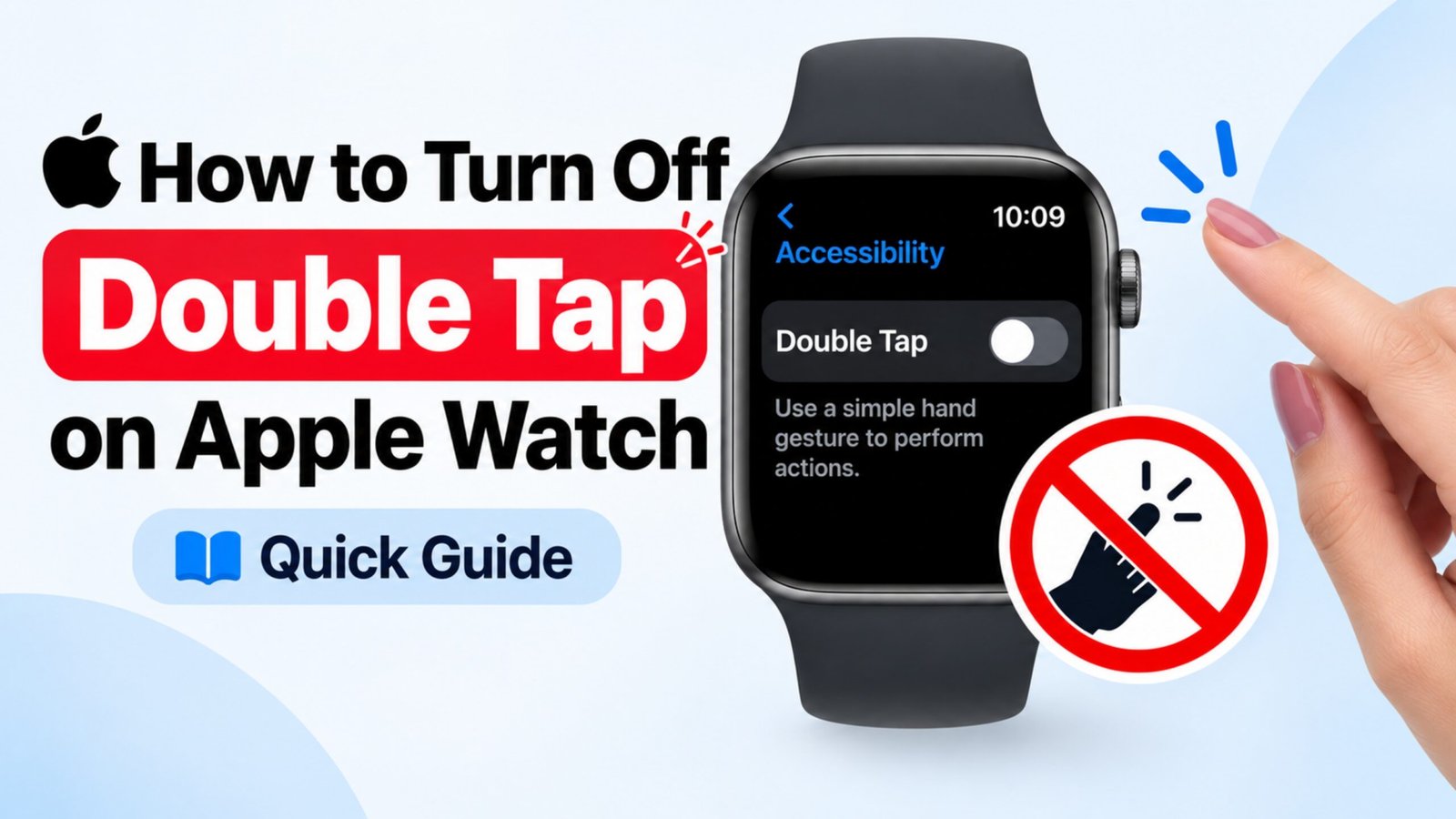
Apple Watch includes a handy Double Tap gesture that allows you to perform certain actions by tapping your thumb and index finger together. It can be useful when you want to control the watch without touching the screen, but it may not be convenient for everyone.
If the gesture is triggering accidentally or you simply don’t use it, you can turn it off. The setting can be managed from the Apple Watch itself, and supported configurations can also be adjusted through the Watch app on your iPhone.
This guide walks you through the process and explains what to check if the option isn’t appearing on your device.
Also Read: How to Add Filters to Photos on iPhone in 2026
What You Need to Do
The basic process is straightforward:
- Open the Settings app on your Apple Watch.
- Look for the Double Tap setting.
- Open the relevant gesture controls.
- Switch Double Tap off.
- Test the watch to confirm the change.
The exact menu location can vary depending on your Apple Watch model and watchOS version.
Turn Off Double Tap Directly on Apple Watch
If you want to make the change from your watch, start with these steps.
1. Open Settings
Press the Digital Crown to access the Apple Watch Home Screen.
Find and open the Settings app. Depending on how your apps are arranged, you may need to scroll to locate it.
2. Look for the Double Tap Setting
Once you’re inside Settings, look through the available options for Double Tap or the gesture-related controls available on your particular watchOS version.
If your Apple Watch supports Double Tap, the relevant setting should be available on the device.
3. Disable Double Tap
Open the Double Tap setting and turn the feature Off.
After changing the setting, the watch should no longer perform actions when you use the Double Tap gesture.
4. Test the Change
Try the gesture a couple of times after disabling it. This helps confirm that the setting has been applied.
If the watch still appears to react to the gesture, give it a restart and check the setting once more.
Can You Disable Double Tap From an iPhone?
You can also manage many Apple Watch settings through the Watch app on your paired iPhone. However, the exact options shown can depend on your Apple Watch model and software version.
Open the Watch app and browse the available settings for your watch. If a Double Tap control is available there, you can switch it off from the corresponding section.
If you don’t see the option on your iPhone, check the settings directly on the Apple Watch instead.
What If You Can’t Find Double Tap?
There are several possible reasons why the setting may not be available.
Your Apple Watch May Not Support It
Double Tap isn’t available on every Apple Watch model. If your watch doesn’t support the feature, you won’t see the corresponding control.
Your Software May Be Different
Apple occasionally changes the location or appearance of settings with watchOS updates. If your menus don’t match the steps above, check whether your Apple Watch has a newer software version available.
Restart the Watch
If you believe the feature should be available but the setting isn’t behaving normally, restarting the Apple Watch can sometimes help with temporary software issues.
To restart it:
- Press and hold the side button.
- Follow the on-screen option to turn the watch off.
- Wait a few moments.
- Turn the Apple Watch back on.
- Check the relevant setting again.
Should You Keep Double Tap Turned Off?
That depends on how you use your Apple Watch.
If you frequently trigger the gesture unintentionally, disabling it can make everyday interactions feel more predictable. On the other hand, if you find it useful for controlling supported actions without touching the display, you may prefer to leave it enabled.
You can always turn the feature back on later, so you don’t have to make a permanent decision.
Frequently Asked Questions
Does disabling Double Tap delete anything from my Apple Watch?
No. Turning off the gesture doesn’t remove your apps, messages, health information, or other personal data. It only changes how the Double Tap gesture works.
Can I turn Double Tap back on?
Yes. Simply return to the relevant setting and enable the feature again if you decide you want to use it.
Why isn’t Double Tap available on my Apple Watch?
The feature depends on compatible Apple Watch hardware and software. Older or unsupported models may not provide the Double Tap option.
What should I do if Double Tap still works after disabling it?
First, check that the setting was actually switched off. If the problem continues, restart the Apple Watch and check again. Also make sure the device is running a compatible, up-to-date version of watchOS.
A Few Useful Tips
- Turn off Double Tap if you frequently activate it accidentally.
- Check the Watch app on your iPhone if you prefer managing settings from a larger screen.
- Restart the watch if a setting doesn’t appear to take effect.
- Keep watchOS updated when possible.
- Remember that the available options can differ between Apple Watch models and watchOS versions.
Also Read: Nocebo Launcher: A Fresh and Customizable Way to Use Your Android Home Screen
Final Thoughts
Turning off Double Tap on an Apple Watch is generally a simple settings change. Once disabled, the watch should stop using that gesture for supported actions.
If you can’t find the option, first consider whether your Apple Watch model supports Double Tap and whether its software is up to date. A restart can also be useful when a setting doesn’t behave as expected.
The feature isn’t permanent either—you can return to the setting whenever you want and enable Double Tap again.

Ankita Kumar, founder of sabhigyan.com, is passionate about technology, smartphones, apps, and digital tools. With 8+ years of experience in the digital and tech space, he focuses on creating easy-to-understand, practical, and helpful content that makes everyday technology simpler for readers.
Advertisements