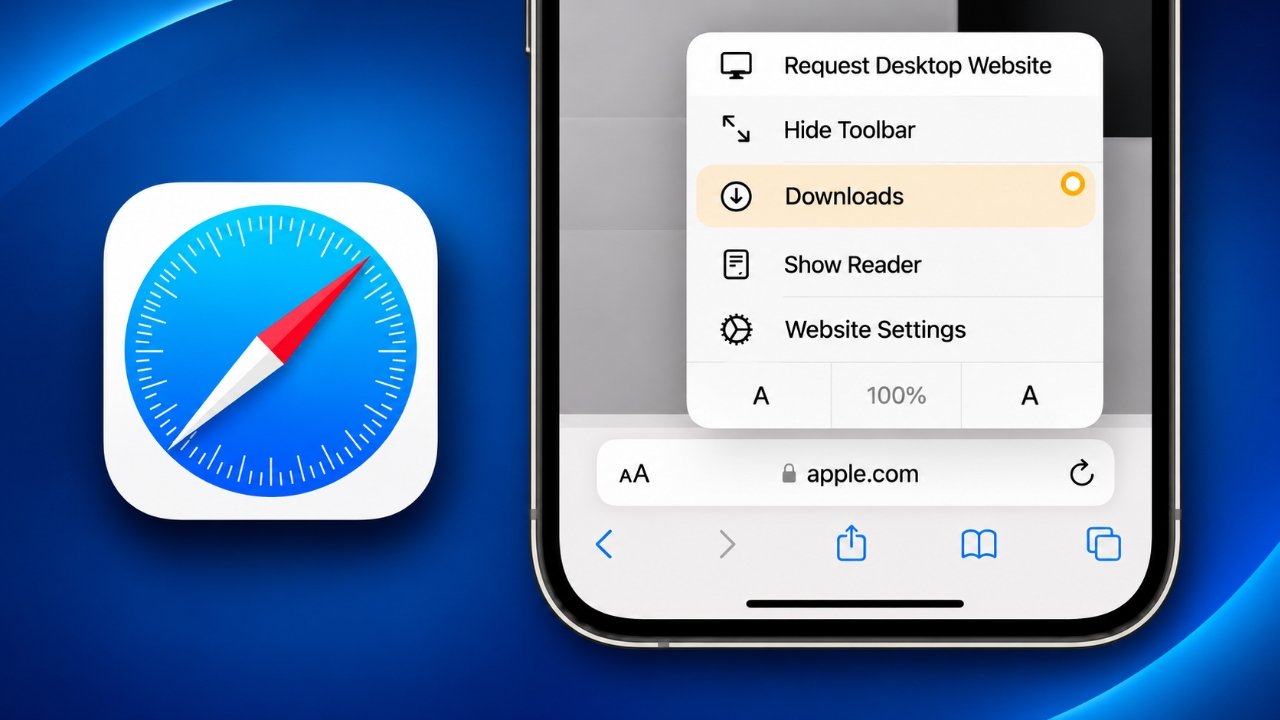
Downloading files through Safari is simple, whether you want to save a PDF, an image, a document, or another type of file. However, finding those files later, organizing them, and removing downloads you no longer need can sometimes be confusing.
Fortunately, Apple provides a built-in download manager in Safari that makes handling downloaded files much easier. You can check download progress, pause or resume ongoing downloads, change where files are saved, and remove unwanted items.
If you’re wondering how to manage Safari downloads on your iPhone or iPad, this guide explains everything step by step.
Also Read: How to Turn Off Pop-Up Blocker on iPhone in Safari and Chrome
Where Does Safari Save Downloaded Files on iPhone and iPad?
Before organizing your downloads, it’s helpful to understand where Safari stores them.
By default, Safari saves downloaded files in the Downloads folder inside iCloud Drive. However, you can change this setting to store files directly on your iPhone or iPad.
Safari provides three main storage choices:
- iCloud Drive: Saves files to your iCloud account and makes them accessible across compatible Apple devices using the same account.
- On My iPhone or iPad: Keeps downloaded files in your device’s local storage.
- Other: Allows you to select another available folder or storage location through the Files app.
Your selected destination determines where you should look when searching for downloaded files.
Why Organizing Safari Downloads Matters
Managing downloaded files regularly can make your iPhone or iPad easier to use. Here are some practical reasons to keep your downloads organized.
1. Find important files quickly
When you download documents frequently, your Downloads folder can become difficult to navigate. Organizing files into suitable folders makes it easier to locate important documents, images, and other content whenever you need them.
2. Avoid unnecessary storage usage
Old downloads can take up valuable storage space, particularly when they include large documents, videos, or images. Removing files you no longer need helps keep your device’s storage under control.
3. Keep personal files organized
Downloaded files may contain personal or private information. Reviewing your Downloads folder regularly helps you identify files that should be stored securely or removed when they are no longer necessary.
4. Keep track of ongoing downloads
Safari’s download manager lets you monitor active downloads. You can check their progress and manage interrupted downloads without starting the entire process again, provided the download can be resumed.
How to Find Your Downloaded Files in Safari
There are two convenient ways to access files downloaded through Safari: directly from the browser or through the Files app.
Method 1: Open Downloads in Safari
Follow these steps to check your downloaded items:
- Open Safari on your iPhone or iPad.
- Look for the Downloads icon near the address bar. It generally appears as a downward arrow.
- Tap the icon to view your recent downloads.
- Select a downloaded file to open it.
If you want to locate a particular file in the Files app, tap the search or magnifying glass icon beside the relevant download, when available. This takes you to its saved location.
Keep in mind that the download list may not show older items if you have previously cleared it.
Method 2: Locate Downloads Using the Files App
The Files app provides another way to browse and organize your saved content.
Here’s how to access your Safari downloads:
- Open the Files app.
- Tap Browse at the bottom of the screen.
- Select iCloud Drive if that is your chosen download destination.
- Open the Downloads folder.
- Browse the available files.
If you have configured Safari to save files locally or in another folder, navigate to that location instead.
How to Pause, Resume, or Cancel Safari Downloads
You don’t always need to let a download finish immediately. Safari provides basic controls that allow you to manage ongoing downloads.
Pause an active download
- Open Safari.
- Tap the Downloads icon near the address bar.
- Find the file currently being downloaded.
- Tap the X icon beside the download to pause it.
Resume a paused download
If a download has been paused, open the Downloads list again and tap the resume icon, which usually appears as a curved arrow.
Safari will continue downloading the file if the source and connection still support it.
Cancel an ongoing download
If you no longer want a file, you can remove its active download entry.
- Open Safari’s Downloads list.
- Find the download you want to stop.
- Swipe left on the item, if supported.
- Tap Delete.
The download will be removed from the active list.
How to Change Safari’s Download Location
If you prefer keeping downloaded files on your device rather than in iCloud Drive, you can change Safari’s storage destination through Settings.
Follow these instructions:
- Open the Settings app on your iPhone or iPad.
- Scroll down and tap Apps.
- Find and select Safari.
- Under the General section, tap Downloads.
- Choose your preferred storage location.
You’ll generally find these options:
- iCloud Drive: Stores downloads in your iCloud account.
- On My iPhone/iPad: Saves files directly to your device.
- Other: Lets you select another available folder.
Note: Menu names and available options may vary slightly depending on your iOS or iPadOS version.
If you select iCloud Drive, your downloaded files can become available on other compatible devices signed in to the same Apple account with iCloud Drive enabled.
How to Delete Downloaded Files on iPhone or iPad
Removing unnecessary downloads is a simple way to keep your Files app organized. You can delete individual files or select multiple items at once.
Delete Files Through the Files App
- Launch the Files app.
- Navigate to the folder containing your Safari downloads.
- Tap the three-dot menu in the upper-right corner.
- Choose Select.
- Mark the files you want to remove.
- Tap the trash icon.
The selected files will be deleted from their storage location.
Remember that deleting files stored in iCloud Drive can also remove them from other devices using the same synced iCloud account.
Remove an Individual Item From Safari’s Download List
If you only want to remove an entry from Safari’s download history:
- Open Safari.
- Tap the Downloads icon.
- Locate the item you want to remove.
- Swipe left on it.
- Tap Delete, if available.
Clear the Entire Download List
You can also remove all entries from Safari’s download manager at once.
- Open Safari on your device.
- Access the Downloads list.
- Look for the Clear option in the upper-right corner.
- Tap it to clear the displayed download history.
Important: Clearing Safari’s download list is different from deleting downloaded files. The actual files generally remain in the Files app unless you delete them separately.
How to Automatically Remove Safari Download History
Safari includes an option that automatically removes items from its download list after a selected period or once a download finishes.
This can help prevent the Downloads section from becoming crowded.
To configure this setting:
- Open the Settings app.
- Tap Apps.
- Select Safari.
- Find the General section and tap Downloads.
- Select Remove Download List Items.
- Choose your preferred option.
Depending on your iOS version, you may see the following choices:
- After One Day: Removes download entries after one day.
- Upon Successful Download: Removes entries after the downloads finish.
- Manually: Keeps entries until you remove them yourself.
Important: This setting manages entries in Safari’s download list. It does not automatically erase the actual downloaded files stored in your device or iCloud Drive.
How to Fix Safari Download Problems on iPhone and iPad
Sometimes, downloads may become stuck, fail to start, or stop before completion. These problems can have several causes, including network interruptions, insufficient storage, or browser-related issues.
Try the following solutions if Safari isn’t downloading files properly.
1. Check your internet connection
A weak or unstable internet connection can interrupt downloads. Try switching between Wi-Fi and mobile data to see whether the problem improves.
2. Restart Safari
Close Safari and open it again. This simple step can help resolve temporary browser issues affecting downloads.
3. Check available storage
Your device needs enough free space to save downloaded files. Open Settings and check your iPhone or iPad storage. Remove unnecessary files or apps if space is limited.
4. Clear Safari’s browsing data
Temporary website data can sometimes interfere with normal browser activity. You can review Safari’s browsing history and website data settings to clear unnecessary stored information.
Be aware that clearing website data may sign you out of websites or remove certain browsing information.
5. Try a different download location
If Safari cannot save a file to its current destination, changing the download location may help. For example, you can switch between iCloud Drive and local device storage.
6. Restart your iPhone or iPad
Restarting your device can resolve temporary software problems that may affect Safari and other applications.
7. Install available software updates
Check Settings for available iOS or iPadOS updates. Keeping your device updated can help address software bugs and improve overall compatibility.
Frequently Asked Questions About Safari Downloads
1. Can I transfer Safari downloads from my iPhone to my iPad?
Yes. You can transfer downloaded files between an iPhone and an iPad using AirDrop. Simply locate the file in the Files app, tap the Share button, and select the nearby device.
Another option is to save your downloads in iCloud Drive. Files stored there can sync across compatible Apple devices signed in to the same Apple account.
2. Does Safari continue downloading files in the background?
Safari supports background downloads on iPhone and iPad. However, background activity may depend on the download, network connection, device settings, and available system resources.
If a download stops unexpectedly, reopen Safari and check its Downloads list.
3. Can Safari save downloads directly to iCloud?
Yes. You can configure Safari to use iCloud Drive as its default download destination.
Go to Settings, open Apps, select Safari, and tap Downloads. Choose iCloud Drive from the available locations.
4. How can I find old Safari downloads?
Open the Files app and navigate to the folder where Safari saves your downloads. Check the Downloads folder in iCloud Drive or the corresponding location on your device.
If you have cleared Safari’s download list, the files may still be available in the Files app.
5. Does clearing Safari’s download history delete the actual files?
No. Clearing the download list generally removes the download entries from Safari, not the saved files themselves. To permanently remove a downloaded file, locate it in the Files app and delete it separately.
6. Can I choose a different folder for Safari downloads?
Yes. Safari allows you to change the default download destination through Settings. Select Safari under Apps, open Downloads, and choose another available location using the Other option.
Also Read: How to Change the Default Search Engine in Safari on iPhone, iPad, and Mac
Final Thoughts
Managing Safari downloads on an iPhone or iPad doesn’t have to be complicated. With the built-in download manager and Apple’s Files app, you can easily find saved files, monitor active downloads, change storage locations, and remove items you no longer need.
For better file organization, consider reviewing your Downloads folder occasionally and deleting unnecessary files. You can also choose iCloud Drive if you want convenient access to your saved content across compatible Apple devices.
By understanding these simple features, you’ll have better control over your Safari downloads and make everyday file management on your iPhone or iPad much easier.

Ankita Kumar, founder of sabhigyan.com, is passionate about technology, smartphones, apps, and digital tools. With 8+ years of experience in the digital and tech space, he focuses on creating easy-to-understand, practical, and helpful content that makes everyday technology simpler for readers.
Advertisements