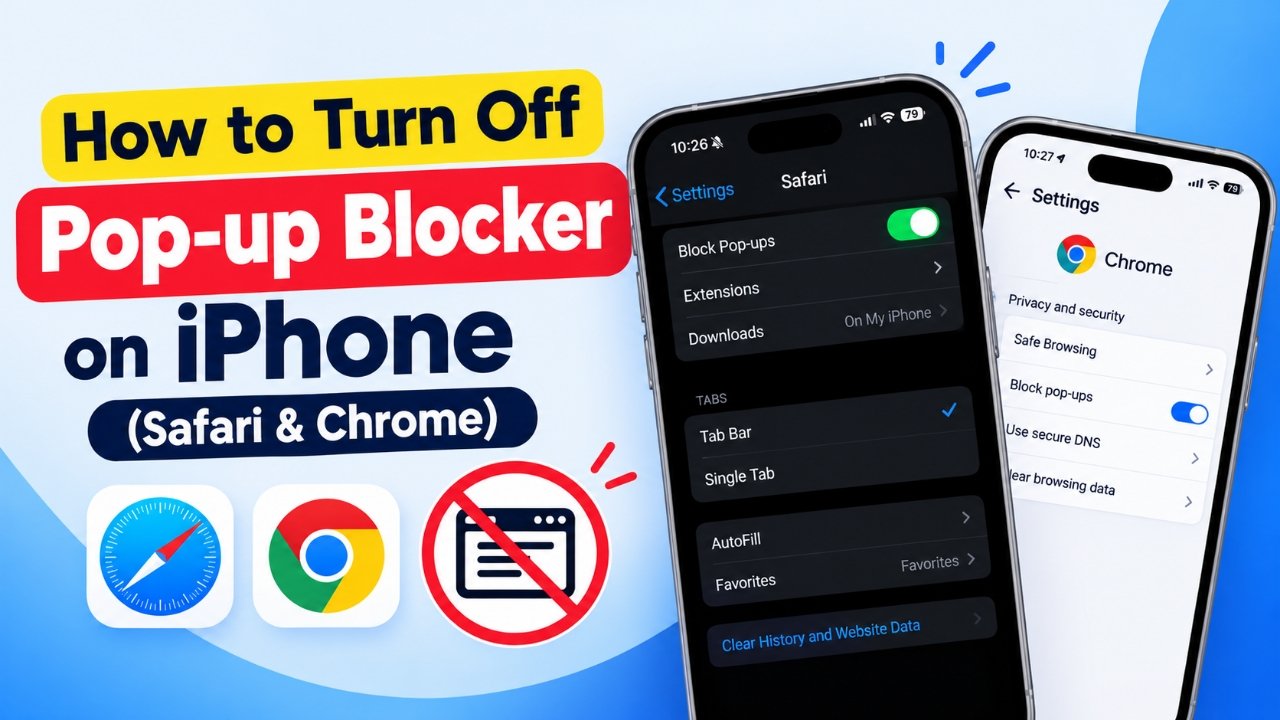
Have you ever tried to complete an online payment, sign in to an account, or open an important website on your iPhone, only to find that a pop-up window will not appear? Your browser’s pop-up blocker might be responsible.
Pop-up blockers help prevent unwanted advertisements and reduce exposure to suspicious websites. However, some legitimate websites rely on pop-up windows for authentication, payment processing, document previews, and other features.
Fortunately, you can adjust your browser settings to allow pop-ups when necessary. In this guide, you will learn how to turn off the pop-up blocker on an iPhone using Safari and Google Chrome, understand the potential risks, and troubleshoot common problems.
Also Read: How to Use Quick Share on Android: Complete Step-by-Step Guide
How to Disable Pop-Up Blocking in Safari on iPhone
Safari is Apple’s default web browser, and its pop-up blocking feature helps limit unwanted windows while you browse. If a trusted website requires a pop-up to complete a task, you can temporarily disable this feature through your iPhone’s settings.
Follow the instructions below to change the setting.
Steps to Allow Pop-Ups in Safari
- Open the Settings app on your iPhone.
- Scroll down and tap Apps if this section appears on your device.
- Find and select Safari.
- Locate the Block Pop-ups option.
- Switch the setting off.
On some older iOS versions, Safari appears directly on the main Settings screen rather than inside the Apps section.
Once you disable the setting, return to Safari and revisit the website. Try the feature that requires the pop-up window to check whether it works correctly.
Keep in mind that allowing pop-ups does not guarantee that every website window will open. Some websites use their own restrictions or require additional browser permissions.
How to Turn Safari’s Pop-Up Blocker Back On
After completing your task, it is a good idea to restore the original protection. Leaving pop-ups enabled unnecessarily can expose you to more unwanted advertisements and deceptive messages.
To enable blocking again:
- Open Settings on your iPhone.
- Go to Apps, then select Safari. On older iOS versions, open Safari directly from Settings.
- Find Block Pop-ups.
- Turn the switch on.
Safari will then continue blocking pop-ups according to its built-in settings.
Does This Method Work on iPhone 14, 15, 16, and Newer Models?
Yes, the general process applies to these iPhone generations, provided they use a compatible version of iOS. The main difference is where Apple places the Safari settings.
Depending on your software version, you may find Safari directly in Settings or under Apps. If the menu looks different, use the options available on your device rather than relying on an exact screen layout.
How to Turn Off the Pop-Up Blocker in Google Chrome on iPhone
Google Chrome has its own browsing settings, separate from Safari. Changing Safari’s pop-up preferences will not automatically change Chrome’s behaviour.
If you use Chrome to access a website that requires a new window, check its available pop-up controls.
Change Pop-Up Settings in Chrome
- Launch the Google Chrome app on your iPhone.
- Tap the three-dot menu.
- Select Settings from the menu.
- Look for a section related to content or website settings.
- Check whether a pop-up blocking option is available.
Important: Chrome’s iOS interface and available settings can differ from its Android and desktop versions. The full pop-up settings menu described in some online guides may not appear in every iPhone version of Chrome.
If you cannot find a general pop-up switch, check whether Chrome displays a notification when a website’s pop-up is blocked. Follow the available on-screen options if you trust the website.
Allow a Pop-Up When Chrome Blocks It
In some situations, Chrome may display a message or indicator when it prevents a website from opening a new window.
If you see such a notification:
- Return to the website where the pop-up was blocked.
- Look for the pop-up warning or notification.
- Check whether Chrome offers an option to open the blocked content.
- Proceed only if you recognise and trust the website.
The exact controls depend on the browser version and the website. An option such as “Always show” may not be available on every iPhone.
If no pop-up controls appear, consult the current Chrome Help documentation or contact the website’s support team.
Why Do Some Websites Need Pop-Ups?
Pop-up windows are not always advertisements. Many websites use them as part of their normal operation.
Common examples include:
- Online payments: A payment provider may open a separate window to complete a transaction.
- Account verification: Some services use additional windows during sign-in or identity checks.
- Document viewing: A website may open a PDF, receipt, or printable document in a new window.
- Customer support: Certain services launch support tools or chat features in separate windows.
- Media and interactive content: Some websites rely on additional windows for specific features.
Before changing your browser settings, make sure the website genuinely requires a pop-up. If the same task can be completed without disabling protection, keeping the blocker enabled is generally the safer option.
Is Disabling the Pop-Up Blocker on an iPhone Safe?
Temporarily allowing pop-ups can be reasonable when you are using a legitimate website. However, disabling protection across your browsing sessions may increase exposure to misleading advertisements and suspicious pages.
Understanding the common risks can help you make a better decision.
1. Fake Security Alerts and Misleading Advertisements
Some websites display alarming messages claiming that your iPhone has a virus or that your personal information is in danger. These messages may encourage you to install an app, visit another website, or provide payment information.
A pop-up message alone does not prove that your device has a security problem.
Avoid interacting with unexpected warnings, particularly those that demand immediate action or promise unrealistic rewards.
2. Phishing and Account Theft
Fraudulent websites sometimes imitate banks, email providers, shopping platforms, and other familiar services. Their goal may be to collect login credentials, payment details, or other sensitive information.
A pop-up can direct you to a misleading page that looks similar to a genuine service.
Before entering private information, check the website address carefully. When accessing banking or payment services, it is safer to open the official app or type the known website address yourself.
3. Unwanted Redirects and Repeated Advertisements
Allowing pop-ups can lead to additional windows, unexpected redirects, or repeated advertising on some websites. These interruptions can make browsing frustrating and may take you to pages you did not intend to visit.
If a website repeatedly opens suspicious content, close the page and avoid returning to it.
Simple Ways to Browse More Safely
- Allow pop-ups only when a trusted website genuinely needs them.
- Never download apps or software from unexpected pop-up messages.
- Do not enter passwords or financial details on unfamiliar pages.
- Avoid clicking alerts that claim you have won a prize or must act immediately.
- Turn pop-up blocking back on when you finish your task.
How to Fix Pop-Ups That Still Won’t Open on iPhone
If a website continues blocking pop-ups after you have adjusted the relevant setting, the problem may have another cause. Work through these troubleshooting options to identify the issue.
Clear Safari’s Browsing Data
Stored website information can occasionally interfere with how a page loads. Clearing Safari’s browsing data may help resolve certain website problems.
To do this:
- Open Settings.
- Select Apps, then Safari. On older iOS versions, select Safari directly.
- Choose Clear History and Website Data, if available.
- Confirm your choice if prompted.
This action can remove browsing history and website data. Depending on your settings, it may also sign you out of websites or affect stored browsing information.
If you prefer to keep your history, check whether your iOS version offers separate controls for website data.
Restart Your iPhone
A temporary software issue may prevent a website or browser from behaving as expected. Restarting your device is a simple troubleshooting step.
Turn off your iPhone using the appropriate shutdown controls for your model. Wait briefly, turn it back on, and reopen the website.
Test the pop-up again before making additional changes.
Check for an iOS Update
Running an outdated version of iOS can sometimes contribute to browser compatibility issues.
To check for an update:
- Open Settings.
- Tap General.
- Select Software Update.
- Follow the instructions if an update is available.
Back up important data before installing a major update, and make sure you have enough battery power or connect your device to a charger.
Review Screen Time Restrictions
If a setting appears unavailable or greyed out, restrictions configured through Screen Time or device management may be involved.
You can review the available controls by opening:
- Settings
- Screen Time
- Content and Privacy Restrictions
Check the restrictions that apply to web content and browser use. The available options depend on your iOS version and configuration.
If your iPhone belongs to a school or workplace, an administrator may control some settings. Do not remove restrictions that you do not understand or are not authorised to change.
Check Whether the Website Is Causing the Problem
Sometimes, the issue has nothing to do with the pop-up blocker. A website may be temporarily unavailable, have a broken link, or require a specific sign-in process.
Try these steps:
- Reload the page.
- Sign in again if the website requires authentication.
- Test another feature on the same website.
- Open the website in another trusted browser, if appropriate.
- Contact the website’s support team if the problem persists.
If other websites work normally, the problem may be specific to the site you are trying to use.
Frequently Asked Questions
How do I turn off the pop-up blocker on my iPhone?
For Safari, open Settings and locate Safari’s Block Pop-ups option. Turn it off when necessary. For Chrome, check the available website and pop-up controls in the Chrome app, as its iOS options may differ from those on other platforms.
Can I disable pop-up blocking on an iPhone 14 or iPhone 15?
Yes. Safari’s pop-up setting is available on compatible iOS versions running on these models. The location of the setting may vary depending on the software version installed.
Why can’t I find the pop-up blocker setting in Chrome?
Chrome for iPhone does not necessarily provide the same pop-up settings as its desktop or Android versions. Check the current options in your app and look for a notification when a website’s pop-up is blocked.
Will disabling pop-up blocking remove advertisements?
No. Turning off pop-up blocking does not remove advertisements from websites. It may allow additional windows to appear, including some advertisements that were previously blocked.
Can pop-ups steal my personal information?
A pop-up window does not automatically steal information. However, fraudulent pages can imitate trusted services and attempt to collect passwords, payment details, or other sensitive data. Avoid entering private information on pages you cannot verify.
Should I leave the pop-up blocker turned off?
For most everyday browsing, keeping pop-up blocking enabled is a sensible choice. Temporarily allowing pop-ups when a trusted website needs them can help you complete a task without leaving the protection disabled longer than necessary.
Do iOS updates change Safari’s pop-up settings?
Software updates can change menu layouts and available browser controls. If you cannot find a setting after an update, review Safari’s current options in the Settings app.
Also Read: How to Safely Delete an Old iPhone Backup From iCloud
Final Thoughts
Turning off the pop-up blocker on an iPhone can help when a trusted website needs to open a separate window for a payment, login, document, or other feature. In Safari, you can manage this behaviour through the iPhone’s Settings app. Chrome has separate controls, and the available options may vary on iOS.
The most important thing is to balance convenience with security. Allow pop-ups only when necessary, avoid suspicious messages, and restore blocking when you have finished.
With the right settings and a few sensible precautions, you can resolve common pop-up problems while keeping your everyday browsing safer.

Ankita Kumar, founder of sabhigyan.com, is passionate about technology, smartphones, apps, and digital tools. With 8+ years of experience in the digital and tech space, he focuses on creating easy-to-understand, practical, and helpful content that makes everyday technology simpler for readers.
Advertisements