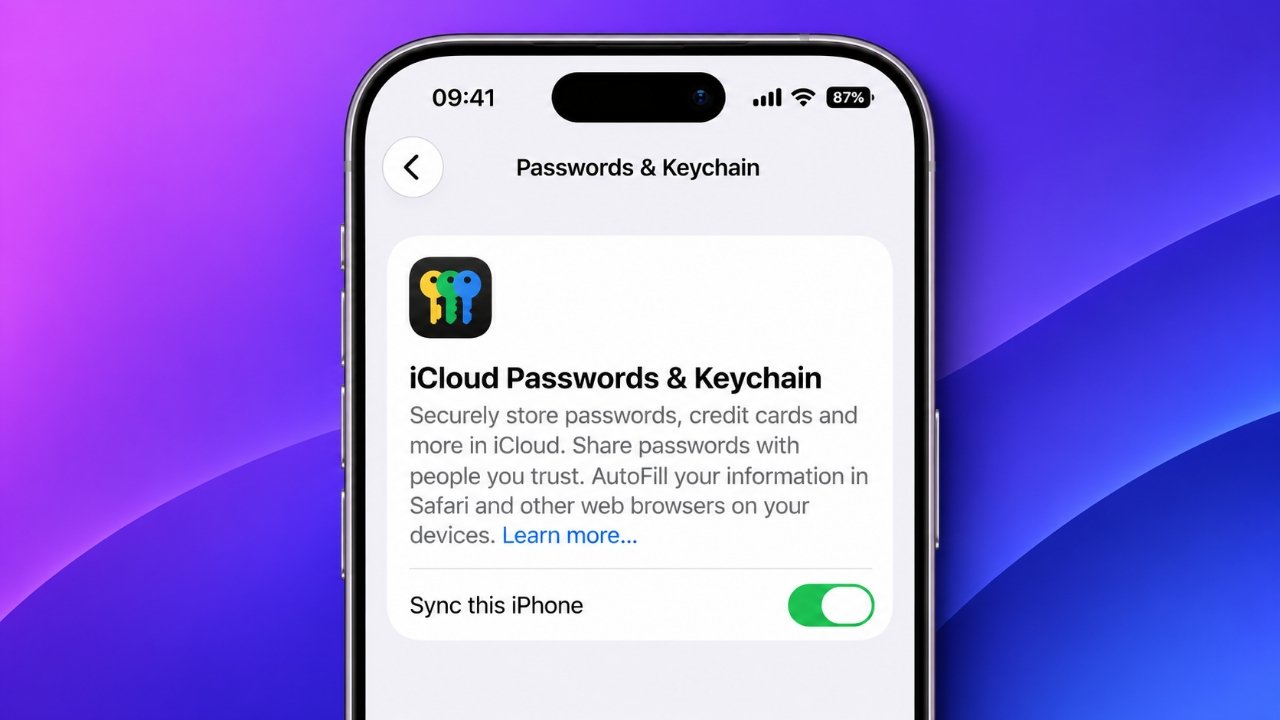
Managing multiple passwords can become difficult, especially when you use different apps, websites, and online services every day. Remembering every login detail is not always practical. Fortunately, Apple offers a built-in solution called iCloud Keychain, which helps users store their passwords securely and access them across compatible Apple devices.
With iCloud Keychain, you can save website logins, app passwords, passkeys, credit card information, and Wi-Fi credentials. Once synchronization is enabled, your saved information can automatically appear on other devices signed in with the same Apple Account.
Whether you use an iPhone, iPad, or Mac, setting up iCloud Keychain is straightforward. This guide explains how to enable the feature, manage saved passwords, use autofill, and understand its security options.
Also Read: How to Use WhatsApp on Two Phones at the Same Time: A Complete Guide for 2026
What Is iCloud Keychain and How Does It Work?
iCloud Keychain is Apple’s integrated password management service. It securely stores selected account information and synchronizes it between your supported devices through iCloud.
Instead of manually entering login details whenever you visit a website or open an application, you can use saved credentials to sign in more conveniently.
The service can remember several types of information, including:
- Website and app credentials: Stores usernames and passwords for your online accounts.
- Passkeys: Saves supported passwordless sign-in credentials.
- Payment information: Keeps credit card details and security codes for supported autofill features.
- Wi-Fi passwords: Remembers network credentials so you can reconnect without entering them again.
The Passwords app also makes it easier to find, organize, and update your saved login information on newer Apple operating systems.
Things to Check Before Enabling iCloud Keychain
Before setting up the service, make sure your Apple devices meet the basic requirements. A little preparation can help prevent synchronization or account verification problems.
Here are a few things to check:
- Install available software updates: Update your iPhone, iPad, or Mac to the latest compatible operating system version.
- Enable two-factor authentication: Your Apple Account should have two-factor authentication activated.
- Use the same Apple Account: Sign in with the same account on every device where you want your passwords to be available.
- Remember your security credentials: Keep your device passcode and Apple Account password accessible in case verification is required.
Once these requirements are covered, you can proceed with the setup.
Steps to Enable iCloud Keychain on an iPhone or iPad
Apple provides a simple way to activate password synchronization through the Settings app. The process is almost identical on both iPhone and iPad.
Follow these instructions:
- Open the Settings application.
- Tap your name at the top of the screen to access your Apple Account settings.
- Select iCloud.
- Find the Saved to iCloud section and open Passwords.
- Enable the Sync this iPhone or Sync this iPad option.
- Complete any security verification requested by your device.
Depending on your software version, the menu may appear under Passwords & Keychain instead. This is generally the case with iOS 17 and earlier releases.
After activation, your supported saved credentials can synchronize through iCloud.
How to Activate iCloud Keychain on a Mac
Mac users can also access the same password information by enabling synchronization in System Settings.
Here is how to do it:
- Click the Apple menu in the upper-left corner of your screen.
- Select System Settings.
- Click your name to open your Apple Account settings.
- Choose iCloud.
- Locate and open Passwords.
- Switch on Sync this Mac.
- Select Done if the option appears.
On older macOS versions, you may find the relevant setting under Passwords & Keychain instead.
What if Your Mac Requests Additional Approval?
Sometimes Apple requires confirmation from another trusted device before enabling iCloud Keychain.
This can happen if you previously selected the option to approve your Apple Account later.
In that situation, you may need to verify the request using the passcode of an older device or another device already signed in to your account.
If the normal approval process is unavailable, Apple may ask you to reset your end-to-end encrypted information. Read the instructions carefully before proceeding, as resetting encrypted data can affect information stored in iCloud.
Managing Your Saved Passwords with Apple’s Passwords App
Enabling iCloud Keychain is only the beginning. You can also add new credentials, change existing passwords, and remove outdated account information whenever necessary.
Apple introduced its dedicated Passwords app with iOS 18, iPadOS 18, and macOS Sequoia. If your device runs one of these versions or a newer compatible release, you can use this application to manage your saved credentials.
On older software versions, password management is available through the Settings app.
Adding a New Password Manually
If you want to save login information that has not been stored automatically, follow these steps:
- Open the Passwords app.
- Unlock it using Face ID, Touch ID, or your device passcode.
- Tap the plus (+) button.
- Enter the website or application name.
- Add the associated username and password.
- Include a note if you need to remember additional account details.
- Tap Save.
Your new entry will be available in the Passwords app. If iCloud Keychain synchronization is enabled, it can also become available on your other compatible devices.
Updating or Removing Existing Credentials
You do not need to create a completely new entry whenever an account password changes.
Open the Passwords app and search for the account you want to manage. Select the relevant entry to view its information and make the necessary changes.
You can update usernames, replace old passwords, and delete login details that you no longer need.
Reviewing saved credentials occasionally is a useful way to keep your password collection organized.
Using Autofill to Sign In Faster
One of the most convenient features of iCloud Keychain is automatic password filling.
When you visit a supported website or open an application with a saved account, Apple can suggest the relevant login information.
To use this feature:
- Open Safari or a supported application.
- Navigate to the sign-in screen.
- Tap the username or password field.
- Select the suggested account displayed above the keyboard.
- Verify your identity using Face ID, Touch ID, or your device passcode if requested.
Your saved credentials will then be entered into the appropriate fields.
Automatically Generating Strong Passwords
Creating a different password for every online account is an important security practice. However, thinking of unique and complicated passwords can be challenging.
Safari can help by offering a Use Strong Password suggestion when you create an account on a supported website.
Choose this option to generate a strong password. Apple can then save the new credential in iCloud Keychain, making it easier to use later.
Filling in Credit Card Details
iCloud Keychain can also help with online payments by remembering supported credit card information.
When you reach a checkout page that supports autofill, select the saved card suggestion and complete any required authentication.
This reduces the need to repeatedly type your payment details.
Sharing Passwords Securely with Family Members
Sometimes, family members need access to the same online accounts. Rather than sending login information through text messages or email, Apple provides a shared password group feature.
You can create a group and invite people you trust. Passwords and passkeys added to that group become accessible to its members.
For example, this feature may be useful when several family members need access to a shared household account.
Shared password groups require iOS 17, iPadOS 17, or macOS Sonoma, or later compatible versions.
Only share credentials with people you trust, and review group membership regularly to make sure access remains appropriate.
How Secure Is iCloud Keychain?
Password security is an important consideration when choosing a password manager. iCloud Keychain uses end-to-end encryption to protect supported information during synchronization and storage.
According to Apple, its encryption system uses security keys associated with information unique to your device, together with your device passcode.
This protection is designed so that the stored information remains accessible only through authorized devices and account verification methods.
However, your personal security practices still matter.
Consider following these precautions:
- Choose a strong device passcode that other people cannot easily guess.
- Never share your Apple Account password or device passcode.
- Keep two-factor authentication enabled.
- Install security updates when they become available.
- Avoid leaving your unlocked device unattended.
- Review saved passwords and shared groups periodically.
Even with strong encryption, protecting your device and account credentials is essential.
What Happens When You Disable iCloud Keychain?
You may eventually decide that you no longer want your saved passwords to synchronize across Apple devices.
Turning off iCloud Keychain stops future synchronization, but the information already stored on your device generally remains there.
Signing out of iCloud while Keychain is enabled involves an additional choice. Apple may ask whether you want to keep or delete the saved information on that particular device.
Understanding these options is important before making a decision.
| Option | What It Means |
|---|---|
| Keep | Saved passwords and passkeys remain on the device, but they no longer receive updates from your other devices. |
| Delete | The local passwords and passkeys are removed from the device. An encrypted copy remains in iCloud and can synchronize again if Keychain is re-enabled. |
Disabling Keychain or signing out of iCloud also removes your access to shared password groups.
However, other members of those groups can continue accessing the passwords and passkeys that were shared with them, provided they retain their access.
Frequently Asked Questions About iCloud Keychain
1. Can I Use iCloud Keychain on an Android Phone?
iCloud Keychain is designed primarily for Apple’s ecosystem, including iPhone, iPad, Mac, and Apple Vision Pro.
It does not offer the same native synchronization experience on Android devices.
Windows users can access supported iCloud password features through the iCloud for Windows application and Apple’s compatible browser extension.
2. Does iCloud Keychain Generate Secure Passwords?
Yes. Safari can suggest automatically generated strong passwords when you register for an account on a supported website.
If you select the suggested password, it can be saved to iCloud Keychain for future use.
This makes it easier to maintain different passwords across your online accounts without remembering each one.
3. Is the Passwords App Different from iCloud Keychain?
Yes, although the two features work together.
iCloud Keychain is the service responsible for securely storing and synchronizing supported credentials across your devices.
The Passwords app is the place where you can view, organize, add, update, and delete saved login information on devices running supported newer operating systems.
4. Will My Passwords Disappear If I Turn Off iCloud Keychain?
Not necessarily. When you disable synchronization, your saved credentials generally remain on the device.
However, if you sign out of iCloud and select the option to delete local information, those credentials will be removed from that device. An encrypted copy may remain in iCloud, depending on the circumstances.
5. Can I Access My Saved Passwords Without an Internet Connection?
You can generally view credentials already available on your device without an active internet connection, provided you can unlock the device and authenticate successfully.
However, synchronization with other devices requires an internet connection.
Also Read: How to Safely Delete an Old iPhone Backup From iCloud
Final Thoughts
iCloud Keychain is a useful built-in feature for anyone who regularly uses multiple Apple devices. It makes password management more convenient by securely storing login information, generating strong passwords, and synchronizing supported credentials through iCloud.
Setting it up takes only a few minutes, whether you use an iPhone, iPad, or Mac. Once enabled, you can manage your saved information through Apple’s Passwords app, use autofill when signing in, and share selected credentials with trusted family members.
For a smoother and more secure online experience, keep your devices updated, protect your Apple Account, and use a strong device passcode. These simple practices can help you get more value from iCloud Keychain while keeping your personal login information protected.

Ankita Kumar, founder of sabhigyan.com, is passionate about technology, smartphones, apps, and digital tools. With 8+ years of experience in the digital and tech space, he focuses on creating easy-to-understand, practical, and helpful content that makes everyday technology simpler for readers.
Advertisements