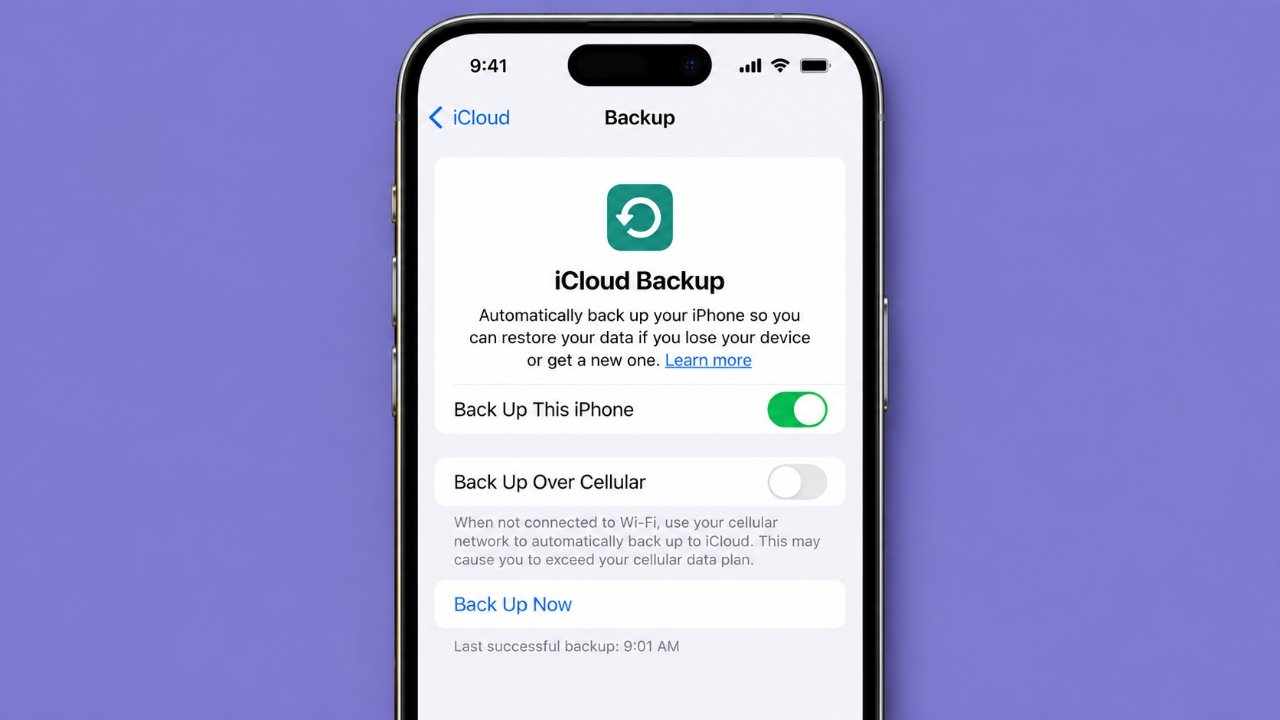
Running out of iCloud storage can be frustrating, especially when you discover that old iPhone backups are taking up several gigabytes of space. If you no longer need a backup from an older iPhone or another device, deleting it can free up storage.
But there is one important thing to remember: an iCloud backup is a recovery copy of your data. Before deleting one, make sure you are not removing the only backup of information you may need later.
Here’s a practical guide to checking, deleting, and managing old iCloud backups safely.
Also Read: How to Back Up iPhone 16: Simple Ways to Keep Your Data Safe
Why Your iCloud Backup Can Become Large
An iCloud backup can grow as you use your iPhone. Depending on your settings and the apps you use, it may include things such as app data, device settings, messages and other information that isn’t already synced separately with iCloud.
Your iPhone can automatically back up when it is connected to Wi-Fi, plugged into power and locked. This is convenient because you don’t have to create a backup manually every time.
However, over months or years, backup data can become larger. If you have also used multiple Apple devices with the same Apple Account, old backups may continue to occupy your iCloud storage.
When your available iCloud space gets low, future backups may not complete successfully. Checking your backups is therefore a good place to start when cleaning up storage.
What Information Can an iCloud Backup Include?
The exact contents of a backup depend on your device and how you use iCloud. An iCloud backup can include information such as:
- Device settings
- Home Screen layout and app organization
- App data
- Messages, including supported SMS, MMS and iMessage data
- Ringtones and certain personalized settings
- Health and HomeKit data where applicable
- Other information stored locally on the device that isn’t already synced with iCloud
Photos need special attention. If you use iCloud Photos, your photos and videos are synced to iCloud separately rather than being included in the daily iCloud device backup in the same way.
Because Apple’s backup and syncing features can vary depending on your settings, it’s worth checking exactly what is using your storage before deleting anything.
Does Deleting an iCloud Backup Delete Your iPhone Data?
No. Deleting an iCloud backup does not normally erase the current data from the iPhone that you’re using.
You’re deleting the backup stored in iCloud, not the information currently stored on your device.
For example, deleting an old backup won’t by itself remove the apps, messages or settings currently on your iPhone.
The important downside is that you’ll lose that particular backup as a recovery option. If the backup contains information that isn’t available somewhere else, deleting it could make that information difficult or impossible to recover later.
That’s why it’s better to check the backup before removing it.
Check Your iCloud Storage Before Deleting Anything
Before you start deleting backups, first find out how much space they’re actually using.
On a recent iPhone, you can generally check it by going to:
Settings → Your Name → iCloud
You’ll see an overview of your iCloud storage usage. Open the storage details to see which categories are consuming the most space.
Look for Backups and check the devices listed there.
This can help you identify whether the storage problem is actually caused by an old iPhone backup or by something else, such as photos, files or app-related data.
How to Delete an Old iPhone Backup From iCloud
Once you’ve confirmed that a particular backup is no longer needed, you can remove it from your iPhone.
The wording can vary slightly between iOS versions, but the process is generally:
- Open Settings on your iPhone.
- Tap your name at the top.
- Select iCloud.
- Open the section for Storage or Manage Account Storage.
- Tap Backups.
- Select the device whose backup you want to remove.
- Choose Delete Backup.
- Confirm the deletion when prompted.
On some versions of iOS, you may see an option such as Turn Off & Delete from iCloud.
Read the confirmation carefully before accepting it. Once the backup is deleted, you should treat it as no longer available for restoring that device.
Don’t Delete a Backup Just Because It’s Old
The age of a backup isn’t the only thing that matters.
Before removing one, consider:
- Is it from an iPhone you no longer use?
- Do you still need anything that was stored on that device?
- Do you have another backup?
- Are important photos and files stored somewhere else?
- Could you need that backup for restoring an older device?
If you’re unsure, keeping the backup for a little longer may be the safer choice.
This is particularly important if the backup belongs to a device that was lost, damaged or replaced and you haven’t confirmed that all of its important information exists elsewhere.
You May Not Need to Delete the Entire Backup
If your goal is simply to reduce the size of your current backup, deleting the whole backup may be unnecessary.
Depending on your iOS version and available settings, you can review which apps are included in your device backup and turn off backup for apps whose data you don’t need to preserve through iCloud.
To do this, open your iCloud backup settings and select your current device backup. Review the apps listed there and look for those using a significant amount of backup storage.
Be careful when disabling an app from the backup. Make sure its important information is already synced or stored somewhere else.
Pay Attention to Photos and Videos
Large photos and videos can be responsible for a significant amount of cloud storage usage.
Before deleting anything, make sure you have another copy of important memories. You could use a computer or another suitable storage solution for additional copies.
Don’t assume that deleting something from one location automatically creates a backup somewhere else. Always confirm that another usable copy exists before removing important personal files.
How Much iCloud Storage Will You Get Back?
There isn’t a fixed amount of storage you’ll recover by deleting an iCloud backup.
It depends entirely on the size of that particular backup.
For example, a relatively small backup might free less than 1 GB, while a backup from a heavily used device could occupy several gigabytes.
The easiest way to know how much space you’ll recover is to check the backup’s size in your iCloud storage settings before deleting it.
Other Ways to Free Up iCloud Storage
Deleting an old backup isn’t the only way to reclaim space.
If your iCloud storage is still nearly full, review other categories as well. Depending on what you use, you may be able to:
- Remove unwanted photos and videos
- Clear items from Recently Deleted after checking them carefully
- Delete unnecessary files from iCloud Drive
- Remove large message attachments you no longer need
- Clean up unnecessary mail
- Review app-related iCloud storage
- Move important files to another storage location
- Keep an additional copy of important files on a computer
This approach is often better than deleting a useful backup simply to gain a small amount of space.
What If You Still Need More iCloud Storage?
Sometimes the problem isn’t unnecessary data. You may simply have more files and backups than your current storage allowance can comfortably handle.
In that situation, you can consider an iCloud+ storage plan instead of repeatedly deleting information you may want later.
Before upgrading, check your current storage usage and decide how much additional space you actually need.
You Can Also Manage Backups From a Mac
If you use a Mac, you can manage your Apple Account and iCloud storage from macOS as well.
The exact menu names depend on your macOS version, but you can generally open:
Apple menu → System Settings → Your Name → iCloud
From the iCloud storage section, review the available storage categories and backups.
Older versions of macOS may use System Preferences instead of System Settings, so the appearance can be different.
What About Windows?
Windows users can manage iCloud information through iCloud for Windows, where supported features and storage options are available.
The interface can change with different versions of the software, so if the backup-management option isn’t visible, check Apple’s current iCloud for Windows documentation for the version you’re using.
A Better Way to Clean Up Your iCloud Storage
Instead of immediately deleting everything that looks old, use this approach:
First, check your storage. Find out exactly which category is taking up space.
Next, review your backups. Identify backups belonging to devices you no longer use.
Then, check the backup size. Decide whether deleting it will actually make a meaningful difference.
After that, look for unnecessary app backup data. Reducing the size of your current backup may be enough.
Finally, review photos, files and other iCloud data. You may discover that another category is responsible for most of your storage usage.
If you have important information that exists only in one place, make another copy before deleting it.
Also Read: How to Check iPhone Battery Cycle Count and Understand Battery Health
Final Thoughts
Deleting an old iPhone backup from iCloud can be an easy way to recover storage, but it’s worth taking a few minutes to check what you’re removing first.
An old backup from a device you no longer use may be safe to delete if you have already preserved the information you need. On the other hand, a backup could still be valuable if it contains data that isn’t available anywhere else.
So, check the backup, confirm you don’t need it, and then delete it. If you regularly keep important information in iCloud, maintaining another backup or copy can provide additional peace of mind.

Sourav Gorai, founder of sabhigyan.com, is passionate about technology, smartphones, apps, and digital tools. With 8+ years of experience in the digital and tech space, he focuses on creating easy-to-understand, practical, and helpful content that makes everyday technology simpler for readers.