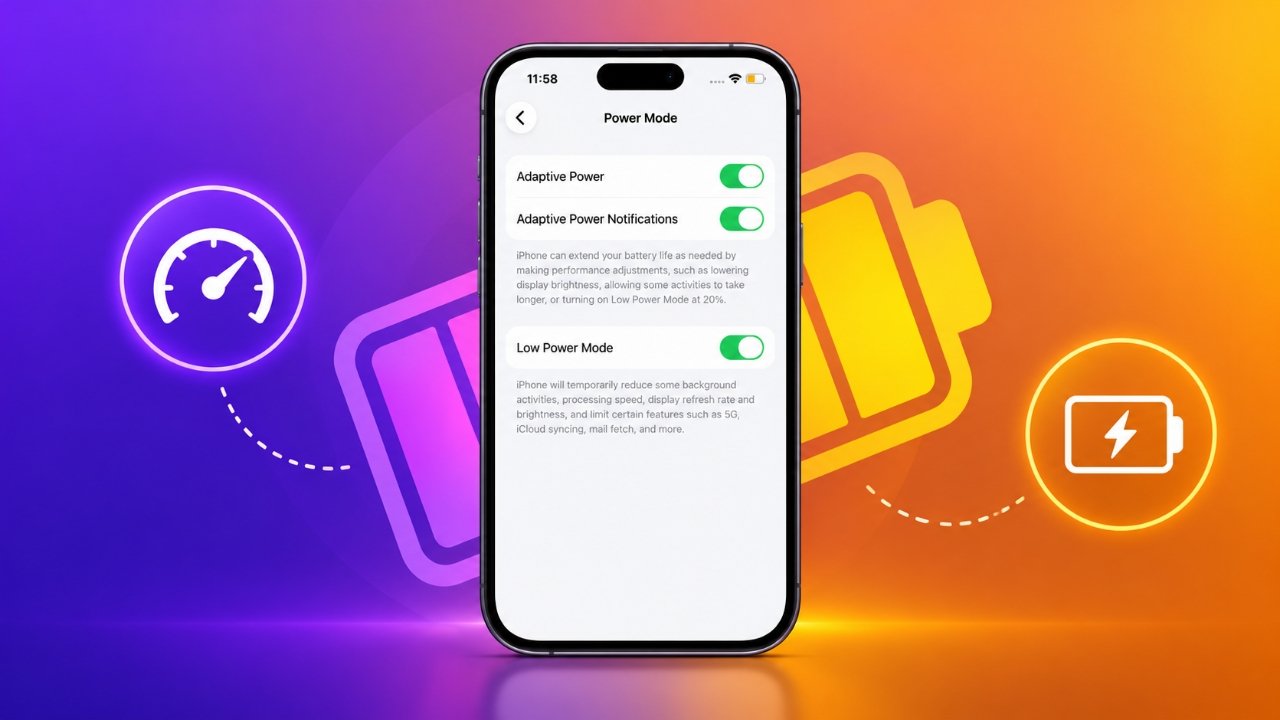
Battery life is an important factor when choosing how to use your iPhone throughout the day. Whether you spend hours browsing the internet, taking pictures, watching videos, or using demanding applications, keeping your battery running longer can make a big difference.
Apple provides two useful features to help manage battery consumption: Adaptive Power and Low Power Mode. Both are designed to help your iPhone conserve energy, but they work in different ways. Adaptive Power makes subtle adjustments based on your usage patterns, while Low Power Mode applies more noticeable restrictions to reduce power consumption.
Understanding the differences between these features can help you decide which one is best for your needs. In this guide, we will explore how Adaptive Power and Low Power Mode work, which iPhones support them, and when you should use each option.
Also Read: Instagram Trial Reels: A Complete Guide to Testing Content and Improving Reach
What Is Adaptive Power on iPhone?
Adaptive Power was introduced with iOS 26 as Apple’s intelligent battery management feature. It analyzes your recent iPhone usage and makes adjustments when your device may benefit from additional battery life.
Unlike Low Power Mode, Adaptive Power is designed to work quietly in the background. Its goal is to balance energy efficiency with everyday performance, allowing you to continue using your phone without experiencing significant changes in its behavior.
When Adaptive Power detects that your iPhone is consuming more energy than usual, it may make small adjustments, including:
- Slightly reducing screen brightness.
- Limiting certain background activities.
- Making minor performance adjustments in supported situations.
For example, if you use your iPhone more heavily than usual on a particular day, Adaptive Power may adjust selected settings to help manage battery consumption.
The changes are intended to be subtle, so you can continue using your favorite apps without the more noticeable restrictions associated with Low Power Mode.
However, the amount of battery saved depends on your device, usage habits, and the adjustments made by the system. Adaptive Power does not guarantee a specific increase in battery life.
Which iPhones Support Adaptive Power?
Adaptive Power is available on the iPhone 15 Pro and newer compatible iPhone models. Older devices that do not support the feature can still use Low Power Mode.
The feature’s default status depends on your iPhone model. Some supported devices have it enabled by default, while others require you to activate it manually.
Adaptive Power may also need time to learn your usage and charging patterns before its adjustments become active.
What Is Low Power Mode on iPhone?
Low Power Mode has been available since iOS 9 and is supported by a much wider range of iPhones.
Its primary purpose is to extend battery life by reducing certain system activities and limiting features that consume additional energy. Unlike Adaptive Power, which focuses on subtle adjustments, Low Power Mode applies a broader set of power-saving measures.
When enabled, Low Power Mode may perform the following actions:
- Disable Background App Refresh.
- Reduce display brightness and some visual effects.
- Limit automatic downloads.
- Reduce how frequently Mail fetches new messages.
- Temporarily pause some iCloud Photos activity.
- Set Auto-Lock to 30 seconds.
- Reduce performance or limit certain background processes.
These changes help your iPhone conserve energy, particularly when the battery is running low or you cannot charge your device for several hours.
Because some features and background activities are restricted, you may notice that certain tasks take longer than usual.
You can enable Low Power Mode manually whenever you need it, even if your battery is fully charged. On supported iPhones, it generally switches off automatically once the battery reaches 80% charge.
When Low Power Mode is active, the battery icon in the status bar turns yellow.
Adaptive Power vs. Low Power Mode: Key Differences
Although both features help reduce battery consumption, their approaches and intended uses are different.
| Feature | Adaptive Power | Low Power Mode |
|---|---|---|
| Main purpose | Intelligent battery optimization | More aggressive energy conservation |
| How it works | Makes adjustments based on usage patterns | Limits selected features and background activities |
| Performance impact | Designed to keep changes subtle | May noticeably affect some activities |
| Activation | Can be enabled or disabled in Settings | Can be enabled manually |
| Device compatibility | iPhone 15 Pro and newer compatible models | Supported on a wider range of iPhones |
| Best use | Everyday battery management | When you need to conserve more power |
One important difference is that Adaptive Power does not necessarily save more battery than Low Power Mode. It is designed to improve efficiency while maintaining a relatively normal user experience.
Low Power Mode is generally the better choice when extending battery life is more important than maintaining access to every feature at full capacity.
When Should You Use Adaptive Power?
Adaptive Power is a useful option for people who want their iPhone to manage energy consumption automatically.
Rather than constantly checking the battery percentage or switching settings throughout the day, you can let the feature make supported adjustments when necessary.
Adaptive Power may be a good choice if:
- You own a compatible iPhone.
- Your daily battery usage varies.
- You regularly use your phone for several hours.
- You want automatic battery optimization.
- You prefer to avoid the more noticeable restrictions of Low Power Mode.
For example, if you spend your day switching between messaging, photography, browsing, and other applications, Adaptive Power can help manage energy consumption when your usage increases.
It is particularly suitable for users who want to balance battery efficiency with a smooth everyday experience.
However, its effectiveness varies. Activities such as gaming, video recording, navigation, and prolonged screen use can still consume considerable energy.
When Is Low Power Mode the Better Choice?
Low Power Mode is particularly useful when you need to make your remaining battery charge last as long as possible.
Here are some situations in which enabling it makes sense.
1. When Your Battery Is Running Low
If your battery percentage is dropping and you cannot access a charger, Low Power Mode can reduce certain energy-consuming activities and help you conserve the remaining charge.
You do not have to wait until the battery reaches a critically low level before activating it.
2. When Traveling
Long journeys, outdoor activities, and days away from a power outlet can make battery management especially important.
Enabling Low Power Mode can help reduce power consumption while you use your phone for essential tasks such as messaging and checking travel information.
3. When You Have a Busy Day Ahead
If you expect to spend several hours away from home or the office, switching on Low Power Mode before your battery gets low may help you manage your remaining charge.
This is particularly useful when you need your phone to remain available for calls, messages, and other important tasks.
4. When Your Battery Health Has Declined
As an iPhone battery ages, its maximum capacity can decrease. This means your device may not last as long between charges as it did when it was new.
Low Power Mode can help reduce energy consumption, but it cannot restore lost battery capacity or repair a deteriorating battery.
If your battery drains unusually quickly, check the Battery section in Settings to review battery usage and health information.
How to Turn On Low Power Mode on iPhone
Enabling Low Power Mode is straightforward. The exact menu layout may vary depending on your iPhone model and iOS version.
Follow these steps:
- Open the Settings app on your iPhone.
- Tap Battery.
- Select Power Mode, if this option is available.
- Turn on Low Power Mode.
You can also add the Low Power Mode control to Control Center on supported versions of iOS for quicker access.
Another option is to ask Siri to enable Low Power Mode for you.
Once activated, the battery icon turns yellow, indicating that the feature is working.
How to Enable Adaptive Power on iPhone
If your iPhone supports Adaptive Power, you can manage the feature through Settings.
Follow these steps:
- Open Settings.
- Select Battery.
- Tap Power Mode, if available.
- Enable Adaptive Power.
If you cannot find the option, check whether your iPhone model supports the feature and whether your device is running a compatible version of iOS.
The default setting varies by model. Some compatible iPhones have Adaptive Power enabled automatically, while others require manual activation.
Adaptive Power Notifications may appear as a separate setting. Turning off these notifications does not necessarily disable Adaptive Power itself.
The feature may also need time to learn your usage patterns before making adjustments, so its effects might not be immediate.
Practical Tips to Improve iPhone Battery Life
Adaptive Power and Low Power Mode can help you manage battery consumption, but a few additional habits may also make a difference.
Reduce Screen Brightness
The display can be a significant source of battery consumption, especially when brightness is set high for long periods.
Lower the brightness when possible or enable Auto-Brightness so your iPhone can adjust the display according to surrounding lighting conditions.
Limit Background App Refresh
Some applications update their content even when you are not actively using them.
Open Settings and review Background App Refresh. Disable it for apps that do not need to update in the background.
This can help reduce unnecessary activity without affecting every application on your device.
Enable Optimized Battery Charging
Optimized Battery Charging is designed to reduce battery aging over time by adjusting charging behavior in supported situations.
You can review the available charging options in your iPhone’s Battery settings.
Although this feature supports long-term battery health, it does not directly guarantee more hours of use from a single charge.
Review Location Services
Some apps use your location even when you are not actively using them.
Check Location Services in your privacy settings and adjust location access for applications that do not need it.
Choose the access level that suits each app rather than disabling location services indiscriminately.
Use Airplane Mode When Appropriate
In areas with weak cellular reception, your iPhone may consume additional energy while maintaining or searching for a network connection.
If you do not need cellular connectivity, Airplane Mode may help reduce this consumption.
Remember that Airplane Mode can interrupt cellular calls, messages, and mobile data unless the relevant connections are re-enabled.
Identify Apps That Consume Excessive Power
If your battery drains faster than expected, open Settings and check the Battery section.
This area provides information about battery usage and can help you identify applications or activities that account for a significant share of your consumption.
Understanding the cause of battery drain can be more useful than enabling power-saving features without knowing what is consuming energy.
Also Read: How to Pin a Location in Google Maps on Mobile and Desktop
Final Thoughts
Adaptive Power and Low Power Mode are both useful, but neither is the best option for every situation.
Adaptive Power is better suited to everyday battery management. It makes automatic adjustments designed to improve efficiency while preserving the normal iPhone experience as much as possible.
Low Power Mode is better when conserving battery is your main priority. It limits selected features and background activities to help your iPhone last longer when charging is not readily available.
If your iPhone supports both features, you can use Adaptive Power for routine battery management and activate Low Power Mode when you need to save more energy.
If your device does not support Adaptive Power, Low Power Mode remains a practical option for extending battery life.
Ultimately, the best approach depends on your iPhone model, battery condition, and daily usage habits. Combining the appropriate power mode with sensible display and background-activity settings can help you get more out of each charge.
Frequently Asked Questions
Does Adaptive Power replace Low Power Mode?
No. Adaptive Power focuses on automatic adjustments based on usage patterns, while Low Power Mode applies broader restrictions to reduce energy consumption. The two features serve different purposes.
Can I use Low Power Mode when my iPhone is fully charged?
Yes. You can enable Low Power Mode manually at any battery level. You do not have to wait until your charge drops below 20%.
Is Adaptive Power available on every iPhone?
No. Adaptive Power is available on the iPhone 15 Pro and newer compatible models. Low Power Mode is supported on a wider range of iPhones.
Does Adaptive Power save more battery than Low Power Mode?
Not necessarily. The amount of energy saved depends on your usage and device settings. Adaptive Power emphasizes subtle optimization, while Low Power Mode applies more extensive restrictions.
Can Low Power Mode improve battery health?
Low Power Mode can reduce energy consumption, but it does not restore lost battery capacity or repair an aging battery. Charging optimization and appropriate battery care can help support long-term battery health.
Should I keep Adaptive Power enabled all the time?
If your iPhone supports the feature and you want automatic battery management, leaving Adaptive Power enabled may be convenient. You can change the setting according to your preferences and usage needs.

Ankita Kumar, founder of sabhigyan.com, is passionate about technology, smartphones, apps, and digital tools. With 8+ years of experience in the digital and tech space, he focuses on creating easy-to-understand, practical, and helpful content that makes everyday technology simpler for readers.
Advertisements