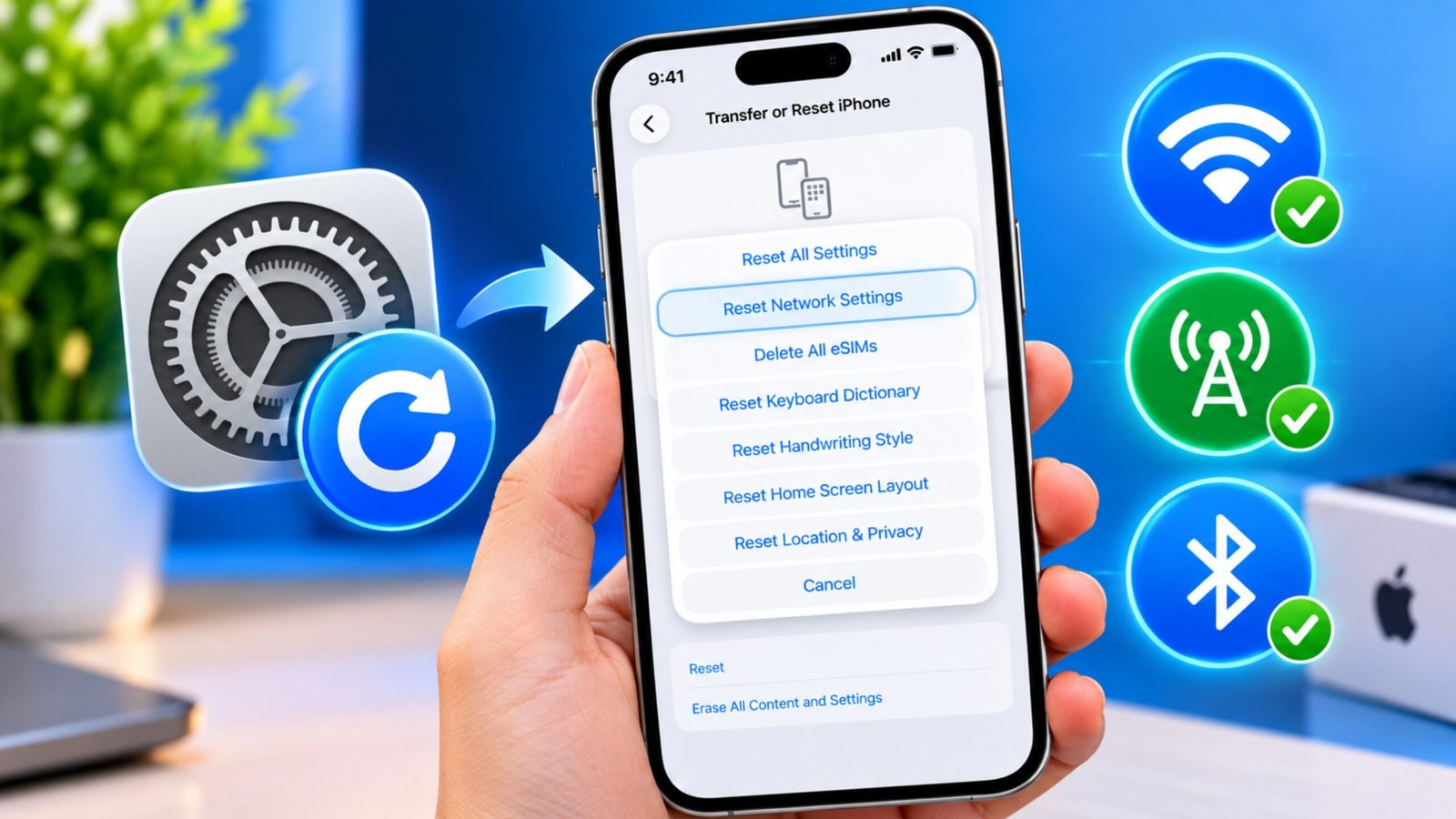
Network problems on an iPhone can be frustrating, especially when Wi-Fi keeps disconnecting, mobile data suddenly stops working, or Bluetooth refuses to connect properly. In many cases, these issues are caused by incorrect or outdated network configurations.
One useful troubleshooting option is Reset Network Settings. Unlike a factory reset, this feature does not erase your photos, apps, messages, or other personal files. Instead, it clears network-related information and restores those settings to their default state.
Also Read: How to Transfer Music From One iPhone to Another
When Should You Reset Network Settings on an iPhone?
A network reset can be useful when regular troubleshooting steps haven’t fixed the problem. You may consider using it if you are experiencing issues such as:
- Your iPhone repeatedly fails to connect to Wi-Fi.
- Mobile data isn’t working even though you have network coverage.
- Bluetooth devices won’t connect properly.
- VPN connections are repeatedly dropping.
- Cellular connectivity keeps disappearing.
- Internet-related problems continue after restarting the phone.
- A previously working network connection suddenly starts behaving unusually.
It’s worth remembering that this isn’t a general-purpose reset. It specifically targets network-related configurations, so your personal content remains on the device.
What Gets Removed After a Network Reset?
Before using this option, it’s important to know what will change.
After resetting network settings, your iPhone may remove or restore several network-related configurations, including:
- Saved Wi-Fi networks and their passwords
- Certain cellular network settings
- Previously configured VPN settings
- Some trusted network certificates
- Custom network preferences
- Other network-related configurations
Your photos, videos, contacts, messages, apps, documents, and other personal data are not deleted by Reset Network Settings.
However, you will need to reconnect to Wi-Fi networks and configure certain services again.
How to Reset Network Settings on iPhone
The process is straightforward. Here’s how to do it:
- Open Settings on your iPhone.
- Tap General.
- Scroll down and select Transfer or Reset iPhone.
- Tap Reset.
- Select Reset Network Settings.
- Enter your iPhone passcode if requested.
- Confirm the reset when prompted.
- Wait for the iPhone to restart.
Once the process is complete, unlock your iPhone and check whether the original network problem has been resolved.
The exact appearance of these menus can vary slightly depending on the iOS version and iPhone model.
What You Need to Do After the Reset
Because saved network information is cleared, your iPhone may need some basic setup again.
Connect to Wi-Fi Again
To reconnect to your home or office Wi-Fi:
- Go to Settings.
- Select Wi-Fi.
- Choose your network from the available list.
- Enter the Wi-Fi password.
- Tap Join.
If the password is correct and the router is working normally, the iPhone should connect again.
Set Up Your VPN Again
If you regularly use a VPN, check its settings after the reset. Depending on how the VPN was configured, you may need to open its app and sign in or configure the connection again.
If the VPN was installed through a configuration profile or device-management system, the steps can be different.
Check Your Mobile Network
Normally, an iPhone should reconnect to the cellular network automatically after restarting. If calls, mobile data, or cellular connectivity are still unavailable, check whether there is a carrier outage or contact your mobile operator.
Try These Fixes Before Resetting Network Settings
A network reset is useful, but you don’t necessarily need to use it for every connection problem. Try these simpler solutions first.
1. Turn Airplane Mode On and Off
Airplane Mode can quickly refresh your iPhone’s wireless connections.
Go to Settings and turn Airplane Mode on. Wait for around 30–60 seconds, then turn it off again.
After that, check Wi-Fi, mobile data, or Bluetooth to see whether the problem has disappeared.
2. Restart the iPhone
A normal restart can sometimes resolve temporary software or connectivity problems.
Turn off your iPhone, wait a few seconds, and then turn it back on. On Face ID models, you may need to use the side button together with a volume button to access the power-off screen.
Once the phone starts again, test the connection.
3. Forget the Wi-Fi Network
If only one particular Wi-Fi network is causing trouble, forgetting it and connecting again may be enough.
Here’s what to do:
- Open Settings.
- Tap Wi-Fi.
- Find the problematic network.
- Tap the Info (i) button beside it.
- Select Forget This Network.
- Confirm the action.
- Select the Wi-Fi network again.
- Enter its password and connect.
This can help when the saved Wi-Fi configuration has become outdated or isn’t working correctly.
Don’t Confuse Network Reset With a Factory Reset
This is one of the most important things to remember.
Reset Network Settings and Erase All Content and Settings are completely different options.
A network reset focuses on connectivity-related configurations. It does not function as a factory reset.
On the other hand, Erase All Content and Settings is designed to remove personal information, apps, settings, and other content from the iPhone. It is generally used when preparing a device for sale, trade-in, or a complete fresh setup.
So, if your goal is simply to fix Wi-Fi, cellular, or Bluetooth problems, make sure you select Reset Network Settings rather than the option to erase all content.
What About Other Reset Options?
The iPhone provides several reset choices, and each one has a different purpose. Depending on your iOS version, you may see options such as:
- Reset All Settings
- Reset Keyboard Dictionary
- Reset Home Screen Layout
- Reset Location & Privacy
- Delete All eSIMs
These options should not be treated as interchangeable. Read the description carefully before confirming any reset, particularly when an option involves removing cellular plans or other important configurations.
When Should You Contact Your Carrier or Apple?
If resetting the network settings doesn’t solve the issue, the problem may not be related to your iPhone’s saved network configuration.
For cellular problems, your mobile carrier can check account status, SIM/eSIM issues, coverage, or possible network outages.
For persistent Wi-Fi, Bluetooth, or broader iPhone software problems, Apple Support can provide additional troubleshooting based on your device and iOS version.
Also Read: How to Restart an iPhone or iPad: Easy Steps for Every Model
Final Thoughts
Resetting network settings can be a useful troubleshooting step when Wi-Fi, mobile data, Bluetooth, or other connectivity features aren’t working as expected. It doesn’t erase your personal files, but it does mean that some network information, such as saved Wi-Fi connections, will need to be set up again.
Before performing the reset, try simpler solutions such as restarting the iPhone, toggling Airplane Mode, or forgetting and reconnecting to the affected Wi-Fi network. If those steps don’t help, Reset Network Settings can be the next option to consider.
Advertisements