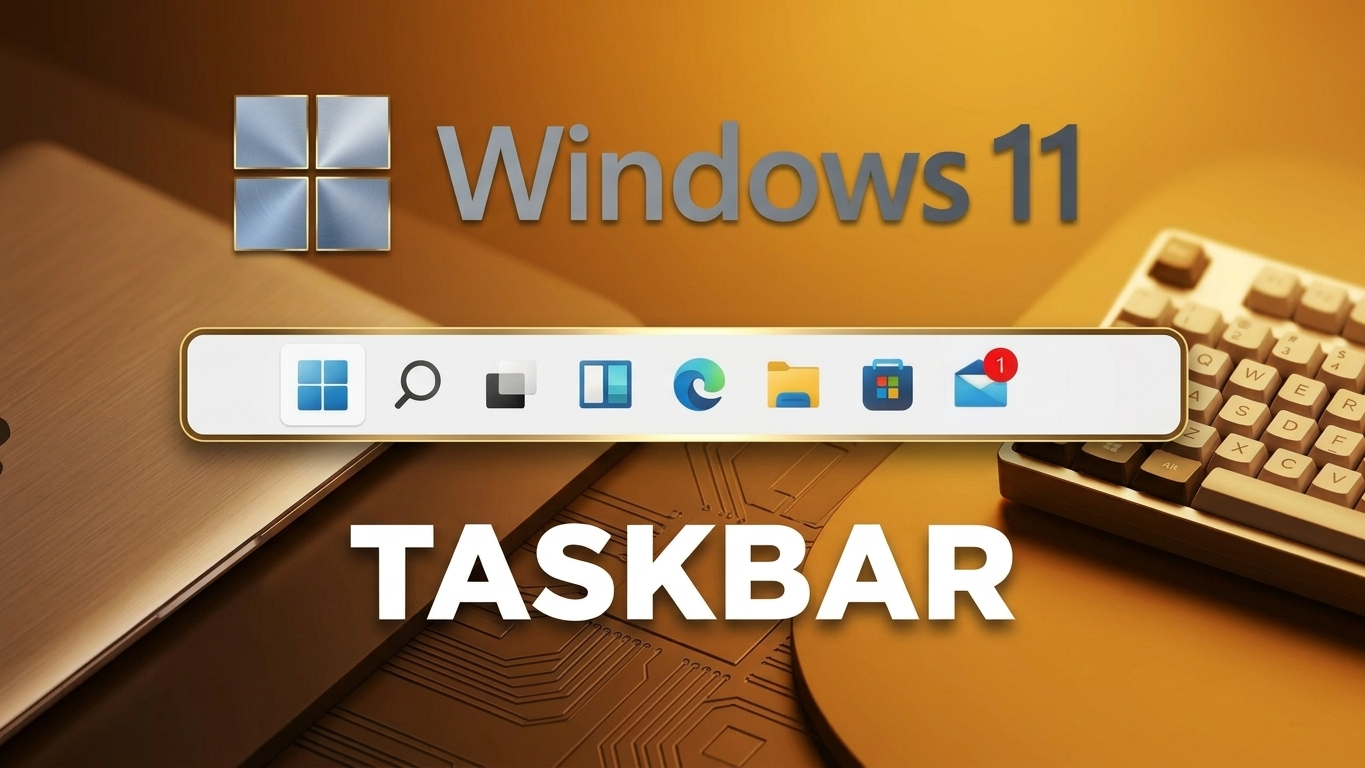
The taskbar in Windows 11 is more than just a strip at the bottom of your screen—it’s your control center for launching apps, managing open windows, and keeping track of system activity. While it may look simple, there are several ways to tailor it to match your workflow and preferences.
This guide walks you through practical ways to personalize your taskbar without overcomplicating things.
Also Read: How to Delete Your Threads Account Without Removing Instagram (Complete Guide)
Getting Started with Taskbar Settings
Before making any changes, you’ll need to access the main settings panel:
- Press Windows + I to open Settings
- Navigate to Personalization
- Click on Taskbar
This section contains all the essential controls for customizing appearance and behavior.
Simplify Your Taskbar by Managing Widgets and Task View
If you prefer a distraction-free workspace, removing extra icons can help.
- Turn off Widgets to hide news, weather, and updates
- Disable Task View if you don’t use virtual desktops
Both options can be re-enabled anytime, so feel free to experiment.
Choose How Search Appears
Search is a frequently used feature, but it doesn’t have to take up unnecessary space. You can choose from several display styles:
- Full search bar for quick typing
- Icon with label for a balanced look
- Icon only for minimal design
- Completely hidden for a cleaner layout
Pick what suits your usage habits.
Keep Important Apps Within Reach
Pinning apps to the taskbar saves time and reduces clutter in your Start menu.
To pin an app:
- Locate the app in the Start menu or desktop
- Drag it directly onto the taskbar
Once added, it stays there for quick one-click access.
Also Read: How to Understand Instagram’s New Paid Subscription Experiment and What It Means for Users
Organize Icons for Better Workflow
A well-arranged taskbar can improve efficiency.
- Click and hold any app icon
- Drag it left or right to reposition
Place your most-used apps where they’re easiest to access.
Remove Unnecessary Apps
Too many icons can make your taskbar feel crowded.
- Right-click on any app
- Select Unpin from taskbar
This helps maintain a clean and focused interface.
Understand Current Limitations
Unlike older Windows versions, Windows 11 has a few restrictions:
- Files and folders can’t be pinned directly
- Only apps and shortcuts are supported
This may change in future updates, but for now, it’s a design limitation.
Customize the System Tray
The system tray (near the clock) shows background apps and system icons like Wi-Fi and battery.
To adjust it:
- Open Taskbar settings
- Go to System tray options
- Choose which icons stay visible
Hiding less important icons can reduce visual clutter.
Adjust Taskbar Alignment
Windows 11 centers icons by default, but you can switch to a more traditional layout.
To change alignment:
- Open Taskbar settings
- Select Taskbar behaviors
- Set alignment to Left
This gives a familiar feel, especially for long-time Windows users.
Enable Auto-Hide for More Screen Space
If you want a cleaner desktop:
- Turn on Automatically hide the taskbar
The taskbar will disappear when not in use and reappear when you move your cursor to the bottom.
Control Notification Behavior
Some apps highlight themselves by flashing on the taskbar when attention is needed.
If this becomes distracting, you can manage notification behavior through system settings.
Use Taskbar Across Multiple Monitors
For multi-monitor setups:
- Enable taskbar display on all screens
- Access open apps more easily across displays
This is especially helpful for multitasking or professional workflows.
Explore Additional Settings
There are a few smaller tweaks that can further refine your experience:
- Show or hide app badges
- Adjust icon visibility behavior
- Fine-tune minor visual elements
These small changes can make a noticeable difference over time.
What You Can’t Change (Yet)
While Windows 11 offers useful customization, some features are still missing:
- Taskbar height cannot be easily resized
- Moving the taskbar to the top or sides isn’t supported
Microsoft continues to update the system, so future improvements are possible.
Also Read: How to Find a Switched-Off Mobile Phone Using Practical Methods
Final Thoughts
Customizing your taskbar doesn’t require advanced skills—it’s all about knowing where to look. By adjusting layout, removing clutter, and organizing apps, you can create a workspace that feels both efficient and comfortable.

Sourav Gorai, founder of sabhigyan.com, is passionate about technology, smartphones, apps, and digital tools. With 8+ years of experience in the digital and tech space, he focuses on creating easy-to-understand, practical, and helpful content that makes everyday technology simpler for readers.
Advertisements