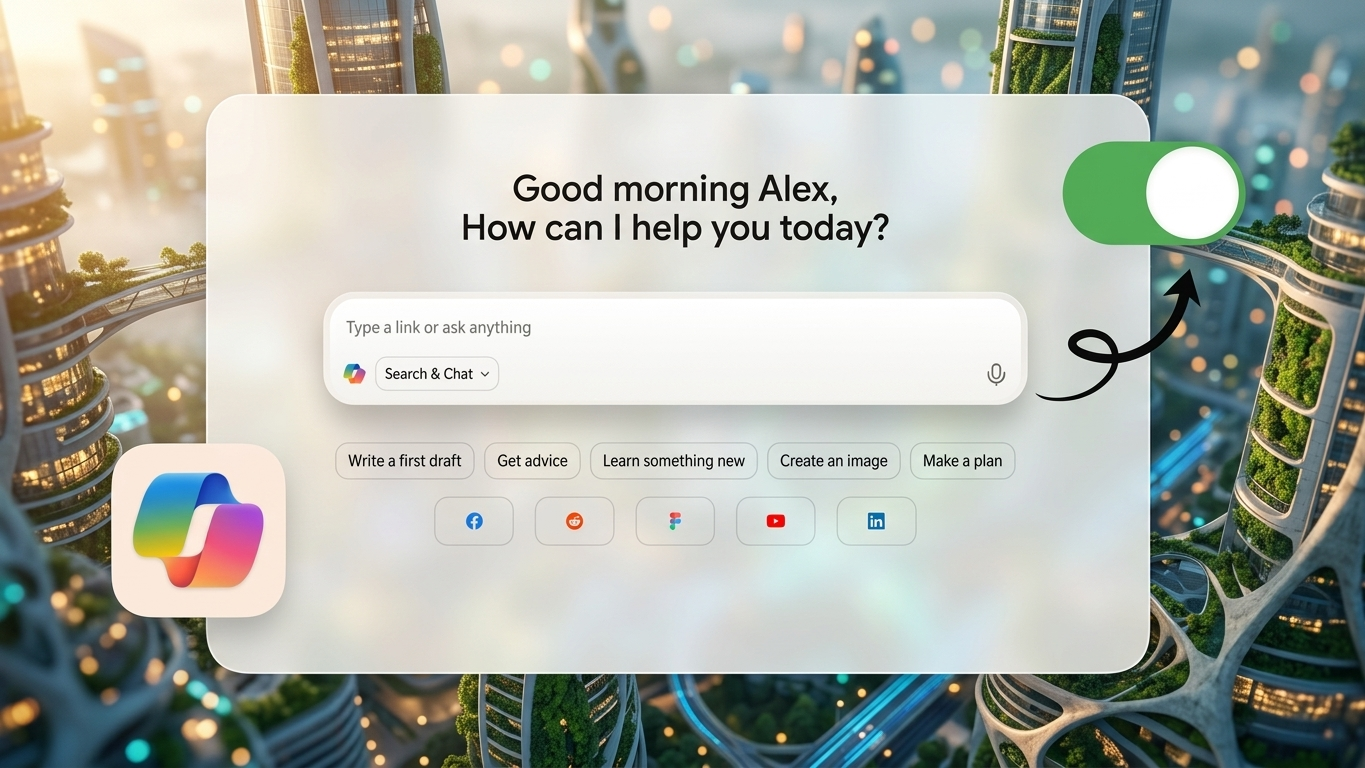
Microsoft has added Copilot to several of its products, including Edge, Windows, Bing, and Microsoft 365 apps. For some users, it can be a helpful assistant. For others, it may feel unnecessary, distracting, or raise concerns about privacy and personalization.
If you would rather use your device without Copilot appearing regularly, there are several simple settings you can change. While complete removal is not always available, you can hide it, limit suggestions, and reduce how often it appears.
Also Read: How to Reset Your Notes Password on iPhone, iPad, and Mac (Complete Guide)
How to Quickly Manage Copilot Settings
Here is what you should know before starting:
- Copilot may not be fully uninstallable on all systems.
- You can hide it from Microsoft Edge and Windows taskbar.
- Search suggestions and AI prompts can be reduced.
- Privacy settings may help limit personalization features.
How to Remove Copilot from Microsoft Edge Sidebar
If Copilot is showing inside the Edge sidebar, you can disable its visibility in a few steps.
Steps to Follow:
- Open Microsoft Edge.
- Click the three-dot menu in the upper-right corner.
- Select Settings.
- Open Sidebar from the left panel.
- Locate the Copilot option.
- Turn off the setting that displays Copilot.
Once completed, the Copilot icon should no longer appear in the browser sidebar.
How to Reduce AI Suggestions in Bing Search
If Bing search results or typing prompts feel too aggressive, you can limit suggestion features.
Steps:
- Visit Bing in your browser.
- Open the menu icon.
- Choose Settings.
- Go to More Options.
- Disable Search Suggestions.
This can help reduce automatic prompts while entering search terms.
How to Hide Copilot in Windows 11
Windows 11 may display Copilot directly on the taskbar. While removal options vary by version, hiding it is usually simple.
Steps:
- Open Settings.
- Select Personalization.
- Click Taskbar.
- Find the Copilot setting.
- Switch it Off.
- Restart your PC if needed.
After restarting, the taskbar should look cleaner without the Copilot shortcut.
How to Disable Copilot in Microsoft 365 Apps
Some Microsoft applications such as Word or Excel may include Copilot tools depending on your subscription and version.
Steps:
- Open Word, Excel, or another Microsoft 365 app.
- Click File.
- Select Options.
- Look for Copilot-related settings.
- Turn the feature off if available.
If no direct setting appears, review privacy or connected experience options inside the app.
How to Limit Personalization and Data Usage
If privacy is your main concern, adjusting account settings may help reduce personalized suggestions.
Helpful Options:
- Turn off personalization settings.
- Clear saved activity history.
- Disable memory-style preferences if available.
- Disconnect services you do not use, such as OneDrive or Outlook.
- Review Microsoft account privacy controls regularly.
Also Read: How to Send WhatsApp Messages Later on Android and iPhone
How to Make Edge Feel Simpler Without Copilot
Even if Copilot cannot be fully removed from every device, you still have control over how visible it is. Hiding icons, disabling optional features, and adjusting privacy settings can create a cleaner and less distracting experience.
For many users, these small changes make Microsoft Edge and Windows easier to use.
Advertisements