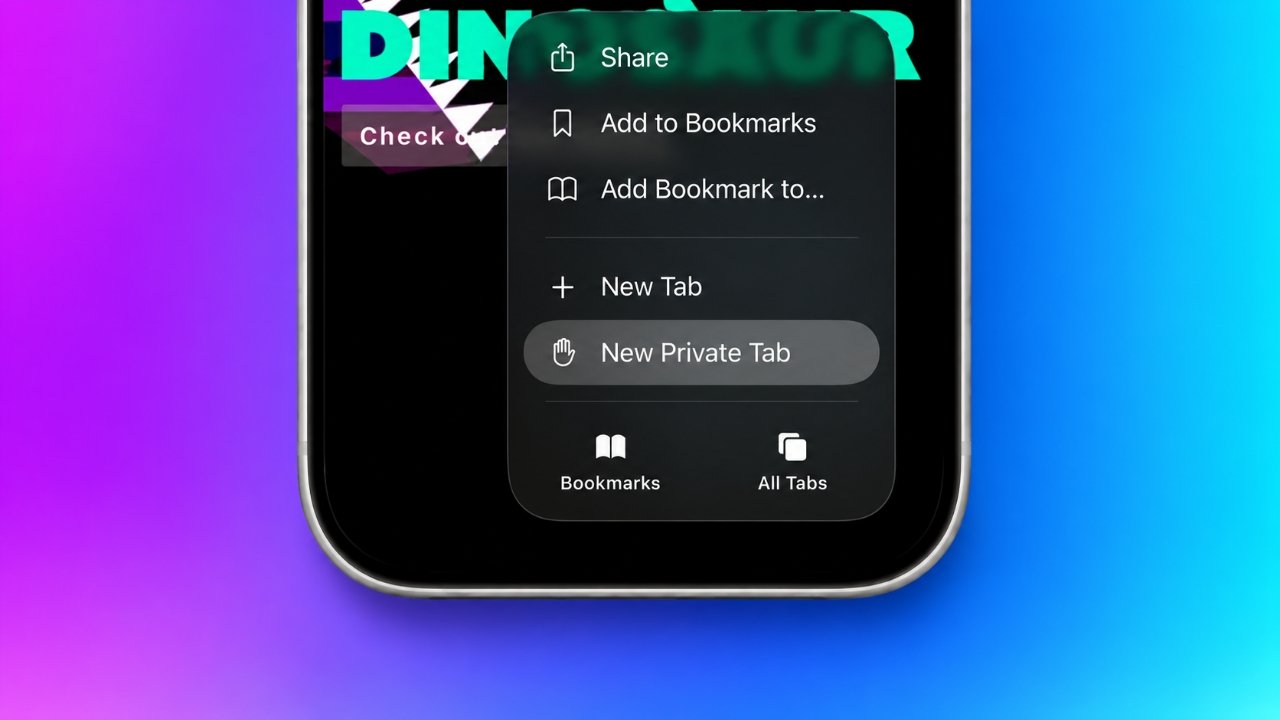
Private Browsing is a useful Safari feature for people who want to browse the internet without saving their visited websites in the regular browsing history. However, there may be situations when you want to switch it off, particularly if you share your iPhone with family members or want to manage a child’s internet access.
Fortunately, leaving Private Browsing on an iPhone is simple. You can switch back to regular browsing directly from Safari without changing any settings. If you want additional privacy protection, Apple also provides an option to secure private tabs using Face ID, Touch ID, or your device passcode.
For parents, there are additional tools available through Screen Time. However, some restrictions have changed in iOS 26, so it is important to understand which options still work.
In this guide, we will explain how to exit Private Browsing, close private tabs, enable biometric protection, and manage website restrictions on an iPhone.
Also Read: How to Turn Off Pop-Up Blocker on iPhone in Safari and Chrome
Understanding Safari Private Browsing
Before changing any settings, it helps to understand what Private Browsing actually does.
Safari’s Private Browsing feature provides a separate browsing experience that limits the information stored locally on your iPhone. When you use it, Safari handles your browsing activity differently from regular tabs.
Here are some of its main features:
- No regular browsing history: Websites visited in Private Browsing do not appear in Safari’s standard browsing history.
- Separate tabs: Private tabs remain separate from your normal browsing sessions.
- Limited synchronization: Private tabs are not shared with your other Apple devices through iCloud.
- Extension restrictions: Safari automatically disables extensions that can access browsing information.
- Separate search preferences: You can select a different search engine for Private Browsing.
One important thing to remember is that Private Browsing does not provide complete online anonymity. Your internet service provider, network administrator, and websites you visit may still be able to observe certain online activities.
How to Recognize Private Browsing on Your iPhone
Not sure whether Safari is currently using Private Browsing?
You can usually identify it by looking at the browser interface.
When Private Browsing is active, Safari displays a darker appearance, and the tab switcher identifies the current group as Private. Regular browsing uses your normal tab group, which may display your tab count or a name such as Start Page.
Checking this detail before changing your browsing mode can help you avoid accidentally opening another private tab.
Steps to Exit Private Browsing in Safari
If you simply want to return to regular internet browsing, there is no need to reset Safari or delete your browser settings.
Follow these instructions:
- Open the Safari application on your iPhone.
- Find and tap the Tabs button, represented by two overlapping squares.
- If you cannot see the button, open the More menu (three dots) and look for the tab option.
- Locate the tab group selector at the bottom of the screen.
- Swipe from the Private section toward a regular tab group.
- Select an existing normal tab or open a new one.
Safari will now display your regular browsing session instead of Private Browsing.
Good to know: Switching to normal browsing does not automatically erase your private tabs. Safari keeps them separate and locks Private Browsing when you leave it. You can access those tabs again later by returning to the Private tab group and unlocking it when required.
How to Permanently Close Your Private Tabs
Leaving Private Browsing and deleting private tabs are two different actions.
If you only switch to a regular tab group, your private browsing session remains available. If you are lending your iPhone to someone else or want to finish your private session completely, you may prefer to close those tabs.
Here is how:
- Open Safari.
- Tap the Tabs button.
- Switch to the Private tab group.
- Touch and hold the Done option or the Tabs button, depending on your Safari interface.
- Select the option to close all private tabs, if available.
- Confirm your choice when prompted.
After completing these steps, your private tabs will be closed.
Keep in mind that closing private tabs is different from removing information that may have been saved by websites, downloaded files, or other applications.
How to Access Private Browsing Again
If you switch to regular browsing but later decide to use Private Browsing, you can return to it whenever needed.
The process is straightforward:
- Launch Safari on your iPhone.
- Tap the Tabs button.
- Swipe through the available tab groups until you reach Private.
- Select Private.
- Unlock the section using Face ID, Touch ID, or your passcode if Safari requests authentication.
Another convenient option is to touch and hold the Safari icon on your Home Screen or in the App Library. If the option is available, select New Private Tab to start a private browsing session directly.
Protect Private Browsing With Face ID
If your main concern is someone else accessing your private tabs, disabling the feature may not be necessary.
Apple provides a built-in security setting that requires biometric authentication before someone can unlock Private Browsing.
To enable this protection, follow these steps:
- Open the Settings application.
- Scroll down and select Apps.
- Find and tap Safari.
- Look for the Private Browsing security option.
- Enable Require Face ID to Unlock Private Browsing.
Depending on your iPhone model, the option may use Touch ID or your device passcode instead.
Once enabled, Safari requires authentication to unlock protected private tabs when the feature is locked.
This is particularly useful when you share your iPhone with another person but still want to keep your own browsing sessions protected.
Can You Block Private Browsing on a Child’s iPhone?
Parents who want to manage their children’s internet activity may be looking for a way to remove Private Browsing completely.
Apple offers several parental control features through Screen Time. These tools can restrict website access and help parents manage the content children can view.
However, there is an important change in iOS 26.
Earlier versions of iOS allowed certain Screen Time website restrictions to hide the Private Browsing option. In iOS 26, enabling the adult website filter no longer reliably removes Private Browsing from Safari.
The website filter can still apply restrictions while private tabs are being used. Therefore, hiding the Private Browsing option and restricting inappropriate websites should be treated as two separate goals.
How to Enable Website Restrictions Through Screen Time
Even though the Screen Time settings do not reliably disable Private Browsing in iOS 26, they remain useful for managing children’s internet access.
You can configure website restrictions by following these instructions:
- Open Settings on the iPhone.
- Select Screen Time.
- Open Content & Privacy Restrictions.
- Turn on Content & Privacy Restrictions.
- Find the content restrictions section. Depending on your iOS version, it may appear under App Store, Media, Web & Games or Content Restrictions.
- Select Web Content.
- Choose Limit Adult Websites to filter access to certain websites.
- For younger children, consider selecting Only Approved Websites instead.
The approved websites option provides a more controlled browsing environment because access is limited to websites that parents allow.
Set a Screen Time Passcode
After configuring the restrictions, create a Screen Time passcode that your child does not know.
This helps prevent unauthorized changes to the parental control settings.
If your child’s iPhone is connected to your Apple Family Sharing group, you can also manage Screen Time settings from your own device.
Open Settings, select Family, choose your child’s account, and access the available Screen Time controls.
This makes it easier for parents to supervise restrictions without needing to configure everything directly on the child’s iPhone.
Frequently Asked Questions
1. How can I turn off Private Browsing on my iPhone?
Open Safari and tap the Tabs button. Swipe from the Private tab group to a regular browsing group, such as your normal tab count or Start Page. You can then continue using Safari normally.
2. Does Private Browsing hide my internet activity completely?
No. Private Browsing mainly limits the browsing information Safari saves on your device. Your internet provider, network administrator, and websites may still be able to observe your activity.
3. Why is Private Browsing still available after enabling Screen Time restrictions?
In iOS 26, the Limit Adult Websites setting no longer reliably hides the Private Browsing option. Instead, the website filtering feature can continue working while someone browses using private tabs.
4. Is it possible to protect Private Browsing with Face ID?
Yes. Open Settings, go to Apps, select Safari, and enable the option requiring Face ID to unlock Private Browsing. The available authentication method depends on your iPhone model.
5. Will my private tabs disappear when I switch to regular browsing?
No. Switching tab groups does not automatically close private tabs. They remain available in the Private section and can be accessed again after unlocking.
6. Can parents completely prevent children from accessing inappropriate websites?
Screen Time provides website filtering and approved-website restrictions that can help parents manage internet access. However, no single setting should be treated as a guarantee of complete protection. Parents should also review device settings, supervise online activity appropriately, and maintain age-appropriate internet rules.
Also Read: How to Uninstall, Disable, and Archive Apps on Samsung Phones (2026 Guide)
Final Thoughts
Turning off Private Browsing on an iPhone is a quick process that can be completed directly through Safari’s tab switcher. Simply open the Tabs menu and move from the Private group to a regular browsing group.
If your goal is to protect your personal browsing activity, enabling Face ID or Touch ID authentication is a practical alternative to disabling the feature.
For parents managing a child’s iPhone, Screen Time offers useful website restrictions and parental controls. However, iOS 26 has changed how these settings interact with Private Browsing, so enabling Limit Adult Websites should not be mistaken for completely disabling private tabs.
By understanding these options, you can make better use of Safari’s privacy features while maintaining appropriate control over internet access.

Ankita Kumar, founder of sabhigyan.com, is passionate about technology, smartphones, apps, and digital tools. With 8+ years of experience in the digital and tech space, he focuses on creating easy-to-understand, practical, and helpful content that makes everyday technology simpler for readers.
Advertisements