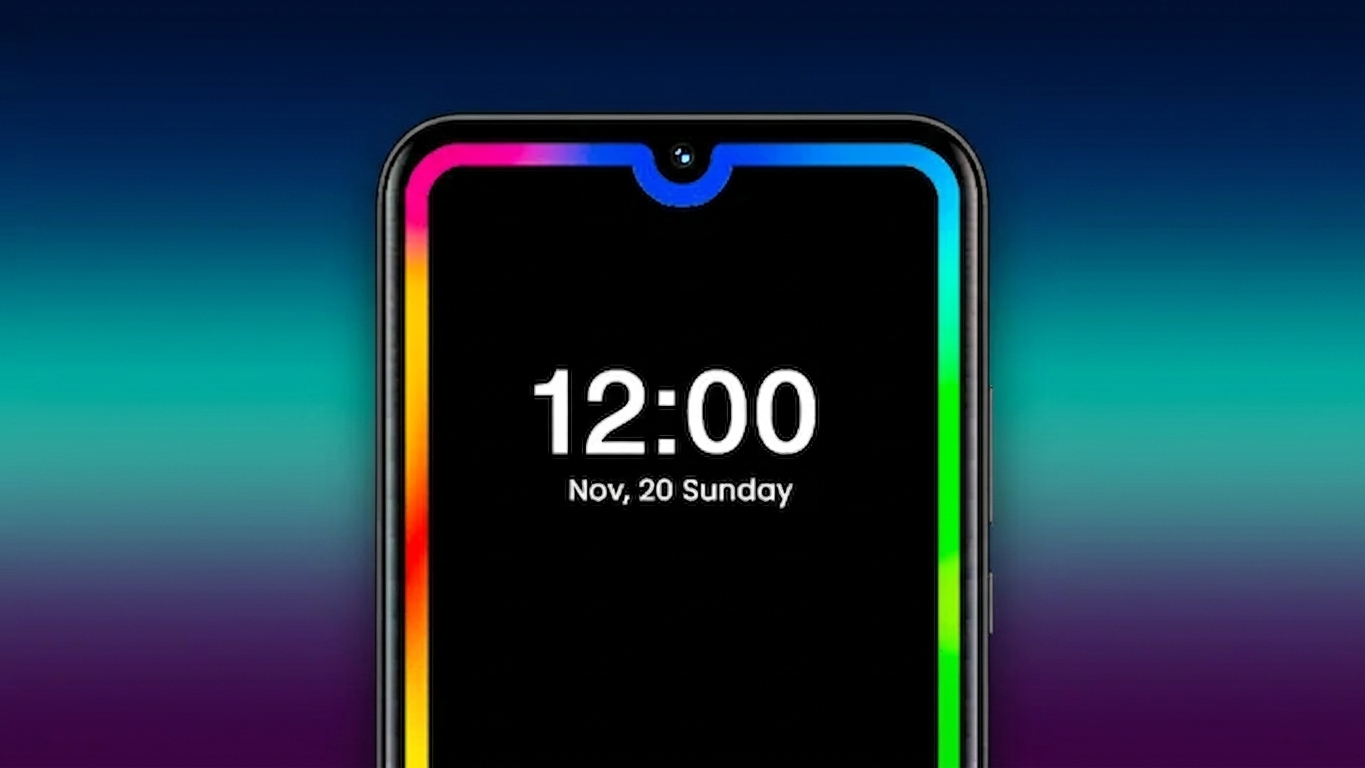
If you enjoy giving your Android phone a fresh and stylish appearance, an EDGE Lighting app can be a fun way to personalize your device. Instead of relying on a plain notification screen, this type of app adds colorful animated light effects around the edges of your display whenever you receive notifications, calls, or messages.
Many users also combine these lighting effects with live wallpapers to create a more eye-catching home and lock screen. The result is a unique look that makes your phone feel more modern without changing your device’s core functionality.
What Is an EDGE Lighting App?
An EDGE Lighting app creates animated light effects around your phone’s screen when certain events occur. These events can include:
- Incoming notifications
- Text messages
- Phone calls
- Charging your device
- Alerts from selected apps
You can usually customize the lighting colors, animation style, border thickness, and display duration to match your personal preference.
Why Use EDGE Lighting?
Besides making your phone look more attractive, EDGE Lighting can also make notifications easier to notice, especially when your device is lying on a desk or when the screen is locked.
Some advantages include:
- Stylish animated borders
- Better visibility for notifications
- Personalized notification effects
- Custom colors and animation styles
- Works with many popular apps
How to Set Up EDGE Lighting on Android
Installing and configuring an EDGE Lighting app is usually straightforward. Follow these general steps:
Step 1: Install the App
Download your preferred EDGE Lighting application from the Google Play Store and open it.
Step 2: Grant Required Permissions
During the initial setup, the app may request several permissions, such as:
- Display over other apps
- Notification access
- Accessibility permission (if required)
Grant only the permissions you are comfortable allowing, as these are typically necessary for the lighting effects to function properly.
Step 3: Enable Notification Lighting
Locate the notification settings inside the app and turn on the LED lighting feature.
Some apps also allow you to enable lighting for:
- SMS messages
- Missed calls
- Social media notifications
- Messaging apps
- Email alerts
Step 4: Choose Apps for Notifications
Most EDGE Lighting apps let you select which applications will trigger the lighting effect.
Simply open the Apps or Selected Apps section and choose the apps you want to receive animated edge notifications from.
Step 5: Adjust Notification Duration
You can decide how long the lighting animation stays visible after receiving a notification.
Popular duration options include:
- 5 seconds
- 10 seconds
- 15 seconds
- Custom duration (if supported)
Choose a setting that balances visibility with battery usage.
Step 6: Customize the Lighting Design
One of the best parts of EDGE Lighting apps is the ability to personalize the appearance.
Common customization options include:
- Animation speed
- Border thickness
- Corner radius
- Lighting colors
- Glow intensity
- Animation style
You can experiment with different combinations until you find a design you like.
Step 7: Configure Display Shape (Optional)
Some Android phones have different screen designs, including:
- Notch displays
- Punch-hole cameras
- Curved screens
If your app supports these options, select the display type that matches your device for a better visual effect.
Main Features of EDGE Lighting Apps
Depending on the application you choose, you may find features such as:
- Animated LED borders for notifications
- Lighting effects for incoming calls
- Notification alerts for selected apps
- Charging animation support
- Live wallpaper compatibility
- Silent and vibration mode support
- Adjustable animation speed
- Multiple color themes
- Custom border styles
- Option to hide notification content on the lock screen
Tips for the Best Experience
To get smoother performance:
- Keep the app updated.
- Allow notification access when requested.
- Avoid enabling unnecessary effects if you want to conserve battery.
- Select only the apps you truly need notifications from.

Also Read: Rolling Icons App for Android: Give Your Home Screen a Fun Motion Effect
Final Thoughts
EDGE Lighting apps offer an easy way to personalize your Android phone while making notifications more noticeable. With customizable colors, animated borders, and support for different notification types, they can give your device a fresh appearance without requiring any complex setup.
Since features vary between apps and Android devices, it’s worth exploring the available settings to create a style that best matches your preferences.

Ankita Kumar, founder of sabhigyan.com, is passionate about technology, smartphones, apps, and digital tools. With 8+ years of experience in the digital and tech space, he focuses on creating easy-to-understand, practical, and helpful content that makes everyday technology simpler for readers.
Advertisements