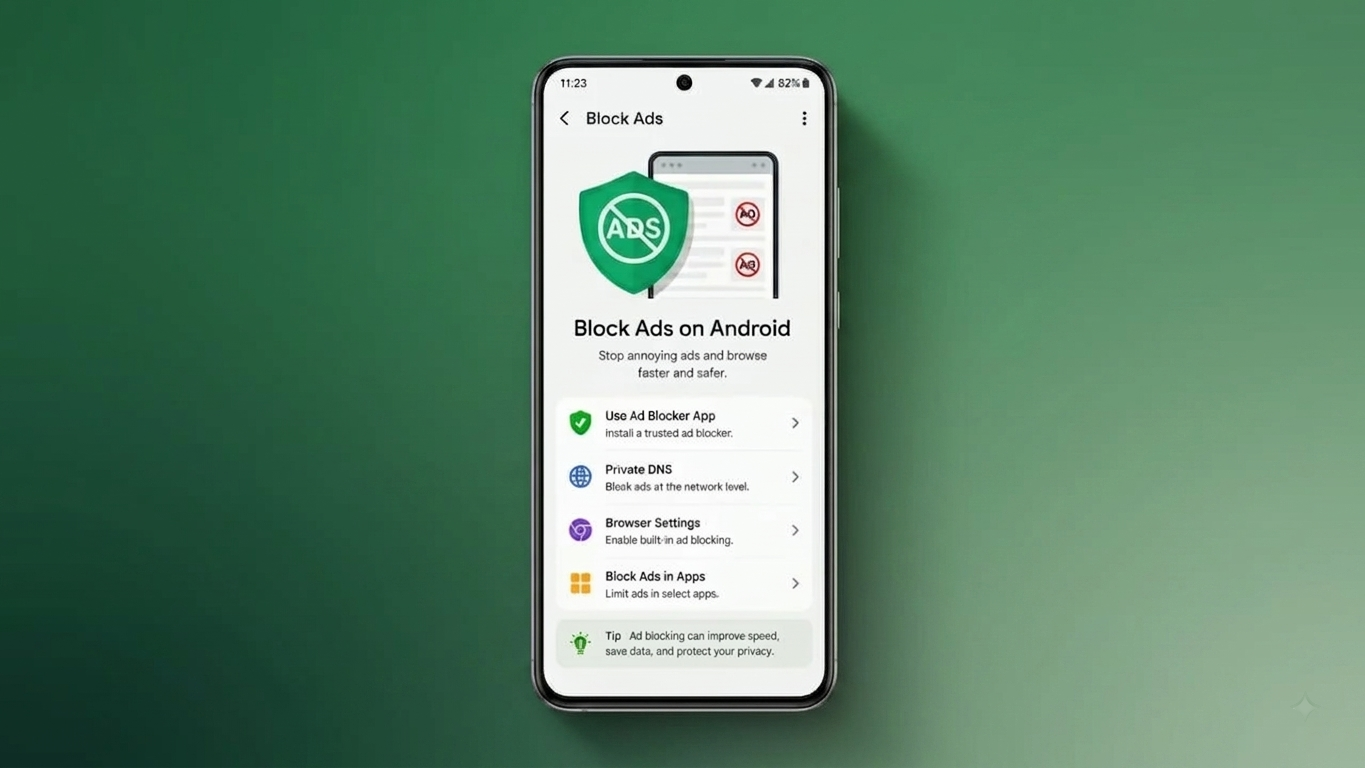
Seeing advertisements while using an Android phone is completely normal, particularly when you use free apps or browse ad-supported websites. Ads are an important source of income for many developers and publishers, but excessive pop-ups, notifications, or overlays can make your phone difficult to use.
Fortunately, Android provides several settings that can help you control unwanted advertising. You can also review installed apps, manage browser permissions, and improve your privacy without relying on questionable software.
Also Read: How to Reset Network Settings on an iPhone and Fix Connection Problems
What You Can Do to Reduce Unwanted Ads
Here are some practical options:
- Remove unfamiliar or unnecessary apps.
- Disable unwanted website notifications.
- Block pop-ups and intrusive advertisements in your browser.
- Review apps that can appear over other applications.
- Use reputable privacy or security tools when necessary.
- Keep Android and your installed apps updated.
Why Are You Seeing So Many Ads?
Free applications often display advertisements because advertising helps support their development. Normal banner or video ads inside an app are not necessarily a security problem.
The situation is different when advertisements suddenly start appearing outside the app that normally displays them. For example, you might see unexpected full-screen ads, pop-ups on the home screen, or notifications from websites you do not remember allowing.
An unfamiliar or poorly designed app can sometimes be responsible. Website notification permissions can also create unwanted promotional messages. Checking these areas is a good place to start.
1. Check Recently Installed Apps
If the problem began after installing a new application, review your recently added apps first.
Go to:
Settings → Apps → See all apps
The exact wording can vary depending on your Android phone.
Look through the list and consider removing applications that:
- You no longer use
- You do not recognize
- Were installed shortly before the ads started
- Come from an untrusted source
Before uninstalling an app, make sure you know what it does. Avoid removing important system applications simply because their names look unfamiliar.
What If an App Cannot Be Uninstalled?
Some applications may have special permissions that prevent normal removal.
On supported Android devices, check:
Settings → Security → Device admin apps
If an unfamiliar application has administrator access, review that permission and disable it if appropriate. You can then return to the app settings and try uninstalling the application.
The menu location can differ between Samsung, Xiaomi, OnePlus, Motorola, Google Pixel, and other Android devices.
2. Block Pop-Ups in Google Chrome
If most of the advertisements appear while browsing websites, Chrome’s built-in controls can help.
Open Google Chrome and go to:
Three dots → Settings → Site settings
Look for options related to:
- Pop-ups and redirects
- Intrusive ads
- Notifications
Keep pop-ups and redirects blocked, and review notification permissions for websites that you do not trust.
Remove Unwanted Website Notifications
Sometimes a website is allowed to send notifications, which can make advertisements appear in your notification panel.
You can review Chrome’s website notification permissions and remove access from websites you no longer want to hear from.
Be careful when selecting notification permissions in the future. Only allow websites you recognize and have a genuine reason to receive notifications from.
3. Clear Browser Cache
If Chrome is behaving unusually, clearing its temporary cache may help with certain browser-related problems.
On many Android phones, you can find the option under:
Settings → Apps → Chrome → Storage & cache → Clear cache
Clearing the cache is different from clearing all app data. The latter can remove locally stored information and may require you to configure the app again.
4. Consider Privacy-Focused Browser Tools
If you regularly browse websites with a large number of advertisements or trackers, a reputable privacy-focused browser or browser extension can provide additional controls.
For example, Firefox supports extensions that can improve privacy and reduce certain forms of web advertising.
However, remember an important limitation: browser-based ad-blocking generally applies only to websites viewed through that browser. It does not automatically remove advertisements from other Android applications.
Only install browser extensions or security tools from trusted sources and check their permissions before enabling them.
5. Check the “Display Over Other Apps” Permission
An application with permission to appear over other apps can place content on top of your current screen. If an unfamiliar app is responsible for persistent overlays, reviewing this permission can be useful.
Go to the app’s information page and look for an option such as:
Display over other apps
or
Appear on top
If an app does not genuinely need this permission, consider turning it off.
The setting’s name and location depend on your Android version and phone manufacturer.
6. Keep Your Phone Secure
Unwanted advertising does not always mean that your phone has malware. However, if ads appear in unusual places or your device starts behaving differently after installing an unknown application, it is worth checking your phone’s security.
Use Android’s built-in security features and keep your operating system and apps updated. If you choose a third-party security application, download it from a reputable source and check its reputation and permissions carefully.
Avoid installing random “ad blocker,” “phone cleaner,” or “speed booster” applications simply because they promise to eliminate every advertisement. Some apps may create additional privacy or performance concerns.
Can You Completely Remove Every Ad?
Not always.
There is a difference between reducing unwanted advertisements and removing every advertisement from Android. Ads displayed by legitimate apps are often part of their normal business model, and browser-based tools generally cannot control advertising inside unrelated applications.
The safest approach is to identify where the unwanted ads are coming from and then adjust the relevant app, browser, or Android permission.
Also Read: How to Stop Your Phone From Overheating and Keep It Safe
Final Thoughts
A sudden increase in unwanted advertisements can be frustrating, but you can usually narrow down the cause by checking a few important areas. Start by reviewing recently installed applications, then manage website notifications and browser settings. If advertisements appear over other apps, review the Display over other apps permission as well.
For better privacy, stick to reputable browsers, security tools, and apps from trusted sources. Avoid downloading unknown software that promises unrealistic results.
With these simple checks, you can make your Android experience less intrusive while keeping your device and personal information better protected.

Sourav Gorai, founder of sabhigyan.com, is passionate about technology, smartphones, apps, and digital tools. With 8+ years of experience in the digital and tech space, he focuses on creating easy-to-understand, practical, and helpful content that makes everyday technology simpler for readers.