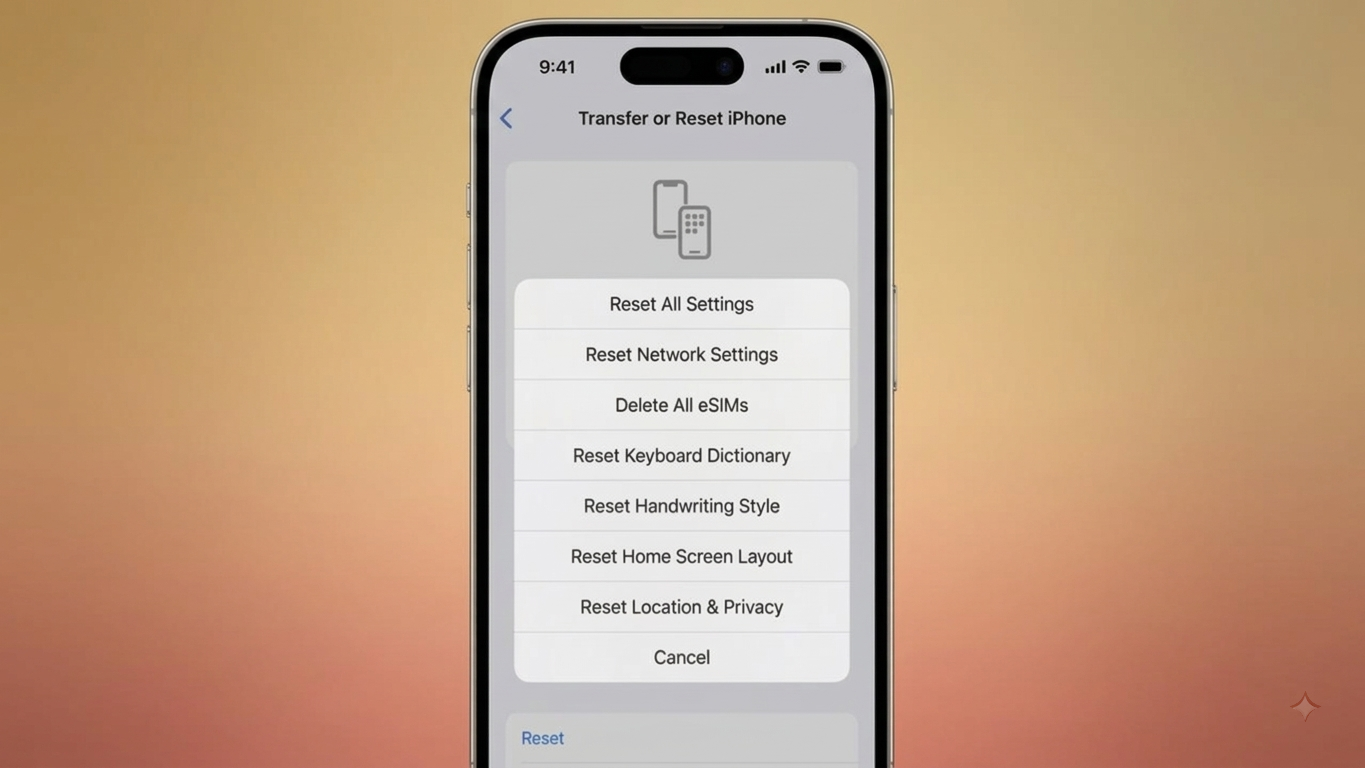
Having trouble with Wi-Fi, Bluetooth, or mobile data on your iPhone can be frustrating, especially when the problem keeps coming back. Before assuming that something is wrong with the hardware, there is one built-in troubleshooting option worth trying: Reset Network Settings.
This feature clears network-related configurations and restores them to their default state. Importantly, it does not delete your photos, videos, apps, messages, or other personal files.
However, you will need to reconnect to Wi-Fi networks and configure certain network services again afterward.
Also Read: How to Create a Viral Music Website with AI in Under 10 Minutes
When Is a Network Reset Worth Trying?
You generally don’t need to reset your network settings for every small connection problem. Simple steps such as restarting the iPhone or toggling Airplane Mode may be enough.
A network reset can be useful when you are experiencing persistent issues such as:
- Your iPhone refuses to connect to Wi-Fi.
- Wi-Fi disconnects frequently.
- Mobile data isn’t working as expected.
- Bluetooth devices won’t connect reliably.
- A VPN connection repeatedly fails.
- Network-related problems continue after restarting the iPhone.
- Your device has difficulty maintaining a cellular connection.
If the problem affects only one Wi-Fi network, it’s often better to forget that network and connect to it again before performing a complete network reset.
Does Resetting Network Settings Delete Personal Data?
No. Resetting network settings is different from completely erasing an iPhone.
Your personal content, including:
- Photos and videos
- Installed apps
- Messages
- Contacts
- Documents
- Other personal files
is not removed by this reset.
The process mainly clears saved network information and restores related configurations to their default settings.
Even so, keeping a current iPhone backup is a sensible precaution before making significant changes to your device.
Steps to Reset Network Settings on an iPhone
The reset option is available directly in the iPhone’s Settings app.
- Open Settings.
- Tap General.
- Scroll down and select Transfer or Reset iPhone.
- Tap Reset.
- Choose Reset Network Settings.
- Enter your iPhone passcode if requested.
- Confirm the reset.
- Allow the iPhone to restart.
Once the device finishes restarting, check whether the original connection problem has been resolved.
If cellular service doesn’t return normally afterward, your carrier may need to check your account or network connection.
What Happens After a Network Reset?
The biggest change you’ll notice is that previously saved network information may no longer be available.
Depending on your configuration, you may need to:
- Re-enter saved Wi-Fi passwords.
- Join previously used Wi-Fi networks again.
- Reconfigure VPN-related settings.
- Reconnect Bluetooth accessories.
- Review certain cellular network options.
- Approve or configure network-related certificates again where applicable.
Your iPhone may also temporarily disconnect from wireless services while the reset is completed.
Important: A network reset should not be confused with Erase All Content and Settings. The latter is designed to wipe the device and should only be used when you actually intend to remove your personal data.
What About VPNs and Device Management?
VPN behavior after a network reset can depend on how the VPN was configured.
If a VPN or other network service was installed through a configuration profile, resetting network settings may not remove that profile. You may need to manage the profile separately.
To check for configuration profiles, go to:
Settings → General → VPN & Device Management
If your iPhone is managed by a school, workplace, or another organization, some settings may be controlled through device management. In that situation, removing a management profile may require authorization from the organization.
Remember to Reconnect to Wi-Fi
After the reset, your previously saved Wi-Fi information may be gone.
To connect again:
- Open Settings.
- Select Wi-Fi.
- Choose your wireless network.
- Enter the Wi-Fi password.
- Tap Join.
If the Wi-Fi router and internet service are working normally, your iPhone should connect again.
You’ll Also Need to Reconnect Bluetooth Devices
Because network-related information is refreshed during the process, some Bluetooth connections may need to be established again.
Open Settings → Bluetooth, turn Bluetooth on if necessary, and pair your accessories again according to their normal pairing procedure.
This can be particularly useful if you’re troubleshooting headphones, speakers, keyboards, or other Bluetooth accessories that have been behaving inconsistently.
Try These Fixes Before Resetting
A complete network reset isn’t always necessary. Try these simpler troubleshooting methods first.
1. Turn Airplane Mode On and Off
Airplane Mode can quickly refresh the iPhone’s wireless connections.
- Open Settings.
- Turn Airplane Mode on.
- Wait for around 30–60 seconds.
- Turn it off.
- Test Wi-Fi, mobile data, or Bluetooth again.
2. Restart the iPhone
A normal restart can resolve temporary software problems.
Turn off the iPhone using the appropriate power controls for your model, wait a few seconds, and then turn it back on. After unlocking it, test the connection again.
3. Forget the Problematic Wi-Fi Network
If you’re having trouble with just one Wi-Fi network, you can try removing that network and joining it again.
Go to:
Settings → Wi-Fi → tap the Info (i) button beside the network → Forget This Network
Confirm the action, then select the Wi-Fi network again and enter its password.
This is often a better first step when the problem is limited to a single wireless network.
Don’t Select the Wrong Reset Option
The iPhone’s reset menu contains several choices, and they don’t all do the same thing.
You may see options such as:
- Reset All Settings
- Reset Network Settings
- Reset Keyboard Dictionary
- Reset Home Screen Layout
- Reset Location & Privacy
Read the option carefully before confirming anything.
If your goal is only to troubleshoot connectivity, choose Reset Network Settings rather than Erase All Content and Settings. The erase option is intended for situations where you want to completely wipe the iPhone.
What If the Problem Still Isn’t Fixed?
If Wi-Fi, Bluetooth, or cellular connectivity continues to fail after trying the basic troubleshooting steps and resetting network settings, the cause may be unrelated to the saved network configuration.
For cellular problems, your mobile carrier may be able to check whether there is an account, SIM/eSIM, or network issue. For persistent iPhone-specific problems, you can also contact Apple Support or use Apple’s official troubleshooting resources.
Also Read: How to Stop Your Phone From Overheating and Keep It Safe
Final Thoughts
Reset Network Settings can be a useful troubleshooting step when an iPhone repeatedly struggles with Wi-Fi, Bluetooth, mobile data, or other network connections. It doesn’t function like a factory reset, so your personal files and installed apps are not normally erased.
Before using it, try easier solutions such as restarting the iPhone, toggling Airplane Mode, or forgetting and reconnecting to the affected Wi-Fi network. If those steps don’t help, resetting the network settings can give your iPhone a clean starting point for its network connections.

Sourav Gorai, founder of sabhigyan.com, is passionate about technology, smartphones, apps, and digital tools. With 8+ years of experience in the digital and tech space, he focuses on creating easy-to-understand, practical, and helpful content that makes everyday technology simpler for readers.