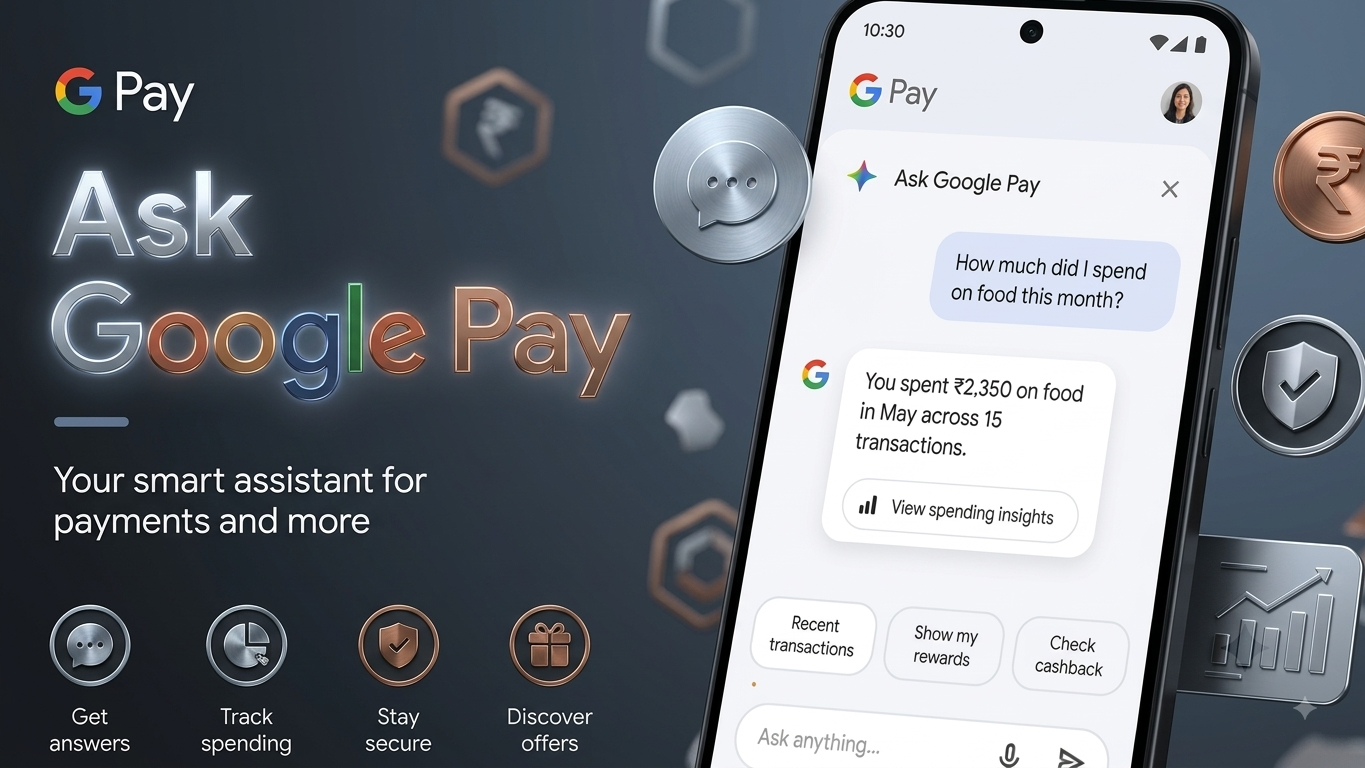
Managing everyday expenses can become difficult when your transaction history contains dozens of payments. To make this process simpler, Google has introduced Ask Google Pay, an AI-based feature for Google Pay users in India.
Powered by Google’s Gemini technology, the feature lets you ask questions about your spending using normal language. Instead of manually checking individual transactions, you can ask the assistant to summarize expenses, explain financial terms, or help you understand your spending patterns.
Here’s everything you need to know about Ask Google Pay, including its features, setup process, supported languages, privacy settings, and common questions.
Also Read: How to Restart an Android Phone Without Using the Power Button
What Does Ask Google Pay Do?
Ask Google Pay works like a conversational financial assistant within the Google Pay app. When the necessary personalization permission is enabled, it can use relevant Google Pay transaction information to provide spending-related insights.
For example, you can ask how much you spent on a particular type of expense during a certain period. The assistant can then organize the available information into an easier-to-understand response.
It is mainly designed to help users understand their finances, rather than replacing professional financial advice.
Main Features of Ask Google Pay
Ask Google Pay combines transaction insights with an AI chat experience. Depending on availability and the information associated with your account, you may be able to use features such as:
- Review your Google Pay spending history.
- Understand expenses by different categories.
- View spending summaries and visual representations.
- Identify recurring spending patterns.
- Get general suggestions for managing everyday expenses.
- Explore information about financial products and offers.
- Learn about financial concepts in simpler language.
- Ask questions through text or voice.
- Interact with the feature in supported Indian languages.
The exact features and availability may vary as Google continues to expand and update the service.
Examples of Questions You Can Ask
One of the useful aspects of the feature is that you don’t necessarily need to use complicated commands. You can ask questions conversationally.
For example:
“How much did I spend on food last month?”
“Show me my UPI spending from last week.”
“What is compound interest? Explain it simply.”
“What is the difference between SIP and a fixed deposit?”
“Can you summarize my recent spending?”
If the question requires access to your transaction information, the relevant permissions and available Google Pay data will determine what the assistant can show you.
How to Turn On Personalization in Google Pay
Before you can use Ask Google Pay for personalized financial insights, you may need to enable the personalization option in the Google Pay app.
Try the following steps:
- Open Google Pay on your phone.
- Tap You in the bottom-right corner.
- Select Settings.
- Go to Privacy & Security.
- Tap Data & Personalisation.
- Look for the Personalisation option.
- Turn it on if it is currently disabled.
The wording or location of these options can change with future Google Pay updates, so your app may look slightly different.
How to Access Ask Google Pay
Once the feature has been made available for your account, you can try accessing it from Google Pay.
- Open the Google Pay app.
- Go to the Money section from the bottom navigation.
- Look for Ask About Your Finances.
- Tap Ask a Question.
- Enter your question using the keyboard or voice input.
- Review the response provided by the assistant.
If your question is related to your spending, the response may be based on the transaction information that Google Pay is permitted to use.
Is Ask Google Pay Free?
Ask Google Pay is designed as a feature within Google Pay and does not require a separate subscription to use it where it is available.
However, feature availability can depend on your account, app version, region, and Google’s rollout. Always check the information shown inside your Google Pay app for the latest availability.
Is It Safe to Use?
Privacy is an important consideration when using any feature that works with financial information.
Ask Google Pay may use relevant transaction information to generate personalized responses when you have enabled the required settings. Before using the feature, it is a good idea to review the privacy and personalization options available in your Google Pay account.
Also remember that an AI-generated response should not automatically be treated as professional financial, tax, or investment advice. For important financial decisions, verify the information through reliable official sources or consult a qualified professional.
Why Is Ask Google Pay Not Showing on My Phone?
Don’t worry if you cannot find the feature immediately. New Google Pay features may be introduced gradually, so they may not appear for every user at the same time.
You can try these basic steps:
- Update Google Pay from your device’s app store.
- Check whether Personalisation is enabled.
- Restart the Google Pay app.
- Make sure you are using the eligible Google Pay account.
- Check again after some time if the feature is still unavailable.
Enabling personalization does not guarantee immediate access, because availability can depend on Google’s rollout.
Supported Languages
Ask Google Pay is designed to support conversations in multiple Indian languages, including text and voice interaction where supported.
Google may change or expand the supported language list as the feature develops. Therefore, if a particular language does not work on your device, check the latest version of Google Pay and the language options available within the feature.
Things to Keep in Mind
Although Ask Google Pay can make it easier to understand your spending, users should keep a few things in mind.
First, AI responses can sometimes be incomplete or inaccurate. Second, transaction information may not represent every financial activity you have outside Google Pay. Finally, recommendations about financial products should be evaluated independently rather than accepted solely because an AI assistant suggested them.
For sensitive financial decisions, always verify important information before taking action.
Frequently Asked Questions
What is Ask Google Pay?
Ask Google Pay is an AI-powered feature within Google Pay that allows users to ask questions about their spending and financial topics using natural language.
Can Ask Google Pay analyze my UPI transactions?
It can provide spending-related insights from relevant Google Pay transaction information when the required permissions and personalization settings are enabled.
Do I have to pay to use Ask Google Pay?
The feature does not require a separate subscription where it is available to eligible users.
Can I use voice to ask questions?
Yes, Ask Google Pay is designed to support both text and voice-based interactions, subject to device, language, and feature availability.
Why can’t I see Ask Google Pay?
The feature may not have been enabled for your account yet. Updating Google Pay and checking the personalization settings can help, but availability ultimately depends on Google’s rollout.
Can Ask Google Pay give investment advice?
It can explain general financial concepts, but AI-generated information should not be considered a substitute for professional financial advice. Always verify important investment or tax-related information before making a decision.
Also Read: How to Fix Bluetooth Not Working on Android: Easy Solutions That Work
Final Thoughts
Ask Google Pay aims to make everyday money management easier by allowing users to interact with their spending information through simple questions. Instead of manually going through transaction records, users can potentially get summaries, identify spending patterns, and learn about financial concepts through a conversational interface.
If the feature is available on your Google Pay account, enable the required personalization settings and explore it with simple questions. At the same time, remember to review AI-generated financial information carefully and verify important details before making financial decisions.

Sourav Gorai, founder of sabhigyan.com, is passionate about technology, smartphones, apps, and digital tools. With 8+ years of experience in the digital and tech space, he focuses on creating easy-to-understand, practical, and helpful content that makes everyday technology simpler for readers.