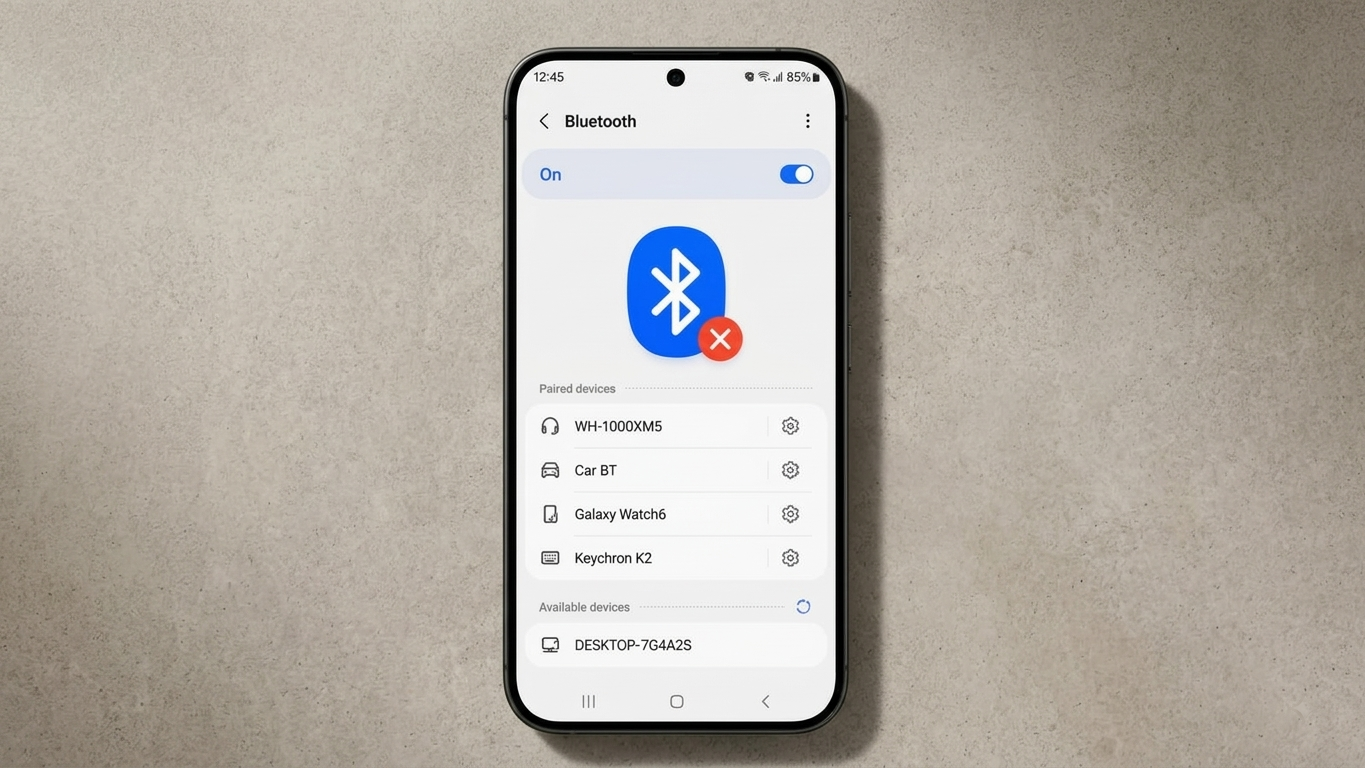
Bluetooth makes it simple to connect Android phones with wireless earbuds, headphones, speakers, smartwatches, car systems, keyboards, and many other accessories. But sometimes Bluetooth may refuse to turn on, fail to detect nearby devices, disconnect repeatedly, or show a pairing error.
The good news is that most Bluetooth problems can be checked through a few straightforward troubleshooting steps. In many situations, restarting the devices, removing an old pairing, updating Android, or resetting network settings can resolve the issue.
In this guide, you will learn how to fix Bluetooth not working on Android using simple methods that you can try at home.
Also Read: How to Reduce and Block Unwanted Ads on Android Phones
Quick Fixes to Try Before Anything Else
Before changing advanced settings, try these basic solutions:
- Turn Bluetooth off and turn it back on.
- Restart your Android phone.
- Restart the Bluetooth accessory.
- Make sure both devices have enough battery.
- Keep the two devices close together.
- Check whether the accessory is connected to another device.
- Put the accessory into pairing mode.
- Install any pending Android software updates.
If Bluetooth starts working after one of these steps, you don’t need to make further changes.
Why Is Bluetooth Not Working on Android?
Bluetooth can stop working for several different reasons. Sometimes the issue is caused by a temporary software problem, while in other cases the accessory or phone settings may be responsible.
Here are some common possibilities.
Temporary Android Glitch
A temporary system problem can sometimes affect Bluetooth services. Restarting your phone can reload those services and restore normal operation.
Outdated Android Software
Older system software may contain bugs or compatibility problems that affect wireless connections. Installing official software updates can sometimes resolve these issues.
Incorrect Pairing
An accessory may not appear if it isn’t in pairing mode. Similarly, an old or damaged pairing record can prevent two devices from connecting correctly.
Wireless Interference
Bluetooth uses the 2.4 GHz wireless band, which can become crowded in some environments. Other wireless equipment and physical obstacles can affect connection quality.
Low Battery
Some wireless accessories may not enter pairing mode or maintain a connection when their battery is very low.
Too Much Distance
Bluetooth generally performs better when connected devices are close together. Walls and other obstacles can also reduce the quality of a wireless connection.
Possible Hardware Damage
If Bluetooth problems began after a drop, impact, or liquid exposure, the problem could potentially be hardware-related.
How to Fix Bluetooth Not Working on Android
1. Turn Bluetooth Off and On Again
The first thing to try is refreshing the Bluetooth connection.
Open the Quick Settings panel on your Android phone and tap the Bluetooth icon to turn it off. Wait a few seconds and then enable it again.
You can also access Bluetooth through your phone’s Settings menu. The exact location may vary depending on the Android version and manufacturer.
After turning Bluetooth back on, wait a few moments and check whether your accessory appears.
2. Restart Your Android Phone
A simple restart can fix temporary software problems affecting Bluetooth.
Press and hold the power button and restart your phone. Once the phone has completely started, open Bluetooth settings and try connecting your accessory again.
If possible, restart the Bluetooth device as well.
For example, if you are using wireless earbuds, place them in their charging case, wait briefly, and then try pairing them again according to the manufacturer’s instructions.
3. Keep Both Devices Close Together
Distance can affect Bluetooth performance.
While troubleshooting, keep your phone and Bluetooth accessory close to each other. Avoid testing the connection through several walls or from another room.
If the device connects successfully when it is nearby but becomes unreliable at greater distances, the problem may be related to signal conditions rather than your phone’s Bluetooth settings.
4. Make Sure the Accessory Is in Pairing Mode
One common reason a Bluetooth device doesn’t appear is that it isn’t discoverable.
Put your headphones, speaker, smartwatch, keyboard, or other accessory into pairing mode by following the instructions supplied with that device.
Then open:
Settings → Bluetooth / Connected devices → Pair new device
Wait for the accessory to appear in the available devices list.
If it still doesn’t show up, make sure it isn’t already connected to another phone, tablet, laptop, or computer nearby.
5. Check the Battery of Your Devices
Low battery power can sometimes interfere with wireless accessories.
Charge your Bluetooth accessory and your Android phone if necessary. After charging, turn Bluetooth off and on again and attempt the connection.
This is particularly useful when an accessory suddenly stops appearing or disconnects shortly after connecting.
6. Forget the Old Bluetooth Connection
If your Android phone detects the accessory but refuses to connect, deleting the existing pairing and creating a new one can help.
Open your Bluetooth settings and select the problematic accessory.
Depending on your phone, you may see options such as:
Forget → Unpair → Remove
Select the appropriate option and confirm.
After removing the old connection, put the accessory back into pairing mode and search for it again.
This gives the phone and accessory a fresh pairing process.
7. Check Whether the Accessory Is Connected Somewhere Else
Some Bluetooth accessories automatically reconnect to a previously paired device.
For example, your earbuds may be connected to a laptop even though you are trying to connect them to your Android phone.
Turn Bluetooth off on nearby devices that may already be connected to the accessory, or disconnect the accessory from them.
Then put the accessory into pairing mode and try connecting it to your Android phone again.
8. Move Away From Possible Wireless Interference
If Bluetooth connects but keeps dropping, try changing your surroundings.
Move your phone and accessory away from crowded wireless areas and test the connection again.
You can also temporarily move away from other wireless equipment and household appliances that may contribute to interference.
For troubleshooting, keep the phone and accessory close together with as few obstacles as possible.
9. Update Your Android Phone
An outdated Android version can sometimes contribute to connectivity problems.
Open your phone’s Settings and look for:
System → Software Update
or
Settings → Software Update
The name and location can differ between manufacturers.
If an official update is available, install it after making sure your phone has sufficient battery and a stable internet connection.
Updates can include bug fixes, compatibility improvements, and other system changes.
10. Check for Problematic Third-Party Apps
A recently installed application can sometimes affect normal phone behavior.
If your Bluetooth problem started after installing or updating an app, consider whether that application could be related.
Some Android phones also provide Safe Mode, which temporarily prevents most third-party applications from running.
If Bluetooth works normally in Safe Mode but fails during normal operation, a third-party app may be contributing to the problem.
The process for entering Safe Mode is different on different Android phones, so use the instructions provided by your phone manufacturer.
11. Clear Bluetooth Cache
Some Android phones provide an option to clear cached data for system applications.
Depending on your device, you may find Bluetooth-related settings under:
Settings → Apps → See all apps → Show system apps → Bluetooth
Then look for:
Storage & cache → Clear cache
The menu may be different on your phone, and some manufacturers may not provide this option.
If you don’t see a Bluetooth cache option, don’t worry. You can continue with the other troubleshooting methods.
What About Clear Storage?
Some phones may also show Clear storage or a similarly named option.
Using this can remove saved Bluetooth-related information, so previously paired accessories may need to be connected again.
Only use this option if it is available on your device and you understand that your Bluetooth pairings may need to be recreated.
12. Reset Network Settings
If Bluetooth continues to malfunction, resetting network settings may be worth trying.
On many Android phones, the option can be found under something similar to:
Settings → System → Reset options → Reset Wi-Fi, mobile & Bluetooth
However, the exact menu depends on the phone manufacturer and Android version.
A network reset can remove saved Wi-Fi networks and Bluetooth pairings and may reset certain mobile network settings.
Your personal photos, videos, messages, and installed applications are not normally removed by a network settings reset.
Before confirming the reset, carefully read the information displayed on your phone.
13. Try a Different Bluetooth Accessory
If possible, test your Android phone with another Bluetooth device.
For example, if your headphones won’t connect, try pairing the phone with another Bluetooth speaker or accessory.
This can help identify where the problem is.
- Other Bluetooth devices connect normally: the original accessory may need troubleshooting.
- No Bluetooth devices connect: the problem may be related to the phone, its settings, or potentially its hardware.
When Could Bluetooth Hardware Be the Problem?
Most connection problems can be investigated through software and settings, but hardware damage is also possible.
You may want to contact the phone manufacturer’s official support or an authorized service center if:
- Bluetooth cannot be turned on at all.
- No nearby Bluetooth devices appear despite repeated attempts.
- Bluetooth stopped working after a physical impact.
- The phone was exposed to liquid.
- Other wireless functions are also experiencing unusual problems.
- Bluetooth remains unusable after updates and standard troubleshooting.
Avoid opening the phone or attempting an unfamiliar hardware repair yourself, as this can cause additional damage.
Is a Factory Reset Necessary?
A factory reset should normally be considered a last resort, not the first solution for Bluetooth problems.
A factory reset removes personal data and returns the phone to its initial software state. If you ever decide to use this option, make sure important information is backed up first.
If only Bluetooth is causing trouble, try the simpler troubleshooting methods before considering a complete reset.
Frequently Asked Questions
Why is Bluetooth not turning on on my Android phone?
A temporary software issue, system problem, or hardware fault could prevent Bluetooth from activating. Restart the phone, install available updates, and check whether Bluetooth works afterward. If it still cannot be enabled, official support may be appropriate.
Why can’t my Android phone find my Bluetooth device?
Make sure the accessory is switched on, has sufficient battery, and is in pairing mode. Keep it close to your phone and check that it isn’t already connected to another device.
Why does Bluetooth keep disconnecting?
Frequent disconnections can be caused by distance, wireless interference, low battery, software problems, or issues with the accessory itself. Try keeping the devices closer and reconnecting after restarting both devices.
Will resetting network settings delete my photos?
A standard network settings reset does not normally delete personal photos, videos, messages, or installed apps. However, it can remove saved Wi-Fi networks and Bluetooth pairings and reset certain network settings.
Should I reset my Android phone to fix Bluetooth?
A factory reset usually shouldn’t be the first step. Try restarting the devices, forgetting and reconnecting the accessory, updating Android, and resetting network settings first.
Also Read: How to Reset Network Settings on an iPhone and Fix Connection Problems
Final Thoughts
Bluetooth problems on Android can be frustrating, but they don’t always require professional repair. Start with the basics: restart your phone and accessory, check their battery levels, keep them close together, and make sure the accessory is in pairing mode.
If that doesn’t help, remove the old Bluetooth pairing, check for Android updates, investigate third-party app conflicts, and consider clearing Bluetooth cache if your phone provides the option. A network settings reset can be another useful step for persistent connectivity issues.
If Bluetooth still refuses to work or stopped functioning after physical or liquid damage, contacting the manufacturer’s official support or an authorized service center is the safer approach.

Sourav Gorai, founder of sabhigyan.com, is passionate about technology, smartphones, apps, and digital tools. With 8+ years of experience in the digital and tech space, he focuses on creating easy-to-understand, practical, and helpful content that makes everyday technology simpler for readers.