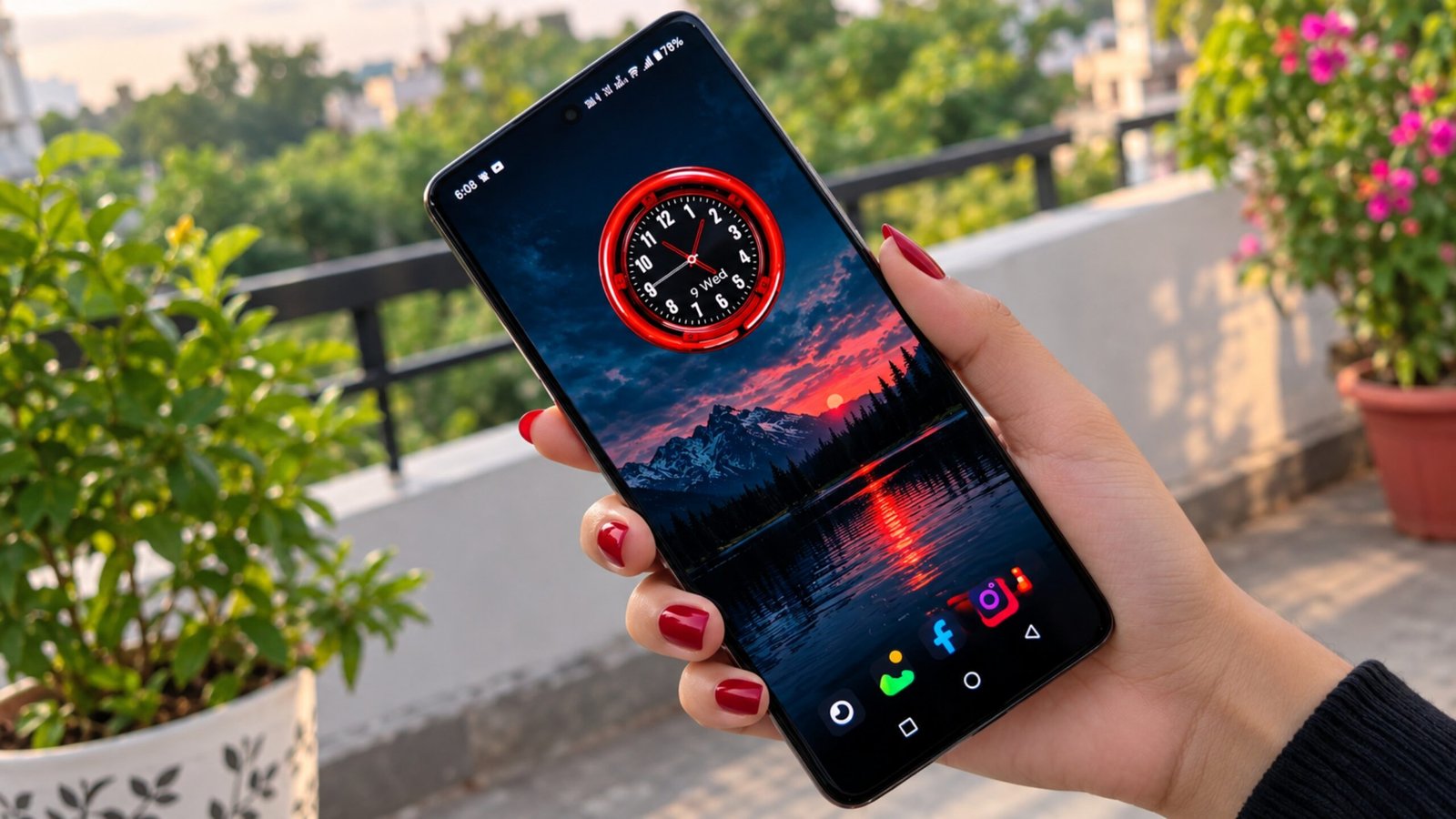
Your Android phone’s home screen is something you probably look at many times throughout the day. While the default wallpaper may look perfectly fine, changing it can make your smartphone feel fresh and more personalized.
One interesting option is a smartwatch-style clock wallpaper. These wallpapers combine a clock-inspired design with the background, making the time an important part of the overall screen.
Depending on the application, you may find minimalist digital clocks, traditional analog watch faces, futuristic interfaces, glowing designs, and other customization options. They can be a simple choice for anyone who wants to refresh their Android home screen without replacing the entire launcher.
Also Read: Nocebo Launcher: A Fresh and Customizable Way to Use Your Android Home Screen
What Is a Smartwatch-Style Clock Wallpaper?
A smartwatch-style clock wallpaper is an Android customization option that places a watch-inspired clock design directly on your smartphone screen.
Instead of using a separate clock widget, the time can become part of the wallpaper itself. This can create a cleaner and more integrated appearance.
The exact features depend on the application you choose. Some apps may offer different fonts, colors, layouts, backgrounds, or animation effects, while others may mainly provide a collection of ready-made designs.
Why Use a Clock Wallpaper on Android?
There are several reasons why users may want to try this type of wallpaper.
Give Your Phone a Modern Appearance
A well-designed clock wallpaper can change the overall look of your home screen. Simple typography, balanced layouts, dark backgrounds, and digital elements can create a modern appearance.
This can be particularly appealing if you enjoy technology-inspired designs and frequently customize your smartphone.
Add More Personalization
Android already provides several customization options, including wallpapers, widgets, icons, themes, and launchers.
A clock wallpaper gives you another way to personalize the device without making major changes to the existing interface. You can select a design that matches your icons, phone case, system theme, or personal preferences.
Keep Your Existing Launcher
Not everyone wants to install a different launcher just to change the appearance of their home screen.
A wallpaper application can provide a simpler alternative. You can keep your current launcher, apps, and navigation while changing the visual style of the screen.
Different Clock Styles You Can Explore
The ideal clock design depends on your personal taste. Many clock wallpaper applications offer different visual styles to choose from.
Minimal Digital Clock Designs
If you prefer a clean and simple home screen, a minimal digital clock can be a good option.
Large numbers, straightforward typography, and an uncluttered background can make the time easy to read. This style can also work nicely with home screens that contain only a few important icons and widgets.
Futuristic and Neon Designs
Users who prefer a more eye-catching appearance may enjoy futuristic clock wallpapers.
These designs can include digital numbers, glowing elements, neon-inspired graphics, gradients, and technology-themed effects. They can give the phone a more energetic and modern appearance.
Classic Analog Watch Designs
Digital clocks aren’t the only choice. Some people prefer the traditional appearance of a wristwatch.
Analog-inspired wallpapers may include circular dials, watch hands, markers, and elegant backgrounds. This can give your smartphone a classic look while still allowing you to customize the screen.
Customize the Clock for Your Home Screen
If your chosen application provides customization controls, take some time to adjust the design rather than simply using the default settings.
Choose the Right Colors and Fonts
Changing the clock’s color or font can make a noticeable difference to the overall appearance.
For example, a white clock on a dark background can create a clean and simple look, while brighter colors can make the clock more prominent.
Always make readability a priority. If the clock blends into the background, the design may look attractive but become inconvenient to use.
Adjust the Size and Position
The clock’s placement is also important because your home screen contains app icons and widgets.
A clock that is too large can make the display feel crowded, while one that is too small may be difficult to read.
If the application allows you to change its position or size, experiment with the available settings until the layout feels balanced.
How Display Technology Can Affect the Experience
Your smartphone’s display technology can influence how the wallpaper looks and how much power certain features consume.
AMOLED and OLED Displays
Dark wallpapers can look particularly attractive on AMOLED and OLED screens because these display technologies can produce deep blacks.
However, a dark wallpaper does not automatically mean that you will experience major battery savings. Brightness, refresh rate, animations, screen usage, and other factors can also affect power consumption.
High-Refresh-Rate Screens
Many modern Android smartphones now feature high-refresh-rate displays. Supported animated wallpapers can appear smoother on these screens.
However, continuously running animations may require additional processing. If battery life is more important to you than animated effects, a static or simpler wallpaper may be a better option.
Battery and Performance Considerations
A good-looking wallpaper should not negatively affect your everyday smartphone experience.
Static wallpapers usually don’t require continuous animation processing. Live wallpapers, moving backgrounds, and animated clock effects may use additional system resources depending on how they are designed.
If you notice unusual battery consumption after applying an animated wallpaper, try turning off its animation features or switching to a static design. You can then compare the phone’s performance.
People using older or less powerful smartphones may also prefer simpler wallpaper designs.
Check App Permissions Before Installing
Before installing any Android customization application, take a moment to review the permissions it requests.
The requested permissions should make reasonable sense based on the app’s advertised features. Avoid giving access that appears unrelated to what the application is supposed to do.
It is also sensible to download applications from reputable sources and keep Android and installed apps updated.
How to Set a Smartwatch-Style Clock Wallpaper
The exact steps may differ between applications and Android versions, but setting up a clock wallpaper is generally straightforward.
Browse the Available Designs
Open the wallpaper application and explore its collection of clock designs.
Don’t focus only on appearance. Check whether the clock is easy to read and whether the design will work well with your existing icons and widgets.
Preview the Design
If a preview option is available, use it before applying the wallpaper.
Look at the complete home screen and check whether the clock covers important icons or makes other elements difficult to see.
Apply the Wallpaper
Once you’ve selected a design, use the application’s Apply or wallpaper option.
Depending on the application and your Android version, you may be able to choose whether the wallpaper appears on the home screen, lock screen, or both.
After applying it, check the complete layout. If the app provides options for changing the clock’s size, position, color, or animation, adjust them as needed.
Create a Cleaner Android Home Screen
A smartwatch-style clock usually looks better when the rest of the home screen doesn’t compete with it.
Organize Your App Icons
Try not to place too many icons over a detailed clock design. Less frequently used applications can be moved into folders, while your most important apps can remain on the main screen.
This keeps the interface practical while allowing the clock wallpaper to remain visible.
Match the Wallpaper With Your Theme
You can create a more consistent appearance by matching the clock’s colors with your icons, widgets, and Android system theme.
For example, a futuristic clock can work well with a dark interface and minimalist icons, while a classic analog design may look better with a simpler home-screen layout.
Experiment with different combinations until you find a setup that looks good without making the screen feel crowded.
Official Play Store Link
Also Read: Fluid Simulation App: A Simple Way to Enjoy Calming Visuals on Android
Final Thoughts
Smartwatch-style clock wallpapers offer a simple way to give an Android smartphone a fresh and personalized appearance. By combining the clock with the wallpaper design, they can make the time an important part of the overall home-screen layout.
Whether you prefer a minimal digital clock, classic analog watch face, or futuristic neon-style design, there are plenty of options to explore. The best choice depends on your personal taste, display technology, battery preferences, and the customization features available in the application.
If you enjoy customizing your Android phone but don’t want to replace the launcher or completely redesign the interface, a smartwatch-style clock wallpaper can be a convenient starting point. Choose a design that remains easy to read, keep your home screen organized, and review the application’s permissions before installing it.

Ankita Kumar, founder of sabhigyan.com, is passionate about technology, smartphones, apps, and digital tools. With 8+ years of experience in the digital and tech space, he focuses on creating easy-to-understand, practical, and helpful content that makes everyday technology simpler for readers.
Advertisements