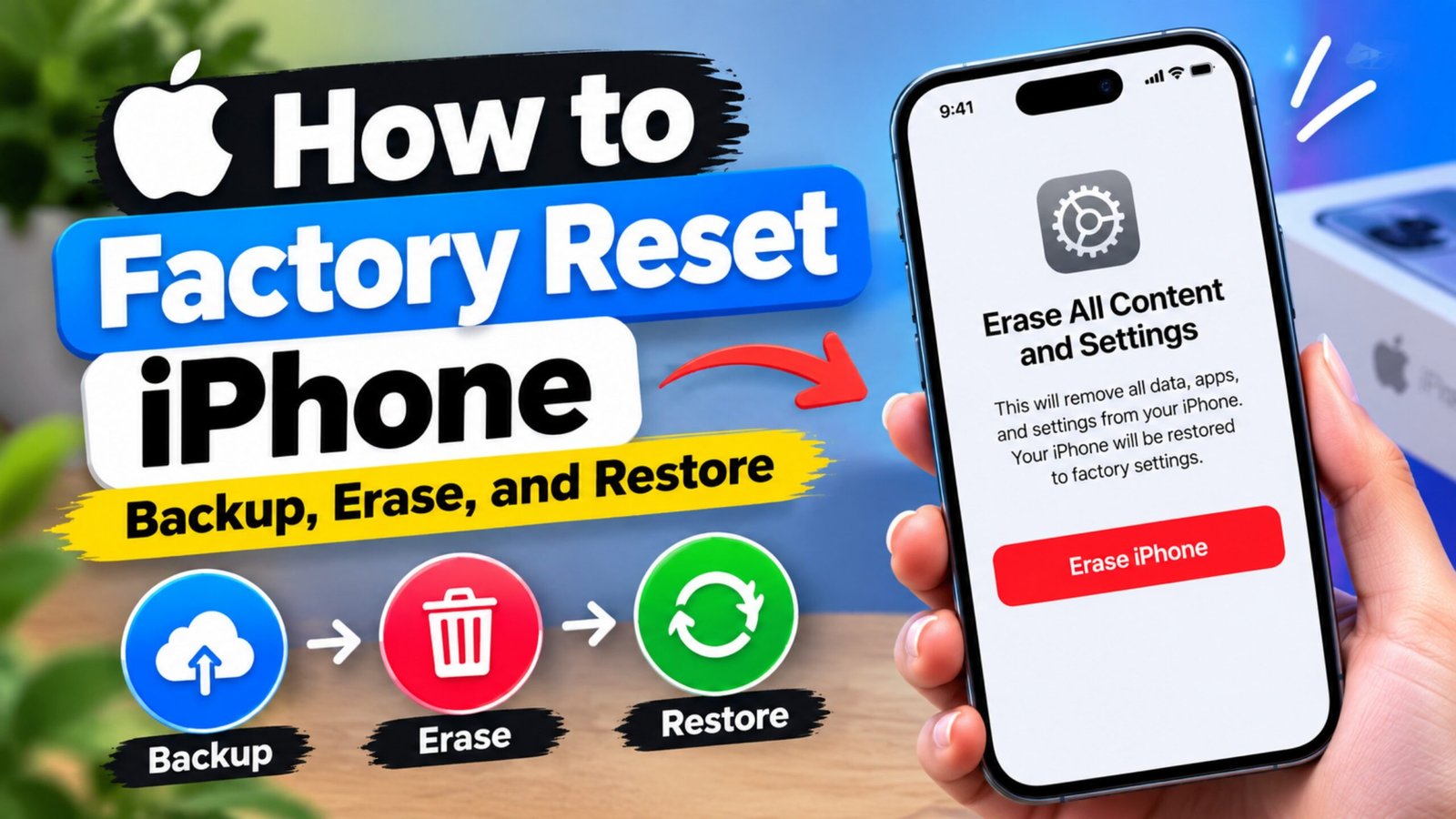
There are several situations where you may want to completely reset an iPhone. You might be preparing it for sale, giving it to someone else, dealing with ongoing software problems, or simply wanting a fresh start.
A factory reset removes the personal information and settings stored on the device, so it’s important to prepare your iPhone properly before starting. The most important steps are creating a backup and making sure the device is no longer linked to your Apple Account if you plan to hand it to another person.
In this guide, we’ll explain different ways to erase an iPhone and what you should do before and after the reset.
Also Read: How to Disable Double Tap on Apple Watch
What Does a Factory Reset Do on an iPhone?
A factory reset, also called Erase All Content and Settings, removes your personal information from the iPhone and returns it to the setup state.
Depending on what is stored on the device, this can include:
- Photos and videos
- Messages
- Contacts
- Installed apps
- Personal settings
- Saved passwords and other stored information
- Apple Pay cards
- Downloaded files and documents
- Wi-Fi network information
Once the process is complete, the iPhone displays the setup screen, allowing you to configure it again.
Keep in mind that Reset All Settings and Reset Network Settings are different options. They don’t erase the entire iPhone. For a complete wipe, you need to use Erase All Content and Settings.
Why Would You Need to Reset an iPhone?
A factory reset can be useful in several situations. For example, you may consider it when:
- You’re selling or trading in your iPhone.
- You’re giving the device to another person.
- You want to recycle or donate the phone.
- Your iPhone is experiencing persistent software problems.
- Apps frequently crash or behave unexpectedly.
- The device has become difficult to use because of software-related issues.
- You want to start over with a clean setup.
For smaller problems, however, it’s usually better to try simpler solutions such as restarting the iPhone, updating iOS, or troubleshooting the specific issue before completely erasing the device.
Before You Erase Your iPhone
Don’t immediately tap the erase option. A few preparation steps can prevent the loss of important information.
1. Create a Backup
If you want to keep your photos, contacts, messages, app information, and other data, make a backup before resetting the iPhone.
Depending on your setup, you can use:
- iCloud
- Finder on a Mac
- Apple Devices or iTunes on Windows
After making the backup, make sure it has completed successfully before proceeding with the reset.
2. Sign Out of Your Apple Account
If you’re giving the iPhone to someone else, sign out of your Apple Account before handing it over.
Go to:
Settings → [Your Name] → Sign Out
You may be asked to enter your Apple Account password and follow additional instructions.
This is particularly important because Find My and Activation Lock can prevent a new owner from activating the device normally.
3. Unpair Your Apple Watch
If you use an Apple Watch with the iPhone, unpair it before erasing the phone.
Open the Watch app, select your watch, and use the unpair option. This also helps ensure the watch is properly disconnected from the old iPhone.
4. Remove Your SIM Card if Necessary
If you’re selling, donating, or recycling the phone and still have a physical SIM card inside, remove it before handing the device over.
For an eSIM, follow the appropriate erase or transfer option shown during the iPhone’s reset process.
Method 1: Factory Reset Directly From the iPhone
For a normally working iPhone, using the Settings app is generally the simplest approach.
- Open Settings.
- Tap General.
- Scroll down and select Transfer or Reset iPhone.
- Tap Erase All Content and Settings.
- Review the information displayed on the screen.
- Enter your iPhone passcode if requested.
- Follow the on-screen instructions to confirm.
The iPhone will then erase its contents and restart. Afterward, the setup screen will appear.
Method 2: Remotely Erase a Lost iPhone
If your iPhone has been lost or stolen and you want to erase the information stored on it, you can use Apple’s Find My service, provided the necessary Find My features were enabled beforehand.
You can access Find My through Apple’s services on another device or a web browser.
After signing in:
- Open Find My.
- Select the missing iPhone.
- Choose the option to erase the device.
- Confirm the request.
- The iPhone will be erased when it can connect to the internet.
If the device is offline, the erase request may remain pending until it comes online.
If your iPhone has been stolen, remember that remote erasing is different from removing the device from your account. Removing it too early can affect Activation Lock protection.
Method 3: Restore an iPhone Using a Computer
A computer can also be used to restore an iPhone.
On a Mac
- Connect your iPhone to the Mac with a suitable cable.
- Open Finder.
- Select the iPhone from the sidebar.
- Look for the option to restore the iPhone.
- Follow the instructions shown on the screen.
On Windows
Connect the iPhone to your Windows PC and use the Apple Devices app or iTunes, depending on your setup.
Select the iPhone and choose the restore option, then follow the instructions provided by the software.
A computer-based restore can be particularly useful when the normal Settings method isn’t working.
Method 4: Use Recovery Mode
Recovery Mode can help when the iPhone isn’t functioning normally and you can’t access the Settings app.
It may be useful if:
- The iPhone is stuck on a screen.
- The device isn’t starting normally.
- The iPhone isn’t responding properly.
- A computer doesn’t recognize the device through normal operation.
The exact button sequence for entering Recovery Mode depends on the iPhone model.
Once the iPhone is connected to a computer and Recovery Mode is detected, you’ll be given the option to Restore the device. Follow the instructions on the computer to reinstall the available iOS software and erase the device.
What Happens After the Reset?
When the reset is finished, the iPhone will display the initial setup screen.
At this point, you can choose how you want to use it.
Set It Up as a New iPhone
Choose this option if you want a completely fresh setup without restoring your previous backup.
Restore From iCloud
If you created an iCloud backup earlier, you can restore your information during the setup process.
Restore From a Computer Backup
If your backup was created using a Mac or Windows computer, you can use that backup when setting up the iPhone again.
If you’re selling or giving away the device, you generally don’t need to complete the setup. Once you’ve confirmed that your personal account information has been removed, you can leave the iPhone at the setup screen.
Tips for a Safer Reset
Before and during the process, keep these points in mind:
- Make a backup before erasing anything important.
- Keep the iPhone sufficiently charged or connected to power.
- Use a stable internet connection when required.
- Check that your Apple Account has been properly signed out before selling the device.
- Make sure Find My is no longer associated with the device when transferring it to another person.
- Remove your physical SIM card if you’re no longer using it.
- If the Settings method doesn’t work, consider using a computer or Recovery Mode.
Frequently Asked Questions
Does a factory reset erase everything on an iPhone?
Erase All Content and Settings removes the personal content and settings stored on the iPhone and returns it to the setup state.
Can I get my data back after a factory reset?
You generally need a suitable backup to restore your previous information after the device has been erased. Without a backup, recovery of erased data may not be possible.
Does resetting an iPhone remove my Apple Account?
Simply erasing the device shouldn’t be treated as a substitute for properly signing out when you’re transferring ownership. If you’re selling or giving away the iPhone, follow the Apple Account and Find My steps before completing the handover.
Can a factory reset fix iPhone software problems?
It can help with some persistent software issues, but it shouldn’t be the first solution for every problem. Restarting, updating iOS, or troubleshooting the specific issue may be enough for simpler problems.
Should I reset my iPhone before selling it?
Yes. Before selling or giving away an iPhone, you should back up your information and properly remove your account from the device before erasing it.
Also Read: How to Hide Apps on an iPad Without Deleting Them
Final Thoughts
Factory resetting an iPhone isn’t complicated, but preparing the device properly is important. Back up your important data first, make sure your Apple Account and Find My settings are handled correctly, and then erase the device using the method that suits your situation.
For a working iPhone, the Settings app is usually the easiest option. If the device isn’t responding or cannot start normally, restoring it through a computer or using Recovery Mode can be useful.
After the reset, you can either restore your backup and continue using the iPhone or leave it at the setup screen if you’re transferring it to someone else.

Ankita Kumar, founder of sabhigyan.com, is passionate about technology, smartphones, apps, and digital tools. With 8+ years of experience in the digital and tech space, he focuses on creating easy-to-understand, practical, and helpful content that makes everyday technology simpler for readers.
Advertisements