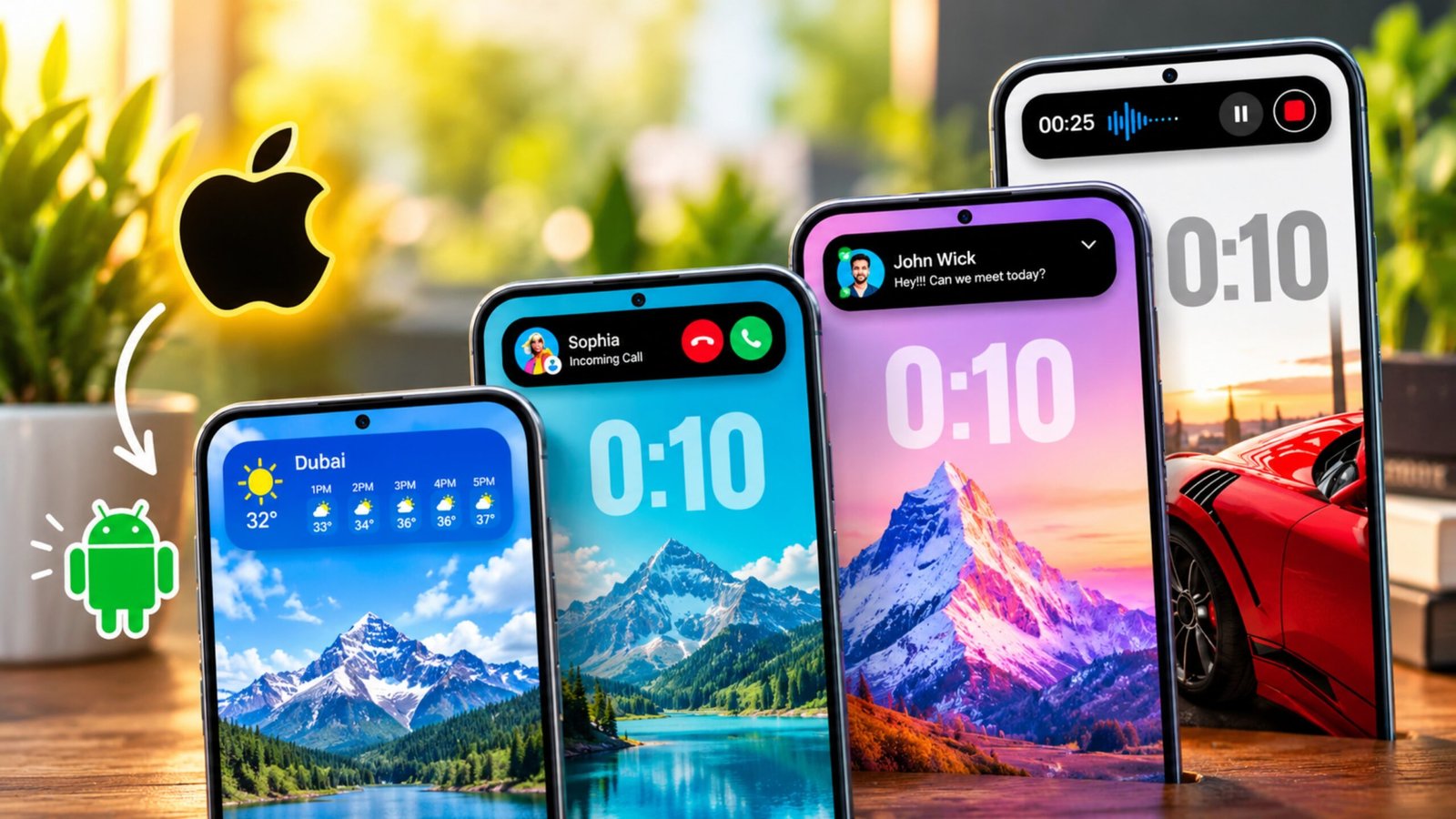
Android phones already have a useful notification system, but if you want something more interactive and visually different, the Dynamic Notch Notification Bar app is an interesting option. It adds an iPhone-inspired floating notification area to Android phones, allowing certain notifications and activities to appear around the top of the display.
The app is not an official Apple feature, and it does not turn Android into iOS. Instead, it creates a virtual notch-style overlay that can display information such as notifications, music, incoming calls, charging status and connected Bluetooth devices.
Because Android phones have different screen designs and camera cutouts, the app also provides several customization options to help users adjust the notification area for their device.
Also Read: Make Your Android Navigation Bar Look Better With This Customization App
What Is Dynamic Notch Notification Bar?
On newer iPhones, Apple’s Dynamic Island uses the area around the front-facing camera to display alerts and ongoing activities. Depending on what you are doing, the area can expand or change to show information such as music playback, calls and other live activities.
Dynamic Notch Notification Bar attempts to recreate a similar concept on Android.
Instead of modifying the actual hardware or replacing Android’s notification system, the app places a customizable virtual notification area over the screen. Users can position it around their phone’s camera cutout and adjust its appearance.
The experience can vary between devices because Android manufacturers use different screen layouts, Android versions and permission systems.
The app can also be useful for people who want an iPhone-like notification appearance without installing a complete iOS-style launcher or changing the rest of their Android interface.
Why Use a Dynamic Notch on Android?
The main attraction is its appearance. The small animated notification area can give an Android phone a different and more modern look.
It can also make certain information easier to notice. For example, if you are listening to music while browsing another app, supported music information can appear in the notch area instead of requiring you to open the notification panel.
The same idea can be useful for incoming calls, charging animations and some other supported activities.
Another advantage is customization. Android phones don’t have a standard camera position, so the ability to move and resize the virtual notch can make the overlay look more natural.
You can also adjust elements such as fonts, colors and the background to create a style that suits your phone.
How to Set Up Dynamic Notch Notification Bar
Getting started is relatively straightforward, although the initial setup requires you to review the permissions requested by the app.
1. Install the App
Download and install Dynamic Notch Notification Bar from Google Play.
After opening it for the first time, follow the setup instructions shown on the screen.
2. Review the Required Permissions
Depending on the features you want to use, the app may request access to Android’s notification and accessibility features.
Notification Access allows the application to receive information about notifications so that supported alerts can be displayed through the Dynamic Notch.
Accessibility Service is another permission used for the app’s overlay and interaction features. Accessibility access can be powerful, so it is a good idea to read the permission explanation carefully before enabling it.
Only grant permissions that you are comfortable providing.
3. Turn On the Dynamic Notch
After completing the setup, enable the Dynamic Notch feature from the app.
You should then see the virtual notch area on your screen.
If it doesn’t line up correctly with your phone’s camera, don’t worry. You can use the customization controls to adjust its position.
4. Adjust the Position and Appearance
Move the notch until it sits correctly around your phone’s camera area.
Depending on the available settings, you can also change its size, direction, font, colors and background.
This step is particularly important because a setting that looks good on one Android phone may not look right on another.
5. Test the Features
Once the setup is complete, try a few supported activities.
For example, play music, connect Bluetooth earbuds, receive a notification or connect your charger.
If the feature is supported on your particular device and the necessary permissions are enabled, related information may appear in the Dynamic Notch.
If something doesn’t work as expected, check the app’s permissions and Android’s battery or background restrictions.
Remember that the exact behavior can differ depending on the phone model, Android version and system restrictions.
Main Features of Dynamic Notch Notification Bar
The app offers more than just an iPhone-style animation. Several features are designed to make the floating notification area useful.
Dynamic Notifications
Notifications are one of the primary functions of the app.
Supported notifications can appear through the Dynamic Notch rather than relying only on the standard notification popup. Tapping the notification area can provide additional information or interaction options, depending on the notification.
Support can vary between applications and devices, so not every notification will necessarily behave in the same way.
Music Playback Information
For people who frequently listen to music, the music feature can be useful.
While a compatible music app is playing audio in the background, the Dynamic Notch can show information related to the current track. The app’s listed features also include album artwork and a music view with a blurred background.
You may also be able to expand the music section and use the available playback controls.
This gives the standard music notification a more interactive appearance while you continue using another app.
Incoming Call Information
Incoming calls can also be displayed through the Dynamic Notch interface.
Instead of having the call information take over a large part of the screen, the app can present it in a more compact style when supported.
This can be convenient when you are already using another application and want to notice the incoming call without a large notification covering the display.
Charging Animation
The charging feature adds a visual effect whenever you connect your phone to a charger.
A charging animation can appear around the Dynamic Notch, giving the otherwise simple charging process a more customized appearance.
It is mainly a visual customization feature rather than something that changes the actual charging speed or battery performance.
Bluetooth Device Details
The app can also display information related to connected Bluetooth accessories.
For example, when compatible wireless earbuds or another Bluetooth device is connected, relevant information may appear through the notch.
The app listing also mentions battery information for connected wireless devices, although the exact information available can depend on the accessory and Android system.
Weather Information
Weather updates are another feature offered by the app.
The Dynamic Notch can display weather-related information without requiring you to open a separate weather application. The app description also mentions themes that can respond to current weather conditions.
The availability and accuracy of weather information may depend on the app’s configuration and location-related settings.
Navigation Updates
Navigation information can also be integrated into the Dynamic Notch experience.
When using supported map or navigation features, useful navigation-related information can appear in the compact area.
This can be convenient when you want to keep an eye on navigation updates without constantly interacting with the full map interface.
Customize the Notch to Match Your Phone
One of the better parts of the app is the amount of control it provides over the virtual notch.
You can adjust its position and direction to match the camera cutout on your Android phone.
There are also customization options for the visual appearance, including:
- Notch size and position
- Font style
- Font size
- Text color
- Background appearance
- Different notch themes
These settings are useful because Android phones come in many different shapes and screen layouts.
You can spend a little time adjusting the position and size until the virtual notch looks natural around your phone’s front camera.
Different Notch Themes
The app isn’t limited to one visual design.
Depending on the available options, you can choose different notch themes and change the appearance of the floating area.
This can be useful for users who regularly customize their phone’s home screen, icons, wallpapers and other interface elements.
You can also adjust the font and color settings to make the information easier to read.
Font and Color Customization
Small visual details can make the Dynamic Notch look quite different.
The app provides options to change the font style, font size and text color. Background settings can also be adjusted according to your preference.
Some settings can be configured for individual apps as well, depending on the features available in the current version.
Because screen sizes and backgrounds vary between Android devices, these options can help you create a cleaner-looking result.
Position and Direction Settings
Android phones don’t all have their front camera in the same location.
Some devices use a centered punch-hole camera, while others have different camera placements. This is why the position controls are important.
You can move the Dynamic Notch around the screen and adjust its direction so that it better matches your device’s camera area.
If the overlay appears too high, low, left or right, simply use the available adjustment controls to find a better position.
Live Activity-Style Experience
The app also attempts to provide a Live Activities-style experience.
According to the app’s listed features, supported activities can appear inside the popup, and users can access some supported apps directly from the floating interface.
This makes the Dynamic Notch more than just a decorative animation. It can act as a small interaction area for certain activities.
Updates to the app have also introduced or improved features related to live activities, notification ordering, foldable devices, Bluetooth information and selected real-time activity features.
However, these features should not be considered identical to Apple’s Dynamic Island or Live Activities. They are Android-based features provided by a third-party application.
What Permissions Does the App Need?
Before using the app, it is important to understand its permissions.
The Dynamic Notch experience relies on Android system permissions for functions such as reading notifications and providing accessibility-based interactions.
Notification Access allows the app to detect supported notifications and display relevant information through its interface.
Accessibility Service can provide additional functionality for the app, but this is a sensitive Android permission that should not be enabled without understanding what it allows.
Always review the permission descriptions shown by Android and the app before granting access.
If you are not comfortable with a particular permission, you don’t have to enable it.
Does It Turn Android Into an iPhone?
No.
Dynamic Notch Notification Bar only adds an iPhone-inspired visual and interactive experience to Android. It does not install iOS, change Android into Apple’s operating system or provide Apple’s actual Dynamic Island hardware.
Your phone remains an Android device, and the app works as an additional software layer over the existing interface.
Because of this, some features may look or behave differently compared with a real iPhone.
Things to Keep in Mind
The app’s performance and available features can vary from one Android phone to another.
Factors such as the Android version, manufacturer-specific software, screen design, notification settings, battery restrictions and granted permissions can affect how the overlay works.
You may also notice that some apps provide more useful information through the Dynamic Notch than others.
If you experience problems, checking the app’s permissions and allowing the necessary background activity may help, depending on your device’s settings.
Most importantly, only enable permissions you understand and are comfortable using.
Official Play Store Link
Also Read: 3D Photo Live Wallpaper: Create a Rotating Cube Wallpaper With Your Own Photos
Final Thoughts
Dynamic Notch Notification Bar is an interesting choice for Android users who like the look of Apple’s Dynamic Island but don’t want to completely change their phone’s interface. Instead of replacing Android, the app adds a virtual interactive area that can display notifications, music information, calls, charging effects, Bluetooth details and other supported activities.
Its customization options are another useful part of the experience. You can adjust the notch position, direction, size, fonts, colors and themes to make it fit better with your Android phone.
At the same time, users should keep their expectations realistic. This is a third-party Android application, so it cannot provide exactly the same functionality as Apple’s built-in Dynamic Island. Some features may also work differently depending on the phone model, Android version and permissions available on the device.
Before enabling notification access or Accessibility Service, make sure you understand what those permissions allow and are comfortable granting them.
Overall, if you enjoy Android customization and want to try an iPhone-inspired Dynamic Notch experience, this app is worth checking out. It offers a simple way to make the area around your phone’s front camera more interactive while keeping the rest of the Android interface unchanged.

Ankita Kumar, founder of sabhigyan.com, is passionate about technology, smartphones, apps, and digital tools. With 8+ years of experience in the digital and tech space, he focuses on creating easy-to-understand, practical, and helpful content that makes everyday technology simpler for readers.
Advertisements