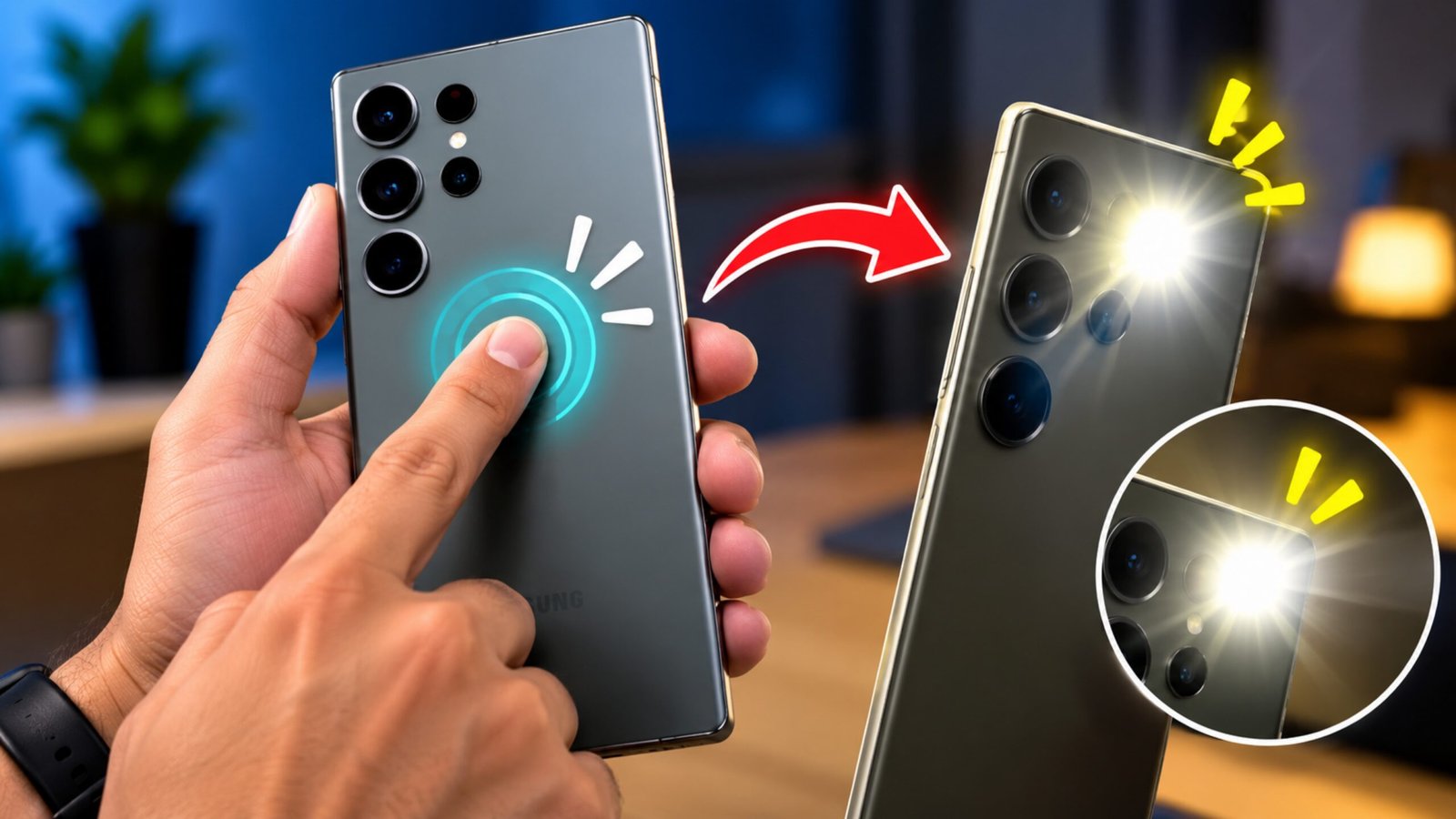
Android gives users plenty of controls, but reaching some features can still take several taps. If you like making everyday phone tasks quicker, Droid Lab is an Android utility app worth checking out.
Rather than focusing on a single function, the app brings together gestures, shortcuts, touch controls, and small productivity tools. You can configure different actions and trigger them through gestures instead of repeatedly navigating through menus.
For instance, depending on your phone and the options supported by the app, a gesture can be assigned to actions such as taking a screenshot, opening an app, adjusting the volume, switching on the flashlight, or accessing another Android function.
The main attraction is its flexibility. You don’t have to use every feature. You can simply choose the gestures and shortcuts that fit the way you normally use your phone.
Also Read: How to Use Dynamic Notch Notification Bar on Android
What Is Droid Lab?
Droid Lab is an Android customization and utility app built around alternative ways of interacting with your smartphone. Its collection includes motion gestures, back-tap controls, multi-finger gestures, shortcut panels, and several other tools.
This can be particularly useful for people who enjoy experimenting with Android features or want quicker access to frequently used functions.
One of the nice things about this approach is that you can keep your setup simple. For example, you could configure just one gesture for screenshots and another for launching an app. There is no need to change your entire Android experience.
Droid Lab Features You Should Know About
Droid Lab includes a fairly broad collection of features. However, availability and behaviour can vary depending on the Android version, device, sensors, and other system settings.
Back Tap
Back Tap lets you use a tap on the rear side of the phone as a trigger for a selected action, where supported.
You can assign a useful shortcut and access it without searching through the notification panel, home screen, or Settings.
Motion Gestures
The app also provides motion-based controls such as Chop and Twist. These are designed to recognise specific movements and perform an assigned action.
It may take a little practice to perform the gestures consistently, but they can become convenient once you get used to them.
Flip to Shhh
Flip to Shhh is designed around a simple movement: placing the phone face down.
Depending on the configuration and supported functionality, this can be used to trigger a silent or Do Not Disturb-style action.
Wave to Silence
Receiving a call at the wrong moment can be annoying, especially when you don’t want to answer immediately. The Wave to Silence feature can provide a gesture-based way to silence an incoming call on supported devices.
This is one of those features that may not seem important until you actually need it.
Multi-Finger Gestures
Droid Lab also includes touch-based shortcuts using multiple fingers.
Depending on device support, you can configure gestures involving two, three, four, or even five fingers. These controls can be useful for people who prefer touch gestures over physical movements.
Side Deck
The Side Deck works like a shortcut area where you can keep frequently used apps or actions.
Instead of going back to the home screen whenever you need something, you can use the shortcut panel for quicker access.
TouchPad Pointer
Another interesting tool is the TouchPad Pointer. It provides a pointer-like method of controlling parts of the screen and can be useful when operating the phone with one hand.
Its usefulness will depend on your personal preference, but it is an interesting alternative to normal touch navigation.
Edge and Notch Tools
Droid Lab also contains options involving areas around the edge or notch of the display. These can provide additional ways to trigger shortcuts on compatible devices.
Since phones use different screen designs, these features may not behave identically on every model.
Quick Phone Actions
The app can also provide shortcuts for several common Android functions. Depending on what your device supports, these may include:
- Taking screenshots
- Locking the screen
- Opening Quick Settings
- Adjusting volume
- Launching applications
- Controlling certain connectivity options
- Triggering other supported system actions
Having these options available in one place makes the app more interesting for Android users who like customization.
Tasker Integration
If you already use Tasker, Droid Lab can become more useful. Its triggers can be combined with automation workflows, allowing advanced users to create more personalised shortcuts.
Tasker integration is probably more suited to experienced users, so beginners may want to understand the basic Droid Lab features first.
Small Productivity Tools
Besides gestures, Droid Lab includes smaller utilities such as floating notes, search-related functions, and text-selection tools.
These aren’t necessarily features you’ll use every minute, but they can be handy in specific situations.
How to Use Droid Lab on an Android Phone
Setting up Droid Lab doesn’t have to be complicated. The exact steps and available permissions can differ between Android devices, so the following is a general starting point.
1. Install and Open the App
Install Droid Lab from a trusted source, such as the Google Play Store when the app is available there, and launch it.
Explore the main screen before changing several settings at once. This will help you understand what the different tools do.
2. Start With One Gesture
Instead of activating multiple features immediately, begin with something simple such as Back Tap.
Choose the gesture and look through the available actions.
3. Select an Action
Once you have selected a gesture, decide what should happen when you perform it.
For example, you may be able to assign actions such as:
- Taking a screenshot
- Opening an app
- Turning on the flashlight
- Adjusting volume
- Triggering another supported shortcut
The available options can vary depending on your device.
4. Allow Required Permissions
Some Droid Lab functions may need additional Android permissions or system access.
Whenever Android displays a permission request, read what access is being requested before allowing it. Only enable permissions that make sense for the feature you want to use.
5. Test the Gesture
Perform the gesture several times after configuring it.
If it isn’t responding properly, check the app’s sensitivity or related settings. Hardware, Android versions, phone manufacturers, and system navigation settings can all affect how certain gestures work.
6. Try Other Controls
Once your first shortcut is working, you can experiment with options such as Chop, Twist, Wave to Silence, and Flip to Shhh.
You can also explore the Side Deck if you frequently switch between certain apps or actions.
7. Explore Advanced Features Later
If you are comfortable with basic gestures, try multi-finger controls and other advanced options.
Tasker users can also explore the available integration and see how Droid Lab triggers fit into their existing automation setup.
Tips for Getting the Most From Droid Lab
Having lots of options doesn’t mean you need to activate everything. In fact, using too many gestures can make your setup harder to remember.
A better approach is to choose a few actions you actually use regularly.
For example, you could keep:
- One gesture for screenshots
- One shortcut for opening a frequently used app
- One quick control for the flashlight
- A Side Deck containing your most-used shortcuts
This keeps the experience simple while still giving you faster access to useful functions.
Also, don’t be surprised if a feature works differently on another Android phone. Sensor availability, Android software, manufacturer customisation, screen design, and navigation settings can all affect compatibility.
Is Droid Lab Worth Trying?
Droid Lab is an interesting choice for Android users who enjoy experimenting with gestures and shortcuts. It doesn’t rely on just one feature; instead, it gives you a collection of different tools that you can configure according to your needs.
The Back Tap, motion controls, multi-finger gestures, Side Deck, TouchPad Pointer, and other utilities give the app plenty to explore.
However, it isn’t something every Android user necessarily needs. If you’re already comfortable with standard Android controls, you may find many of the features unnecessary.
On the other hand, users who enjoy customization and want alternative ways to perform everyday tasks may find Droid Lab quite useful.
Official Play Store App Link
Also Read: Make Your Android Navigation Bar Look Better With This Customization App
Final Thoughts
Droid Lab is the kind of Android utility that becomes more useful when you customise it around your own habits. Instead of forcing you to use a completely different way of navigating your phone, it lets you choose individual gestures and shortcuts that can make certain tasks quicker.
You don’t need to configure everything on the first day. Start with one or two features, test them on your device, and add more only when they genuinely make things easier.
Overall, Droid Lab is worth exploring for Android users who like gestures, shortcuts, automation, and customization. Just keep in mind that some functions may depend on your particular phone, Android version, permissions, and available hardware support.

Ankita Kumar, founder of sabhigyan.com, is passionate about technology, smartphones, apps, and digital tools. With 8+ years of experience in the digital and tech space, he focuses on creating easy-to-understand, practical, and helpful content that makes everyday technology simpler for readers.
Advertisements