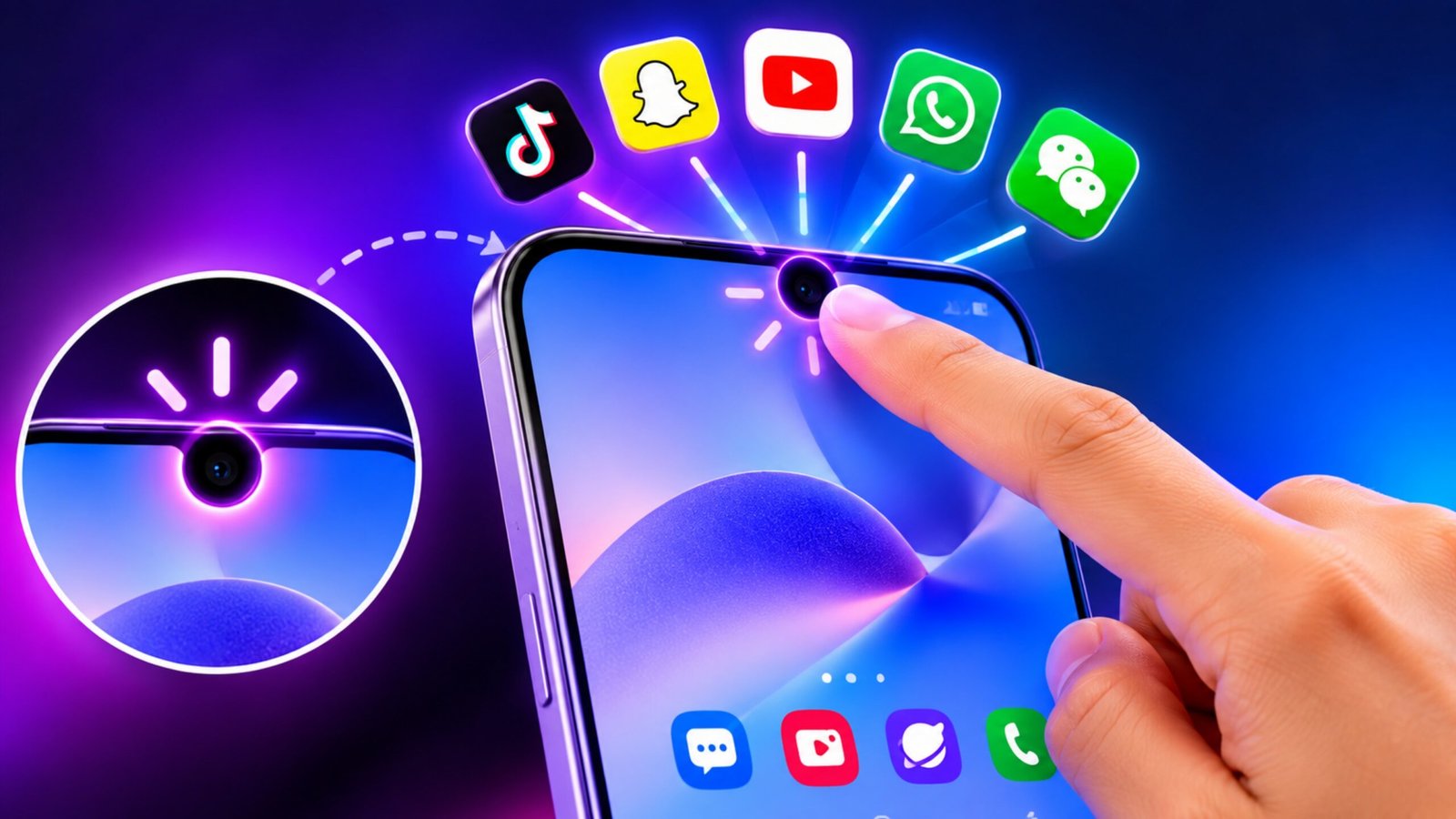
The small camera cutout on an Android phone normally has just one job — making space for the front camera. But what if that unused area could also become a shortcut for your favorite apps and actions?
That is the idea behind Notch Launcher. The app is designed to turn the notch or punch-hole area into a gesture-based control zone. Depending on the available features and your device, you may be able to use actions such as tapping, swiping, or long-pressing the notch to trigger shortcuts.
Instead of going back to the home screen every time, you can set up gestures for apps or supported actions that you use regularly.
Advertisements
Also Read: Lock Watch – See Who Tried to Unlock Your Phone With Photo & Location
What Is Notch Launcher?
Notch Launcher is an Android customization utility built around the phone’s camera cutout. Its basic concept is simple: use the area around the front camera as an additional shortcut point.
Normally, opening an app means finding its icon on the home screen, searching through the app drawer, or using Android’s search feature. A notch-based gesture can provide another way to reach selected apps.
For instance, you could configure a tap to open the Camera, a swipe to launch another app, and a long press for a different shortcut.
The exact options available can depend on the app version, Android version, phone model, and the permissions provided to the application.
How Notch Launcher Can Be Used
The interesting part of this app is its gesture system. Rather than putting more icons on your home screen, you can potentially assign different actions to gestures around the camera cutout.
Here are some common ways the concept can be used:
- Tap: Open a selected app or supported action
- Swipe: Trigger another shortcut
- Long press: Start a different assigned action
- Multiple gestures: Keep several frequently used shortcuts within the same area
For example, someone who frequently uses WhatsApp, Camera, and Calculator could create a setup such as:
Tap → Camera
Swipe → WhatsApp
Long press → Calculator
This is only an example. The actual actions you can assign will depend on what the app supports on your particular phone.
Key Features of Notch Launcher
1. Turn the Punch-Hole Into a Shortcut Zone
The main attraction is the ability to interact with the camera cutout area through gestures.
Instead of treating the punch-hole as nothing more than a display cutout, the app attempts to make that part of the screen useful for quick access.
2. Tap-Based Shortcuts
A simple tap can be assigned to an available action.
Depending on the app’s supported options, this could include:
- Opening an app
- Launching the Camera
- Opening a calculator
- Starting a supported shortcut
- Performing another available system action
This can be handy for apps that you open several times throughout the day.
3. Swipe Actions
Swipe gestures provide another way to access shortcuts without adding extra icons to the home screen.
For example, you might assign a swipe gesture to a frequently used browser or messaging application.
Whether a particular swipe direction or action is supported will depend on the app and device configuration.
4. Long-Press Gestures
A long press can provide another shortcut option.
This makes it possible to keep different actions under different gestures. For example, tapping could open one app while holding the same area for a moment could trigger another action.
5. Quick Access to Frequently Used Apps
One practical use of Notch Launcher is creating shortcuts for apps you regularly open.
Instead of searching for the same app repeatedly, you can try accessing it through a configured notch gesture.
This can be particularly useful if you prefer a cleaner home screen with fewer app icons.
6. Customizable Shortcut Setup
The usefulness of a gesture launcher depends largely on how much control it gives you over gestures and actions.
You can arrange the available options around the way you normally use your phone rather than following a fixed shortcut layout.
How to Set Up Notch Launcher on Android
If you decide to try Notch Launcher, install the current version from a reliable source. If you are using an APK from outside an official app store, pay particular attention to the source and file security.
After installation, the initial setup may involve permissions or Android system settings.
Step 1: Open the App
Launch Notch Launcher after installing it and go through the initial setup screen.
Look through the available settings before activating any gesture.
Step 2: Review the Requested Permissions
Some gesture or system-level functions may require additional Android permissions.
Don’t automatically approve every request. Check what access is being requested and why the app needs it.
Step 3: Choose a Gesture
Depending on the available options, select the gesture you want to configure.
Possible examples include:
- Tap
- Swipe
- Long press
Step 4: Assign an Action
Choose the app or supported action that should run when the gesture is detected.
For example:
Tap → Camera
Swipe → Chrome
Long press → Calculator
After saving the settings, test each gesture to make sure it responds correctly.
Who Might Find Notch Launcher Useful?
This type of Android utility may appeal to people who enjoy experimenting with phone customization.
It can be useful for users who:
- Like trying new Android customization tools
- Frequently open the same few apps
- Prefer gesture-based controls
- Want fewer icons on their home screen
- Want an additional way to access shortcuts
- Enjoy experimenting with unusual smartphone features
It isn’t necessary for basic Android use, but it can provide an alternative way to interact with your phone.
Advantages You May Notice
The biggest attraction is the concept itself: using an area around the camera cutout as an additional interaction point.
Potential advantages include:
Faster access: A configured gesture can provide another way to reach a frequently used app.
Cleaner home screen: Some shortcuts can potentially be moved away from the main home screen.
Personalized controls: You can choose gestures and actions according to your usage.
Less searching: Frequently used apps may be easier to access once their gestures become familiar.
Different Android experience: Using the punch-hole as a control area offers a less conventional approach to smartphone customization.
Things to Keep in Mind
Notch Launcher may not behave identically on every Android smartphone.
One important reason is that camera cutouts aren’t positioned the same way on every device. Some phones have a centered punch-hole, while others use different camera placements or display designs.
Android versions and manufacturer interfaces can also affect how apps interact with the screen.
If the app relies on special permissions such as Accessibility access or displaying over other apps, those permissions should be reviewed carefully before enabling them.
Does Notch Launcher Use Extra Battery?
There isn’t one fixed battery figure that applies to every phone.
If the application needs to keep a gesture-detection process running in the background, it could use some additional system resources. The actual impact can vary based on the device, Android version, app configuration, and how its background service operates.
If you notice unusual battery usage after installation, check the app’s battery activity through your phone’s Android settings.
Privacy and Permission Considerations
Permissions are particularly important with customization and gesture applications.
Before giving Notch Launcher access to any sensitive Android feature, check what the permission allows. This is especially relevant if the application requests Accessibility access, overlay permissions, or other elevated capabilities.
Only provide permissions that are necessary for the features you actually want to use.
It is also worth checking the developer information and privacy policy when available. If you’re uncomfortable with a particular permission, don’t enable it until you understand what it does.
Will It Work on Every Android Phone?
There is no guarantee that Notch Launcher will provide the same experience on every Android smartphone.
Compatibility can be affected by several factors, including:
- Phone model
- Android version
- Display and camera-cutout design
- Manufacturer’s software interface
- Available Android permissions
- Current app support
For this reason, check the application’s current compatibility information before installing or configuring it.
A Simple Everyday Example
Imagine you regularly use three apps: Camera, WhatsApp, and Calculator.
Instead of placing all three shortcuts on your home screen, you could try setting up different gestures:
Single tap → Camera
Swipe → WhatsApp
Long press → Calculator
Once configured, the idea is that these gestures can provide another route to those apps.
Of course, the exact setup depends on the features available in the current version of Notch Launcher and how well it works with your particular device.
Is Notch Launcher Safe?
An app should not be considered safe simply because of its name or because it performs a useful function.
Before installing Notch Launcher, check:
- The source of the application
- Developer information
- Requested permissions
- Privacy policy
- Recent user reviews
- App update history, where available
Be especially careful with APK files downloaded from unfamiliar websites. An official or otherwise trusted distribution source is generally preferable to an unknown download page.
Frequently Asked Questions
What is Notch Launcher?
Notch Launcher is an Android customization utility that is designed to use the phone’s notch or punch-hole area for gesture-based access to apps and supported shortcuts.
What can I do with Notch Launcher?
Depending on the available features, you may be able to configure gestures such as tapping, swiping, or long pressing to open selected apps or trigger supported actions.
Does Notch Launcher work on every Android phone?
Not necessarily. Performance and compatibility can vary according to the phone model, Android version, display design, manufacturer software, and available permissions.
Does it require Accessibility permission?
Some functions may require Accessibility access or other special Android permissions. Always check why a particular permission is needed before allowing it.
Can it replace normal app icons?
Not completely. It is better viewed as an additional shortcut method rather than a full replacement for your regular home-screen icons.
Can Notch Launcher affect battery life?
Potentially. If gesture detection or a background service remains active, it may use additional resources. The effect will vary from one device and configuration to another.
Who should try Notch Launcher?
It may be worth exploring if you enjoy Android customization, gesture controls, and quick access to frequently used applications.
Official Play Store Link
Also Read: Droid Lab App for Android Review: A Handy Tool for Gestures and Shortcuts
Final Thoughts
Notch Launcher takes an unusual part of an Android phone — the camera notch or punch-hole — and attempts to make it useful for everyday shortcuts.
The ability to assign different gestures to frequently used apps can provide an alternative to searching through the home screen or app drawer. At the same time, the experience won’t necessarily be identical across all Android devices.
Before using it, check your phone’s compatibility and carefully review any Accessibility, overlay, or other special permissions the app requests. If everything works properly on your device, the punch-hole can become more than just a space reserved for the front camera.
Advertisements