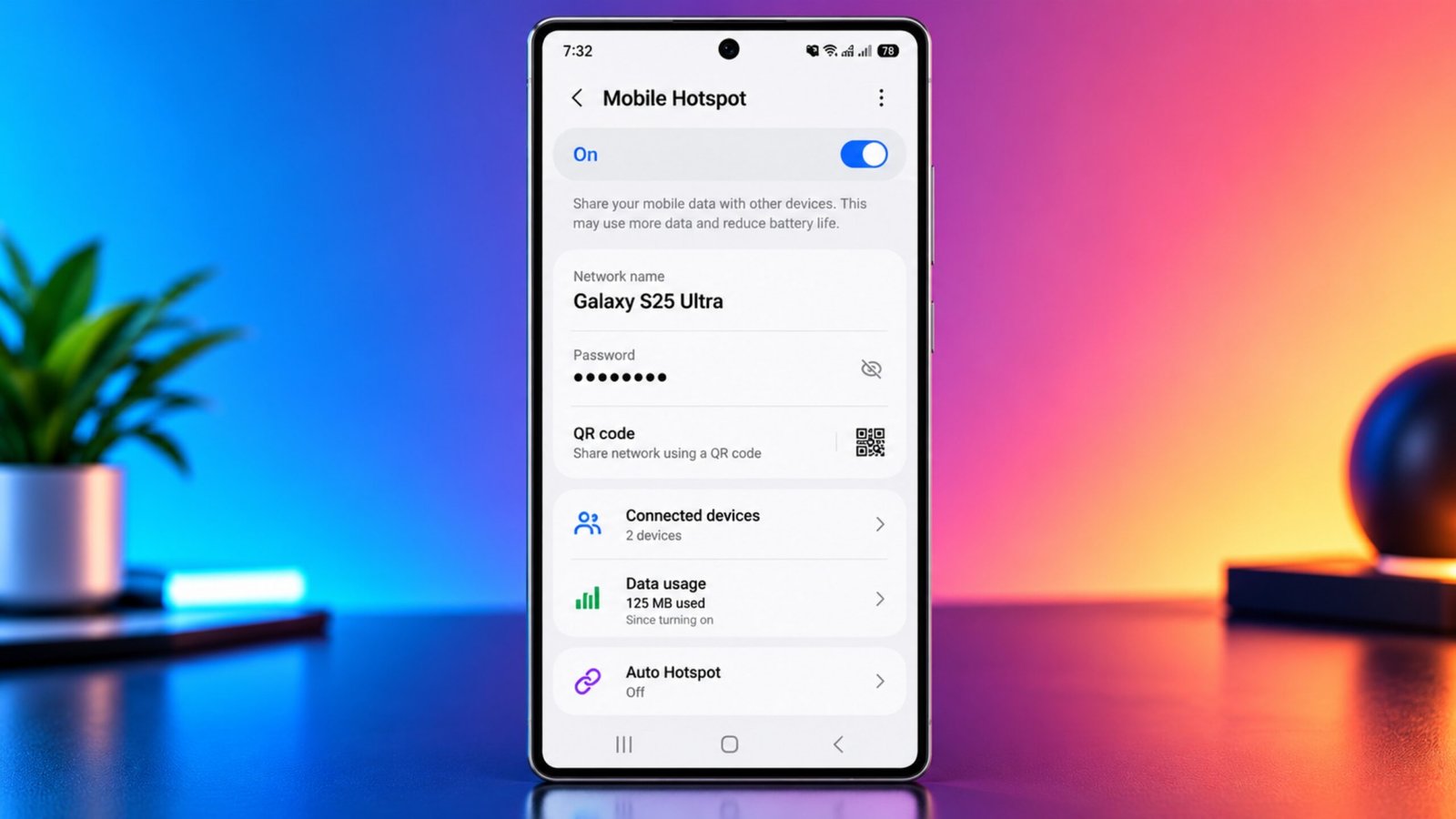
When Wi-Fi is unavailable, you don’t necessarily need to stop working or start looking for a public network. If your phone has an active mobile data connection and your carrier supports tethering, you can turn your iPhone or Android device into a portable Wi-Fi hotspot.
This can be useful when you need to connect a laptop, tablet, smart TV, or another compatible device to the internet. The setup is usually quick, although the exact steps can differ depending on your phone model and Android version.
Also Read: How to Fix iPhone Battery Draining Fast After iOS 26 Update
Advertisements
What Is a Mobile Hotspot?
A mobile hotspot allows your phone to share its cellular data connection with other devices over Wi-Fi. In simple terms, your smartphone works like a small wireless router.
For example, if your home internet stops working and you still need to use your laptop, you can enable the hotspot on your phone and connect the laptop to it.
Most current iPhones and Android smartphones support this feature, but availability and data limits can depend on your mobile carrier and plan.
What Devices Can Connect to a Phone Hotspot?
Once your hotspot is active, compatible devices can connect to it just like a normal Wi-Fi network.
You can generally use it with:
- Windows or Mac laptops
- Tablets
- Other smartphones
- Some smart TVs
- Compatible computers and internet-enabled devices
The actual internet speed will depend largely on your cellular connection. A strong 4G or 5G signal can provide better performance than a weak signal. Network congestion, your location, and carrier restrictions can also affect the experience.
Check Your Mobile Plan First
Before using a hotspot frequently, check whether your mobile plan includes hotspot or tethering data.
Some plans provide a specific amount of high-speed hotspot data. After that allowance is used, your carrier may reduce the hotspot speed. Other plans may have different restrictions or additional charges.
It is worth checking:
- How much hotspot data your plan includes
- How much high-speed hotspot data is remaining
- Whether hotspot usage has separate limits
- Whether your carrier reduces speeds after a certain amount
- Whether additional hotspot data can be purchased
The available terms vary between carriers and plans, so check your provider’s current information rather than assuming all plans work the same way.
Why Use a Personal Hotspot Instead of Public Wi-Fi?
Public Wi-Fi can be convenient when you’re at a café, hotel, airport, or another location that provides wireless internet. However, connecting to an unfamiliar network isn’t always the most convenient option.
With a personal hotspot, you control the network name and password. You don’t have to search through nearby Wi-Fi networks or provide information to a public network simply to get online.
There is one important trade-off: using your phone as a hotspot can consume battery and mobile data quickly.
If you’re planning to use it for a long period, keeping your phone connected to a charger can help prevent the battery from running out.
How to Turn an iPhone Into a Hotspot
Apple provides a built-in Personal Hotspot feature on supported iPhone models.
To turn it on:
- Open Settings on your iPhone.
- Tap Personal Hotspot.
- Turn on Allow Others to Join.
- Check the Wi-Fi password shown on the same screen.
- Use that password when connecting another device.
Depending on your iOS version and carrier configuration, the Personal Hotspot option may appear slightly differently.
You can also change the Wi-Fi password from the Personal Hotspot settings.
Choose a Strong iPhone Hotspot Password
Your hotspot password prevents nearby people from connecting to your mobile data without permission.
Avoid passwords based on information that someone could easily guess, such as:
- Your birthday
- Your phone number
- Your name
- A pet’s name
- Simple number combinations
- Repeated characters
A longer password containing a mixture of letters, numbers, and symbols is generally a better choice.
For example, avoid simple passwords such as 12345678 or easily recognizable personal information.
Connect a Laptop or Other Device to an iPhone Hotspot
Wi-Fi is usually the simplest way to connect another device.
On the device you want to connect:
- Open its Wi-Fi settings.
- Look for your iPhone in the available networks.
- Select the iPhone’s network name.
- Enter the hotspot password.
- Wait for the device to establish the connection.
After connecting, the device can use your iPhone’s cellular data connection.
Find Your iPhone’s Hotspot Name
If you’re unsure which network belongs to your iPhone, you can check the device name.
Go to:
Settings → General → About → Name
That name is used to identify your iPhone on Wi-Fi and other supported connections.
Use a USB Cable for iPhone Tethering
Wi-Fi isn’t the only way to share an iPhone’s internet connection. You can also connect the iPhone to a compatible computer using a USB cable.
After connecting the devices, enable Personal Hotspot on the iPhone if necessary and follow the computer’s network prompts.
USB tethering can be useful when you want a direct connection between the phone and computer rather than using Wi-Fi.
The exact setup can vary depending on whether you’re connecting to a Windows PC or a Mac.
Can You Use Bluetooth With an iPhone Hotspot?
Bluetooth can also be used for internet sharing with compatible devices.
You’ll first need to pair the iPhone with the other device. After pairing, follow the device-specific instructions for using the iPhone’s internet connection through Bluetooth.
For most everyday situations, Wi-Fi is generally easier to set up.
How to Tell If Your iPhone Hotspot Is Active
When another device is connected to your iPhone’s Personal Hotspot, iOS displays an indicator showing that hotspot sharing is active.
You can also check the Personal Hotspot settings to see whether the feature is currently enabled.
Apple devices signed into the same Apple Account may also have convenient hotspot connection options, depending on your settings and device compatibility.
How to Enable a Hotspot on Samsung Galaxy Phones
Samsung Galaxy smartphones have their own Mobile Hotspot settings.
To enable the feature:
- Open Settings.
- Tap Connections.
- Select Mobile Hotspot and Tethering.
- Tap Mobile Hotspot.
- Turn the feature on.
You can open the Mobile Hotspot settings again to change the network name, password, and other available options.
Because Samsung’s software can vary between models and One UI versions, some menu names may be slightly different on your phone.
How to Turn on a Hotspot on Google Pixel
Google Pixel phones use a different settings layout from Samsung devices.
Try these steps:
- Open Settings.
- Select Network & internet.
- Tap Hotspot & tethering.
- Choose Wi-Fi hotspot.
- Turn on the hotspot.
You can also open the hotspot settings to change its name and password.
If your Pixel is running a newer or different Android version, the wording or location of these options may vary slightly.
Android Offers More Than One Tethering Method
Android phones can support several ways of sharing a mobile connection. The options available depend on the manufacturer, model, Android version, and hardware.
Wi-Fi Hotspot
This turns your phone into a wireless network that nearby devices can join.
USB Tethering
Your phone shares its mobile connection with a computer through a USB cable.
Bluetooth Tethering
Internet access is shared through a Bluetooth connection between compatible devices.
Ethernet Tethering
Some Android phones can share their connection through compatible Ethernet hardware or adapters.
For most people, Wi-Fi hotspot is the most convenient option.
Customize Android Hotspot Settings
After opening your phone’s hotspot settings, you may be able to modify several options.
Depending on the device, these can include:
- Network name
- Wi-Fi password
- Security settings
- Wi-Fi band
- Connected devices
- Automatic hotspot controls
Some phones allow you to choose between available Wi-Fi bands, such as 2.4 GHz and 5 GHz.
The best option can depend on the connected device and your surroundings. A different band doesn’t automatically guarantee faster internet because your cellular signal and network conditions still play a major role.
How to Keep Your Mobile Hotspot Secure
A hotspot is convenient, but it should be protected just like any other wireless network.
Use a unique password and avoid sharing it unnecessarily. You should also check the list of connected devices from time to time.
If your phone provides a Connected Devices section, open it and make sure the listed devices belong to you or someone you intentionally allowed to connect.
What to Do If an Unknown Device Connects
If you notice a device you don’t recognize, you can take a few simple steps.
First, turn off the hotspot. Then change the hotspot password before enabling it again.
Some Android phones also provide an option to block a particular connected device. The availability of this feature depends on the phone and software version.
Changing the password is particularly useful because devices that previously knew the old password should no longer be able to reconnect using it.
Keep an Eye on Mobile Data Usage
Remember that devices connected to your hotspot use your phone’s mobile data.
Activities such as video streaming, large downloads, software updates, and cloud backups can use a significant amount of data.
If your mobile plan has a limited data allowance, check your usage regularly. This can help you avoid unexpectedly reaching a data limit or experiencing reduced speeds.
Hotspot Use Can Drain Your Battery
Running a hotspot requires your phone to maintain a cellular connection while also providing a wireless connection to other devices.
As a result, battery consumption can increase, particularly when the hotspot is being used for several hours.
If you’re using the hotspot for work or another long session, connect your phone to a reliable charger whenever practical.
Also remember to turn the hotspot off when you no longer need it.
Your Cellular Signal Affects Hotspot Speed
A mobile hotspot cannot provide better cellular service than your phone itself receives.
If your phone has a weak signal, the connected device may also experience slow speeds or an unstable connection.
For better results, try moving to an area with stronger cellular reception. Buildings, crowded areas, network congestion, and your distance from a cellular tower can all affect performance.
A 5G connection may offer higher speeds where available, but actual performance varies based on your carrier, location, device, and network conditions.
Mobile Hotspot Checklist
Before relying on your phone for internet access, check these points:
- Your mobile plan supports hotspot usage.
- You have enough hotspot data available.
- Your phone has sufficient battery.
- Your cellular signal is reasonably strong.
- Your hotspot has a unique password.
- Only trusted devices are connected.
- You turn the hotspot off when it is no longer needed.
These simple checks can help make hotspot sharing more reliable and prevent unnecessary data or battery usage.
Also Read: iPhone Touch Disease: Symptoms, Causes, Affected Models and Repair Options
Final Thoughts
Turning an iPhone or Android phone into a mobile hotspot is a practical way to get another device online when regular Wi-Fi isn’t available. The basic process is straightforward, and most modern smartphones provide built-in hotspot or tethering features.
Before using it for extended periods, check your carrier’s hotspot rules and data limits. Keep an eye on battery usage, use a strong password, and check connected devices occasionally. With those precautions, your smartphone can serve as a convenient temporary internet connection when you need it most.

Sourav Gorai, founder of sabhigyan.com, is passionate about technology, smartphones, apps, and digital tools. With 8+ years of experience in the digital and tech space, he focuses on creating easy-to-understand, practical, and helpful content that makes everyday technology simpler for readers.
Advertisements