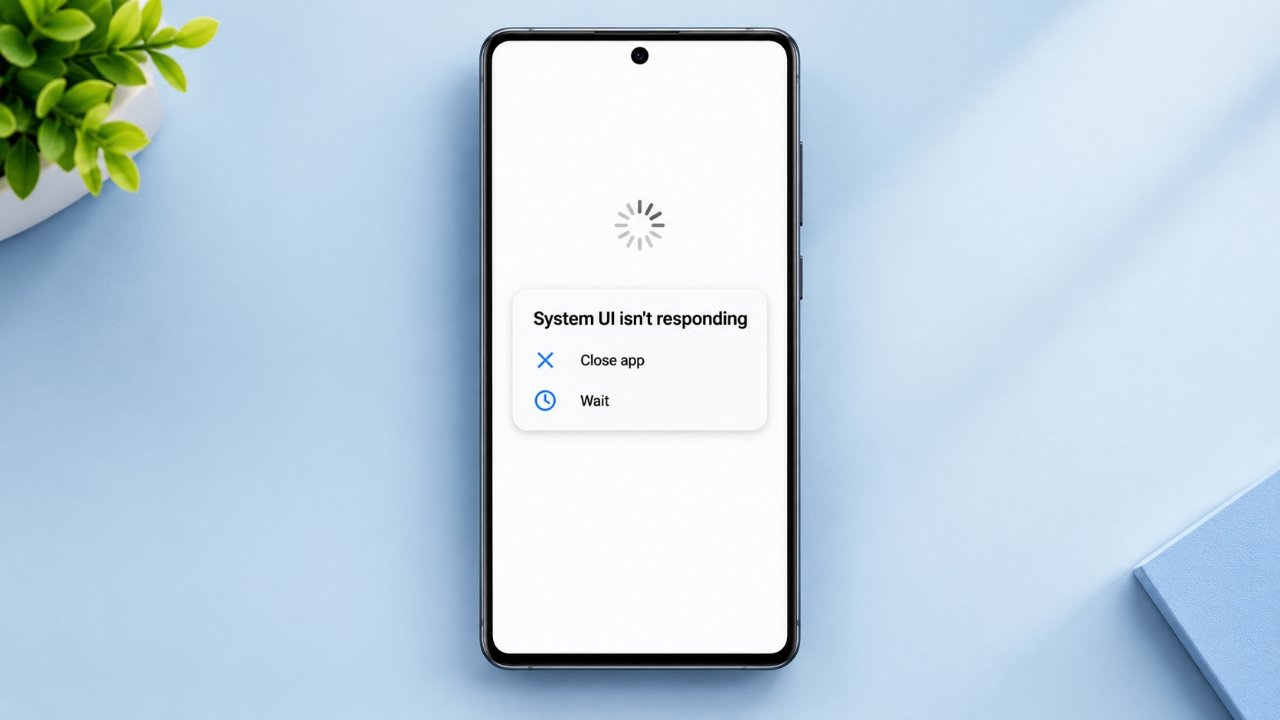
A smartphone can suddenly turn into a completely white display without any warning. One minute you’re using an app normally, and the next, the screen shows nothing but white.
This can be worrying, especially if you cannot access your messages, photos, calls, or other apps. However, a white screen does not always mean that the phone’s display is permanently damaged. In some cases, a temporary software problem, failed update, overheating, or another issue may be responsible.
Before taking your phone to a repair shop, there are several things you can try. Start with the simpler solutions and move toward advanced troubleshooting only when necessary.
Also Read: How to Fix an Android Microphone That Is Not Working
Why Is My Phone Screen Completely White?
The cause of a white screen can vary from one phone to another. It may be related to software, the display hardware, battery problems, moisture, or physical damage.
Here are some common possibilities.
A Temporary Software Crash
Your phone continuously runs system services, apps, and background processes. Occasionally, one of these processes can stop responding or conflict with another process.
An app that crashes unexpectedly may sometimes affect the normal operation of the phone. In less serious cases, restarting the device can clear the problem.
If the white screen appeared while using a particular application, that app could also be worth investigating.
Problems After a System Update
Operating system updates normally improve a phone, but problems can occur if an update is interrupted or fails to install correctly.
A corrupted system file or an incompatible app may prevent the phone from starting normally. If the white screen appeared shortly after an update, software troubleshooting may be useful.
Display or Internal Hardware Damage
A phone that has recently been dropped may have a damaged display panel or an internal connection problem.
You may notice additional symptoms such as:
- White lines across the screen
- Flickering
- Unusual spots or patches
- A display that works intermittently
- A screen that remains white while the phone still makes sounds
Hardware-related problems generally need a technician to diagnose them properly.
Water or Moisture Exposure
Liquid can damage connectors and other internal components. Sometimes, the problem appears immediately; in other cases, symptoms develop later.
If the phone became wet before the white screen appeared, avoid repeatedly turning it on or connecting it to a charger.
Excessive Heat
High temperatures can affect electronic components. If the phone becomes unusually hot and then develops display problems, allow it to cool down naturally and stop using it temporarily.
Persistent overheating should be checked by a qualified technician.
10 Things You Can Try When Your Phone Has a White Screen
The right solution depends on the cause and the phone model. Try the following methods in order, starting with the least disruptive options.
1. Force Restart the Phone
A force restart is one of the first things worth trying when the screen has become unresponsive.
The exact button combination differs between phones. Depending on the device, you may need to hold the Power button or use a combination such as Power + Volume Down.
Try this:
- Press and hold the required buttons for your phone.
- Continue holding them until the device responds or restarts.
- Wait for the phone to boot completely.
- Check whether the normal display has returned.
A force restart does not normally remove your personal files. If the white screen was caused by a temporary software freeze, this may be enough to solve it.
2. Give the Phone Some Time to Charge
A very low battery can sometimes prevent a phone from starting properly.
Connect the device to a known-working charger and leave it connected for around 30 minutes. If possible, use the charger and cable recommended for your device.
Look for signs that the phone is receiving power, such as:
- Charging sounds
- Vibrations
- LED indicators
- Battery icons
- Notification sounds
After charging for a while, try restarting the phone.
Important: If the phone was recently exposed to water or another liquid, do not connect it to a charger. Moisture inside the device can create additional problems.
3. Check Android Using Safe Mode
If you’re using Android and suspect a recently installed application, Safe Mode can help determine whether a third-party app is involved.
Safe Mode loads the phone with most third-party applications temporarily disabled.
The exact process varies by manufacturer, but generally you can:
- Enter Safe Mode using your phone manufacturer’s instructions.
- Check whether the display behaves normally.
- Think about apps installed or updated shortly before the problem appeared.
- Remove suspicious or recently installed apps.
- Restart the phone normally.
If the display works correctly in Safe Mode, a third-party application may be contributing to the problem.
4. Clear Temporary System Data
Temporary or cached system files can occasionally contribute to software problems.
Some Android devices provide a cache-clearing option through Recovery Mode. However, the available options differ considerably between manufacturers and models.
If your device provides Wipe Cache Partition, you can consider using it after checking the manufacturer’s instructions.
Be careful when navigating Recovery Mode. Options such as factory reset or data deletion can remove personal information.
5. Look for Signs of Physical Damage
Take a close look at the phone and consider what happened before the white screen appeared.
Check for:
- Cracked glass
- Dents around the frame
- White patches or lines
- Display flickering
- Damage around the screen
- Signs of a recent drop
If the phone was dropped immediately before the issue started, hardware damage becomes a possibility.
Don’t open the phone yourself unless you have the appropriate repair knowledge and tools. Display connectors and other internal components can be damaged easily.
6. If the Phone Got Wet, Stop Using It
Liquid exposure requires extra care.
If your phone has recently become wet:
- Turn it off if it is still running and you can do so safely.
- Disconnect it from any charger.
- Remove the SIM tray if this can be done without causing additional problems.
- Wipe the outside with a soft, dry cloth.
- Keep the device in a dry, well-ventilated place.
- Contact a qualified repair professional if the device shows unusual behavior.
Avoid using a hair dryer, heater, or other direct heat source to dry the phone. Also, don’t assume that the phone is safe to charge simply because its exterior feels dry.
Moisture can remain inside the device.
7. Repair or Reinstall the System Software
If the problem is caused by corrupted system software, an official recovery or restoration process may help.
For supported devices, manufacturers may provide recovery tools that can be used with a computer.
Before proceeding:
- Use only official manufacturer software.
- Confirm that the firmware is intended for your exact model.
- Follow the manufacturer’s recovery instructions carefully.
- Avoid unofficial firmware files and unknown repair tools.
A software restoration can sometimes involve data loss, so check the manufacturer’s instructions before starting.
8. Use Recovery Mode as a Last-Resort Software Fix
Recovery Mode provides advanced options for certain phones.
For an iPhone, you can connect the device to a compatible computer and use Apple’s official recovery process. Depending on the situation, you may be given an option to update or restore the device.
A Restore operation can erase the iPhone, so it shouldn’t be the first option when you still have other troubleshooting methods available.
Android phones also have manufacturer-specific Recovery Mode options. Depending on the model, you may find an option such as Factory Reset or Erase All Data.
Keep in mind that a factory reset removes personal data, installed applications, and settings stored on the phone.
If you have a recent backup, you may be able to restore your information afterward.
9. Check Whether the Phone Supports an External Display
Some smartphones can send their display output to a compatible monitor or television.
If your particular model supports this feature, connecting it to an external display can provide another way to check whether the phone itself is still operating.
For example, if the phone’s interface appears normally on an external screen while the built-in display remains white, the internal display assembly could be involved.
This method isn’t available on every smartphone, so check your phone manufacturer’s specifications first.
10. Get the Phone Checked by a Professional
If none of the previous methods work, the problem may involve the display assembly or another internal component.
A qualified technician can inspect the phone and determine whether the issue involves components such as:
- Display panel
- Display connector
- Touchscreen digitizer
- Backlight circuitry
- Motherboard components
- Other internal connections
The actual repair cost depends on the phone model, the damaged component, and the type of repair required.
Ask for a diagnosis and repair estimate before approving the work.
How to Prevent White Screen Problems in the Future
Not every display failure can be prevented, but a few habits can reduce the chances of software and physical problems.
Use a Protective Case
A good case can reduce the impact of accidental drops. A suitable screen protector can also help protect the front glass from everyday scratches and minor impacts.
Keep the Phone and Apps Updated
Install system updates from official sources and keep commonly used applications updated.
If a particular app repeatedly causes crashes or unusual behavior, consider removing it and checking whether the problem disappears.
Keep Your Phone Away From Water and Extreme Heat
Avoid exposing your phone to unnecessary moisture or excessive temperatures.
Don’t leave a smartphone inside a hot vehicle for extended periods. If the device becomes unusually hot during normal use, stop using it temporarily and allow it to cool down.
Maintain Regular Backups
A white screen can sometimes lead to a repair, system restoration, or factory reset. Regular backups can reduce the risk of losing important information.
Consider backing up important:
- Photos and videos
- Contacts
- Documents
- Messages
- Other important personal data
Use your phone manufacturer’s supported backup options or another trusted backup method.
When Should You Visit a Repair Center?
If the phone has been dropped, exposed to liquid, becomes extremely hot, or continues showing a white screen after restarting, professional inspection may be appropriate.
You should also avoid repeatedly attempting advanced recovery methods if you’re unsure what an option does. Some recovery and reset options can permanently erase data.
Also Read: How to Reduce Loud Sounds on iPhone With iOS 26
Final Thoughts
A completely white phone screen can be caused by anything from a temporary software freeze to a damaged display or internal component. Starting with a force restart and checking the phone’s charging status are simple steps that may resolve a temporary problem.
If the issue appeared after physical damage or liquid exposure, however, software troubleshooting may not be enough. In that situation, protecting your data and getting the device properly inspected can be more useful than repeatedly trying random fixes.

Sourav Gorai, founder of sabhigyan.com, is passionate about technology, smartphones, apps, and digital tools. With 8+ years of experience in the digital and tech space, he focuses on creating easy-to-understand, practical, and helpful content that makes everyday technology simpler for readers.