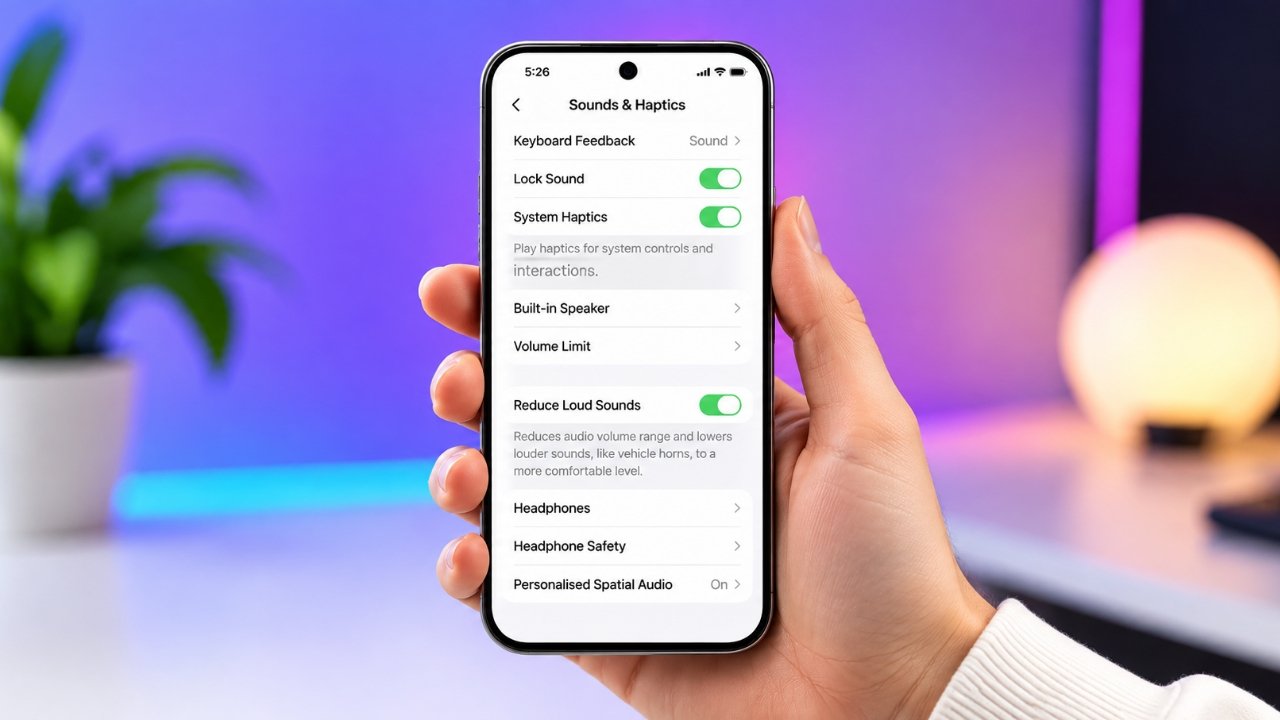
If your iPhone sometimes gets unexpectedly loud while watching videos, playing games, or receiving alerts, iOS 26 includes a useful setting that can make those sudden volume jumps less noticeable.
The Reduce Loud Sounds feature is designed to soften sharp audio peaks coming from the iPhone’s built-in speaker. Instead of allowing a sudden loud sound to play at its full intensity, the feature adjusts the audio to create a more consistent listening experience.
Also Read: How to Back Up iPhone 16: Simple Ways to Keep Your Data Safe
What Does Reduce Loud Sounds Do on iPhone?
Reduce Loud Sounds works by reducing the difference between quieter and louder parts of audio played through the iPhone’s built-in speaker.
For example, imagine you are watching a video at a comfortable volume and a sudden sound effect becomes much louder than the dialogue. With this feature enabled, those stronger audio peaks can be softened while quieter parts of the content remain easier to hear.
This can be particularly useful when using your iPhone for videos, games, music, and other everyday media.
Important: Reduce Loud Sounds is intended for the iPhone’s built-in speaker. It does not apply in the same way when audio is played through AirPods, wired headphones, or Bluetooth speakers.
Why Use Reduce Loud Sounds?
There are several reasons you may want to try this setting, especially if you often switch between different types of content throughout the day.
Makes Sudden Volume Changes Less Noticeable
Some videos, games, and other media can contain noticeable differences between quiet dialogue and loud sound effects. Reducing these peaks can make playback feel more comfortable.
Helps Create More Consistent Audio
Instead of frequently adjusting the volume yourself, the feature can automatically soften stronger parts of the audio while you continue using your iPhone normally.
Useful for Everyday Media
Whether you’re watching a video, playing a game, or listening to content through the built-in speaker, reducing sudden audio peaks can make unexpected changes in volume less distracting.
Adds Another Layer of Volume Control
iOS also provides a separate Volume Limit option. Using a maximum volume level alongside Reduce Loud Sounds gives you more control over how loud your iPhone’s speaker can become.
How to Enable Reduce Loud Sounds in iOS 26
You can turn on the feature directly from the iPhone’s Settings app.
- Open Settings on your iPhone.
- Tap Sounds & Haptics.
- Look for the Built-In Speaker section.
- Find Reduce Loud Sounds.
- Turn on the toggle next to it.
Once enabled, your iPhone will automatically apply the audio adjustment when using its built-in speaker.
Want to Set a Maximum Volume? Use Volume Limit
If you want to control the highest volume level your iPhone can reach, you can also use the Volume Limit setting.
To configure it:
- Open Settings on your iPhone.
- Select Sounds & Haptics.
- Tap Volume Limit.
- Adjust the slider to your preferred maximum volume.
You can use Volume Limit separately or alongside Reduce Loud Sounds, depending on how you want your iPhone’s speaker audio to behave.
Reduce Loud Sounds vs. Volume Limit
Although both settings deal with loud audio, they work differently.
Reduce Loud Sounds is designed to soften sudden peaks in audio, while Volume Limit lets you choose a maximum volume level.
So, if your main concern is unexpected jumps in volume, Reduce Loud Sounds may be the more relevant setting. If you simply want to prevent the speaker from going beyond a particular level, Volume Limit gives you a direct maximum.
Also Read: How to Fix iPhone Battery Draining Fast After iOS 26 Update
Final Thoughts
iOS 26 gives iPhone users a simple way to manage sudden changes in speaker volume. Reduce Loud Sounds can be useful if loud audio spikes frequently catch you off guard while watching videos, playing games, or listening to other content.
If you want additional control, you can also adjust the Volume Limit from the Sounds & Haptics settings. Together, these options can help you create a more comfortable and controlled audio experience on your iPhone.

Sourav Gorai, founder of sabhigyan.com, is passionate about technology, smartphones, apps, and digital tools. With 8+ years of experience in the digital and tech space, he focuses on creating easy-to-understand, practical, and helpful content that makes everyday technology simpler for readers.