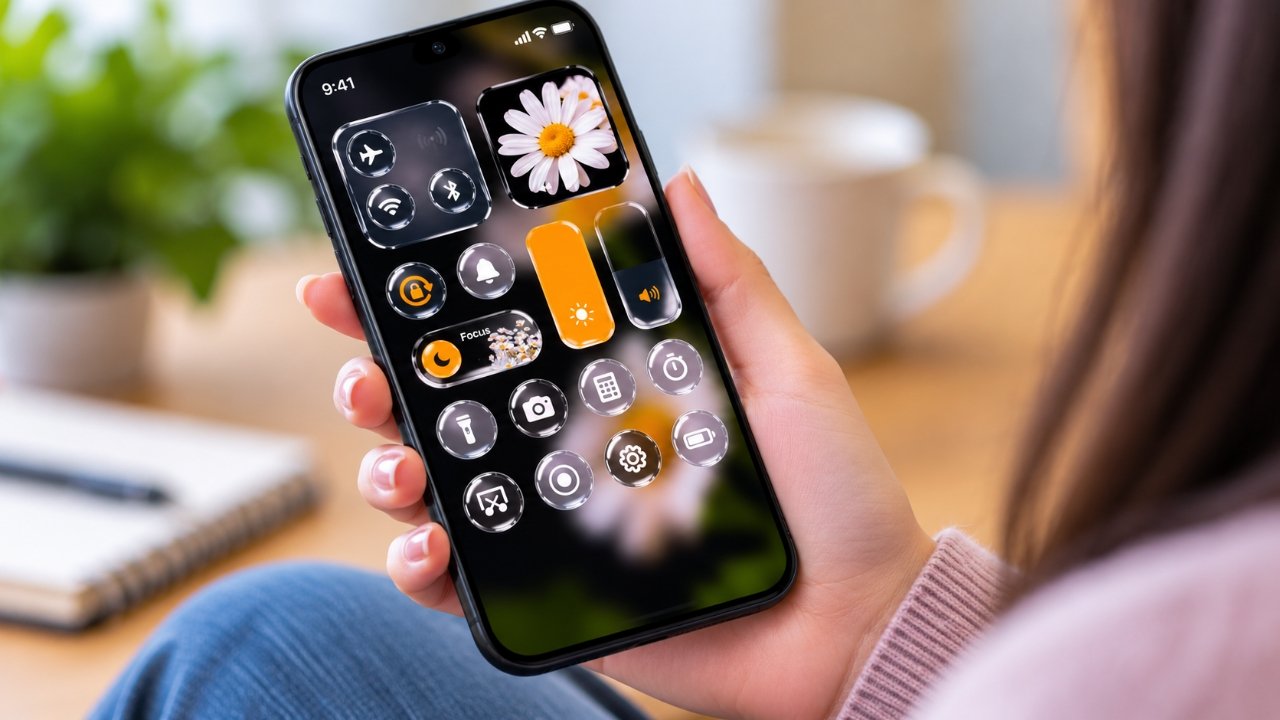
Personalizing a smartphone is an easy way to make everyday use feel more enjoyable. While Android phones offer several built-in customization options, some users want more flexibility to create a home screen that reflects their individual style. This is where apps such as ThemeMe – Best Android Themes, Wallpapers & Control Center Customization may be worth exploring.
ThemeMe is designed around smartphone appearance, bringing together customization options for themes, wallpapers, widgets, and Control Center-style interfaces. Depending on the features supported by the installed version, users may be able to experiment with different colors, backgrounds, layouts, and visual elements to give their devices a fresh look.
But is ThemeMe the right choice for your Android phone? Before installing it, it helps to understand its potential features, ease of use, performance considerations, and privacy requirements.
In this guide, we explore what ThemeMe offers, how to get started, its possible advantages and limitations, and what to check before using a third-party customization app.
Also Read: Wave Launcher: Customize Your Android Home Screen With Liquid Glass Effects and Themes
What Is the ThemeMe App?
ThemeMe is an Android personalization app intended to help users modify the visual appearance of their smartphones. Rather than sticking entirely to the phone’s original interface, users can explore different design options and create a home screen that better matches their preferences.
For example, someone who prefers a clean, minimalist interface might choose a simple wallpaper and a few carefully arranged widgets. Another user may prefer colorful backgrounds, coordinated themes, and a more distinctive Control Center appearance.
The main areas of customization associated with ThemeMe include:
- Android themes: Explore different visual styles for the phone’s interface.
- Wallpapers: Choose backgrounds that suit your preferred appearance.
- Widgets: Arrange supported information panels and shortcuts on the home screen.
- Control Center customization: Explore alternative panel designs or visual layouts, depending on the app’s capabilities.
- Home screen personalization: Combine available design elements to create a more individual look.
It is important to remember that the exact features can vary between app versions and Android devices. Check the current app listing to confirm which options are available.
Key Features of ThemeMe
1. Explore Different Android Theme Styles
The appearance of a phone’s home screen can influence the overall user experience. Using the same icons, colors, and layout for months or years may eventually feel repetitive.
ThemeMe is intended for users who want to explore different visual styles. Depending on the available options, you may be able to choose designs that complement your wallpaper or create a more consistent appearance across the screen.
A coordinated theme can help make a home screen look more organized. However, the extent to which themes change system icons, menus, and other interface elements depends on the app and the phone’s software.
2. Give Your Screen a Fresh Look with Wallpapers
Wallpaper is one of the simplest ways to personalize an Android smartphone. A suitable background can make the home screen look cleaner, brighter, or more visually distinctive without requiring extensive configuration.
Users may prefer nature-inspired scenery, abstract artwork, dark backgrounds, colorful patterns, or understated designs. ThemeMe’s wallpaper-related options may provide another way to explore different looks.
When selecting a wallpaper, consider both its appearance and practicality. A busy background can make app names difficult to read, while a simpler image may help icons and widgets stand out.
Before downloading or applying a background, check the available resolution and whether it suits your device’s display.
3. Customize the Control Center Appearance
The Android Quick Settings panel provides access to common controls, including Wi-Fi, Bluetooth, screen brightness, and other system functions. Its standard appearance varies by manufacturer and Android version.
ThemeMe emphasizes Control Center customization, which may appeal to users who want a different visual presentation for quick settings.
However, there is an important distinction between changing the appearance of a panel and modifying Android’s built-in system interface. Some third-party apps display their own panels or overlays instead of directly replacing the original Quick Settings interface.
For this reason, review the app’s instructions and permissions before enabling any Control Center-related feature. Also, confirm that the customization works as expected on your specific device.
4. Add Widgets for a More Useful Home Screen
Widgets provide information or shortcuts directly on the home screen. Depending on the widget, they may display a clock, date, weather information, or other useful details.
When supported, widgets can improve the balance between appearance and convenience. For example, a simple clock widget paired with a matching wallpaper can create a clean layout without filling the screen with unnecessary elements.
The best arrangement depends on how you use your phone. Keeping frequently needed information visible can be helpful, while adding too many widgets may make the screen feel crowded.
Check which widget styles and functions are included in the current version of ThemeMe before relying on a particular feature.
5. Create a Home Screen That Matches Your Style
One of the main reasons people use Android customization apps is the freedom to experiment.
You might prefer a minimalist layout with neutral colors, a dark theme for a subdued appearance, or a brighter design with contrasting colors. By combining supported wallpapers, themes, and widgets, you can work toward a layout that feels more personal.
A few simple design choices can make a noticeable difference:
- Use a wallpaper that complements your app icons.
- Choose widgets that provide information you actually need.
- Avoid placing too many elements on one screen.
- Keep important app shortcuts easy to find.
- Prioritize readability over decorative effects.
You do not need to change every part of your phone to achieve a different look. Sometimes, a new wallpaper and a more organized home screen are enough.
How to Install and Set Up ThemeMe on Android
Getting started with a customization app is generally straightforward. Follow these steps, while keeping in mind that the menus and available options may differ between versions.
Step 1: Find the app
Open the Google Play Store and search for ThemeMe. Check the app name, developer details, listing information, and compatibility before installing it. If you cannot find the app, avoid downloading files from unfamiliar websites without verifying their legitimacy.
Step 2: Open the application
Once installation is complete, launch ThemeMe and review any introductory instructions. Pay attention to the permissions it requests and the reason each permission may be necessary.
Step 3: Choose a design
Browse the available themes and wallpapers. Select an option that suits your screen size and personal preferences, then follow the app’s instructions to apply it.
Step 4: Adjust supported settings
Explore the widget and Control Center options if they are available. Enable additional features only after understanding how they work and what permissions they require.
Step 5: Review the results
Check the home screen, lock screen, and relevant settings panels. If a feature behaves unexpectedly, disable it or restore your previous settings.
Advantages of Using ThemeMe
An app like ThemeMe may offer several benefits for users who enjoy customizing their phones.
- Greater personalization: Explore different visual arrangements instead of relying exclusively on the default appearance.
- More design choices: Themes and wallpaper options may help you find a style that suits your preferences.
- A coordinated home screen: Combining suitable backgrounds and widgets can make the interface feel more consistent.
- Convenient customization: If several desired features are available in one app, it may reduce the need to install multiple separate tools.
- An accessible alternative to advanced modifications: Users can explore visual changes without necessarily modifying the operating system or installing a custom ROM.
These benefits depend on the actual features included in ThemeMe and how well they work with your phone.
Potential Drawbacks to Consider
Although customization apps can be useful, they are not automatically the best choice for every Android user.
- Device compatibility: Certain options may be unavailable or behave differently on some phones.
- Additional permissions: Some interface features may require special access that users should understand before enabling.
- Battery usage: Live wallpapers, animations, or background services can consume additional power.
- Advertisements and paid features: The app may have usage restrictions, in-app purchases, subscriptions, or advertisements. Check the current listing for details.
- Extra setup: Some designs may require additional configuration before they work as intended.
If you prefer a straightforward phone interface with minimal background activity, Android’s built-in personalization tools may be sufficient.
Does ThemeMe Affect Battery Life or Phone Performance?
Battery life and performance are important considerations when installing any app that changes the smartphone interface.
A static wallpaper generally places fewer ongoing demands on the device than an animated background. Similarly, a feature that runs only when opened may behave differently from one that remains active in the background.
The effect of ThemeMe, if any, will depend on the particular features being used, the app’s implementation, and the device’s hardware and software.
If you notice increased battery consumption or slower performance after installation, consider these practical steps:
- Disable unnecessary animations or live wallpapers.
- Turn off customization features you no longer use.
- Review the app’s battery usage in Android settings.
- Check whether the app needs to remain active in the background.
- Remove the app if the problems continue and you do not need its features.
There is not enough verified information here to conclude that ThemeMe will slow down every Android phone or that it has no performance impact. Checking your own device after installation is the most useful way to evaluate its behavior.
Is ThemeMe Safe to Install?
Before installing any third-party Android customization app, take a moment to review its privacy and security information. An attractive interface or a large collection of designs does not, by itself, establish that an app is trustworthy.
The following precautions can help you make a more informed decision.
Check the developer’s details. Review the app’s official store listing and available contact information. Read recent user reviews, paying attention to specific and recurring complaints.
Review requested permissions. Consider whether each permission makes sense for the feature you want to use. Be particularly cautious about access to contacts, messages, files, or other sensitive information when it appears unrelated to customization.
Understand special access. Features involving overlays or alternative control panels may require permissions that ordinary wallpaper tools do not need. Accessibility access, in particular, should be granted only when you understand why it is required.
Read the privacy policy. Look for information about the data the app collects, how that data is used, and whether it is shared with third parties.
Avoid unofficial modified APKs. Files from unknown websites may have been altered or may contain unwanted software. Prefer a verified official distribution source.
Watch for unexpected behavior. Unusual advertisements, unexplained charges, or requests for unnecessary permissions are reasons to stop and investigate.
Important note: The specific security practices, data collection methods, and privacy protections of the current ThemeMe version have not been independently verified for this article. Review the latest listing and privacy policy before deciding whether to install it.
ThemeMe vs. Android’s Built-In Customization Tools
Should you use ThemeMe or stick with the settings already available on your phone? The answer depends on the kind of changes you want to make.
| Feature | Built-in Android options | Third-party apps such as ThemeMe |
|---|---|---|
| Changing wallpapers | Commonly supported | May provide additional choices |
| Home screen appearance | Depends on device and launcher | May offer alternative visual designs |
| Widgets | Supported options vary | May offer additional widget styles |
| Quick Settings appearance | Controlled by Android and the manufacturer | May offer a separate panel or overlay |
| Additional installation | Usually unnecessary | Requires installing an app |
| Permissions and background activity | Generally integrated with the system | Depend on the app and selected features |
This is a general comparison, not a verified feature-by-feature test of the current ThemeMe release.
If your only goal is to change the wallpaper, adjust colors, or organize your home screen, the built-in settings may be all you need. If you want to explore additional designs, ThemeMe may be worth investigating, provided its features and permissions meet your requirements.
Who Might Benefit Most from ThemeMe?
ThemeMe may appeal to several types of Android users:
- People who want a fresh alternative to their phone’s default appearance.
- Users who enjoy experimenting with different wallpapers and themes.
- Those who like arranging widgets to create a more personalized home screen.
- Smartphone enthusiasts interested in alternative Control Center designs.
- Users who want to explore visual customization without making advanced operating-system changes.
On the other hand, users who prioritize maximum simplicity, minimal background activity, or fewer installed apps may prefer the standard Android interface.
The most suitable option is the one that offers the features you need without adding unnecessary complexity.
Frequently Asked Questions About ThemeMe
1. What is ThemeMe used for?
ThemeMe is an Android customization app focused on personalizing the smartphone’s visual appearance. Its advertised areas of interest include themes, wallpapers, widgets, and Control Center-style customization. Available features may vary by version and device.
2. Is ThemeMe free to use?
The current pricing model has not been verified here. Check the app’s official listing to determine whether it is free, includes advertisements, offers in-app purchases, or requires a subscription for certain features.
3. Does ThemeMe work on every Android phone?
Compatibility cannot be guaranteed for every device. Android versions, manufacturer-specific software, screen configurations, and system restrictions can affect which features are available.
4. Can ThemeMe replace the original Android Control Center?
That depends on the app’s implementation and your device. A customization app may provide a separate interface or overlay rather than directly replacing the system’s built-in Quick Settings panel. Consult the current app instructions before enabling this feature.
5. Will ThemeMe reduce battery life?
It may affect battery consumption depending on the features you enable. Animated backgrounds and continuously running services can use more resources than static designs. Monitor battery usage to see how the app behaves on your phone.
6. Is ThemeMe safe for personal use?
Its safety cannot be confirmed solely from its name or appearance. Review the developer’s information, permissions, privacy policy, and recent user feedback before installing it.
7. Can I return to my original Android theme?
In many cases, you can restore the previous wallpaper or appearance through your phone’s settings or by disabling the customization feature. The exact process depends on how the app applies its changes. Check its instructions before making extensive modifications.
8. Do I need ThemeMe just to change my wallpaper?
No. Most Android phones already include a way to change the home screen and lock screen wallpaper. A third-party app is worth considering only if its additional options offer something you actually want.
Official Play Store App Link
Also Read: 53 Themes, Zero Clutter: A Fresh and Minimal Way to Customize Your Android Phone
Final Thoughts
ThemeMe – Best Android Themes, Wallpapers & Control Center Customization may be an option for Android users who enjoy experimenting with their smartphone’s appearance. Its focus on themes, wallpapers, widgets, and Control Center-style designs makes it relevant to people looking for more ways to personalize their devices.
However, the value of the app depends on what the current version actually offers. Compatibility, battery usage, privacy practices, advertisements, and paid features should all be considered before installation.
Our recommendation is to begin by exploring your phone’s built-in customization settings. If you need additional options, review ThemeMe’s official listing and privacy policy, install it from a trusted source, and test the features you intend to use. Grant only the permissions you understand and need.
Ultimately, a good Android customization app should make your phone more enjoyable to use without compromising usability, privacy, or performance. If ThemeMe meets those expectations on your device, it may be worth considering as part of your smartphone personalization routine.

Sourav Gorai, founder of sabhigyan.com, is passionate about technology, smartphones, apps, and digital tools. With 8+ years of experience in the digital and tech space, he focuses on creating easy-to-understand, practical, and helpful content that makes everyday technology simpler for readers.
Advertisements