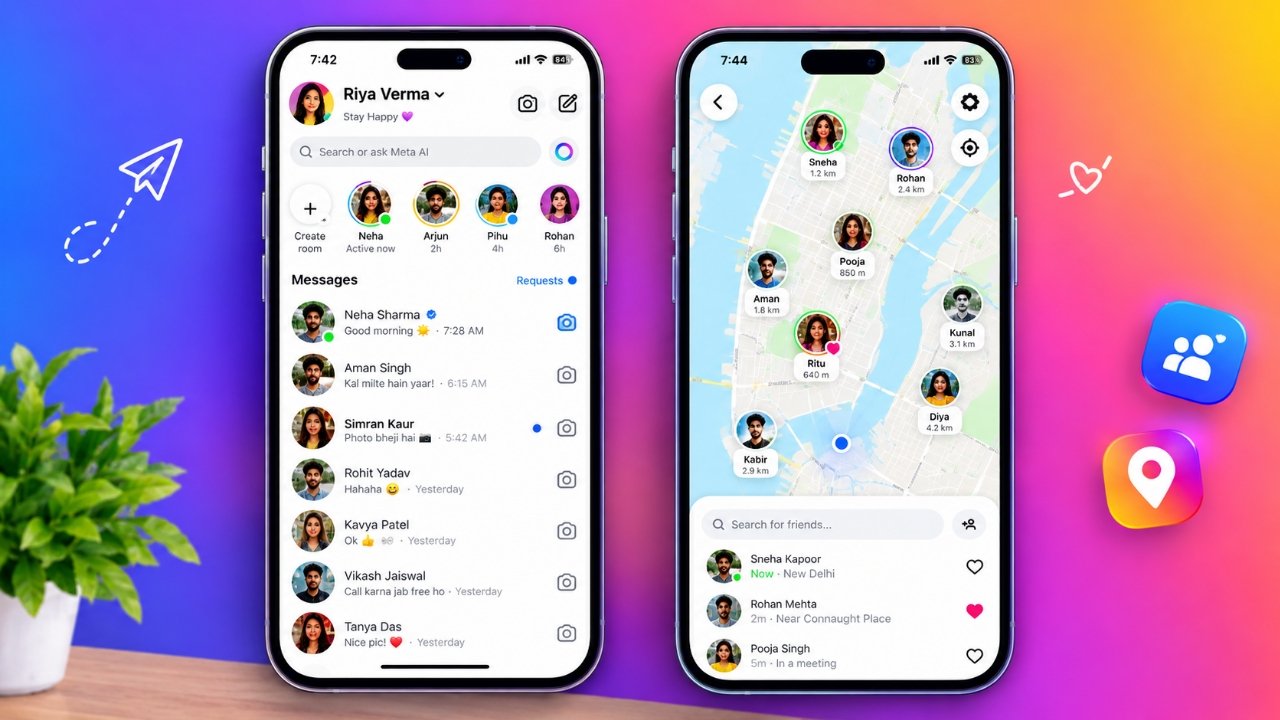
Instagram continues to introduce features that make it easier for people to connect, discover content, and interact with friends. One such feature is Instagram Map, which allows users to explore location-based posts and optionally share their recent location with selected people.
While this feature can be convenient, not everyone feels comfortable sharing information about their whereabouts. If you value your privacy, you can adjust Instagram’s location-sharing settings or restrict the app’s access to your phone’s location services.
In this guide, you’ll learn how Instagram Map works, how to disable location sharing, and which additional privacy settings you should consider reviewing.
Also Read: How to Change an Instagram Business Account to a Personal Account
What Is Instagram Map?
Instagram Map is a feature available through the direct messages section of the Instagram mobile app. It allows users to discover location-tagged posts, Reels, and Stories from friends and creators. Depending on their settings, users can also share their last active location with a selected audience.
The feature has two main functions:
- Discovering location-based content: Users can explore posts, Reels, and Stories associated with specific places.
- Sharing your location: Users can choose to share their last active location with certain people.
According to Meta’s stated settings, location sharing is turned off by default. This means you must enable it before Instagram shares your location through this feature.
When location sharing is enabled, your displayed location may update when you open Instagram or return to the app after it has been running in the background. This is different from a continuous, real-time location feed.
It’s also important to remember that location-tagged content can remain visible even when Map location sharing is disabled.
How to Turn Off Location Sharing on Instagram Map
If you previously enabled location sharing and now want to stop it, you can change the setting directly in Instagram’s mobile app.
Follow these steps:
- Open the Instagram app on your smartphone.
- Navigate to your direct messages by tapping the Messages icon.
- Tap Map at the top of your inbox.
- Select the gear icon in the upper-right corner to open Map settings.
- Find the location-sharing section.
- Choose No one from the available audience options.
- Tap Update to save your changes.
After saving this setting, Instagram will stop sharing your location with other people through the Map location-sharing feature.
If you cannot find the Map option or the settings described above, check whether your Instagram app needs an update. The interface and menu names may differ slightly depending on your device, account, and app version.
How to Choose Who Can See Your Instagram Location
Disabling location sharing completely isn’t the only option. If you want to continue using the feature while maintaining greater control over your privacy, Instagram may allow you to choose a limited audience.
Depending on the options available in your account, you may see the following choices:
Friends: Share your location with eligible people who follow you and whom you follow back.
Close Friends: Limit sharing to people included in your Close Friends list.
Selected friends: Choose specific people who are allowed to see your location.
No one: Disable location sharing through Instagram Map.
Some versions may also provide controls for excluding particular people or hiding your location in certain places.
Before selecting an audience, check the descriptions displayed in your app to understand exactly who can see your location. If you don’t want anyone to receive your location through Map, selecting No one is the most straightforward choice.
How to Disable Instagram Location Access on Your Phone
Instagram’s in-app settings control location sharing through Map, while your smartphone’s operating system manages the app’s access to device location services.
If you want an additional layer of privacy, you can prevent Instagram from accessing your phone’s location.
Turn Off Location Access on iPhone
iPhone users can restrict Instagram’s location permission through the Settings app.
- Open Settings on your iPhone.
- Find and select Instagram. On newer iOS versions, you may need to go to Apps first.
- Tap Location.
- Select Never.
Instagram will no longer be permitted to access your location through the iPhone’s location services while this setting remains in place.
Turn Off Location Access on Android
Android users can generally disable location access by following these instructions:
- Open your phone’s Settings.
- Select Apps.
- Find and tap Instagram.
- Open Permissions.
- Select Location.
- Choose Don’t allow.
The exact steps may vary depending on your phone manufacturer and Android version. If you cannot find the relevant option, look for Instagram under your device’s app permission settings.
Keep in mind that blocking location access may affect certain features, including options that rely on your device’s location when creating new content.
Instagram Map Location Sharing vs. Location Tags
Many users assume that turning off location sharing removes every reference to their whereabouts on Instagram. However, location sharing and location tags are separate features.
| Feature | How it works |
|---|---|
| Map location sharing | Shares your last active location with the audience you select. |
| Location tags | Attach a place to a post, Reel, or Story. |
| Phone location permission | Controls Instagram’s access to your device’s location services. |
For example, you might disable Map location sharing but still have an older photograph tagged with the name of a restaurant, shopping centre, or tourist attraction.
That location tag may remain visible to people who can access the content, and the content may still appear on the map, depending on Instagram’s current functionality.
To address this, review your existing posts, Reels, and Stories. Where the option is available, edit the content to remove its location tag.
Disabling location sharing or phone location access does not automatically erase location information that you previously added to published content.
Why You Should Review Your Instagram Location Settings
Sharing your location can be useful when coordinating plans with friends or exploring places online. However, repeatedly revealing your whereabouts may also disclose more information about your routine than you intend.
For example, location information could provide clues about places you visit regularly, where you work or study, or which areas you frequent.
Reviewing your settings can help you maintain better control over this information.
Here are a few practical privacy habits to follow:
- Share your location only with people you trust.
- Review your selected audience regularly.
- Avoid publishing information that reveals your home address or daily routine.
- Check location tags before sharing photos and videos.
- Review Instagram’s device permissions from time to time.
- Remember that turning off location sharing does not automatically remove information from older posts.
No single setting controls every type of location-related information on Instagram. For a more complete privacy review, check your Map settings, device permissions, and existing content separately.
Location Privacy Tips for Teenagers and Parents
Location sharing deserves particular attention when teenagers use social media. Information about frequently visited places can reveal details about their daily routines and personal lives.
Teenagers should understand who can access their location before enabling sharing. They should also feel comfortable changing their settings whenever they no longer want to share that information.
Instagram provides parental supervision features for eligible teen accounts. Depending on the account and available controls, parents may be able to manage aspects of Map location sharing and review whom their teenager shares their location with. Certain changes may also generate notifications.
Parents can use these features to have constructive conversations about online privacy, trusted contacts, and responsible social media use.
For additional protection, families can review account privacy settings, follower lists, messaging permissions, and location access together. Available parental controls may vary, so it’s worth checking Instagram’s current guidance.
Other Instagram Privacy Settings You Should Check
Turning off location sharing is a useful step, but there are other settings that can help you manage your account’s privacy.
1. Control Who Can Message You
Review your message-request settings to decide who can contact you and how Instagram handles messages from people you don’t follow.
2. Limit Tags and Mentions
Instagram allows users to manage who can tag or mention them in different types of content. Adjust these controls if you want greater control over how other people interact with your profile.
3. Review Your Followers
Check your follower list occasionally and remove unfamiliar or unwanted accounts. If you prefer to limit access to your posts, consider switching to a private account.
4. Archive Older Posts
If you want to hide an older post without deleting it permanently, Instagram’s Archive feature may help. This can be useful when reviewing older content that you no longer want displayed on your profile.
5. Check Location Settings on Other Apps
Instagram is not the only social platform with location-related features. Other apps may have their own maps and sharing controls.
For example, if you use Snapchat, review its location settings separately. Disabling location sharing on Instagram does not automatically change the settings of other applications.
Frequently Asked Questions
Is Instagram Map location sharing turned on by default?
No. Instagram Map location sharing is off by default. You must choose to enable it before your location is shared through this feature.
Does Instagram Map show my live location all the time?
Instagram Map’s location-sharing feature displays your last active location, which may update when you open the app or return to it from the background. It should not be treated as a continuous live-location feed.
However, this setting does not necessarily control every type of information Instagram may collect or process. Device permissions and other privacy settings should also be reviewed.
Can someone still see my location after I disable sharing?
They may still be able to see location information attached to content you’ve published, depending on the content’s visibility and Instagram’s current features.
Turning off Map location sharing does not automatically remove location tags from existing posts, Reels, or Stories.
Is Instagram Map available in India?
Meta announced the rollout of Instagram Map in India in October 2025. Availability and individual features may vary depending on your account, app version, and region.
Will disabling location permission remove my old location tags?
No. Preventing Instagram from accessing your phone’s location services does not automatically remove location tags that you previously added to published content.
You may need to edit the relevant posts or other content separately.
Can I hide my Instagram location from just one person?
If your account offers audience-selection or exclusion options, you may be able to limit sharing to certain people. Open Map settings and review the available controls to determine which options are supported by your account.
If you don’t want to share your location with anyone, select No one.
Also Read: How to Create a Close Friends List on Instagram
Final Thoughts
Instagram Map offers a convenient way to discover location-based content and share your whereabouts with friends. However, it’s important to understand the available privacy controls and choose settings that match your preferences.
To disable location sharing, open Instagram’s direct message inbox, tap Map, enter the settings menu, select No one, and tap Update. For additional privacy, you can also prevent Instagram from accessing your phone’s location services and remove location tags from older content when necessary.
Taking a few minutes to review these settings can help you protect your personal information while continuing to enjoy Instagram’s other features.

Sourav Gorai, founder of sabhigyan.com, is passionate about technology, smartphones, apps, and digital tools. With 8+ years of experience in the digital and tech space, he focuses on creating easy-to-understand, practical, and helpful content that makes everyday technology simpler for readers.
Advertisements